Do you want to attract more local customers, phone calls, and foot traffic to your physical store or service business? If you operate a brick-and-mortar storefront, restaurant, medical practice, or regional professional service, ranking in Google’s coveted Local 3-Pack and on گوگل میپس is the single most valuable organic marketing channel you have.
To rank in local search results, search engine algorithms need verified, machine-readable proof of who you are, what services you provide, and where your business is physically located. That is where Schema.org LocalBusiness structured data comes in.
In this comprehensive, step-by-step guide, we will show you how to configure Local SEO and implement Google-compliant LocalBusiness schema markup in WordPress using اسکائی SEO مینیجر without writing any code.
Why Local SEO & LocalBusiness Schema Matter for WordPress Sites
When potential clients search Google for terms like “digital agency near me”, “plumber in Springfield”، یا “best Italian restaurant downtown”, Google displays a specialized local map box called the Local 3-Pack directly above regular organic search results.
Adding structured LocalBusiness JSON-LD schema to your WordPress site provides significant benefits:
- Google Local Pack Prominence: Provides search engines with verified address coordinates and category specifications that feed directly into local ranking algorithms.
- Interactive Google Knowledge Panels: Triggers rich knowledge panels in search results featuring your business hours, direct phone dialing, website links, and driving directions.
- 1-Tap Mobile Phone Calls: Mobile users can tap your phone number directly inside search results without having to navigate through multiple pages.
- NAP Consistency Verification: Confirms your Name, Address, and Phone number (NAP) across Google Business Profile, Apple Maps, and local citation directories.
- Exact GPS Navigation: Injects precise latitude and longitude coordinates so Google Maps and Apple Maps guide customers directly to your front door.
Comparison: General Website Schema vs. LocalBusiness Schema
Here is how specialized LocalBusiness structured data compares to generic website markup:
| Schema Property | Standard Organization Schema | LocalBusiness Schema |
|---|---|---|
| Primary Purpose | Brand identity, logo, and national corporate entity | Physical store location, regional service area, and local customers |
| Physical Address | Optional or generic headquarters | Mandatory PostalAddress (Street, City, State, ZIP) |
| GPS Coordinates | Not applicable | Explicit GeoCoordinates (Latitude & Longitude) |
| Operating Hours | Not supported | Standardized OpeningHoursSpecification for each weekday |
| Search Feature Unlocked | Google Knowledge Graph badge | Google Local 3-Pack, Google Maps pins, 1-tap call button |
Step 1: Select LocalBusiness Schema in Sky SEO Manager
To begin configuring your local structured data, log in to your WordPress admin dashboard and navigate to SkySEO » SEO Manager. Next, click on the اسکیما tab in the navigation bar.
کے تحت Homepage Schema سیکشن، تلاش کریں Homepage Schema Type dropdown menu and select لوکل بزنس.
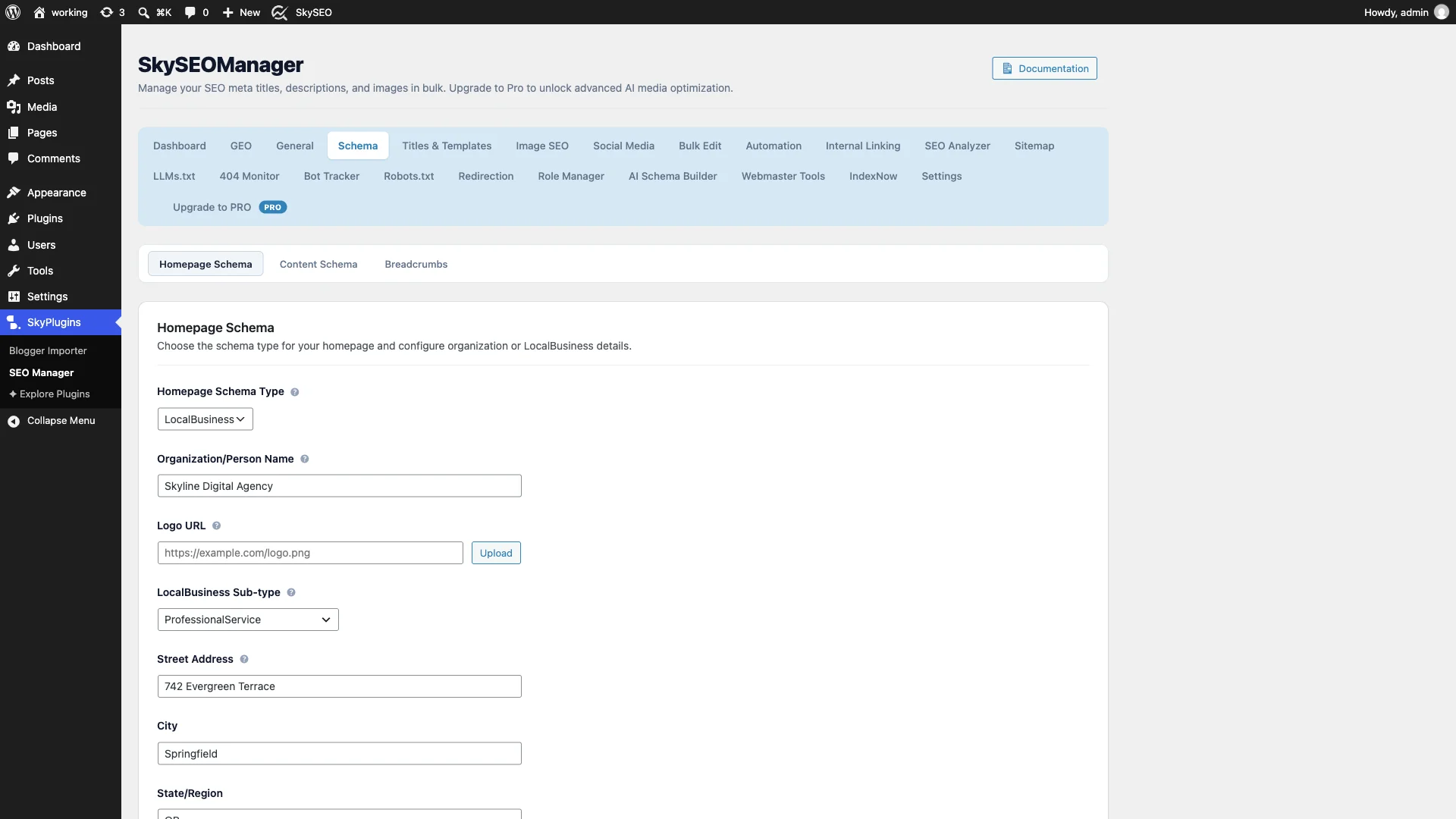
میں Organization / Company Name field, enter your official legal trading name or the exact business name registered with your state and Google Business Profile (for example, Skyline Digital Agency).
Step 2: Choose Your Precise LocalBusiness Sub-Type
While generic LocalBusiness markup is helpful, Google strongly prefers specific sub-types because it clarifies your exact niche. For instance, declaring your site as a ProfessionalService, Dentist، یا AutoRepair tells Google exactly what search queries your business should rank for.
When you set your homepage schema to LocalBusiness, Sky SEO Manager instantly reveals the LocalBusiness Sub-type dropdown with over 110 specialized Schema.org categories.
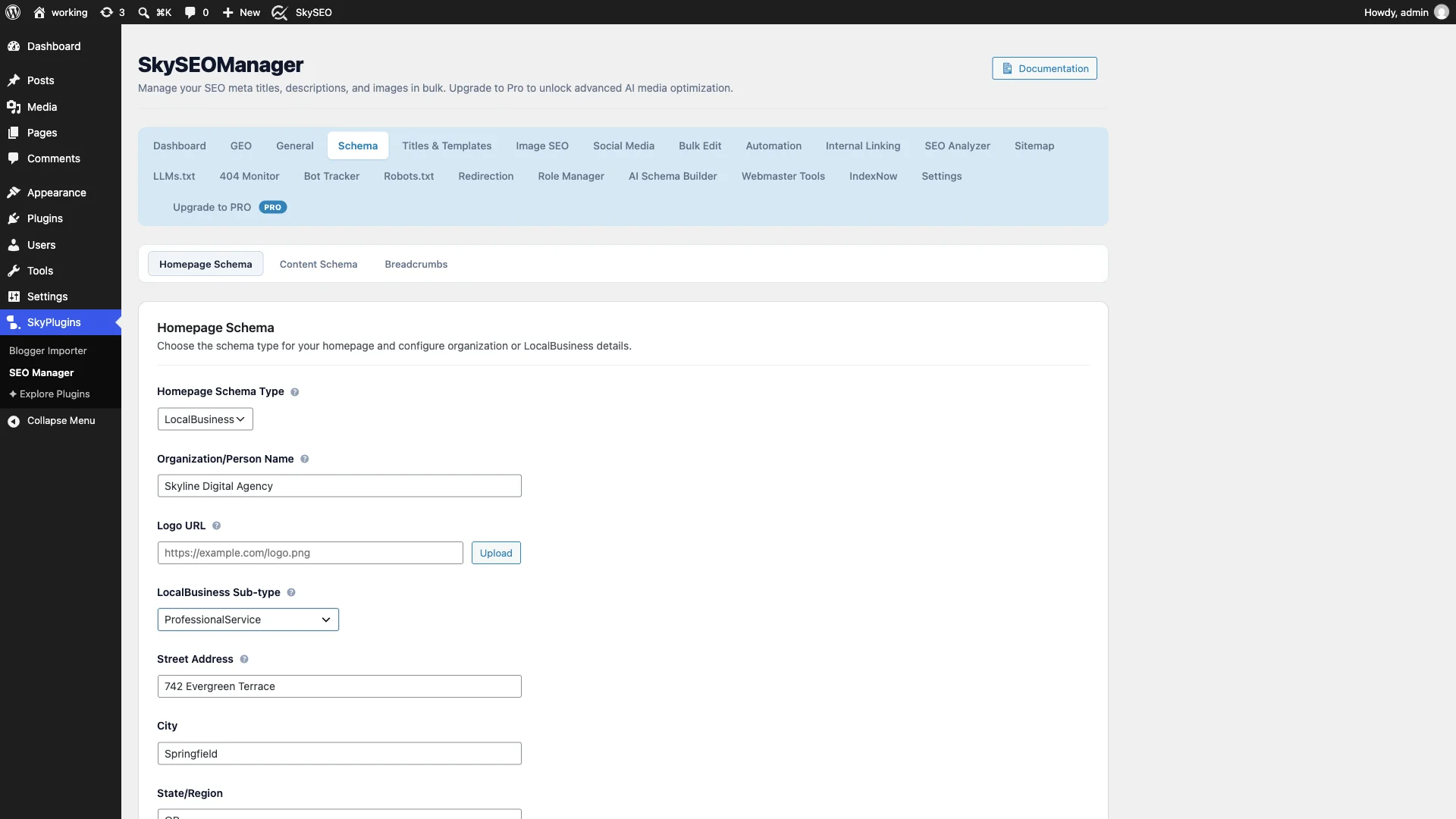
Popular categories include:
- Professional & B2B:
ProfessionalService,LegalService,AccountingService,RealEstateAgent. - Food & Hospitality:
Restaurant,Bakery,CafeOrCoffeeShop,Hotel. - Health & Medical:
MedicalBusiness,Dentist,Pharmacy,Physician. - Automotive & Trades:
AutoRepair,AutoDealer,Plumber,Electrician. - Retail & Shopping:
Store,ClothingStore,HardwareStore.
Step 3: Configure Your Core NAP (Name, Address, Phone) Details
In local SEO, NAP consistency is paramount. Search engines cross-reference the physical address on your website with Google Maps, Yelp, the Better Business Bureau, and local chambers of commerce. Any discrepancies—such as different street spellings or outdated phone numbers—can dilute your local ranking power.
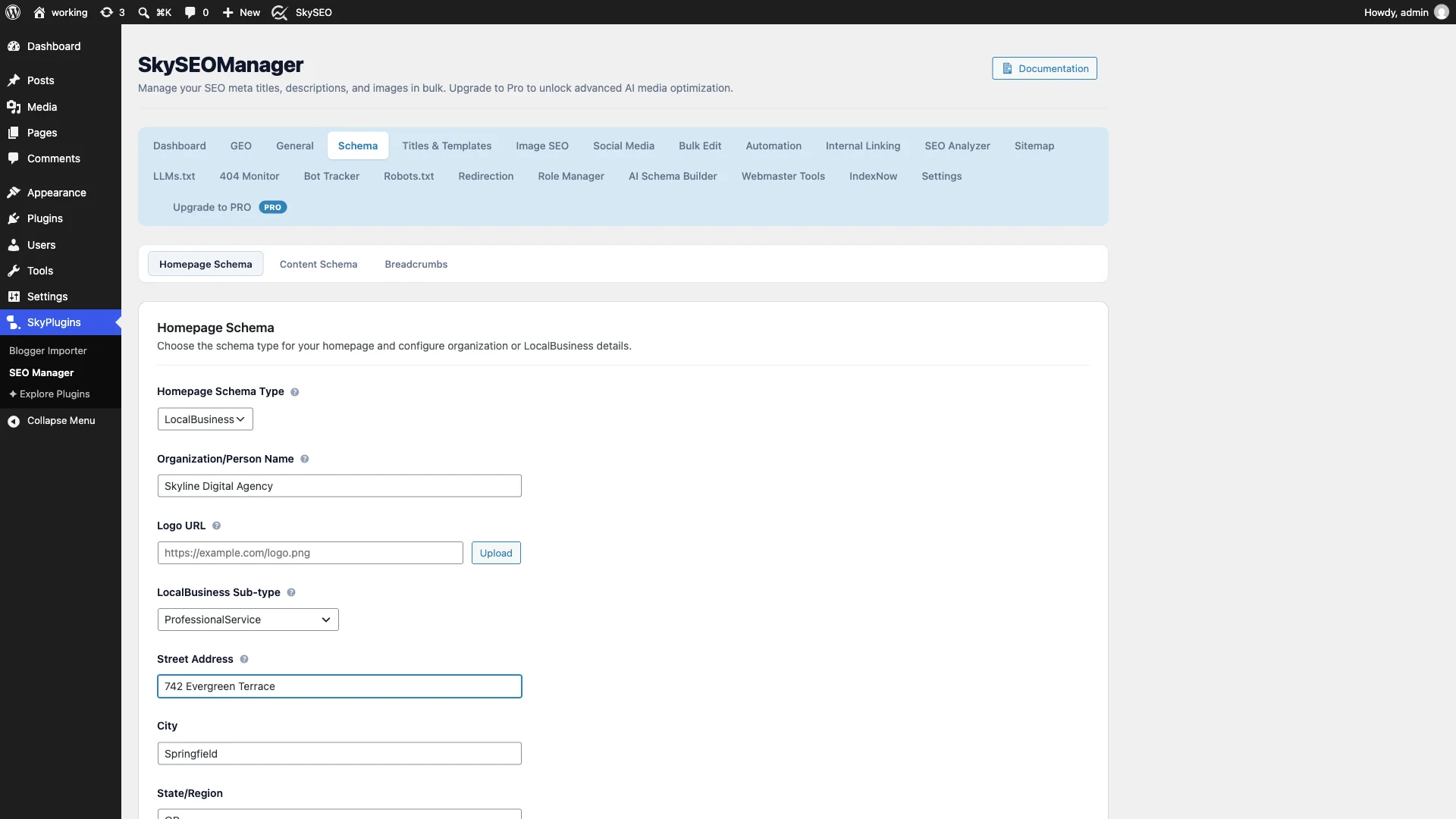
Fill out the following fields with your official business information:
- Street Address: Enter your physical street number and suite (e.g.,
742 Evergreen Terrace). Avoid using P.O. boxes, as Google guidelines require a verifiable physical location. - City (Address Locality): Enter your municipal city name (e.g.,
Springfield). - State / Region: Enter your state or province abbreviation (e.g.,
OR). - Postal Code: Enter your 5-digit ZIP or postal code (e.g.,
97477). - Country: Enter your 2-letter ISO country code (e.g.,
US,GB,CA,AU). - Phone: Enter your primary local contact number with international dialing prefix (e.g.,
+1-541-555-0199).
Step 4: Add Operating Hours, Price Range & GPS Coordinates
To qualify for interactive rich snippets that display whether your business is currently “Open” یا “Closed” in search results, complete the operational fields:
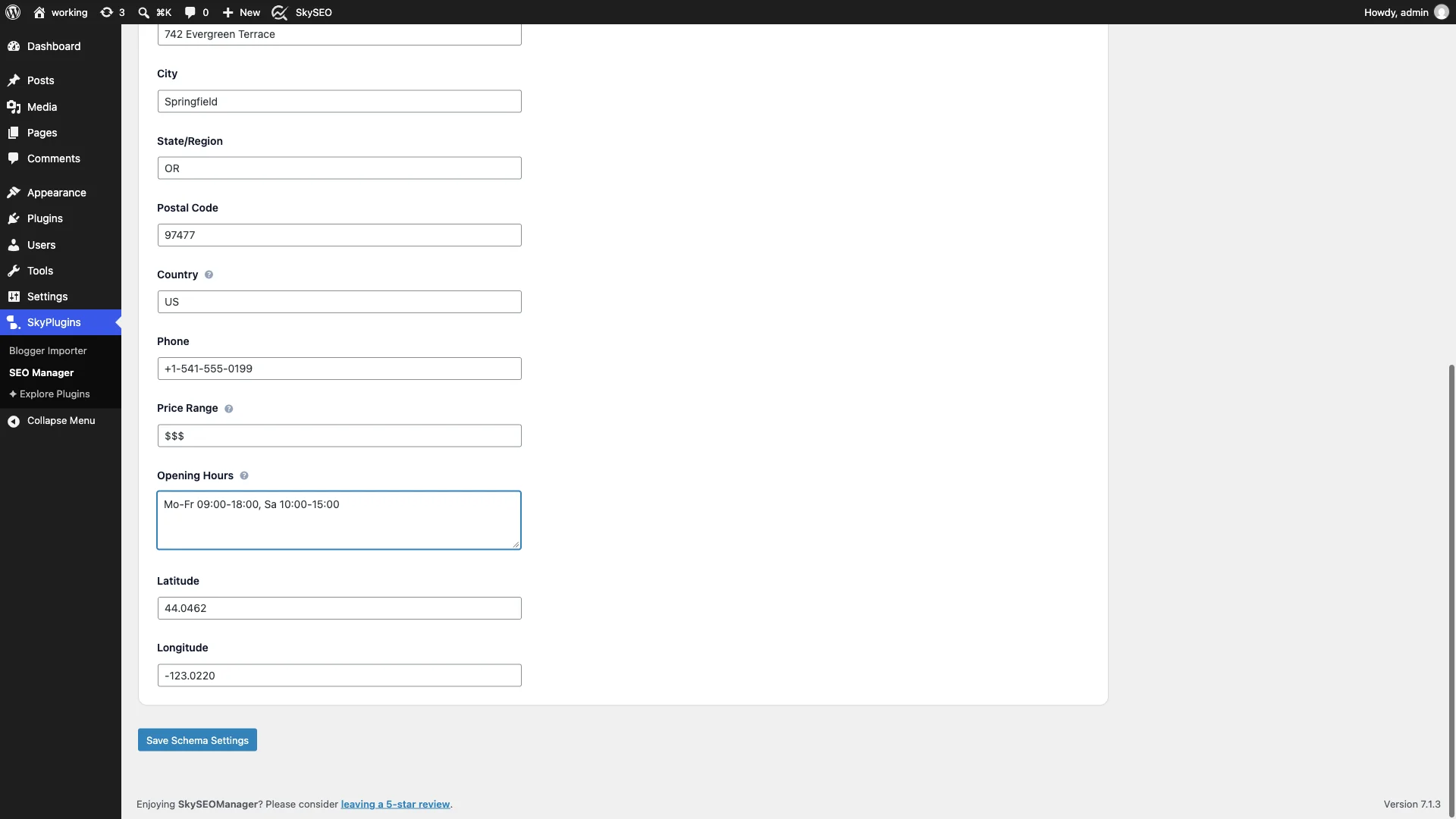
- Price Range: Enter an indicator such as
$,$$,$$$، یا$$$$. This helps potential customers understand your price tier and triggers price badges in search snippets. - Opening Hours: Enter your operating schedule separated by commas using standard day abbreviations and 24-hour times (e.g.,
Mo-Fr 09:00-18:00, Sa 10:00-15:00). Sky SEO Manager automatically parses this string into individualOpeningHoursSpecificationobjects. - Latitude & Longitude: Enter your exact GPS coordinates (e.g.,
44.0462اور-123.0220). You can easily find these by right-clicking your location in Google Maps. Adding GPS data ensures navigation apps route drivers to the correct entrance.
Once you have entered all your business details, scroll down and click the blue تبدیلیاں محفوظ کریں۔ بٹن
Step 5: Validate Your Generated JSON-LD Structured Data
After saving, Sky SEO Manager immediately compiles your details into valid, clean JSON-LD markup and injects it directly into the <head> section of your WordPress site with zero caching delays or database overhead.
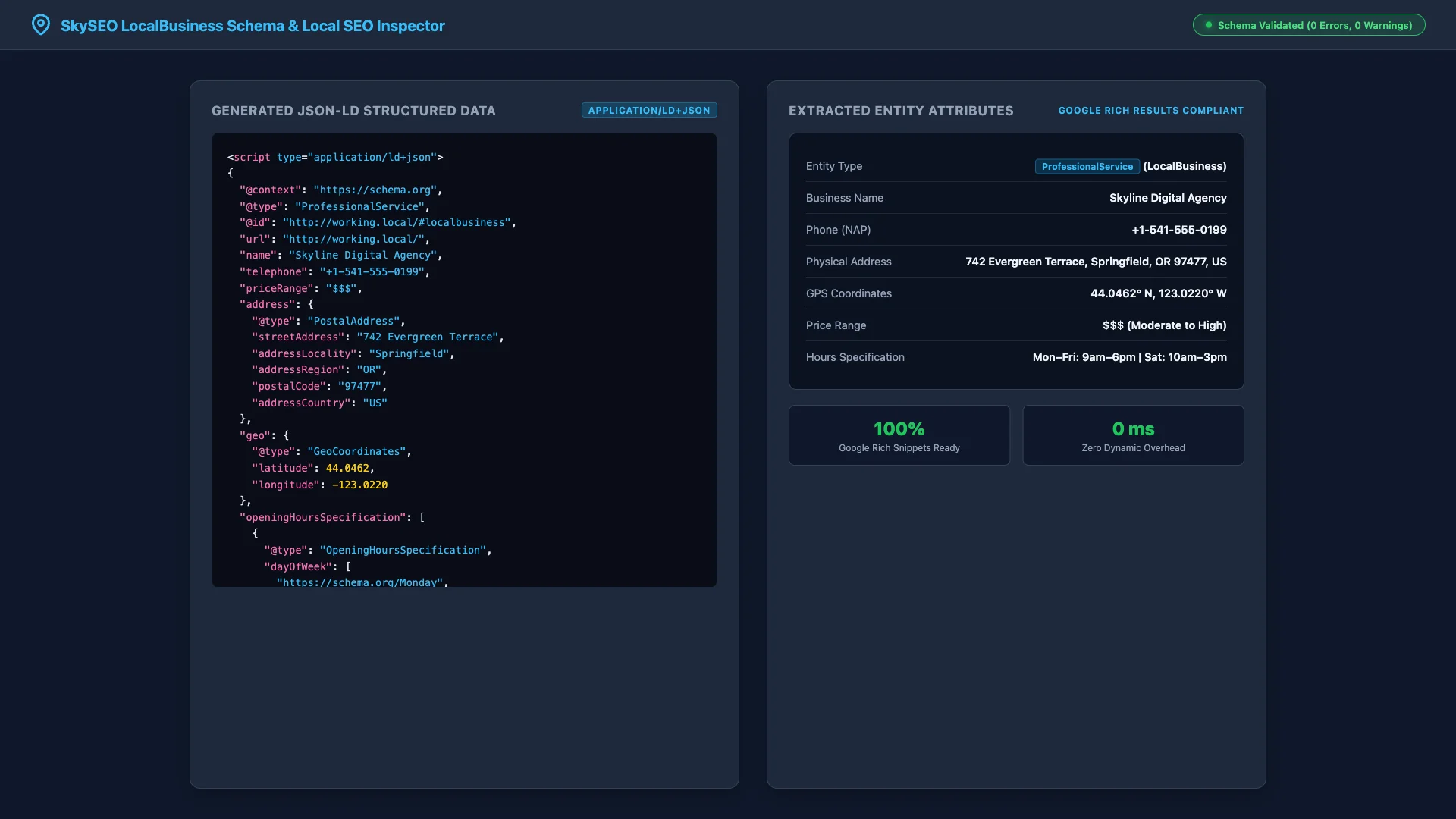
You can test your website using Google’s Rich Results Test or the Schema.org Validator. Your markup will show 0 Errors and 0 Warnings, confirming that Google recognizes your site as a verified local business entity.
Step 6: Winning the Google Local 3-Pack & Knowledge Panel
When Google crawls your validated structured data, your WordPress site becomes eligible for enhanced local search presentation across desktop and mobile devices:
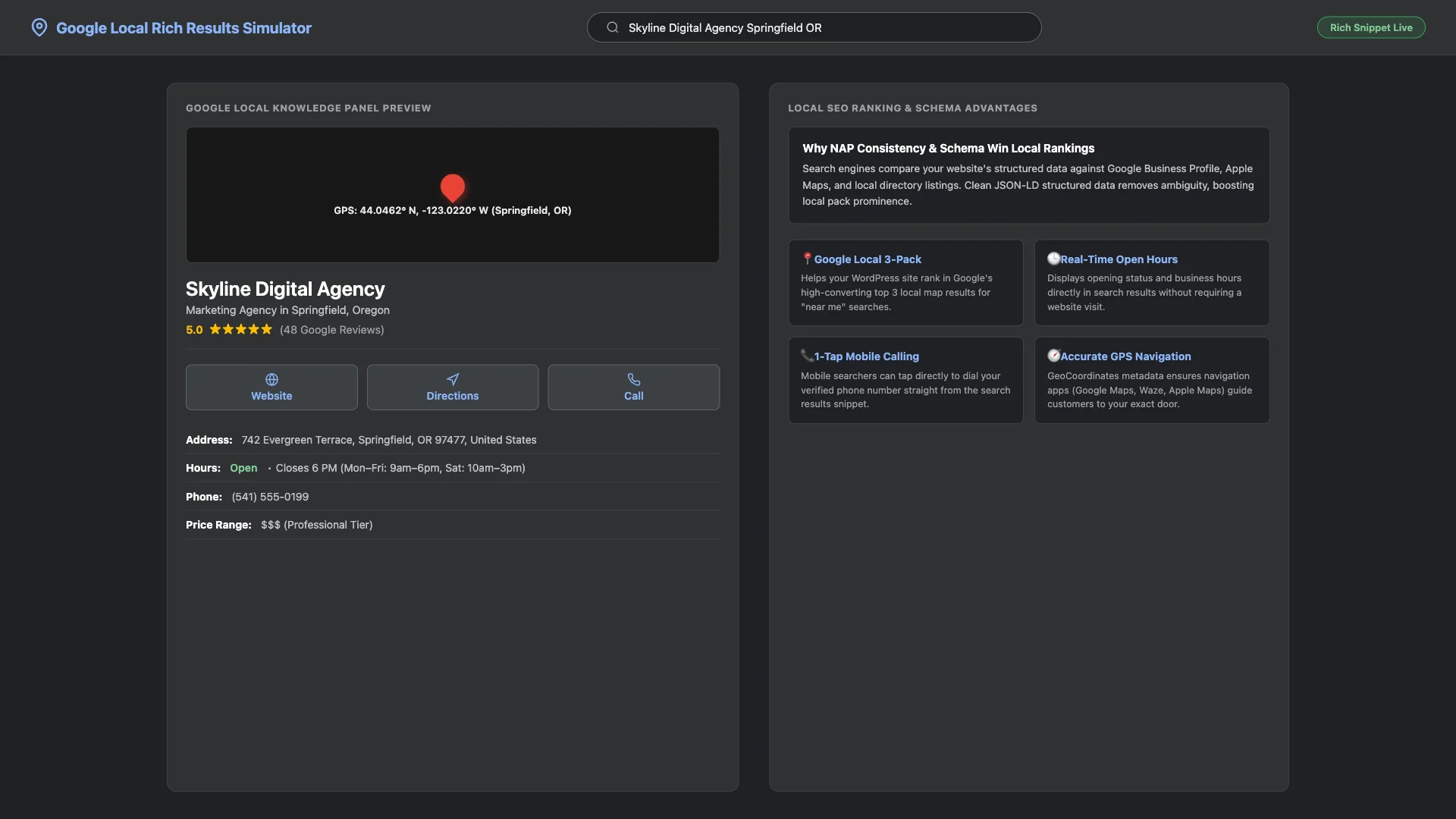
Local customers can now easily:
- View whether your office is open right now before driving over.
- Tap the Call button on their smartphone to connect with your team instantly.
- کلک کریں۔ Directions to open turn-by-turn navigation in Google Maps or Apple Maps.
- Explore verified customer review ratings directly from search results.
Best Practices for Ongoing Local SEO Dominance
To maximize your local rankings and maintain high visibility in local search, follow these proven best practices:
- Match Your Google Business Profile Exactly: Ensure your business name, street address, and phone number in Sky SEO Manager are an exact character-for-character match with your Google Business Profile.
- Keep Holiday Hours Updated: Whenever your operating schedule changes for national holidays or seasonal shifts, update your opening hours in Sky SEO Manager to prevent customer frustration.
- Embed a Google Map on Your Contact Page: Pairing your LocalBusiness schema with an embedded Google Map on your contact or about page reinforces your location signals.
- Generate High-Quality Customer Reviews: Encourage satisfied clients to leave reviews on your Google Business Profile. Review velocity and sentiment are major ranking factors in the local pack.
Frequently Asked Questions (FAQs)
What is LocalBusiness Schema markup?
LocalBusiness schema is a standardized structured data vocabulary defined by Schema.org. It helps search engines understand essential facts about physical businesses, including physical location, phone numbers, operating hours, and price ranges.
Will adding LocalBusiness schema help my WordPress site rank on Google Maps?
Yes. While ranking on Google Maps involves multiple factors—including proximity, reviews, and Google Business Profile optimization—having verified LocalBusiness schema on your website reinforces your geographical authority and strengthens your eligibility for the Local 3-Pack.
What does NAP stand for, and why is it important?
NAP stands for Name, Address, and Phone number. Consistency across the web is one of Google’s primary trust signals for local search. If your address differs across directories, search engines lose confidence in your location data.
How do I find my business GPS latitude and longitude?
Go to Google Maps in your desktop browser, search for your business address, and right-click on the red location pin. The top item in the context menu displays your latitude and longitude coordinates. Simply click to copy and paste them into Sky SEO Manager.
We hope this step-by-step tutorial helped you learn how to set up Local SEO and LocalBusiness schema in WordPress. You might also want to check out our guide on How to Optimize Your WordPress Site for SEO or our tutorial on How to Create an llms.txt File for ChatGPT & Perplexity.