Ever wonder why Amazon consistently prints record profits while maintaining massive customer satisfaction? One of their most potent secrets is deceptively simple: the “Frequently Bought Together” widget placed directly beneath product details. According to industry studies, Amazon attributes up to 35% of its total revenue to its automated cross-selling and product bundling algorithms.
For standard WooCommerce store owners, replicating this high-converting experience has historically been frustrating. Most bundle plugins either require clunky manual inventory groupings, demand complex custom coding, or force merchants into costly monthly SaaS subscriptions that charge escalating transaction fees as sales grow.
In this comprehensive, step-by-step guide, you will learn how to add authentic, Amazon-style Frequently Bought Together bundles to your WooCommerce store using the free SiteSkyline Smart Sales plugin. You will see both the complete backend setup and the interactive frontend shopping experience—including real-time price updates and seamless 1-click cart addition.
Why “Frequently Bought Together” Bundles Skyrocket Average Order Value (AOV)
Acquiring a new e-commerce customer is getting more expensive every year due to rising ad costs on Google and Meta. To build a sustainably profitable online store, your primary leverage point is increasing your Average Order Value (AOV)—extracting more revenue from the visitors already on your website.
- Zero Purchase Friction: Instead of forcing customers to navigate through multiple category pages, search for complementary accessories, and add each item individually, bundles consolidate relevant products into a single, cohesive unit.
- Cognitive Convenience: Shoppers hate uncertainty. When you recommend items that naturally go together (like pairing a hoodie with a matching beanie and sunglasses, or a camera with a memory card and carrying case), you eliminate decision fatigue.
- High-Incentive Bundle Discounts: Offering a small, transparent bundle discount (such as 10% off when buying the complete set) provides irresistible psychological urgency that triggers spontaneous add-ons.
- Instant 1-Click Multi-Add: Customers can add the entire curated collection directly into their WooCommerce cart with a single click, driving checkout velocity.
Step 1: Enable the Frequently Bought Together Engine in WordPress
Once you install and activate the free SiteSkyline Smart Sales plugin, navigate to your WordPress admin dashboard and click on Smart Sales → Optimizations. Smart Sales is built around an ultra-efficient modular architecture, meaning every optimization engine operates independently with zero database bloat.
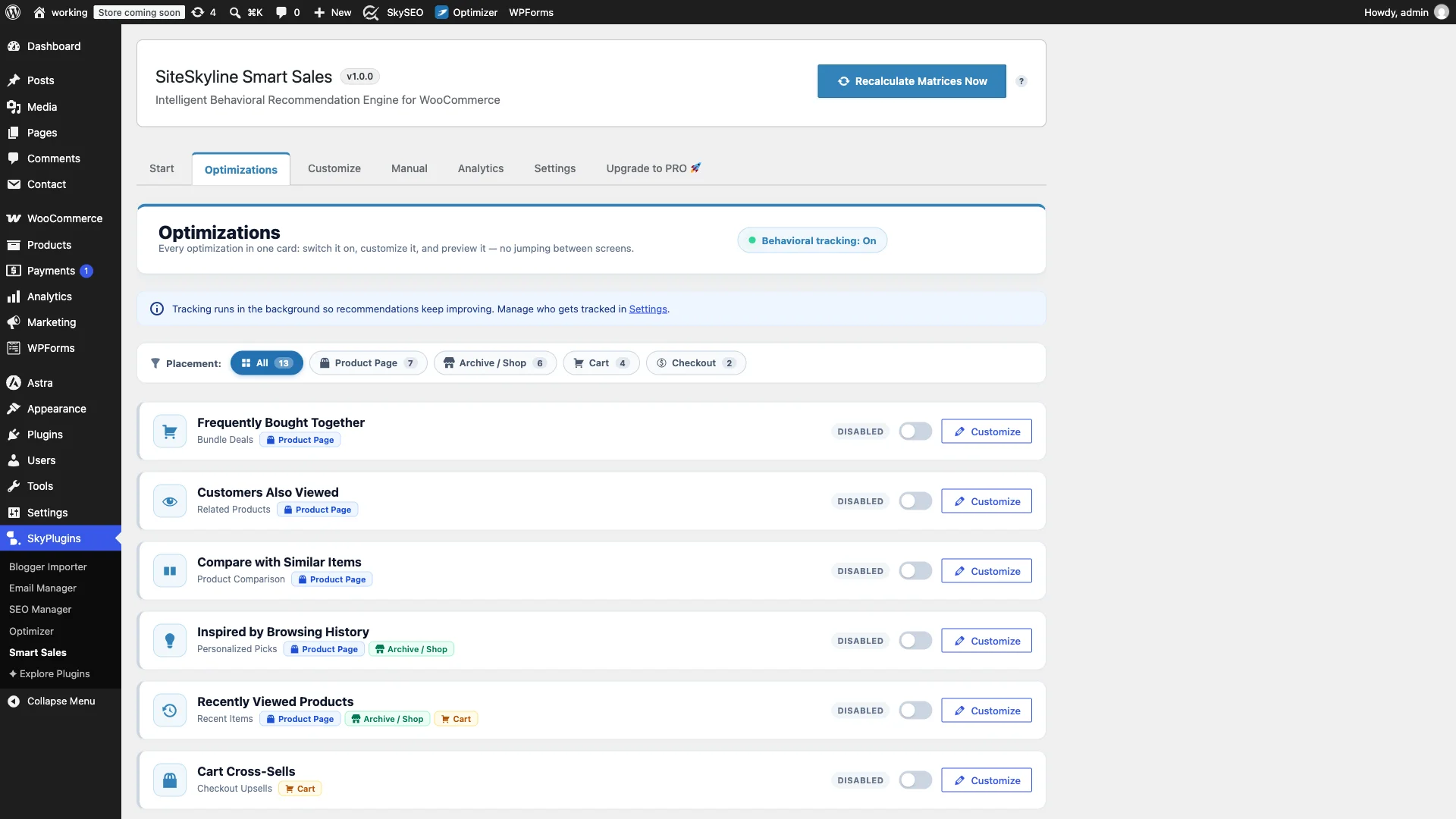
Locate the Frequently Bought Together module card. Toggle the switch to Active. This immediately initializes the front-end injection hooks and prepares the local co-purchase affinity calculations.
Step 2: Customize Widget Layout, Typography & Brand Styling
Your cross-sell recommendations should feel like an organic, native element of your storefront rather than a jarring third-party advertisement. Click on the Customize tab in Smart Sales to access dedicated visual controls.

Inside the styling panel, you can adjust:
- Widget Header & Subtitle: Set clear headline text such as “Frequently Bought Together” or “Complete Your Look”.
- Discount Pill Badge: Customize background and text colors to highlight promotional savings (e.g., emerald green or vibrant royal blue).
- Visual Plus Separator: Configure subtle styling for the “+” connector badges that visually join complementary items.
- CTA Button Styling: Select your button background color, hover transitions, and custom cart icon to match your theme’s primary conversion colors.
Step 3: Configure Automated Affinity or Manual Bundle Rules
SiteSkyline Smart Sales features a dual-engine architecture designed for stores of any size:
- Automatic Affinity Engine: If your store already has sales history, the algorithm automatically analyzes co-occurrence patterns in past completed orders to surface items most frequently bought together without manual intervention.
- Manual Overrides Engine: For new products, cold-start stores, or high-margin seasonal promotions, you can hand-curate specific pairings with surgical precision.

To configure a manual rule, click the Manual tab. Select your source anchor product (e.g., Hoodie with Pocket), choose up to two or three complementary items (e.g., Beanie with Logo and Sunglasses), select your discount mode (percentage or fixed amount), and set your discount percentage (e.g., 10%). Click Save Rule to push the configuration live.
Step 4: Live Frontend Preview of the Amazon-Style Bundle Widget
Navigate to the front end of your WooCommerce store and open the configured product page. Right below the main product summary and add-to-cart area, you will see the fully rendered Frequently Bought Together widget.

Notice how clean and intuitive the presentation is: shoppers see crisp, responsive thumbnails of each bundled item joined by clear mathematical plus signs. The bundle discount pill prominently highlights the 10% savings, while the action card displays the original combined price struck through next to the discounted bundle total.
Step 5: Interactive Real-Time Price Recalculation
Unlike rigid bundle plugins that force customers into an all-or-nothing purchase, Smart Sales provides granular customer control just like Amazon. Beneath the visual gallery, each product is listed with a descriptive checkbox.

When a shopper unchecks an item (such as unchecking the sunglasses):
- The unselected product card immediately transitions to a dimmed, inactive state.
- The total price recalculates dynamically in real time without refreshing the page.
- The original price, bundle discount, and checkout button reflect the exact active selections instantly.
- Shoppers never feel forced, dramatically reducing cart abandonment while preserving upside.
Step 6: Seamless 1-Click Multi-Product Cart & Checkout Flow
When the shopper clicks Add Selected to Cart, Smart Sales executes an asynchronous AJAX payload that adds all selected bundle products to the WooCommerce cart in a single frictionless step.

Upon viewing their cart or progressing to checkout, customers see each item itemized with the promotional savings clearly itemized. There are no confusing duplicate SKU clones, no broken stock synchronization, and no inventory errors—everything connects seamlessly to native WooCommerce order tables.
Feature Comparison: Smart Sales vs. Traditional Bundle Plugins
| Capability | SiteSkyline Smart Sales | Traditional Bundle Plugins | External SaaS Platforms |
|---|---|---|---|
| Pricing Model | 100% Free & Open | $79 – $199 / year | $49 – $399 / month + % fees |
| Algorithmic Auto-Affinity | Included (Auto Order Mining) | Manual pairings only | Included via external tracking |
| Real-Time Dynamic Pricing | Zero-delay client recalculation | Often requires page reload | Delayed JS iframe loading |
| Page Speed Impact | Ultra-light inline CSS / <12KB JS | Heavy jQuery dependencies | External scripts hurt Core Web Vitals |
| Inventory Synchronization | Native WooCommerce stock | Complex composite SKU overhead | Frequent sync lag issues |
| Customizer Controls | Full visual brand alignment | Requires custom CSS code | Limited template styling |
Proven Strategies for High-Converting WooCommerce Product Bundles
To maximize your store’s bundle conversion rates, follow these battle-tested merchandising guidelines:
- The Anchor & Accessory Rule: Always bundle items that logically complement the primary anchor product. If the customer is buying running shoes, bundle moisture-wicking athletic socks and shoe deodorizer spray. Do not bundle a second pair of expensive shoes.
- Respect the Price Ratio: Complementary add-on products should generally cost between 15% and 35% of the anchor item’s price. If an add-on is too expensive, shoppers will uncheck it; if it is reasonably priced, the perceived value of adding it is irresistible.
- Highlight the “Complete Package”: Position the bundle as a solution that spares the buyer from having to shop elsewhere later. For electronics, bundle the necessary charging cables or screen protectors; for apparel, bundle matching seasonal accessories.
- Test a 10% Bundle Incentive: A small 10% discount creates substantial perceived urgency while leaving the vast majority of your profit margin intact. The increase in gross cart value far outweighs the discount concession.
Frequently Asked Questions (FAQ)
Does SiteSkyline Smart Sales work with variable products?
Yes. Smart Sales supports both simple products and variable products. For variable items, shoppers can select their preferred variation (such as size or color) directly from the bundle interface before adding to cart.
How does the automatic affinity engine determine which items to recommend?
The affinity engine scans your historical WooCommerce order database to identify co-purchase frequencies. If customers who purchased Product A frequently purchased Product B in the same checkout session, Smart Sales calculates a weighted correlation score and surfaces Product B automatically.
Can I override automatic recommendations for specific products?
Absolutely. The Manual tab allows you to specify handcrafted bundles for any individual product or entire product categories. Manual rules always take priority over algorithmic affinity recommendations.
Will this slow down my WooCommerce product page load times?
No. Smart Sales is engineered specifically for performance. All frontend styling is lightweight and scoped, and JavaScript execution is strictly non-blocking. Unlike SaaS widgets that call remote cloud servers on every page visit, Smart Sales executes locally inside WordPress in milliseconds.
What happens if an item in the bundle goes out of stock?
Smart Sales continuously respects WooCommerce native inventory status. If a bundled item is out of stock or backorders are disabled, the item is automatically excluded from the bundle display to protect your store from overselling.