Are you spending hours manually writing SEO titles and meta descriptions for every single blog post, page, and product on your WordPress site? Or worse, do you occasionally forget to enter meta tags, leaving Google to scrape random text snippets from your sidebar or comments section? When your site scales to dozens or hundreds of published URLs, manual meta tagging becomes a massive bottleneck.
The solution is setting up dynamic SEO title and meta description templates. By combining dynamic snippet variables like %title%, %sep%, Dan %sitename%, you guarantee that every article, page, category archive, and custom post type automatically receives a clean, high-converting Google search snippet the exact second it is published.
In this beginner-friendly, step-by-step tutorial, we will show you how to customize SEO title and meta description templates in WordPress using Manajer SEO Langit.
Why Dynamic SEO Templates Are Essential for WordPress
Search engines like Google, Bing, and Yahoo use your <title> Dan <meta name="description"> tags to construct your clickable search listing. Having optimized templates offers powerful advantages:
- Zero Missing Meta Tags: Whenever a author or editor publishes an article without manual SEO metadata, your global template fills the gap instantly with zero ranking drop.
- Consistent Brand Presentation: Ensures every page across your domain adheres to your preferred branding format (e.g.,
Article Headline | Your Brand). - Taxonomy Archive Optimization: Automatically creates unique title tags for category and tag archives, eliminating duplicate title warnings in Google Search Console.
- Granular Flexibility: Global templates serve as a smart fallback; anytime you specify a custom title on a high-priority post, it seamlessly overrides the template.
Comparison: Manual Meta Tagging vs. Dynamic SEO Templates
Here is how relying on dynamic templates streamlines your publishing workflow compared to manual entry:
| Fitur | Manual Meta Tagging | Dynamic SEO Templates |
|---|---|---|
| Time Investment | 5–10 minutes per article published | Configured once, runs automatically on all items |
| Archive Pages (Categories/Tags) | Often neglected, causing duplicate content warnings | Standardized with unique dynamic taxonomy names |
| Brand Changes | Requires manual database find-and-replace queries | Updates sitewide in 1 click by changing the variable |
| Post-Level Control | Full manual control | Full manual override supported on individual items |
| Risk of Google Scraping Random Text | High (if metadata is forgotten) | Zero (templates always provide a fallback) |
Step 1: Open the Titles & Templates Dashboard
To configure your templates, log in to your WordPress admin dashboard and navigate to SkySEO » SEO Manager. Next, click on the Titles & Templates tab in the main navigation menu.
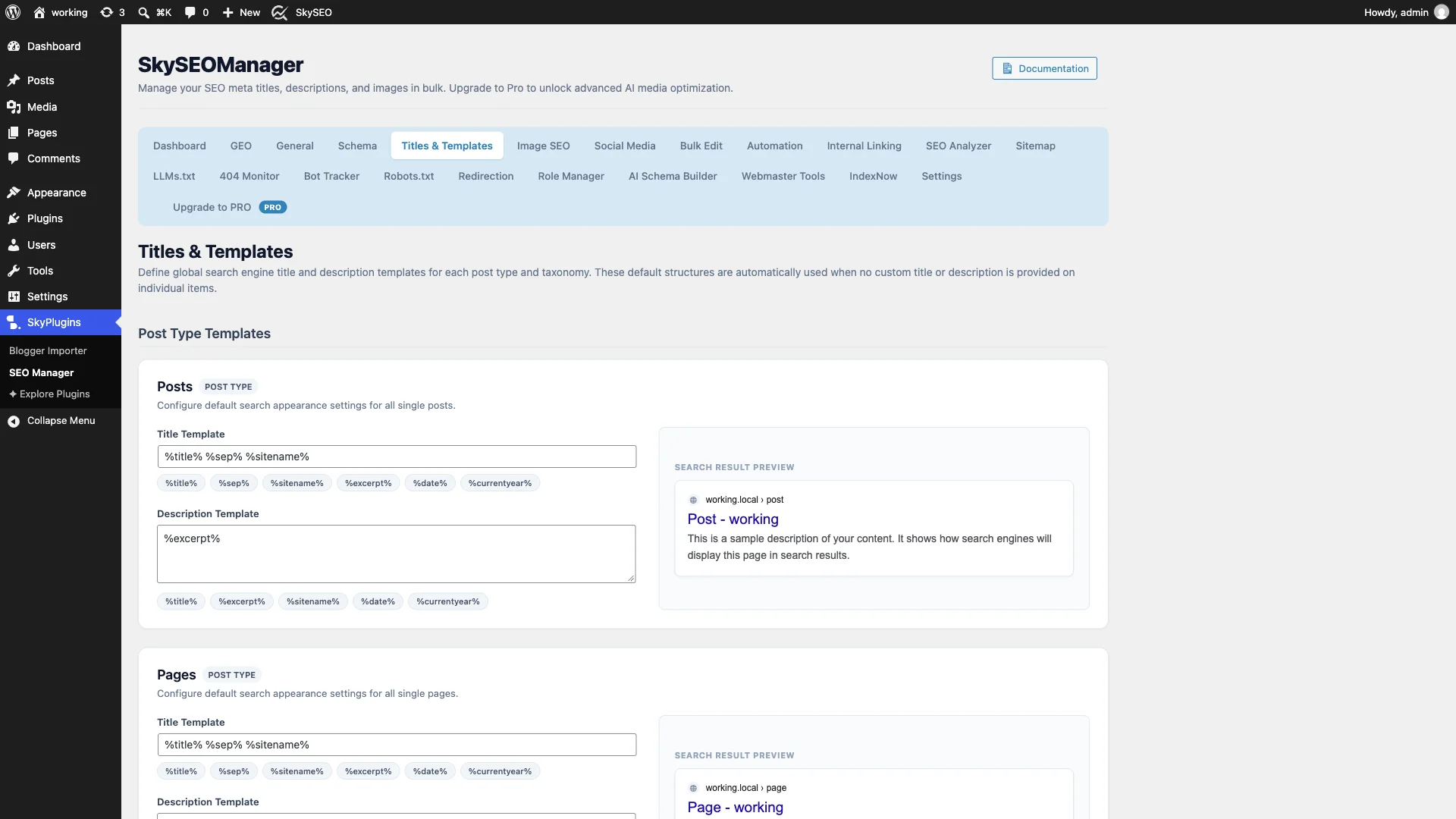
The dashboard is organized into two primary sections:
- Post Type Templates: Configure global defaults for single Posts, Pages, and custom post types (such as Products or Portfolios).
- Taxonomy Templates: Configure archive defaults for Categories, Tags, and custom taxonomies.
Step 2: Customize Posts Title Templates with Dynamic Variables
Di bawah Postingan box, locate the Title Template input field. Directly below the input box, you will find interactive variable buttons.
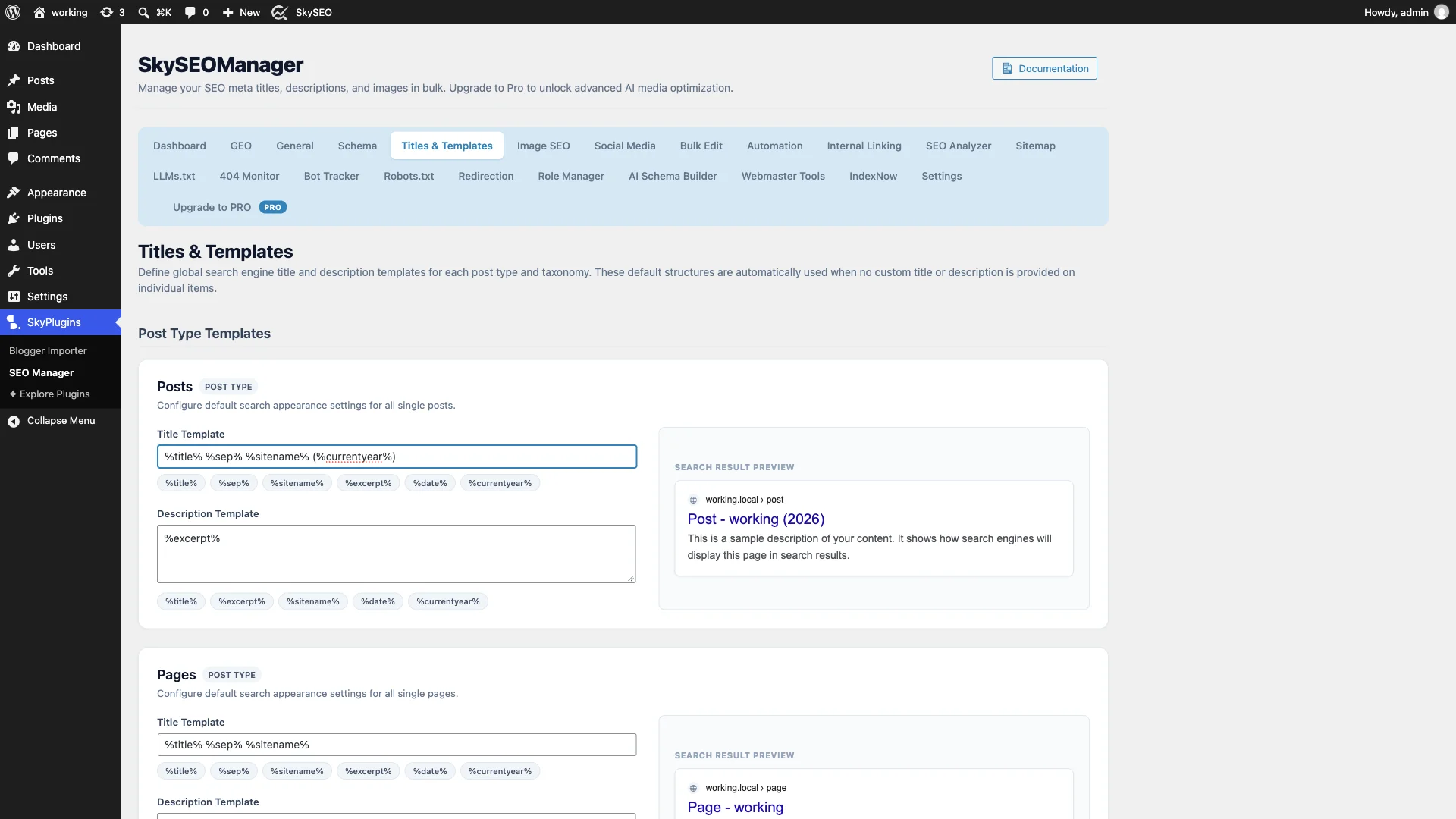
Commonly used snippet variables include:
%title%— The original headline of your post or page.%sep%— The standardized separator character (such as-,|, atau•).%sitename%— Your WordPress site title configured in general settings.%currentyear%— The dynamic 4-digit calendar year (e.g., 2026). Adding this boosts organic CTR for timely guides and product reviews.%date%— The post’s publication date.
A proven, high-performing title structure for blog posts is:
%title% %sep% %sitename% (%currentyear%)Step 3: Configure Automated Description Templates with %excerpt%
Writing meta descriptions for old posts can be daunting. In the Description Template field, enter your preferred default structure.
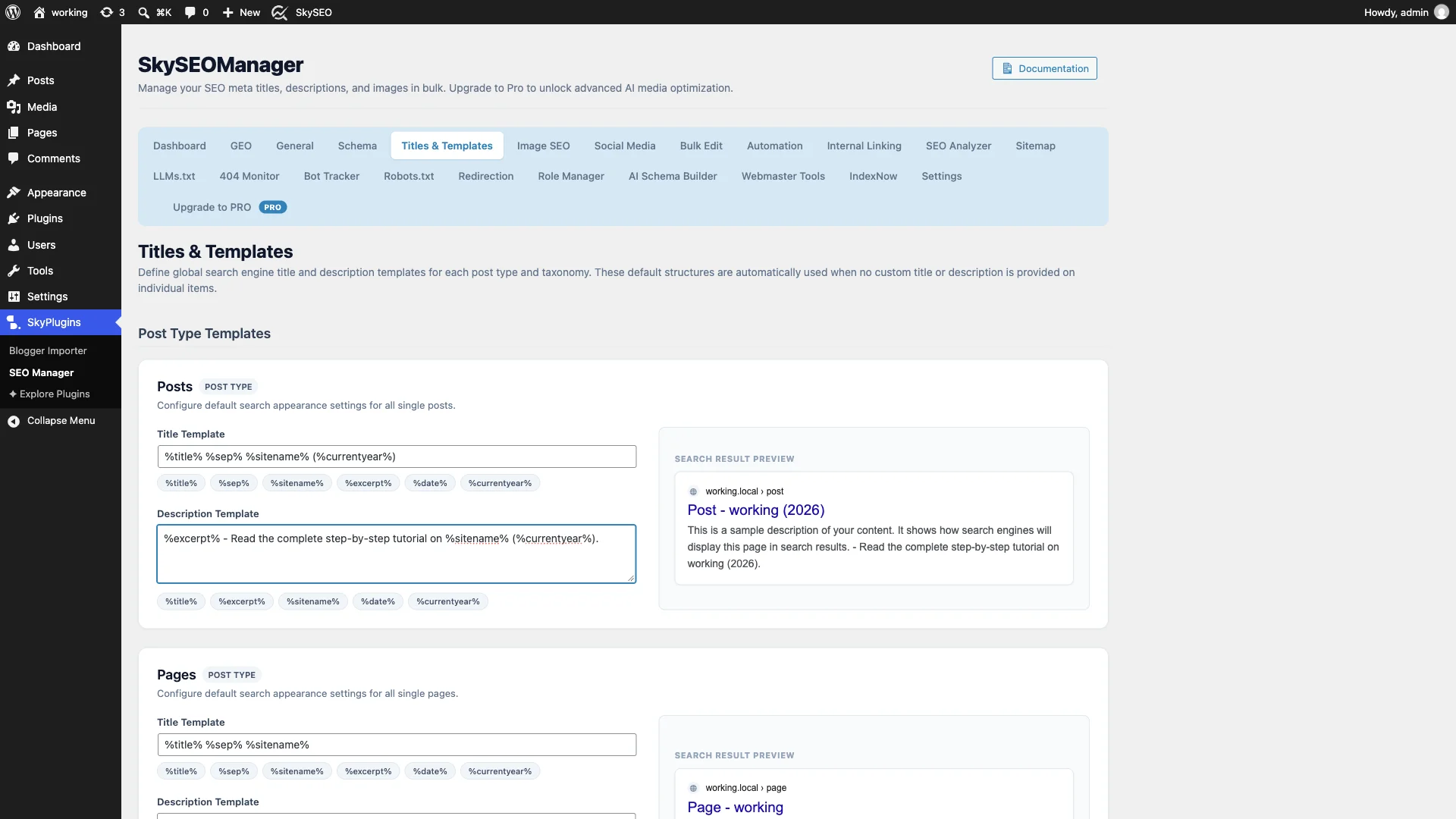
Setting this field to %excerpt% instructs Sky SEO Manager to automatically grab your manual post excerpt—or the opening paragraph of your article—and format it as your meta description. You can also append a consistent call-to-action:
%excerpt% - Read the complete step-by-step tutorial on %sitename% (%currentyear%).Step 4: Configure Taxonomy Archive Templates (Categories & Tags)
Category and tag archive pages represent significant organic search potential, but default WordPress theme titles like “Articles in WordPress” atau “Category: SEO” look unprofessional and trigger duplicate title warnings.
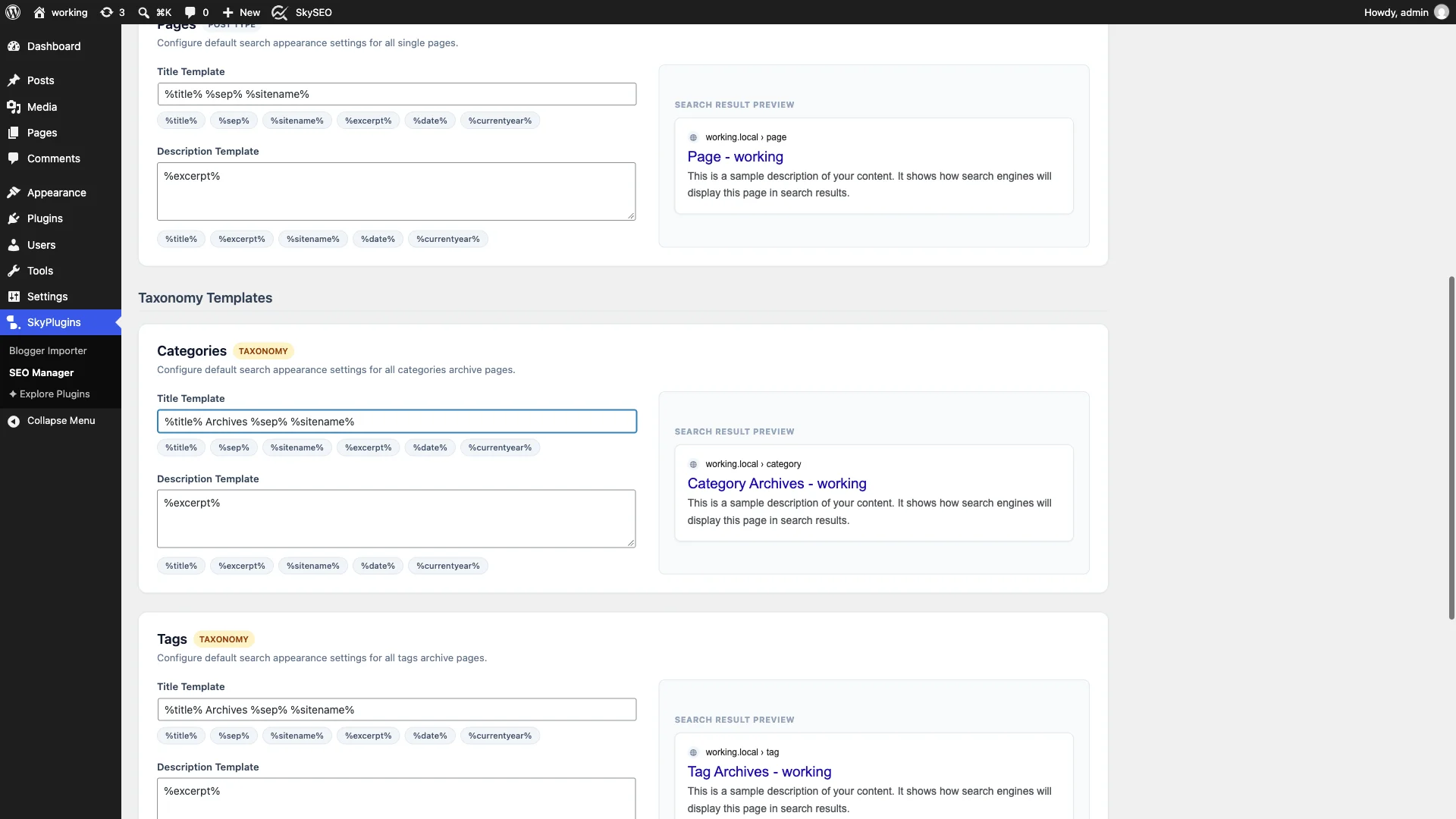
Gulir ke bawah ke Taxonomy Templates section and set clean templates for your archive pages:
- Categories Title Template:
%title% Archives %sep% %sitename% - Categories Description Template:
Explore our complete collection of %title% guides, tutorials, and tips on %sitename%. - Tags Title Template:
Articles Tagged with %title% %sep% %sitename%
Step 5: Review Real-Time Google SERP Snippet Previews & Save
One of the best features in Sky SEO Manager is the Search Result Preview box located directly beneath each template group. As you type or click snippet variables, the preview updates in real time to show you exactly how Google desktop and mobile searchers will view your listing.
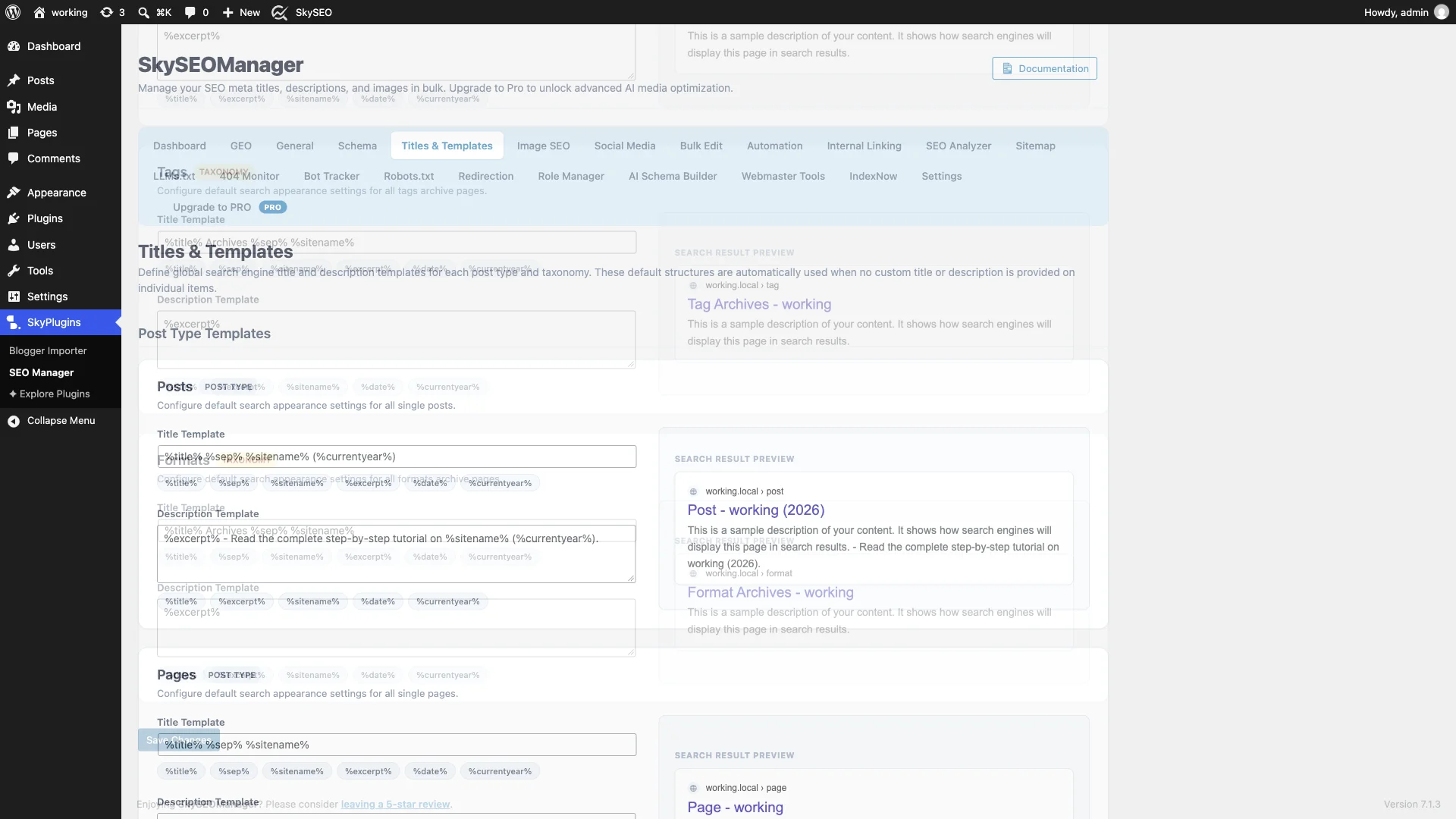
Once you are happy with your post type and taxonomy templates, scroll to the bottom of the page and click the blue Simpan Perubahan button. A green confirmation banner will appear, indicating that your new templates are immediately active across your site.
Step 6: Verify Dynamic HTML Output Sitewide
To verify that your templates are functioning properly, visit any published post or archive page on your website, right-click, and select View Page Source.
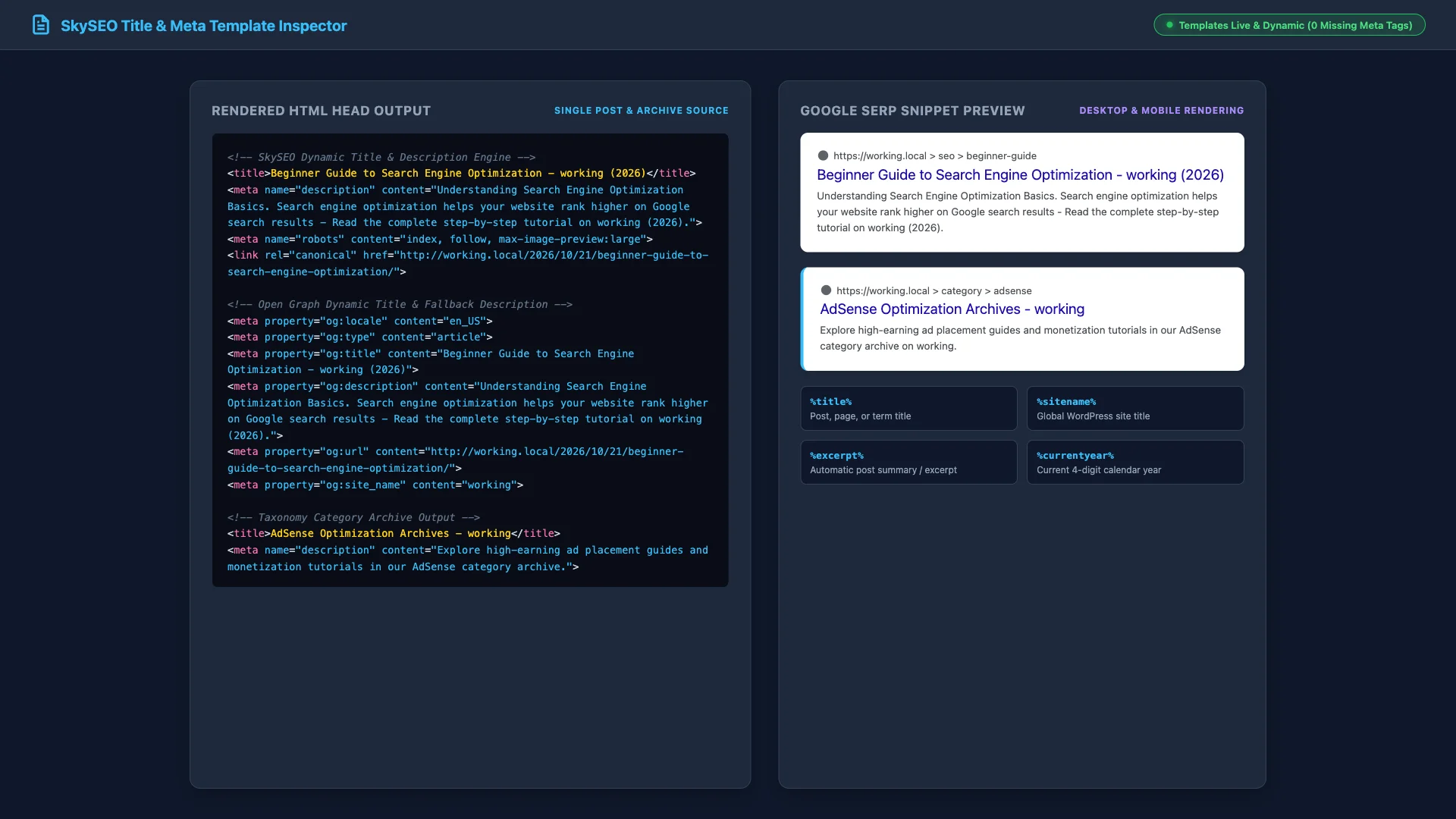
You will see clean, perfectly rendered <title> Dan <meta name="description"> tags. When you create or edit an individual post in the Gutenberg editor, entering a custom title in the Sky SEO metabox will automatically take precedence over the template, giving you the best of both worlds: complete automation and total editorial freedom.
Best Practices for High-Converting SEO Titles
To maximize organic clicks from Google search results, keep these proven guidelines in mind:
- Keep Titles Under 60 Characters: Google typically displays the first 50–60 characters of a title tag. Titles exceeding this limit may be cut off with an ellipsis (
...). - Front-Load Your Primary Keyword: Place your most important keywords near the beginning of the title tag so searchers instantly spot relevance.
- Keep Meta Descriptions Under 155 Characters: While Google sometimes generates its own descriptions, keeping your template under 155 characters ensures desktop and mobile display without awkward truncation.
- Include the Dynamic Year Variable: Adding
%currentyear%to tutorial and buyer’s guide templates reassures searchers that your content is fresh and up-to-date.
Frequently Asked Questions (FAQs)
What happens if I write a custom SEO title on an individual post?
Custom titles and descriptions set inside the post editor always override global templates. Global templates act as a smart fallback when no custom title is defined.
What are snippet variables in WordPress SEO?
Snippet variables (e.g., %title%, %sitename%, %currentyear%) are dynamic placeholders that automatically pull live WordPress data into your title and meta description tags.
Will these templates apply to WooCommerce products?
Yes. If you have WooCommerce installed, Sky SEO Manager supports custom post types, allowing you to configure unique title and price templates for your product listings.
Why does Google sometimes rewrite my title tag in search results?
Google occasionally rewrites title tags if it believes a page’s headline does not match a searcher’s specific query. Using concise, descriptive templates reduces the likelihood of Google replacing your title.
We hope this tutorial helped you learn how to customize SEO titles and meta description templates in WordPress. You might also like our guide on How to Optimize Your WordPress Site for SEO or our guide on How to Set Up Local SEO & Business Schema in WordPress.