Contact forms are the lifeblood of lead generation on WordPress. Yet, on the majority of websites, when a prospective client submits an inquiry through Formulir Kontak 7 atau Formulir WP, all they receive is a sterile, static notification—or worse, a basic on-screen confirmation message while their inquiry sits untouched in an inbox for days.
In modern digital marketing, speed to lead is everything. Research consistently shows that following up within the first five minutes increases lead qualification rates by up to 900%. Beyond the immediate response, nurturing leads over a multi-day automated sequence converts casual form submitters into paying customers. In this step-by-step tutorial, you will discover how to connect your existing form plugins directly to SiteSkyline Email Campaign Manager to trigger instant, personalized auto-responders and scheduled nurturing drips—without paying expensive monthly SaaS fees to external email providers.
Why Standard Form Plugin Notifications Fail at Lead Nurturing
Form builders like Contact Form 7, WPForms, Ninja Forms, and Gravity Forms are masterfully designed for input capture and single email alerts. However, they are fundamentally not email marketing engines:
- Single-Fire Limitations: Native form plugins can only send a single transactional notification at the exact moment of submission. They cannot schedule a Day 2 follow-up, a Day 5 case study, or a Day 10 consultation reminder.
- Unbranded, Rigid Formatting: Crafting modern, responsive HTML emails with buttons, dynamic hero banners, and styling inside raw form builder mail tabs requires manual coding and frequently breaks in client mailboxes.
- Zero Behavioral Intelligence: Native form notifications cannot branch based on whether a recipient opened the email, clicked a proposal link, or ignored previous messages.
- High SaaS Integration Overhead: Connecting forms to third-party tools like Mailchimp, ActiveCampaign, or Klaviyo usually requires paid Zapier subscriptions, webhook addons, and compounding monthly contact fees.
Comparison: Native Form Mailers vs. SiteSkyline Drip Automations
| Capability | Standard Form Mail (CF7 / WPForms) | SiteSkyline Email Campaign Manager |
|---|---|---|
| Trigger Architecture | 1 instant email to admin/user | Unlimited multi-step sequence triggered automatically |
| Field Extraction | Basic shortcode replacement | Automated detection & dynamic merge tags (e.g., {{form.your-name}}) |
| Time Delays & Scheduling | Not supported natively | Granular delays in minutes, hours, days, or weeks |
| Conditional Branching | Tidak ada | Send follow-ups based on whether previous email was opened |
| Deliverability & Tracking | No open/click tracking | Native queue with real-time open and click analytics |
| Cost Structure | Free but limited / requires Zapier ($20-$50/mo) | 100% self-hosted on WordPress, zero ongoing SaaS subscriptions |
Step-by-Step Guide: Building a Lead Nurture Drip from Contact Forms
Step 1: Open the Email Campaign Manager Console
Log into your WordPress admin panel and navigate to Email Manager → All Campaigns. This central console provides an overarching snapshot of all live and draft email automations, scheduled send queues, and aggregate subscriber interactions across your entire site.

Step 2: Select Form Integration Source and Pick Your Form
Klik Add New Campaign at the top of the screen. Give your automation an identifiable name, such as “Contact Form 7 Lead Nurturing & Instant Response Drip”. Under Step 1: Select Source Integration, click either Formulir Kontak 7 atau Formulir WP.
SiteSkyline automatically scans your active forms. In the dropdown selector, choose the specific form you wish to connect (for example, “Contact form 1” or your dedicated “Quote Request Form”). Any submission through this form will now trigger your email sequence instantly.

Step 3: Configure Form Submission Audience Conditions
Advance to Step 2: Audience Filters & Conditions. By default, every verified submission through the selected form triggers the workflow. However, if your form contains a qualifying dropdown (such as “Budget: Over $5,000” atau “Service Required: Enterprise Consulting”), you can define field-level conditions to route high-value leads into tailored sequences.

Step 4: Craft the Instant Auto-Responder with Dynamic Merge Tags
Proceed to Step 3: Email Sequence Builder. Klik Edit Email on the root trigger node. Configure this email’s timing to send Immediately.
SiteSkyline automatically parses the input fields from your selected form and surfaces them as clickable merge tags (e.g., {{form.your-name}}, {{form.your-email}}, {{form.your-subject}}, Dan {{form.your-message}}). You can personalize the greeting directly: “Hi {{form.your-name}}, thanks for reaching out! We received your inquiry regarding {{form.your-subject}} and will respond within 24 business hours.”
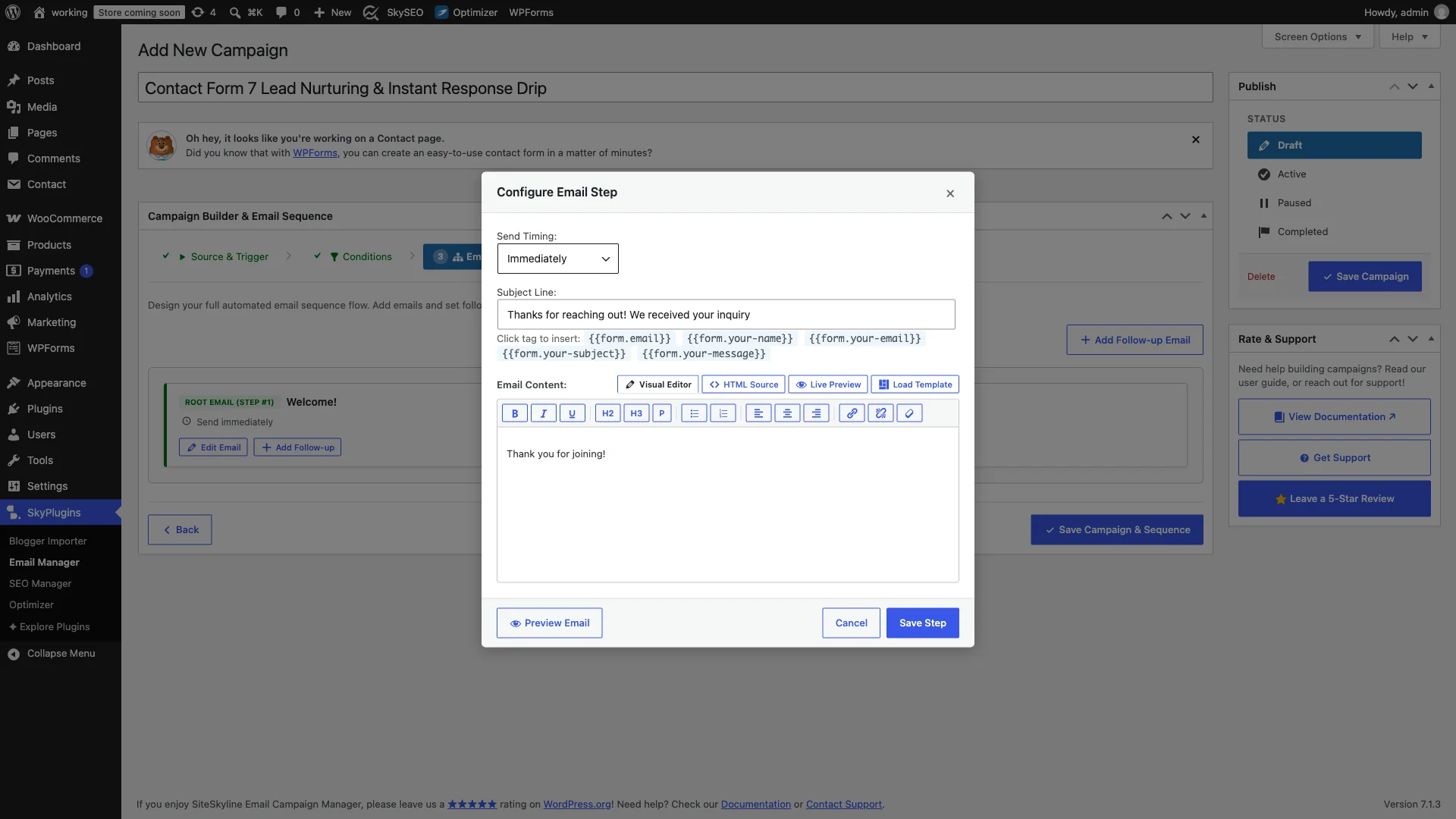
Step 5: Add a Scheduled Lead Nurturing Follow-Up Drip
A single auto-responder acknowledges an inquiry, but multi-touch drips close deals. Click Add Follow-up in the sequence canvas to add Step 2 to your workflow. Set this email to trigger with a 2-day delay.
SiteSkyline allows you to attach behavioral rules: trigger this email only if the prospect opened the previous email, or target those who haven’t yet booked a call. In this message, share a relevant case study, outline your process, or provide a direct link to your calendar booking tool.

Step 6: Review the Sequence Flowchart & Activate the Automation
Examine the visual flowchart to verify timing, delay intervals, and conditional branches. You can preview email rendering in desktop and mobile viewports or send a live test email directly to your inbox to ensure pixel-perfect formatting.
Once you are satisfied, set the campaign status from Draft ke Aktif in the Publish sidebar and click Save Campaign. SiteSkyline is now connected to your contact form and will automatically nurture every new lead around the clock.
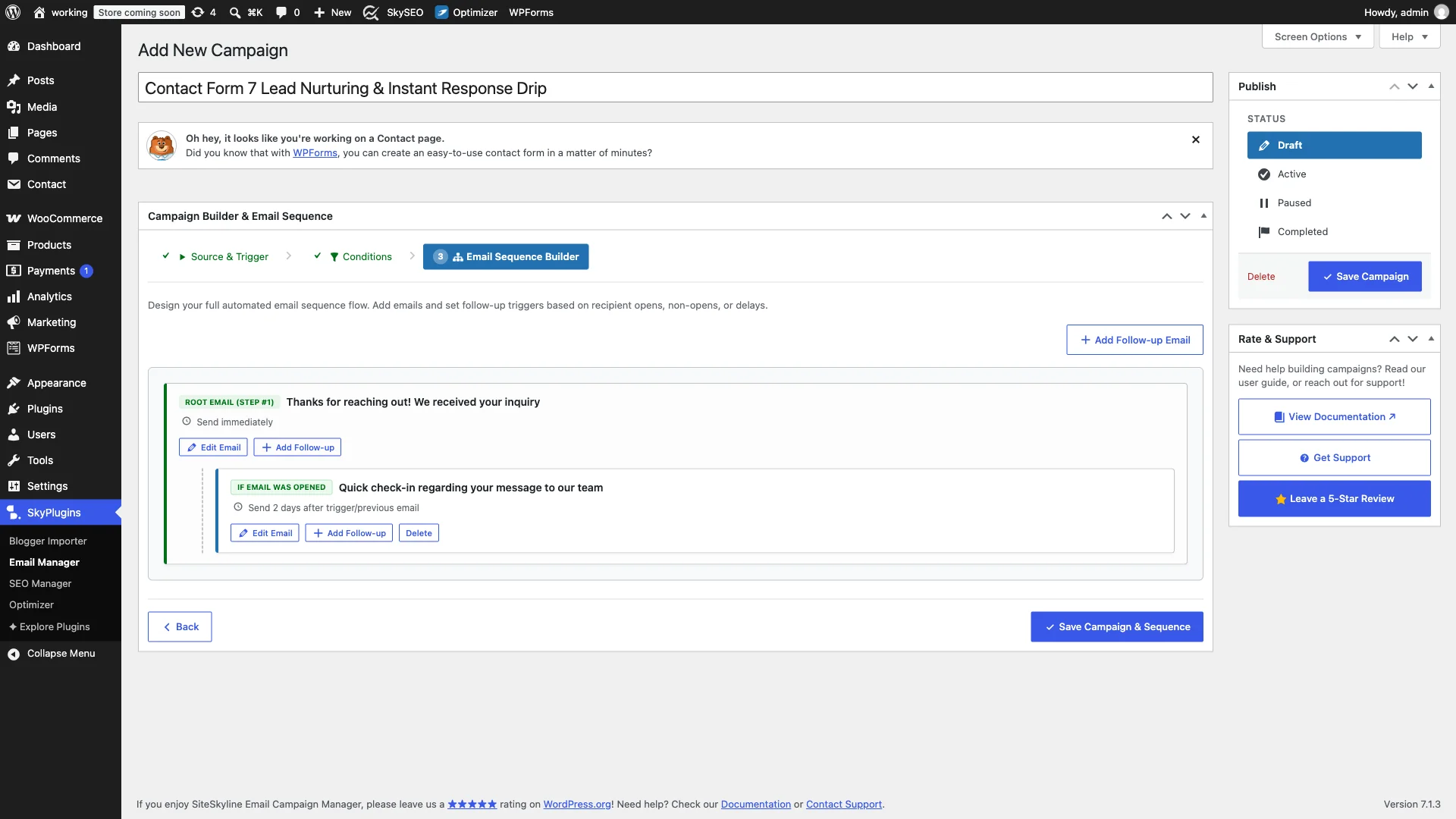
Recommended 3-Step Lead-Conversion Drip Blueprint
To maximize conversion rates from incoming website inquiries, implement this proven 3-step automated sequence:
- Email 1 (Immediate Send): Instant Confirmation & Resource Guide — Reassure the prospect that their inquiry was received, state your typical response timeframe, and provide a downloadable guide or FAQ sheet to establish immediate authority.
- Email 2 (Day 2): Social Proof & Client Case Study — Demonstrate real-world results by highlighting a client who solved the exact problem the prospect submitted about.
- Email 3 (Day 5): Direct Call-to-Action & Meeting Invitation — Check in to see if the prospect still needs assistance and provide an easy, frictionless link to schedule a discovery call.
Pertanyaan yang Sering Diajukan (FAQ)
Does SiteSkyline replace my form plugin?
No. You continue using your preferred form builder—whether Contact Form 7, WPForms, or Ninja Forms—for front-end form display and input validation. SiteSkyline sits behind the scenes, listening for submission hooks and orchestrating the email marketing automation.
Can I send different sequences based on which form was submitted?
Yes! You can create dedicated campaigns for each individual form. For instance, your general “Contact Us” form can trigger a simple 2-step inquiry response, while your “Free E-Book Download” form triggers a comprehensive 5-part lead nurturing series.
What happens if a user submits the form multiple times?
SiteSkyline provides smart deduplication settings. You can choose whether a prospect can re-enter the campaign upon subsequent submissions or prevent duplicate sequences within a specified cooldown window.
Turn Form Inquiries into Automated Conversions
Do not let high-intent leads slip away due to slow or impersonal follow-up. By integrating SiteSkyline Email Campaign Manager with your existing WordPress forms, you create a responsive, 24/7 lead-generation engine that builds trust, delivers value, and grows your revenue—all hosted completely on your own server.