First impressions in email marketing happen in milliseconds. In a crowded inbox, an unstyled, plain-text email often gets ignored or discarded, while a polished, responsive email with crisp visual hierarchy, prominent calls-to-action, and on-brand typography commands attention and drives sales.
Historically, WordPress store owners faced two frustrating extremes: struggle with rigid default HTML email templates that require complex PHP template overrides, or pay hundreds of dollars each month to external SaaS platforms like Klaviyo or Mailchimp just to access a drag-and-drop builder. SiteSkyline Email Campaign Manager Pro completely bridges this divide by embedding a full-featured visual drag-and-drop design studio (powered by the industry-standard Unlayer engine) directly inside your WordPress dashboard.
Why Visual Drag-and-Drop Builders Outperform Legacy Email Coding
Coding HTML emails from scratch remains one of the most notoriously painful tasks in web development due to conflicting rendering engines across Apple Mail, Gmail, Outlook desktop, and mobile web clients. Here is why using a dedicated visual designer transforms your marketing workflow:
- Flawless Cross-Client Rendering: Modern visual builders generate clean, bulletproof tabular HTML that renders consistently across Outlook desktop, Gmail web, iOS Mail, and Android apps.
- Rapid Prototyping & Deployment: Assemble gorgeous promotional campaigns, seasonal announcements, or product release newsletters in minutes without touching a single line of CSS.
- Native Personalization Merge Tags: Seamlessly integrate dynamic customer names, order subtotals, unique coupon vouchers, and product image grids straight into your layouts.
- Integrated Responsive Controls: Toggle instantly between desktop and mobile viewport previews to fine-tune spacing, font sizes, and stack orders for smartphone screens.
Feature Comparison: Basic WP Email Editors vs. SiteSkyline Pro Visual Studio
| Design Capability | Standard WordPress / WC Editors | SiteSkyline Email Campaign Manager Pro |
|---|---|---|
| Builder Interface | Basic TinyMCE / Raw text area | Full-screen visual drag-and-drop canvas (Unlayer) |
| Pre-Built Template Library | None (1 basic order notification) | 30+ professionally designed responsive templates |
| Category Filtering | Not available | Onboarding, Marketing, Engagement, E-Commerce, Events |
| Content Blocks | Paragraphs & basic images only | Buttons, multi-column rows, hero banners, social, dividers, HTML |
| Merge Tag Integration | Manual bracket typing | One-click copy dropdown with live tags for WC & WP Core |
| Mobile Preview Engine | Никто | Real-time device toggles (Desktop & Mobile) |
Step-by-Step Guide: Designing Emails with the Drag-and-Drop Builder
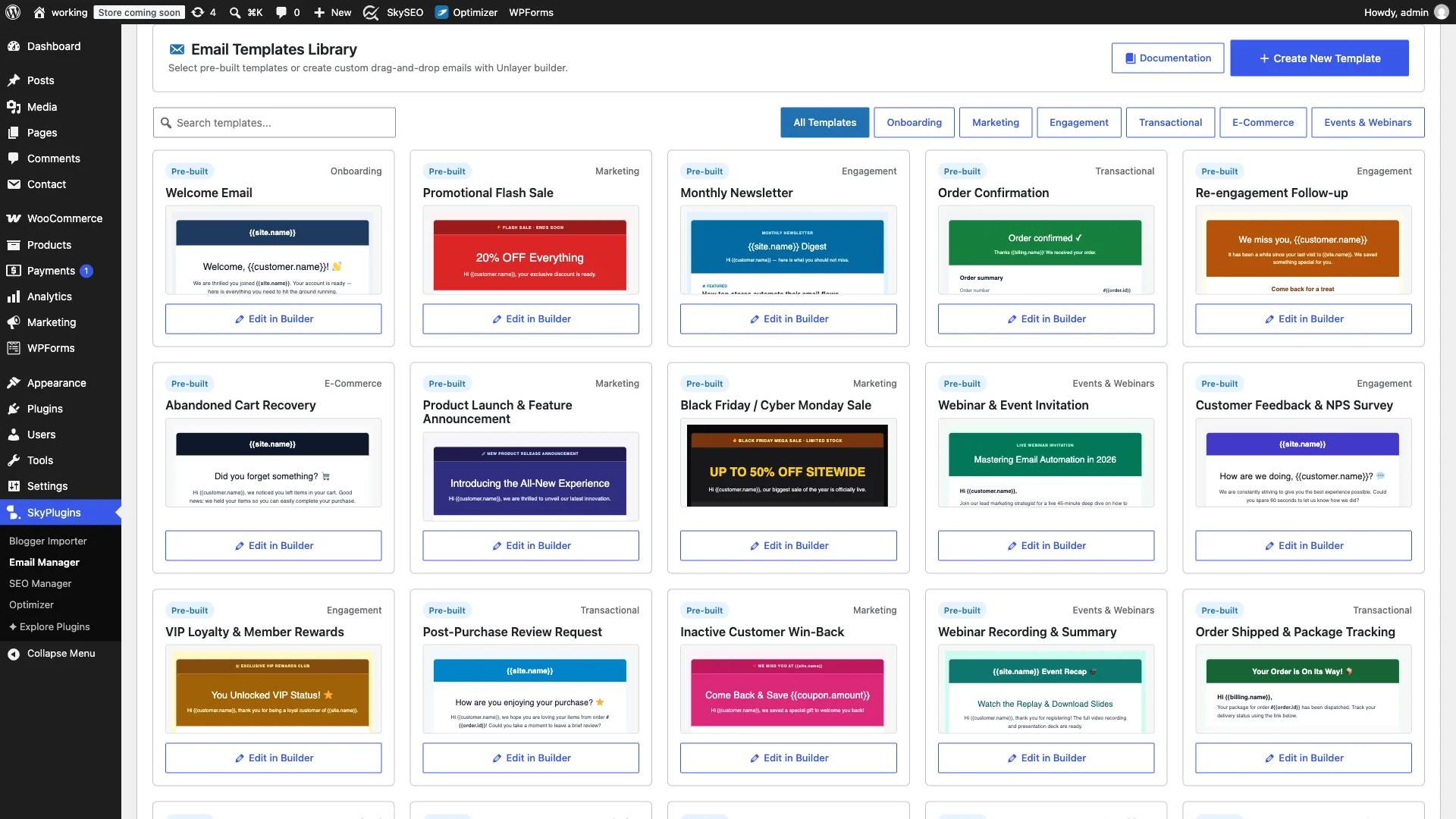
Step 1: Access the Email Templates Library
На панели управления WordPress перейдите к Email Manager → Email Templates. This opens the master template gallery, displaying all pre-configured layouts and previously saved custom designs with thumbnail previews, category badges, and quick-action buttons.
Step 2: Browse and Filter Pre-Built Templates
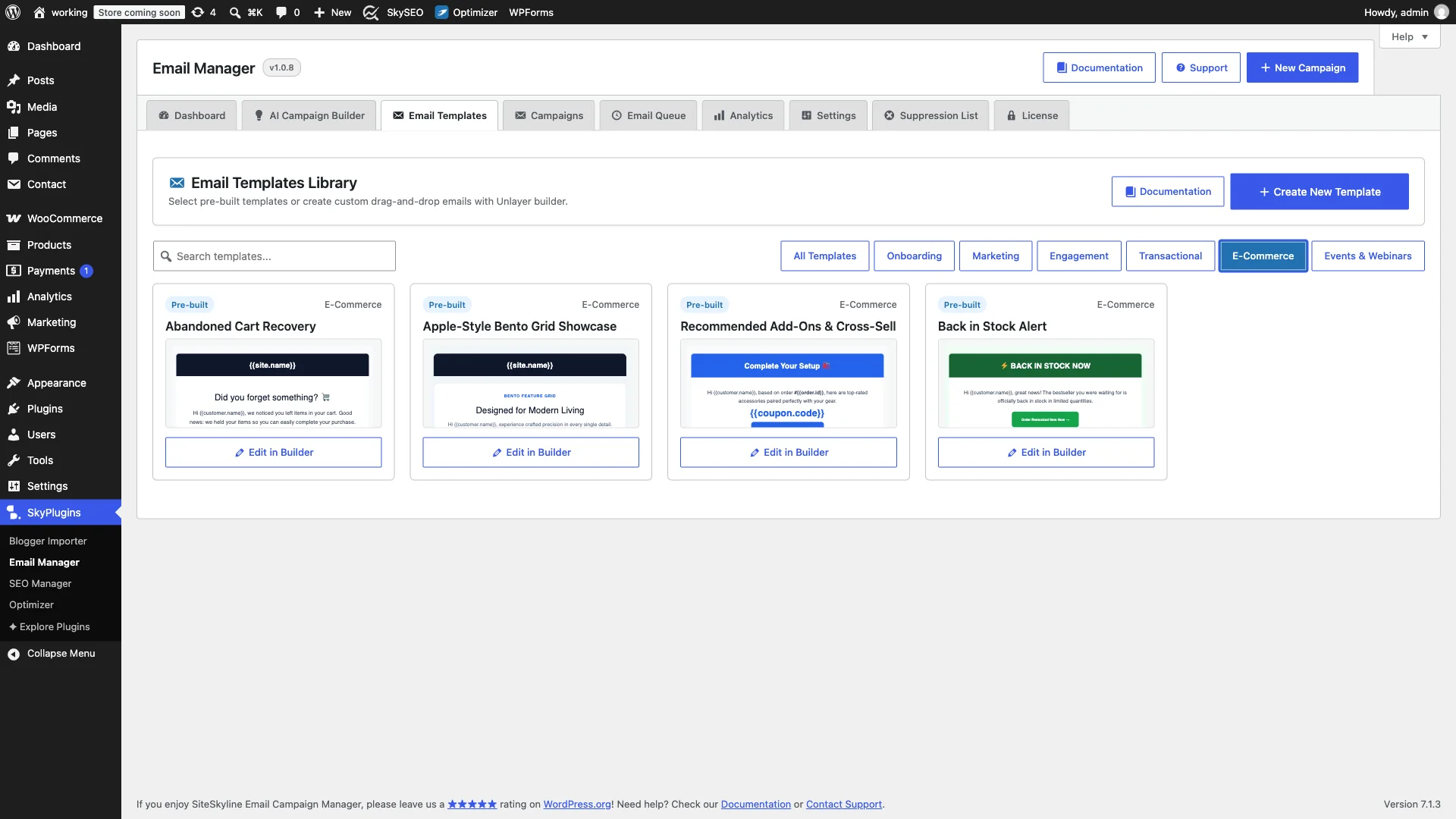
SiteSkyline Pro includes 30+ turnkey layouts tailored to specific eCommerce and community marketing goals. Use the category pills at the top of the interface to filter by Onboarding, Маркетинг, Engagement, Транзакционныйили E-Commerce.
Templates range from modern Apple-style bento grids and product showcase layouts to urgency-driven abandoned cart recovery flows and VIP loyalty reward announcements.
Step 3: Customize Layout Blocks in the Visual Drag-and-Drop Canvas
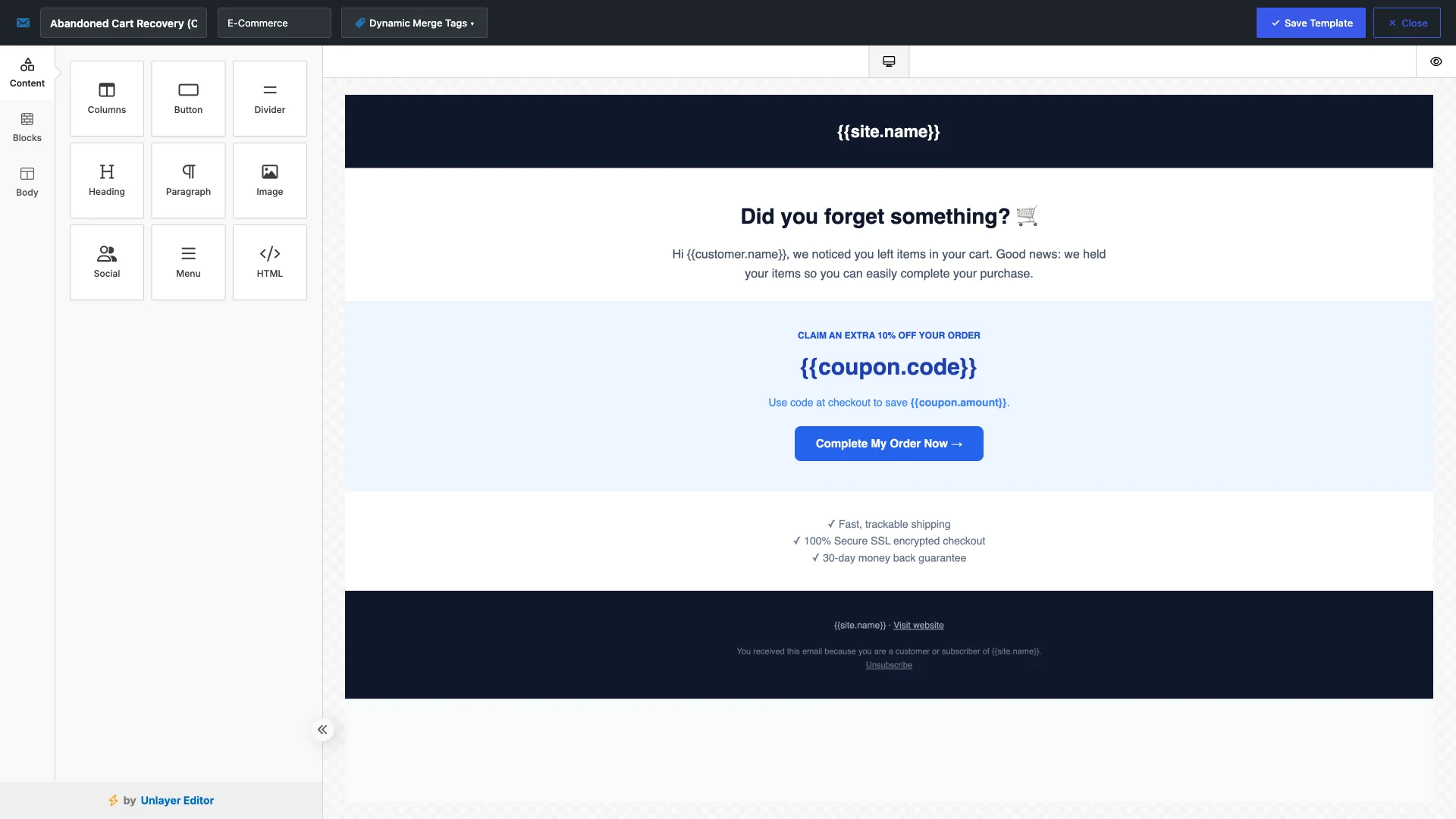
Нажмите Edit in Builder on any template (or click Create New Template to start from a blank canvas). This opens the full-screen visual studio.
The builder is organized into three intuitive panels:
- Content Blocks: Drag text, headings, buttons, images, videos, dividers, social icons, and HTML embeds directly onto your email canvas.
- Rows & Columns: Choose structural column splits (1-column full width, 50/50 split, 3-column product showcase, or asymmetric sidebars).
- Design Settings: Adjust global canvas width, content background colors, link colors, line height, and custom fonts.
Step 4: Insert Dynamic Personalization and WooCommerce Merge Tags
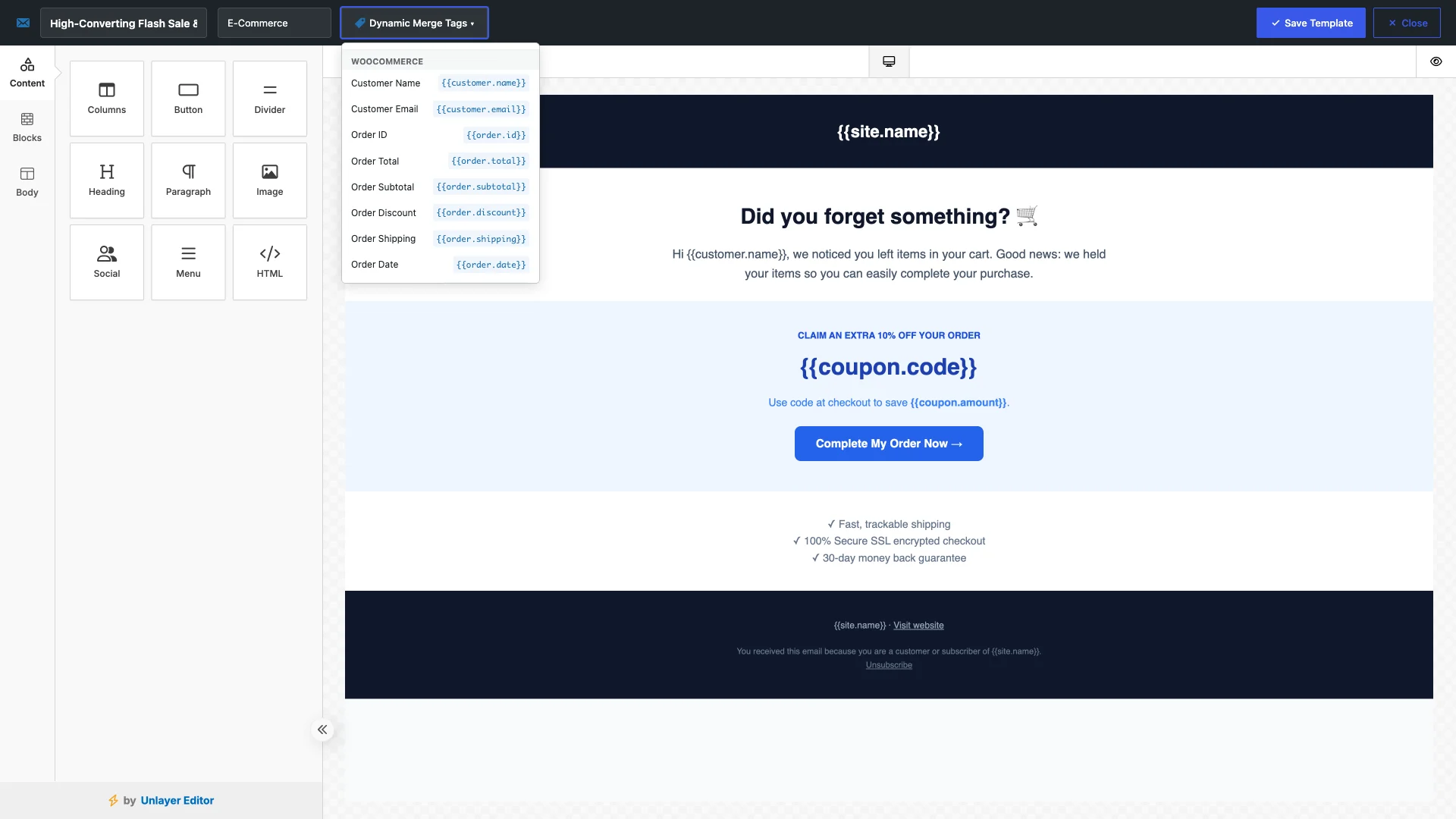
Personalization is essential for high click-through rates. Click the Dynamic Merge Tags ▾ dropdown in the top builder toolbar to reveal available tokens categorized by WooCommerce, WordPress Core, and Contact Forms.
Clicking any tag (such as {{customer.name}}, {{order.total}}или {{coupon.code}}) automatically copies it to your clipboard. Simply paste it into any text block or button link to personalize the content for each individual recipient.
Step 5: Test Responsive Rendering in Mobile and Desktop Viewports
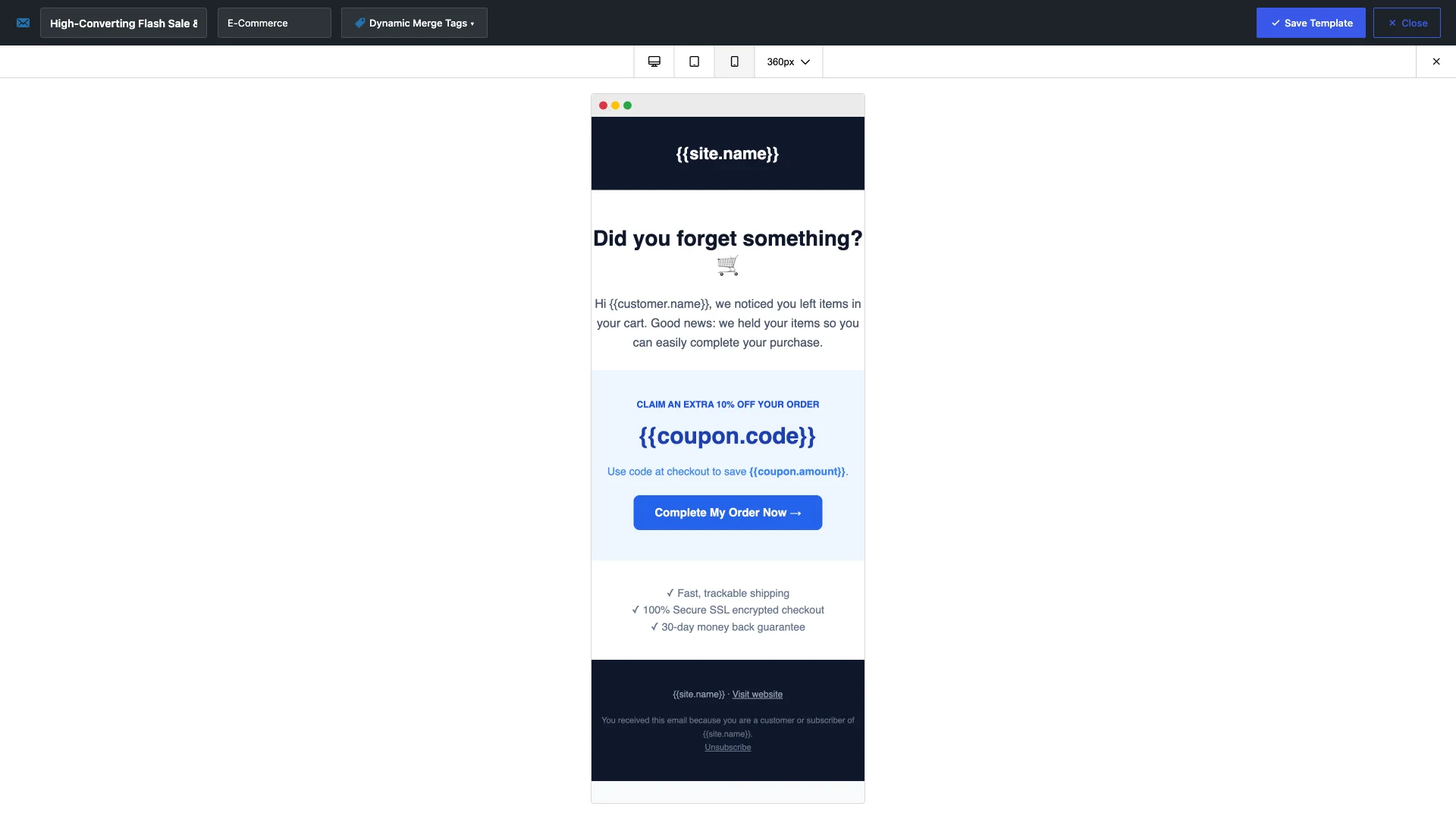
More than 60% of all eCommerce emails are opened on mobile smartphones. Ensure your emails look stunning on smaller screens by clicking the device preview toggle in the builder toolbar.
The live mobile preview renders your layout inside a realistic smartphone frame, allowing you to verify that multi-column grids stack legibly, font sizes remain readable, and call-to-action buttons span full width for effortless finger tapping.
Step 6: Save and Deploy Your Custom Templates into Campaign Automations
When your design is complete, enter a template name and category, then click Save Template. Your custom email is now permanently saved to your library.
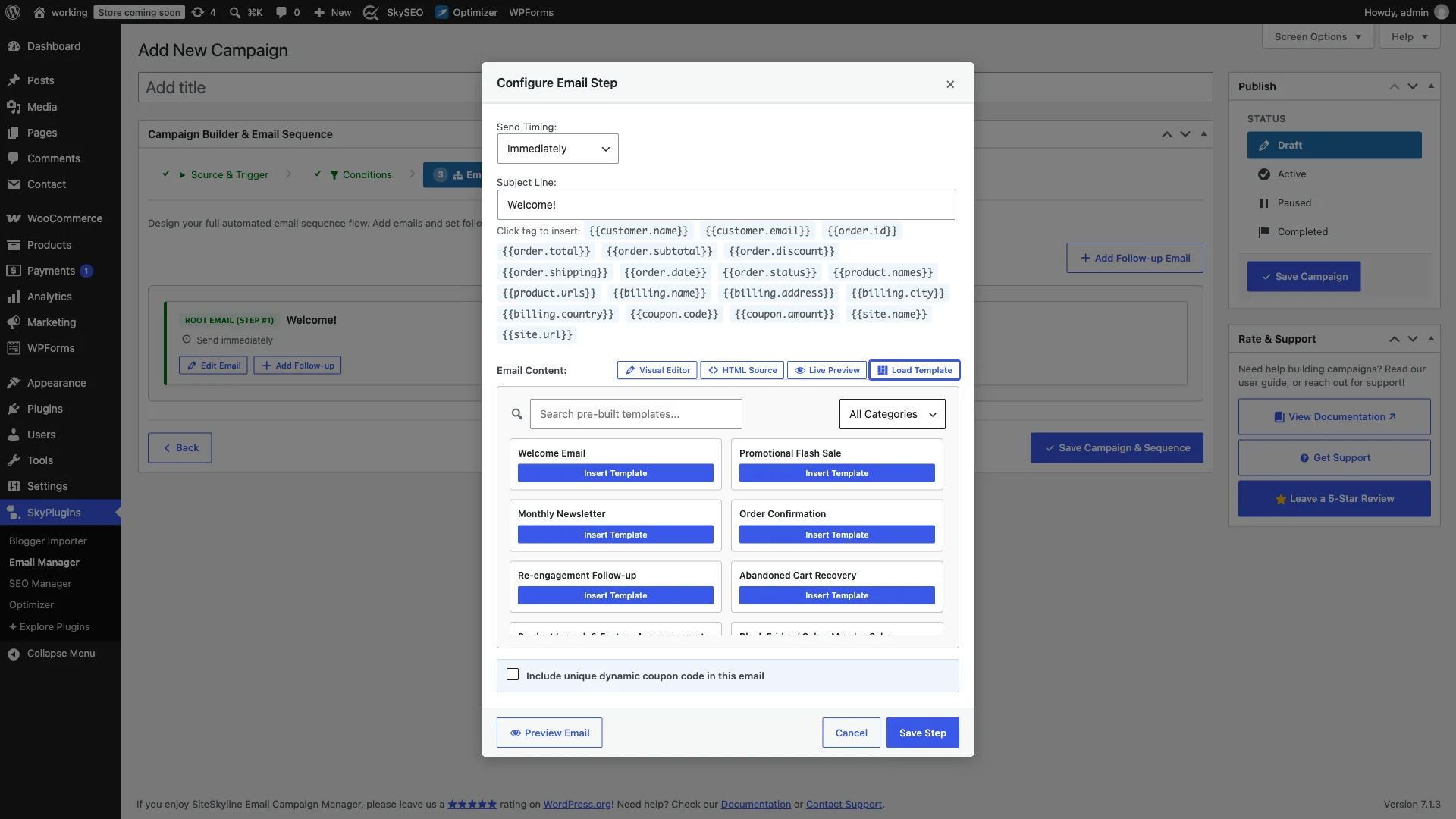
To use this design in any automated workflow, simply navigate to your campaign flow in the Email Sequence Builder. Click Edit Email on any step node, switch to the Load Template tab, and click Insert Template on your design. The entire visual layout and styling are injected immediately into your automation node.
5 Best Practices for High-Converting Email Design
- Maintain Visual Hierarchy: Lead with a bold headline (H1/H2), followed by a brief narrative hook, an enticing product visual or coupon badge, and a high-contrast action button.
- Keep Email Width at 600px–640px: Standard width ensures that your message fits cleanly within email preview panes across Outlook desktop and webmail clients.
- Use Generous Whitespace: Avoid overcrowding columns. Generous padding around images and text sections increases readability and reduces cognitive load.
- Design Bulletproof CTA Buttons: Use HTML-based buttons with padding rather than baked-in button images so your links display even when images are blocked by default.
- Always Test With Dynamic Tags: Send a live test email to verify that merge tags like
{{customer.name}}populate with realistic fallback data.
Часто задаваемые вопросы (FAQ)
Can I edit raw HTML code alongside the visual drag-and-drop builder?
Yes. The builder allows you to drag custom HTML blocks directly into any row, letting you paste bespoke tracking scripts, dynamic tables, or custom styled widgets whenever needed.
Are images uploaded in the email builder stored in my WordPress Media Library?
Yes. When you upload photos, banners, or brand logos in the builder, they are stored directly in your native WordPress /wp-content/uploads/ folder, ensuring fast delivery from your server or CDN.
Can I use custom Google Fonts in my email templates?
Yes, custom web fonts can be selected in the builder typography settings. The builder automatically includes safe fallback fonts (like Arial, Georgia, or Helvetica) for email clients that do not support web font loading.
Elevate Your WordPress Email Marketing Today
Unlocking visual drag-and-drop email design inside WordPress gives you full agency over your brand presentation without recurring SaaS bills. Upgrade to SiteSkyline Email Campaign Manager Pro to access the complete Email Templates Library and Unlayer drag-and-drop designer today.