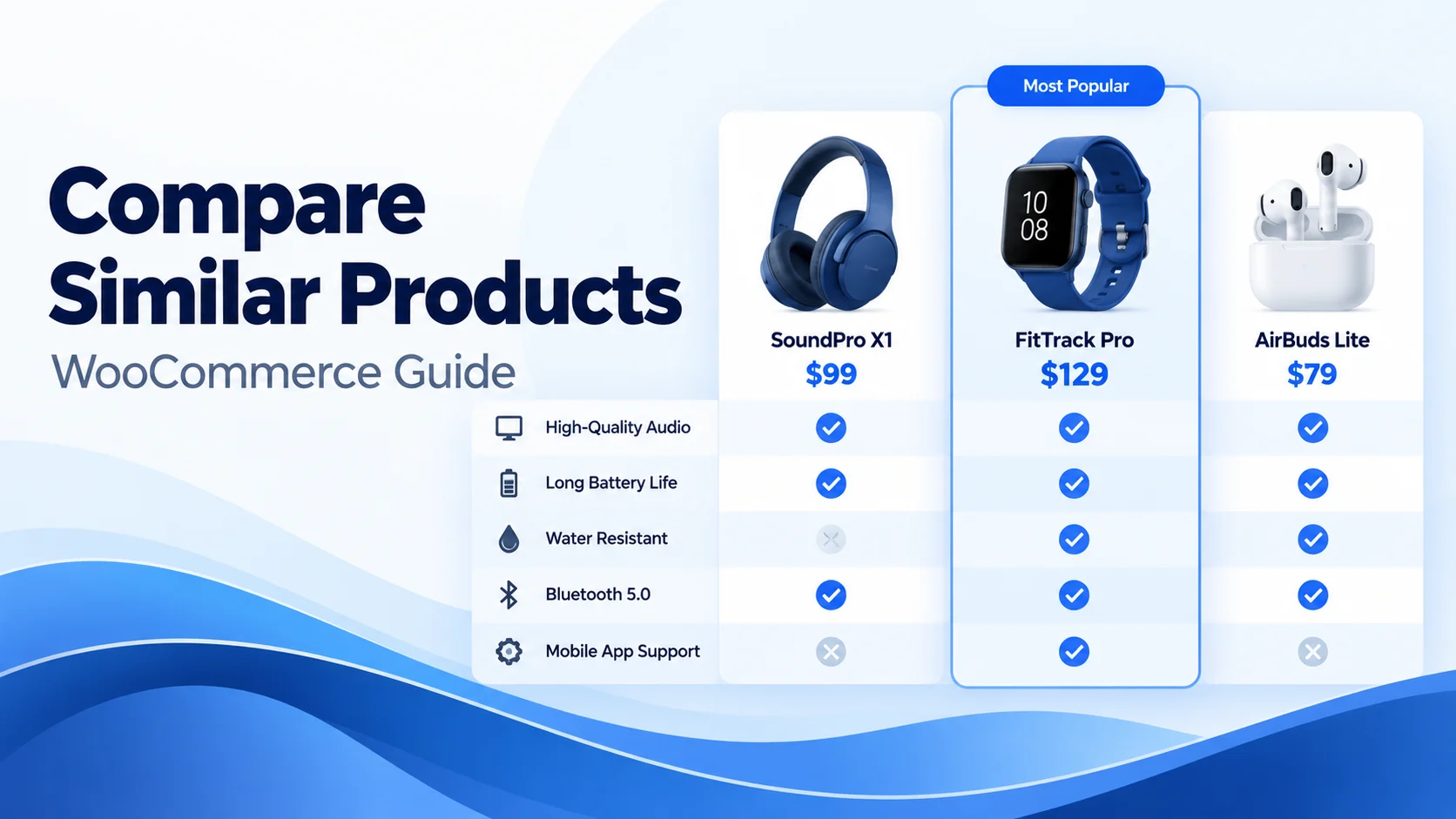
When a shopper lands on a WooCommerce product page that doesn’t quite match their exact taste, size, or budget, what happens next? Without intelligent product discovery, they hit the back button and return to Google search. Top retailers like Amazon solved this problem years ago by introducing dynamic “Customers Who Viewed This Item Also Viewed” carousels.
Unlike basic category-based related products that show arbitrary items, an intelligent co-browsing recommendation engine analyzes browsing flows and behavioral affinity. In this guide, you will learn how to add an Amazon-style “Customers Also Viewed” recommendation carousel to WooCommerce using the 100% free SiteSkyline Smart Sales الإضافة.
Why Standard WooCommerce Related Products Fall Short
WooCommerce includes a default “Related Products” query out of the box, but it suffers from severe limitations that hurt conversion rates:
- Static & Unintelligent: It pulls products randomly from the same category or tag, often displaying items that have zero behavioral connection to what shoppers actually consider.
- No Behavioral Memory: Default WooCommerce has no session awareness. It doesn’t know which products shoppers compare before purchasing.
- Heavy Database Impact: Standard queries can be slow on large catalogs with thousands of SKUs, resulting in slow Time to First Byte (TTFB).
- Zero Layout Customization: Most themes lock the related products section into rigid, non-configurable widgets with poor mobile touch ergonomics.
Recommendation Engine Comparison
| ميزة | SiteSkyline Smart Sales (Free) | Default WooCommerce | SaaS Recommendation Tools |
|---|---|---|---|
| Co-Browsing Intelligence | Markov Chain session tracking | Random category match | Machine learning models |
| Performance & Speed | Zero external API calls (< 2ms) | Standard SQL queries | External JS tags (50-200ms) |
| Privacy & GDPR Compliance | 100% On-Site (No cookies/trackers) | 100% On-Site | Third-party cloud tracking |
| Automated Fallbacks | Category & tag affinity hierarchy | None (random) | Algorithmic fallback |
| Design & Layout Controls | Full scoped visual styling | Theme-dependent | Custom CSS overrides |
| التكلفة الشهرية | $0 (100% Free) | $0 | $99 – $499+ / month |
Step-by-Step Implementation Guide
Step 1: Enable the Customers Also Viewed Module
من لوحة تحكم ووردبريس الخاصة بك، انتقل إلى Smart Sales > Optimizations. Locate the Customers Also Viewed feature card and toggle the switch to active.
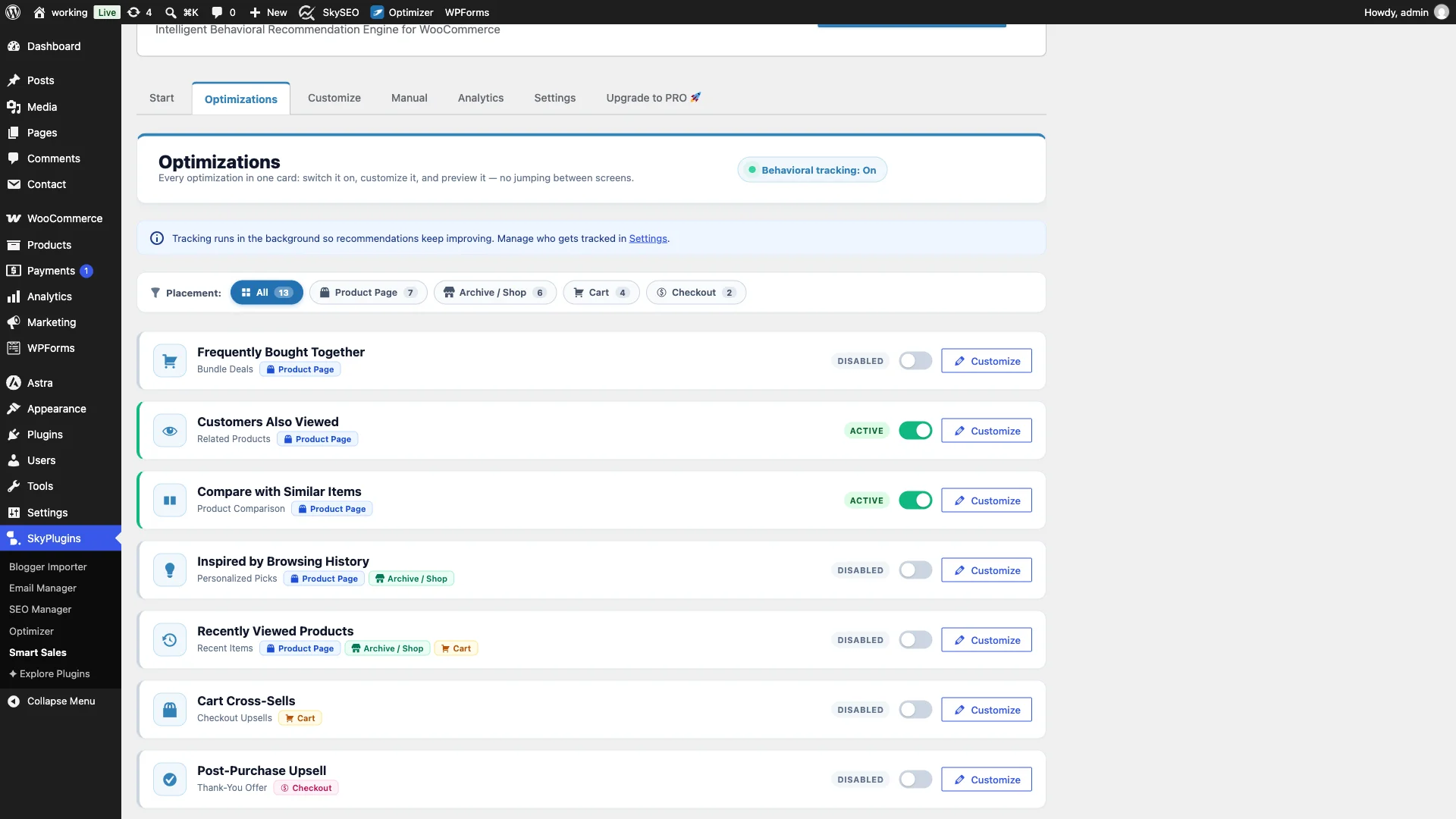
Once enabled, the recommendation engine automatically registers the appropriate single product display hooks, positioning the module directly below the main product summary where shopper interest is highest.
Step 2: Customize Widget Layout and Appearance
Next, switch to the تخصيص tab within Smart Sales and expand Per-Widget Overrides > Customers Also Viewed. Here you can tailor every visual aspect of the recommendation carousel to harmonize with your store theme.

You can set custom headline text (e.g., “Customers Who Viewed This Item Also Viewed” أو “Similar Styles Shoppers Loved”), choose between a 3-column, 4-column, or responsive grid, select thumbnail aspect ratios (1:1 square or 4:5 portrait), and configure button styling.
Step 3: Configure Markov Chain Behavioral Weights & Fallbacks
تحت Algorithm & Fallbacks settings, Smart Sales gives you complete control over how recommendation scores are calculated. The plugin uses a lightweight first-order Markov chain model that tracks transitions between viewed products in anonymized browsing sessions.

For brand-new products or low-traffic catalog items where behavioral co-view history is still building, Smart Sales automatically falls back to high-affinity category and tag matching. This guarantees your product pages never render empty recommendation sections.
Step 4: Frontend Live Preview – Responsive Recommendation Grid
Now let’s verify the storefront experience. Open any single product page on your live WooCommerce store. Directly beneath the primary product container, the Customers Who Viewed This Item Also Viewed grid is cleanly displayed.

Shoppers browsing the Hoodie with Pocket are immediately presented with relevant alternative apparel items, such as the Hoodie with Zipper, standard Hoodie, matching Beanie, and branded accessories. The layout is fully responsive, gracefully collapsing to touch-friendly swipeable cards on smartphones.
Step 5: High-Contrast Product Details & Pricing Breakdown
Every recommendation card is engineered to provide the essential data points shoppers need to make quick evaluation decisions without cognitive clutter.
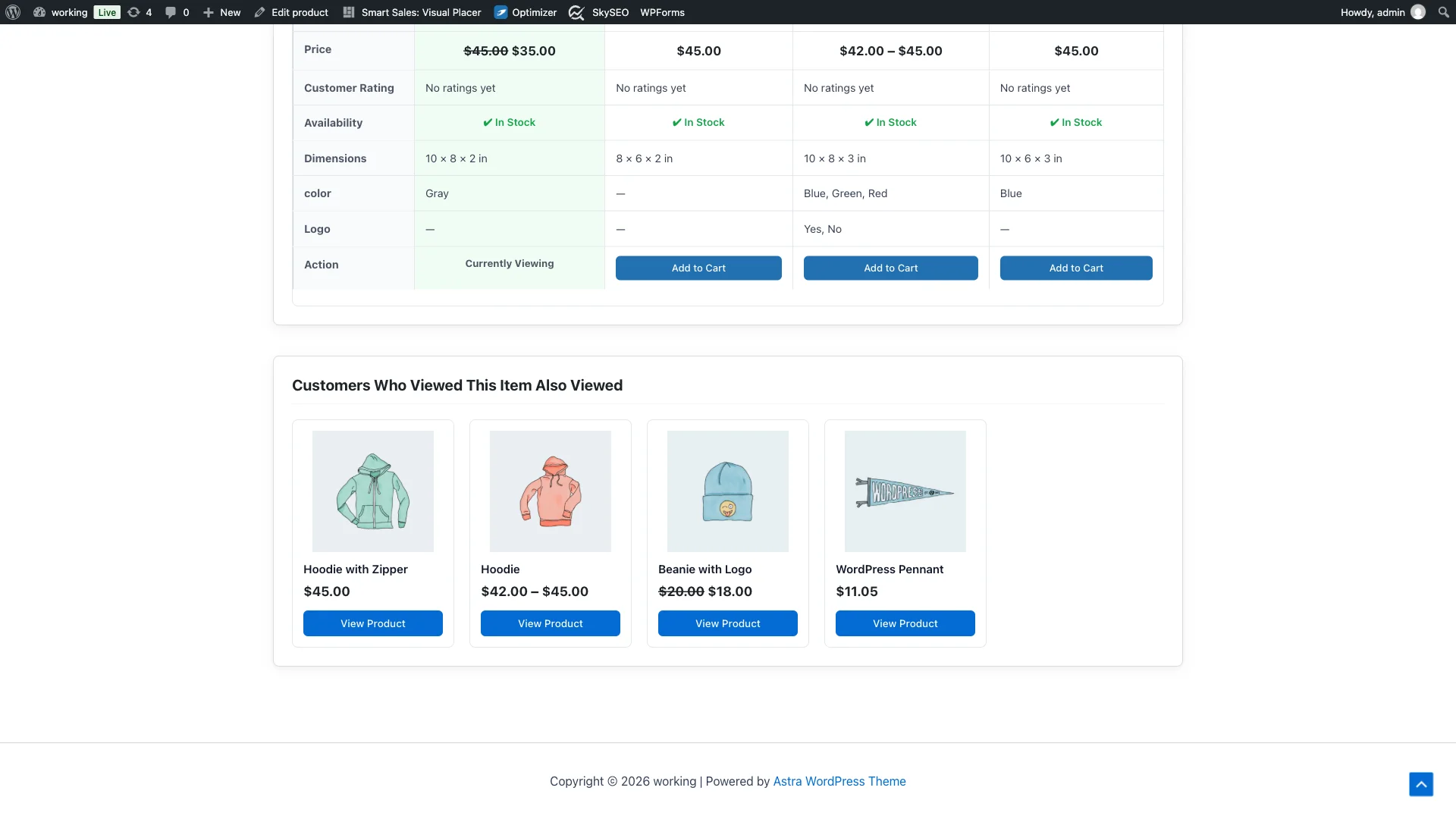
Each card highlights crisp product photography, clean typography, current sale prices, price strike-throughs for discounted merchandise, and an accessible View Product call-to-action button.
Step 6: Continuous Shopper Exploration & Catalog Discovery
When a customer clicks one of the recommended items—for instance, navigating from the Hoodie with Pocket إلى Hoodie with Zipper—the recommendation engine recalculates affinities in real time.

This creates a cohesive discovery loop. Instead of bouncing when a single item doesn’t fit their needs, shoppers are naturally guided across relevant alternatives, keeping session durations high and boosting store revenue.
How Markov Chain Co-Viewing Works Behind the Scenes
Traditional recommendation engines rely on massive, expensive cloud databases that track user identities across the web. SiteSkyline Smart Sales uses an elegant mathematical approach known as a Markov chain state transition model, executed entirely inside your WordPress database:
- Session Transitions: When a customer views Product A and subsequently navigates to Product B within the same browsing session, an anonymous transition weight between State A and State B is incremented.
- Transition Matrix Calculation: Over time, products with high transition frequencies form a statistical affinity cluster.
- Dynamic Ranking: When a shopper arrives at Product A, the engine queries the highest-weighted transition paths originating from State A and renders those products first.
- Intelligent Decay: Historical transitions are weighted so current seasonal browsing trends always take precedence over obsolete patterns.
Best Practices for Maximizing Recommendation CTR
- Position Above Product Tabs or Right Below Summary: Place the “Customers Also Viewed” grid before reviews or lengthy technical descriptions so customers don’t have to scroll through pages of copy before finding alternatives.
- Keep Card Counts Between 4 and 6 Items: Displaying too many options causes analysis paralysis, while fewer than 3 items limits discovery. A 4-column desktop grid with a horizontal swipe on mobile is the optimal sweet spot.
- Ensure Consistent Thumbnail Dimensions: Standardize product catalog images to 1:1 square or 4:5 vertical ratios to prevent uneven card heights and visual stutter.
- Combine with Compare with Similar Items: Use “Customers Also Viewed” for alternative style browsing, and pair it with the Smart Sales “Compare With Similar Items” matrix for spec-heavy products.
الأسئلة المتداولة (الأسئلة الشائعة)
Will tracking co-view transitions slow down my WooCommerce database?
No. SiteSkyline Smart Sales logs co-view signals asynchronously using indexed, lightweight database tables and transacting during WordPress shutdown hooks. Recommendations are aggressively cached using transients and object caching (Redis/Memcached), executing in under 2 milliseconds without impacting server response times.
Is this recommendation engine GDPR and CCPA compliant?
Yes, 100%. Smart Sales does not record personally identifiable information (PII), IP addresses, or cross-site tracking cookies. It strictly records anonymous product-to-product navigation transitions, keeping your store fully compliant with international privacy laws without requiring consent banners.
What happens on new stores or freshly added products?
When a product has zero recorded co-view history, Smart Sales activates its tiered fallback engine. It dynamically matches products sharing the same primary category, tags, and comparable price ranges until organic customer browsing builds statistically significant transition weights.
Can I manually pin specific products into the Also Viewed carousel?
Yes. In the Smart Sales يدوي tab, you can define custom recommendation rules for any specific product or category. Manual rules override algorithmic scores, allowing you to highlight promotional items or high-margin alternatives whenever needed.
Can I hide out-of-stock products from appearing in recommendations?
Yes. Smart Sales integrates with WooCommerce stock status settings. Products marked as out of stock or hidden in the catalog are automatically filtered out of the recommendation loop.
Does it support variable products with different price ranges?
Yes. Variable products automatically display their live price range (e.g., $42.00 – $45.00), and clicking the card takes the shopper directly to the product detail page with the appropriate variation selector.
Setup Checklist
- ✅ Install and activate SiteSkyline Smart Sales plugin from WordPress.org.
- ✅ Enable “Customers Also Viewed” in the Optimizations panel.
- ✅ Customize headline text, column counts, and button labels in Per-Widget Overrides.
- ✅ Verify fallback algorithm hierarchy in Algorithm & Fallbacks settings.
- ✅ Inspect the live product page on desktop and mobile viewports.
- ✅ Confirm out-of-stock items are filtered and prices render correctly.
Transform Your Store’s Product Discovery Today
Keeping shoppers engaged and guiding them toward the exact products they desire is the foundation of high-converting ecommerce. With SiteSkyline Smart Sales, you can implement Amazon-grade co-browsing recommendations in minutes—completely free and with zero external bloat.