Does your WordPress website fail Google PageSpeed Insights with stubborn warnings like “Reduce unused JavaScript” অথবা “Reduce unused CSS”? You are not alone. When you install WordPress plugins for contact forms, sliders, page builders, or social sharing, many of them load heavy scripts and stylesheets across your entire website—even on pages where those features are never used.
Loading unnecessary CSS and JavaScript inflates your page weight, wastes mobile bandwidth, delays your First Contentful Paint (FCP), and spikes your Interaction to Next Paint (INP) score by choking the browser’s main thread. In this step-by-step tutorial, we will show you how to safely disable unused CSS and JavaScript in WordPress using the Asset Manager inside SOptimizer.
Why Do WordPress Plugins Load Unused Scripts and CSS?
By default, WordPress allows plugins to enqueue stylesheets and JavaScript files using standard hooks such as wp_enqueue_scripts. However, because plugin developers cannot predict every site’s template structure, many plugins enqueue their assets globally across every single URL.
Common examples include:
- Contact Form Plugins: Loading form validation scripts, CSS stylesheets, and reCAPTCHA libraries on your homepage and blog posts—even when the form only exists on your
/contact/page. - E-Commerce & Checkout Plugins: Loading WooCommerce cart fragments, payment gateway scripts, and product styling on informational pages and static guides.
- Slider & Gallery Plugins: Loading multi-megabyte animation engines across all archives and posts when only a single homepage carousel uses them.
- WordPress Core Emojis & Comments: Loading comment reply scripts on static pages where commenting is explicitly disabled.
To fix this, you need an সম্পদ ব্যবস্থাপক that lets you inspect every loaded script, conditionally unload unused files, and target rules precisely by post type, page ID, or template.
Step 1: Access the Asset Manager Dashboard
First, make sure you have installed and activated SiteSkyline Optimizer (SOptimizer). From your WordPress admin sidebar, navigate to Optimizer » Asset Manager.
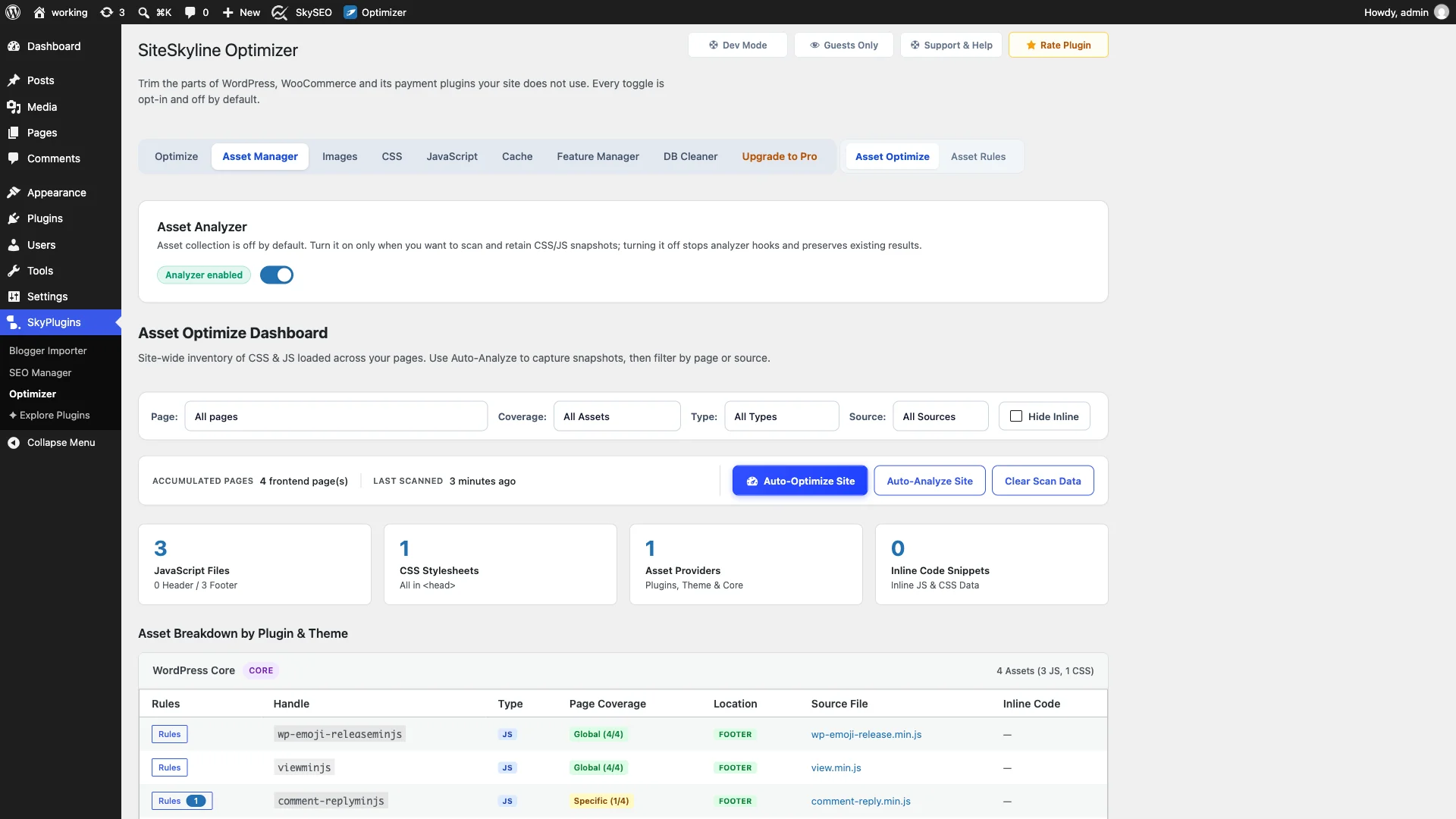
The Asset Optimize dashboard gives you an immediate high-level summary of your website’s asset footprint, including:
- JavaScript Files: Total external JS files enqueued, categorized by Header and Footer placement.
- CSS Stylesheets: Total external stylesheets loaded in your document
<head>. - Asset Providers: Breakdown of source origins, distinguishing WordPress Core from active plugins and your active theme.
- Accumulated Pages: How many frontend templates have been analyzed during runtime.
Step 2: Enable the Asset Analyzer Runtime Scanner
Unlike slow external scanners that miss logged-in cookies or dynamic conditional scripts, SOptimizer features a lightweight সম্পদ বিশ্লেষক that hooks directly into WordPress enqueuing at runtime. To protect your server performance, asset collection is kept off by default.
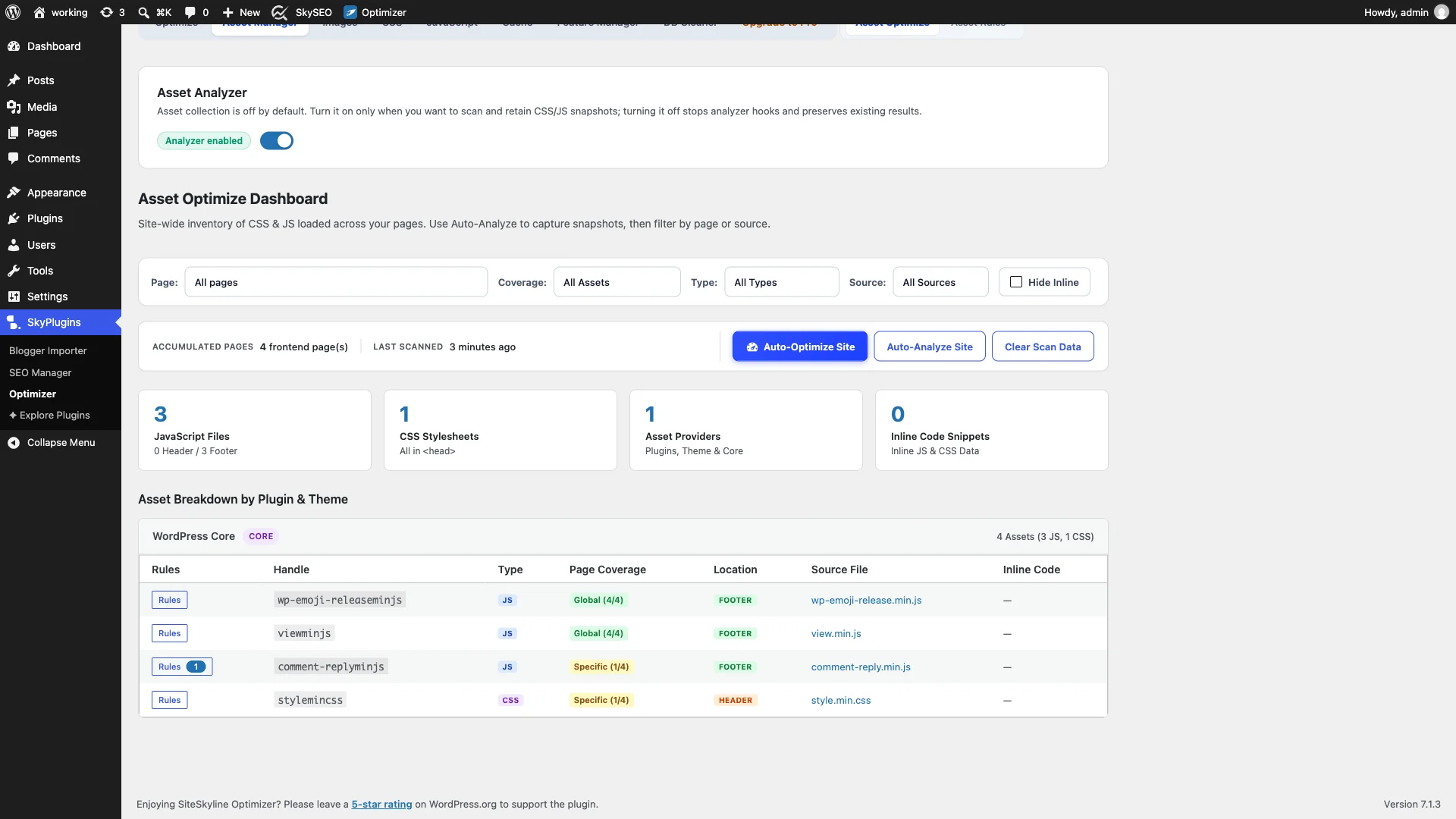
চালু করুন Enable Asset Analyzer toggle. Once enabled, SOptimizer listens to all frontend page loads and populates the Asset Breakdown table below. You will see every registered asset handle (such as wp-emoji-releaseminjs অথবা comment-replyminjs), its exact file path, load position, and coverage status across your site.
Step 3: Filter Assets and Auto-Analyze Site Pages
Finding bloat is fast and intuitive thanks to SOptimizer’s multifaceted filter bar. You can isolate exactly what you want to optimize:
- Page Filter: View all assets loaded globally, or select a specific URL (such as your homepage, a sample page, or a category archive) to see only the scripts loaded on that single page.
- Coverage Filter: Filter by Global Only (All Pages) to find scripts that aggressively load everywhere, or Page-Specific Only for targeted scripts.
- Type & Source Filters: Switch between JavaScript (.js) and CSS (.css), or isolate third-party plugins from theme and WordPress core files.
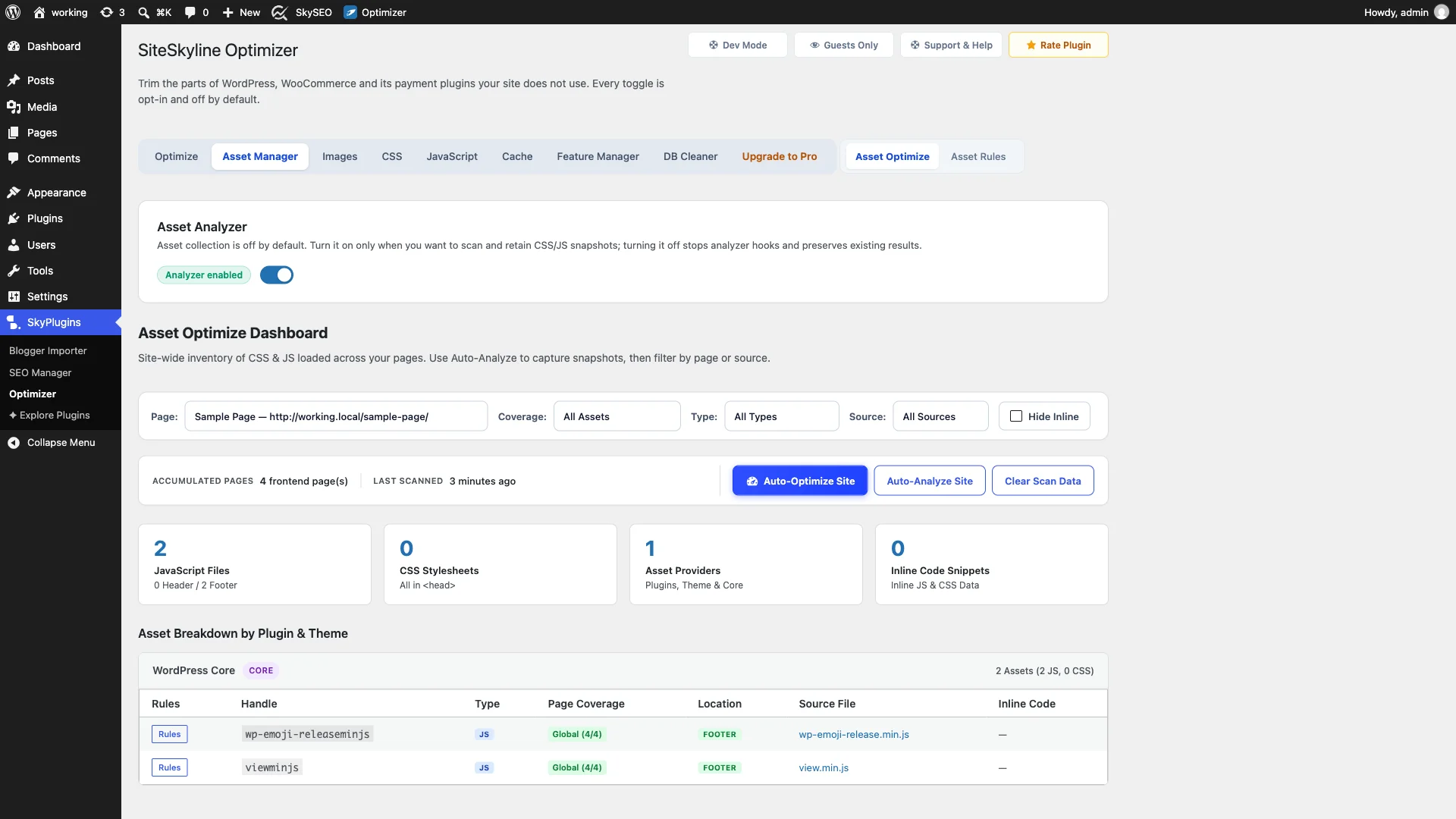
Want to scan your key templates all at once without manually visiting each page? Simply click the Auto-Analyze Site button. SOptimizer will crawl your key templates and build a comprehensive catalog in seconds.
Step 4: Configure Script and Stylesheet Unloading Rules
Once you spot an asset that is unnecessary on certain pages, click the Rules button next to that handle to open the Asset Optimization modal.
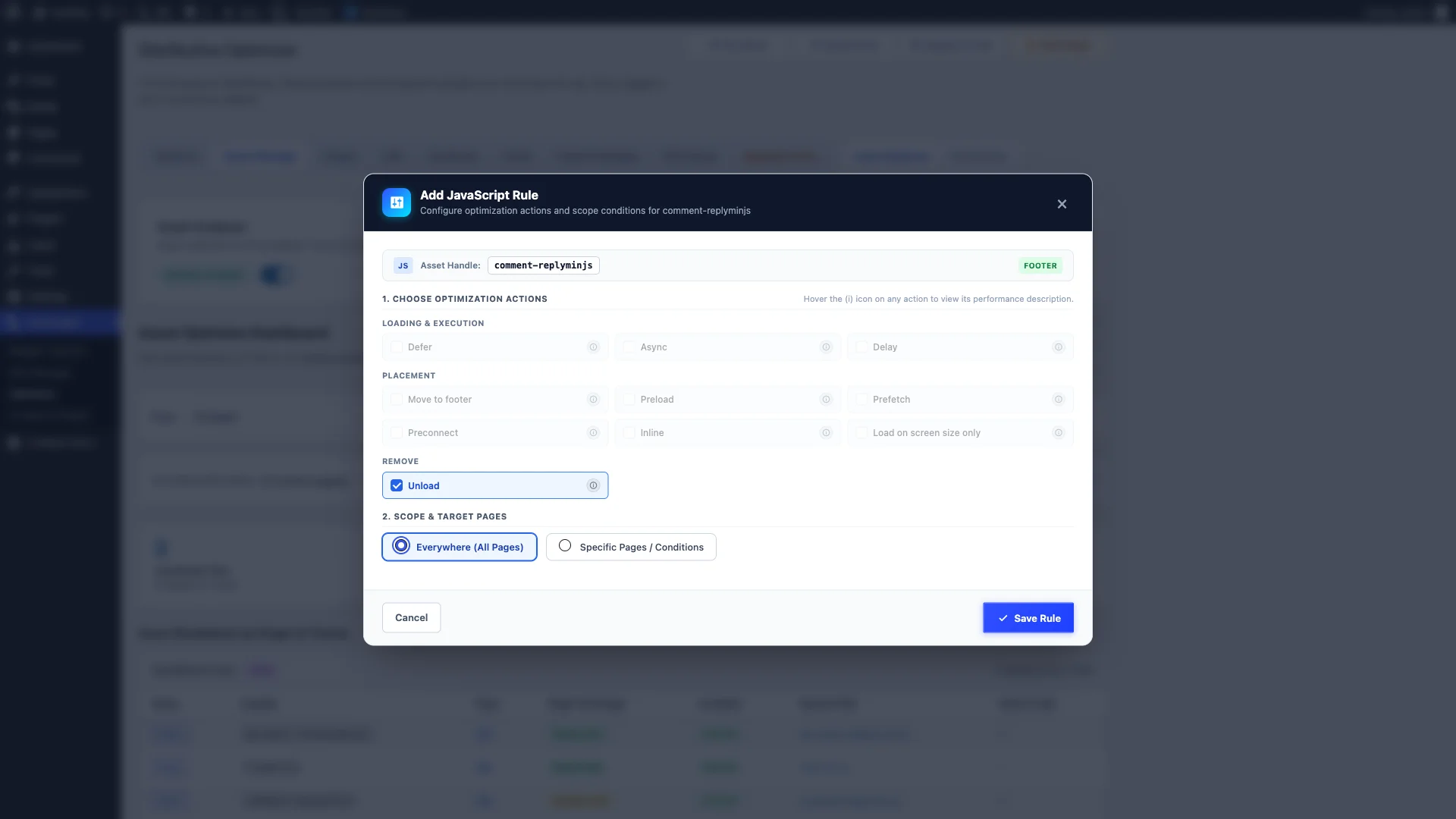
In the rule configuration modal, you have two primary settings:
- Choose Optimization Action: অধীনে Remove category, check Unload. This instructs WordPress to completely dequeue and prevent the asset from rendering. (Alternatively, you can choose to Defer, Async, Delay, or Move to Footer if you still require the file later).
- Scope & Target Pages: Choose where this rule should apply:
- Everywhere (All Pages): Dequeues the asset across the entire site (ideal for unused core features like emoji scripts).
- Specific Pages / Conditions: Unloads the asset only on selected post types, specific page IDs, taxonomy archives, front page, or based on logged-in/logged-out user status.
ক্লিক করুন Save Rule to instantly activate the optimization.
Step 5: Manage and Audit Active Asset Rules
To review, edit, or adjust your active rules at any time, click on the সম্পদের নিয়ম tab (section=assets&tab=rules).
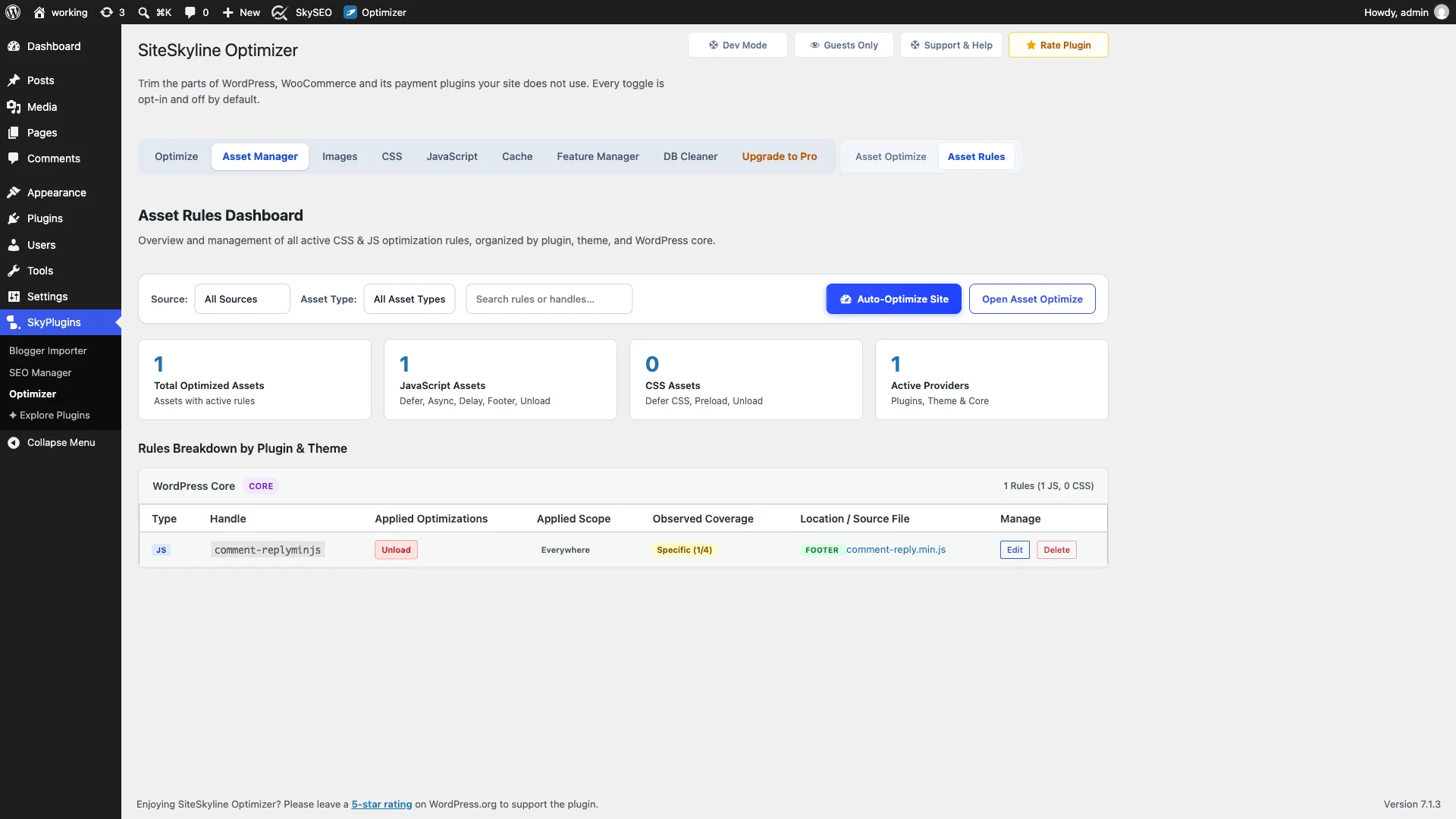
The Asset Rules Dashboard organizes all configured rules into clean tables grouped by provider. For each rule, you can verify the applied action (e.g. Unload), the applied scope (e.g. Everywhere অথবা Specific Pages), and observed coverage. If you ever need to restore a script or modify targeting conditions, simply click Edit অথবা মুছে দিন.
Step 6: Verify Unloaded Scripts on the Frontend
Now it is time to verify that your unloaded scripts have vanished from the page output. Open your website in an incognito browser window or test the live URL.
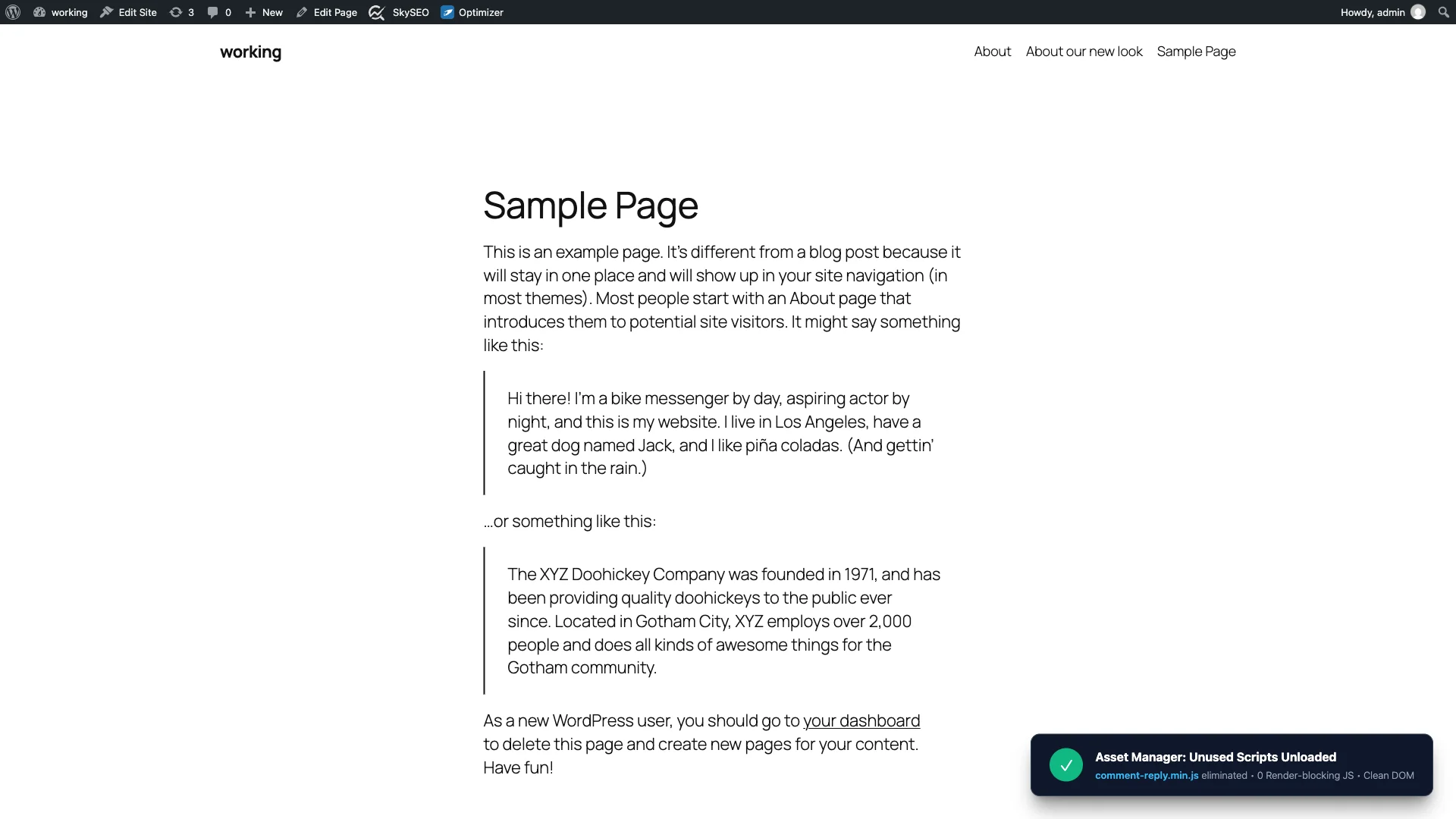
Right-click the page and select View Page Source, or open Chrome DevTools (F12 » Elements / Network). Search for your disabled handle (such as comment-reply.min.js). You will confirm that the <script> tag has been completely removed from the DOM, saving HTTP requests, eliminating render-blocking delays, and speeding up Core Web Vitals.
Asset Optimization Comparison: SOptimizer vs Alternatives
| Optimization Feature | SOptimizer Asset Manager | Manual Code (functions.php) | Generic Cache Plugins |
|---|---|---|---|
| Visual Asset Discovery | Yes (Runtime Analyzer + Auto-Scan) | No (Requires manual DevTools inspection) | Limited or None |
| Granular Scope Targeting | Yes (Post Type, Page ID, Taxonomies) | Manual PHP conditions (is_page(), etc.) | Global only (All or Nothing) |
| Multiple Actions per Asset | Yes (Unload, Defer, Async, Delay, Footer) | Complex hook registration required | Basic deferral only |
| Safety & Reversibility | One-click edit/delete from UI | Risk of PHP syntax errors | Requires cache purge / resets |
| Resource Overhead | Zero frontend penalty (Analyzer off by default) | Minimal | Can increase TTFB with heavy overhead |
Operational Checklist for Disabling Unused CSS & JavaScript
- Always Backup First: Before aggressively disabling core theme assets, ensure you have a current website backup.
- Start with Known Culprits: Begin with contact form scripts, slider libraries on non-slider pages, and unused comment scripts.
- Test Interactive Elements: After unloading a script, click test your navigation menu, mobile drawer, search modal, and forms to confirm nothing broke.
- Disable Asset Analyzer After Scanning: Once your inventory is scanned and rules are configured, turn off the Asset Analyzer toggle to keep admin overhead at absolute zero.
- Re-test with Google PageSpeed Insights: Measure your before-and-after FCP, LCP, and INP metrics to record your speed gains.
Frequently Asked Questions (FAQs)
Will disabling a script break my WordPress website?
If you disable a script that other theme components depend on (such as jQuery), interactive elements like dropdowns or sliders may stop working. This is why SOptimizer provides granular condition rules. Always disable scripts selectively per page rather than globally unless you are certain the feature is unused across your entire site.
What is the difference between Unload, Defer, and Delay?
Unload stops the asset from downloading altogether. Defer downloads the asset in parallel but executes it only after the HTML document is fully parsed. Delay holds the script entirely until the visitor interacts with the screen (such as scrolling or clicking), keeping heavy marketing scripts completely off the critical rendering path.
Does SOptimizer work alongside caching plugins?
Yes. SOptimizer operates at the WordPress enqueuing layer before static HTML cache files are generated. Any page caching plugin will simply cache the already optimized, script-free HTML response, compounding your speed improvements.
Ready to trim the bloat from your WordPress site? Download সাইটস্কাইলাইন অপ্টিমাইজার today and take full control of your frontend assets.