
When online shoppers land on a product that doesn’t completely satisfy their needs, what do they do? If your store leaves them stranded with only one choice, over 70% of shoppers bounce back to Google or Amazon to compare alternatives, colors, sizes, and price tiers.
Amazon solved this psychological friction years ago with their famous “Compare with Similar Items” specification table. By giving shoppers a structured, side-by-side spec comparison of closely related alternatives directly on the product page, Amazon keeps shoppers inside their ecosystem and captures the purchase even if the initial product wasn’t the perfect fit.
In this step-by-step tutorial, you will learn how to add an intelligent, automated Compare with Similar Items specification matrix to your WooCommerce store using the free SiteSkyline Smart Sales plugin. You will discover how to automatically surface category substitutes, line up technical specifications, and enable direct 1-click cart addition from the matrix.
Why Comparison Spec Tables Prevent Customer Bounce & Drive Conversions
Modern consumers suffer from choice overload and comparison anxiety. When evaluating products—whether apparel, consumer electronics, tools, or cosmetics—buyers constantly ask themselves: “Is this the right model? Does another version have better dimensions or different colors? Am I overpaying?”
- Retain Comparison Shoppers: Instead of forcing visitors to open 5 separate browser tabs to weigh differences, a structured comparison table gives them instant clarity in one place.
- Automated Substitute Intelligence: Smart Sales algorithmically identifies catalog items in the same category sharing overlapping price points, physical dimensions, and variation attributes.
- Frictionless 1-Click Conversion: Each alternative column features a direct Add to Cart button, turning comparison browsing into immediate checkouts.
- Zero Layout Shift: Designed with native CSS table layout and mobile touch swipe hints, delivering an ultra-fast, responsive user experience.
Step 1: Enable the Compare with Similar Items Engine in WordPress
To begin, navigate to your WordPress admin dashboard and open Smart Sales → Optimizations.
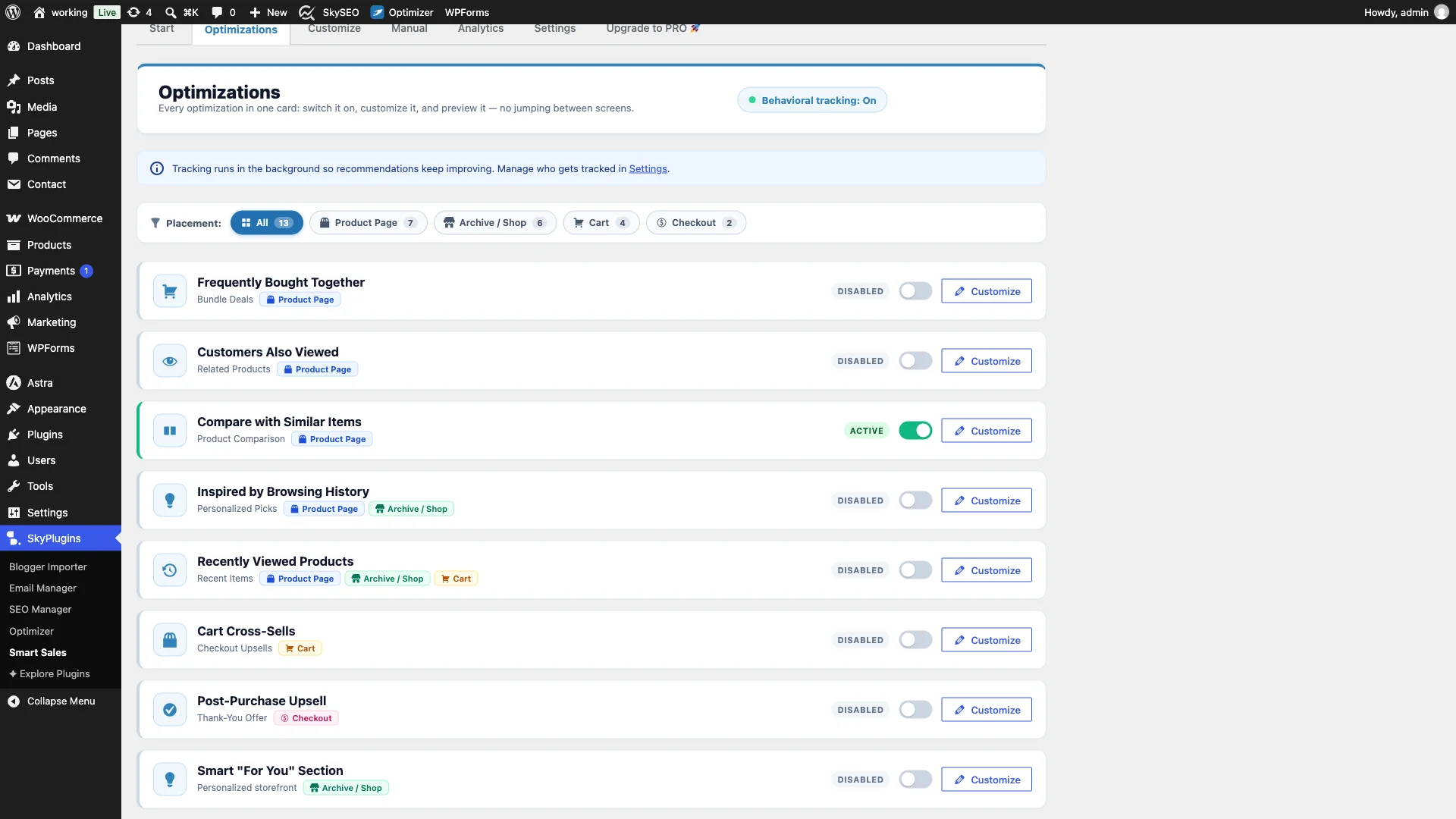
Find Compare with Similar Items card. Toggle the switch to Aktiv. Smart Sales automatically hooks into the single product template beneath the primary summary, right where shoppers naturally scroll to evaluate alternatives.
Step 2: Customize Comparison Matrix Styling, Typography & Badges
Next, let us ensure the comparison table matches your store typography and accent colors. Click on the Tilpas tab inside Smart Sales.
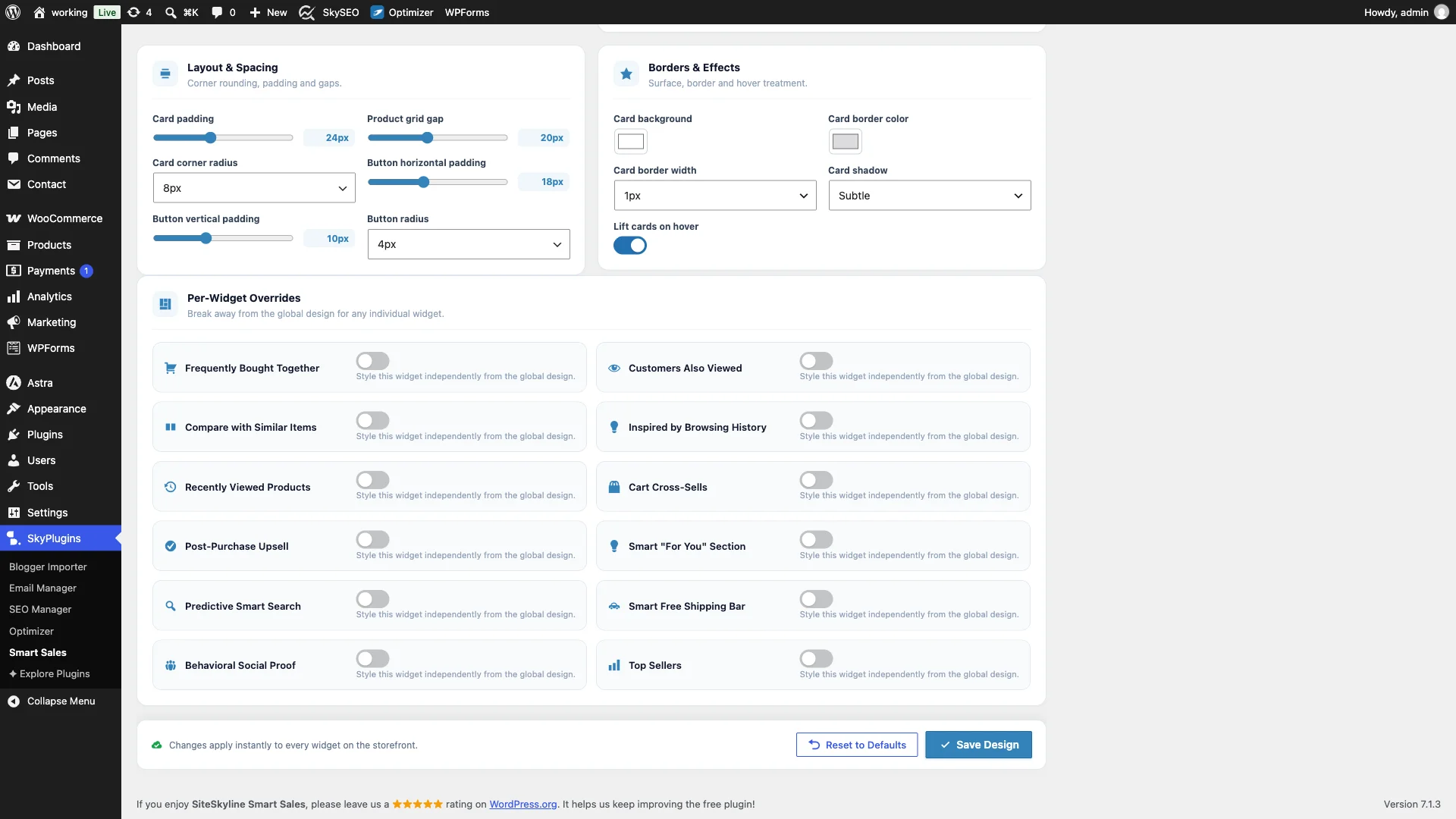
Under Per-Widget Overrides, open the Compare with Similar Items section. Here you can configure:
- Widget Title & Subtitle: Customize the headline (e.g., Compare with Similar Items eller See Alternative Models).
- Current Item Highlight: Enable subtle vertical column tinting and badge text (“This Item” eller “Currently Viewing”) so shoppers instantly maintain orientation.
- Row Visibility Controls: Selectively display or hide customer star ratings, price comparisons, stock status flags, dimensions, and custom attributes.
- Action Button Styles: Customize your primary call-to-action button color to match your store’s branding.
Step 3: Configure Substitute Detection Rules & Manual Overrides
SiteSkyline Smart Sales operates using a powerful dual-engine architecture for maximum flexibility:
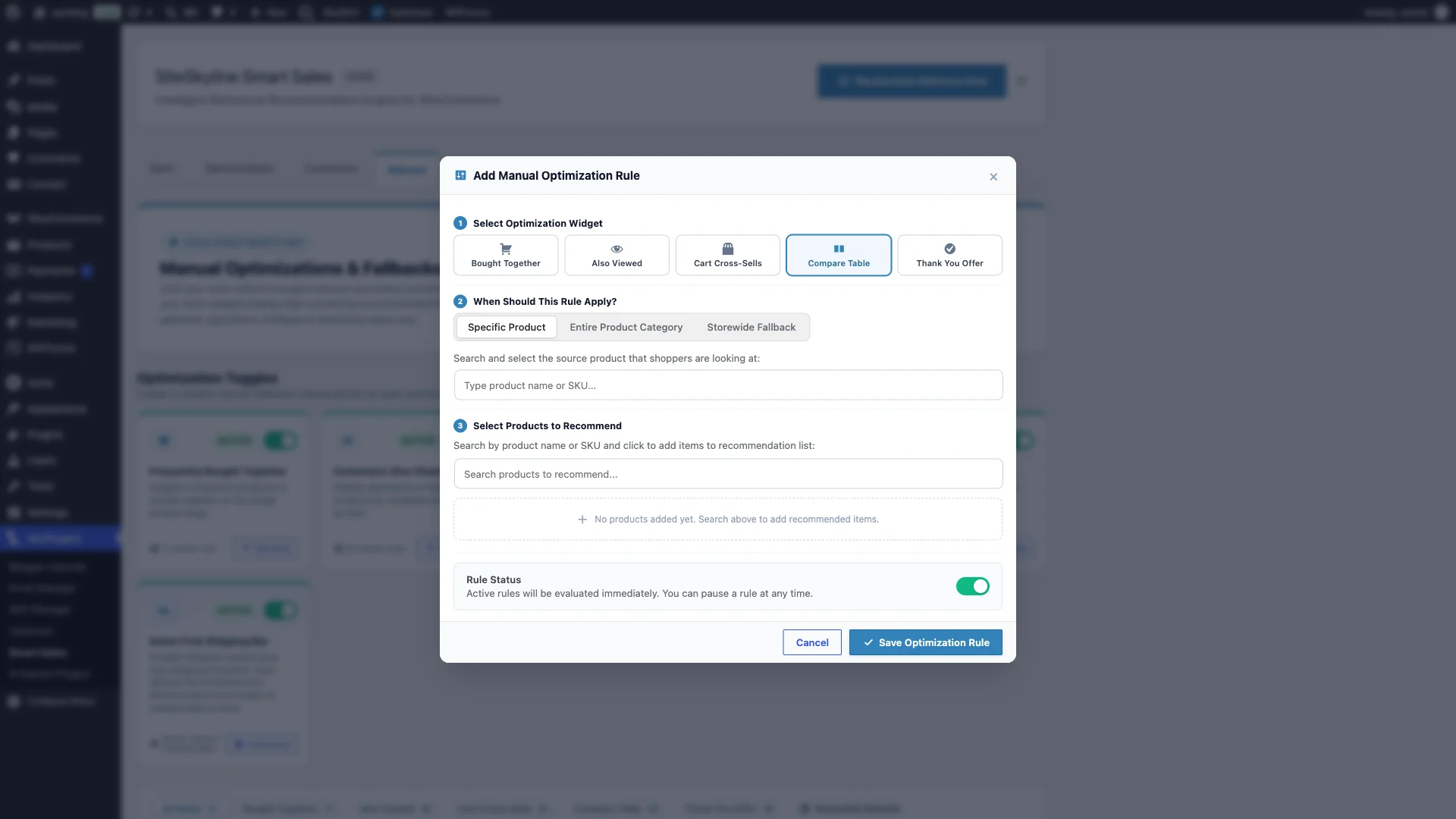
- Automatic Substitute Detector: By default, Smart Sales analyzes your WooCommerce catalog categories, finding the top 3 closest in-stock products with overlapping price brackets and attributes automatically.
- Manual Merchandising Overrides: When you want to push specific high-margin alternatives or spotlight newly released revisions, click on the Manuel tab. Select Compare Table, specify your source product (e.g., Hoodie with Pocket), and select exact companion models (such as Hoodie with Zipper og Hoodie with Logo).
Step 4: Live Frontend Spec Comparison Table Preview
Navigate to your live WooCommerce storefront and open the configured product page. Right below the main product summary, you will see the fully rendered Compare with Similar Items matrix.
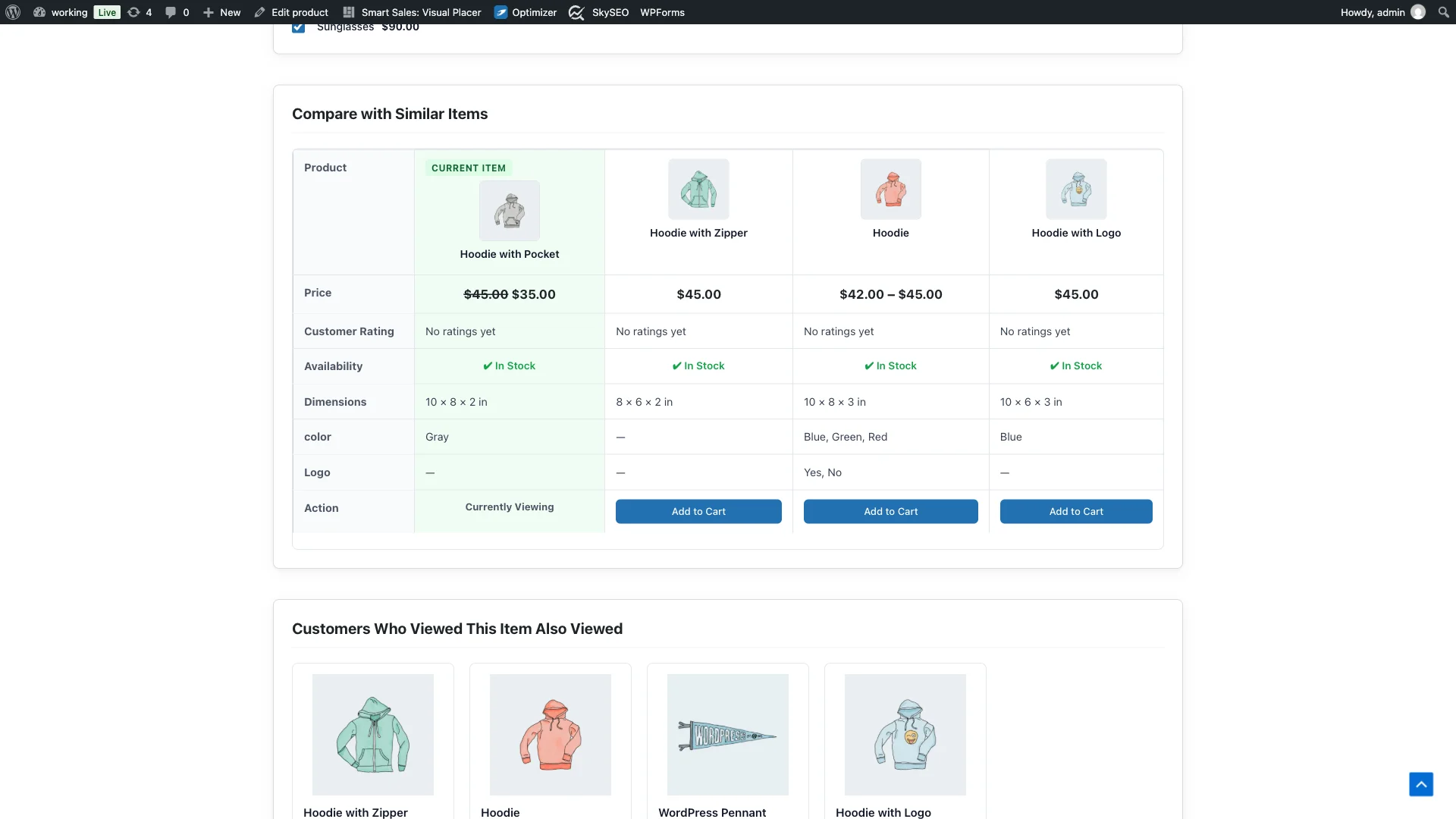
Shoppers immediately see high-resolution product thumbnails and titles aligned across 4 distinct columns. For mobile and tablet users, a built-in horizontal swipe indicator provides smooth touch navigation without clipping screen margins.
Step 5: Highlighted Current Product & Specification Breakdown
Notice how effectively the comparison table organizes critical decision criteria into structured horizontal rows:
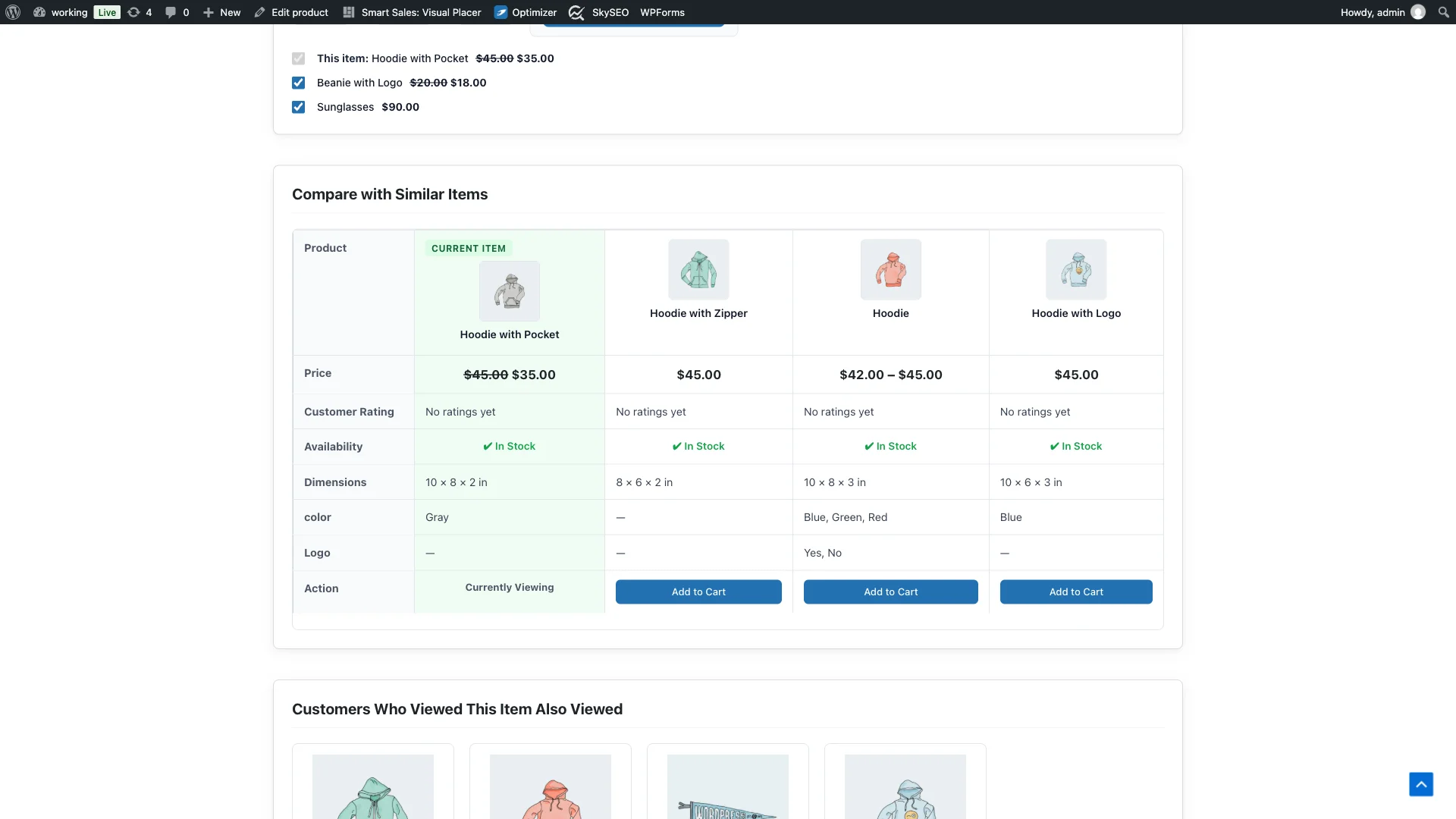
The structured layout eliminates uncertainty across every vital metric:
- Price Transparency: Highlights regular and sale pricing side-by-side ($35.00 vs $45.00).
- Customer Social Proof: Displays verified review ratings (★★★★★) and total review counts.
- Availability & Stock: Real-time in-stock checks ensure out-of-stock items never disappoint buyers.
- Dimensions & Weight: Precise physical specifications (e.g., 10×8×2 in vs 8×6×2 in).
- Dynamic Attributes: Automatically maps WooCommerce product attributes like Color options (Gray vs Blue) and variation styles.
Step 6: One-Click Add to Cart from the Comparison Action Row
The bottom row of the matrix features an interactive Handling bar designed to accelerate purchasing momentum.
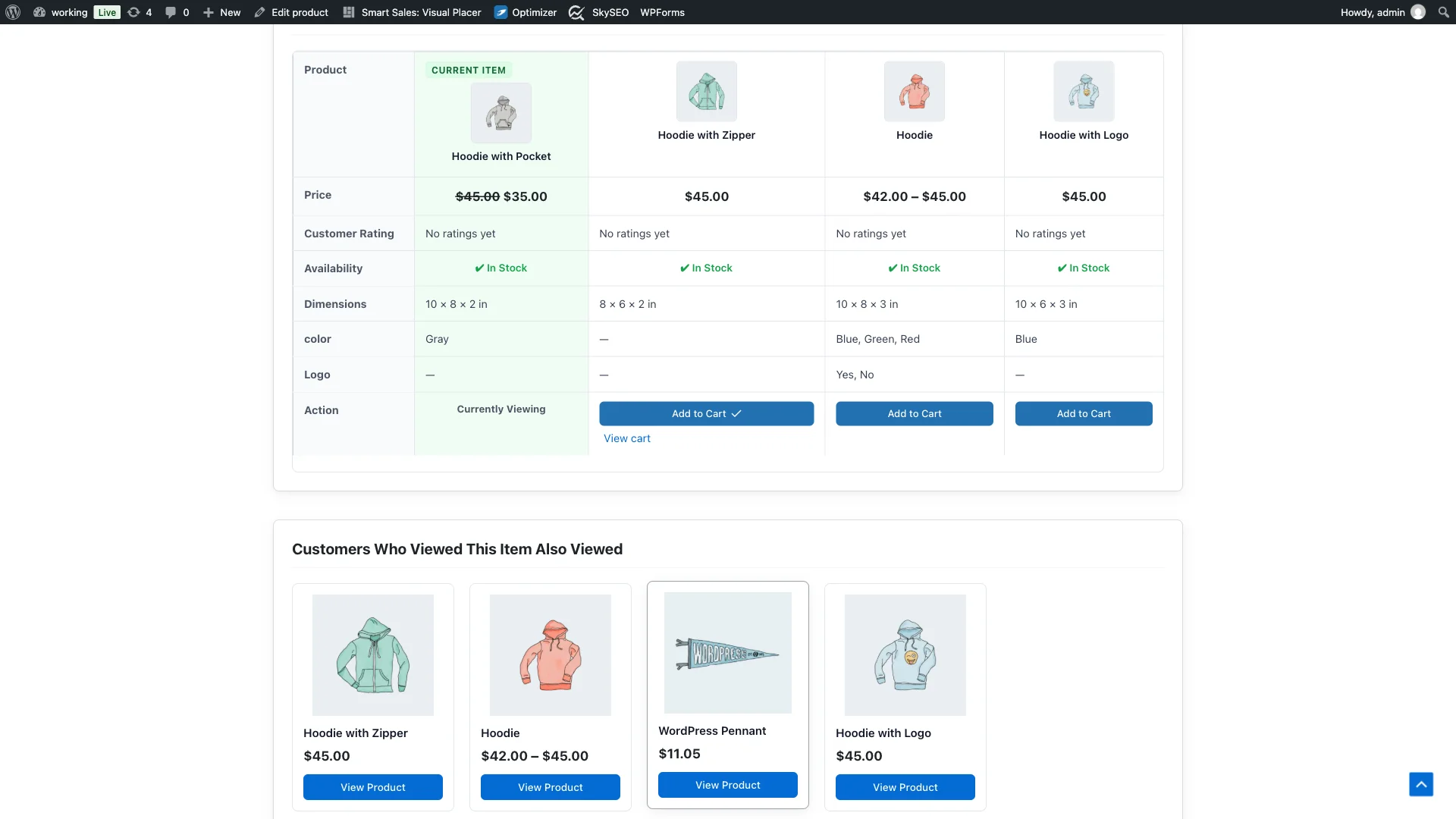
While the first column displays an informative Currently Viewing label, every substitute column features an interactive Tilføj til kurv button. When clicked, Smart Sales executes an AJAX add-to-cart request, updating the button to an added checkmark and instantly synchronizing the customer’s cart session.
Feature Comparison: Smart Sales vs. Dedicated WooCommerce Compare Plugins
| Capability | SiteSkyline Smart Sales | Traditional Compare Plugins | External Comparison SaaS |
|---|---|---|---|
| 100% Free & Open | Yes (Zero monthly fees) | $49 – $99 / year | $29 – $149 / month |
| Automated Substitute Mining | Built-in Category & Price AI | Requires manual item tagging | Requires third-party sync |
| In-Page Embedded Matrix | Embedded above tabs / summary | Requires awkward popup modals | Slow iframe widgets |
| Dynamic Attribute Mapping | Auto-detects custom attributes | Manual field setup required | Limited custom fields |
| 1-Click AJAX Cart Addition | Included in Action row | Redirects to external checkout | Complex cart bridge |
| Performance & Speed | <8KB scoped CSS / Clean HTML | Heavy bloated scripts | Third-party tracking cookies |
Strategic Best Practices for High-Converting Comparison Tables
To maximize conversions and Average Order Value with your comparison matrix, keep these merchandising strategies in mind:
- Maintain Category Cohesion: Never compare unrelated products (e.g., comparing a hoodie with sunglasses). Comparison matrices work best when comparing direct substitutes (e.g., pullover hoodie vs zipper hoodie vs premium fleece hoodie).
- Surface “Good, Better, Best” Price Tiers: Position your standard item alongside a slightly more premium model (e.g., a $35 base model next to a $45 model with premium zipper and pockets). Many shoppers will naturally trade up when they see the extra features clearly itemized.
- Ensure Complete Product Dimensions: Make sure your WooCommerce product data includes Weight and Dimensions under the Shipping tab. Customers love verifying exact sizing before committing.
- Leverage Attribute Variations: Use standardized WooCommerce attributes (Color, Material, Warranty) to give shoppers clear, standardized comparisons across all alternatives.
Ofte stillede spørgsmål (FAQ)
How does Smart Sales choose which products to compare?
Smart Sales uses an automated substitute detector that scans items within the same WooCommerce category, prioritizing products with close price parity and overlapping attributes. You can also define custom manual overrides for any product in the Smart Sales admin panel.
Does the comparison table work on mobile smartphones?
Yes. The table features responsive CSS overflow handling with an automatic touch swipe indicator, allowing mobile shoppers to effortlessly swipe horizontally across product specifications without breaking your page layout.
Can I hide specific rows like Customer Ratings or Dimensions?
Yes. In the Smart Sales Customizer, you have complete granular control to toggle individual rows on or off, including price, customer rating stars, stock availability, dimensions, and custom attributes.
What happens if a substitute product goes out of stock?
Smart Sales continuously respects WooCommerce inventory status. If a substitute product goes out of stock, the algorithm automatically excludes it from the comparison matrix and surfaces the next available in-stock alternative.