Does your WordPress website struggle with sluggish page load times and Google PageSpeed Insights warnings like “Serve images in next-gen formats” eller “Properly size images”? Images frequently account for more than 70% of a web page’s total payload. When you upload uncompressed JPEG and PNG photos directly from a camera or smartphone, mobile visitors are forced to download megabytes of unnecessary data.
The modern solution is WebP—a cutting-edge image format developed by Google that delivers the exact same visual quality as JPEG and PNG at a 25% to 80% smaller file size. In this step-by-step tutorial, we will show you how to automatically convert WordPress images to WebP without breaking your image URLs, manual batching, or paying expensive monthly cloud compression fees, using SOptimizer.
Why Should You Convert WordPress Images to WebP?
WebP has become the web standard supported by all major modern browsers, including Google Chrome, Apple Safari, Mozilla Firefox, and Microsoft Edge. Serving your images in WebP format offers massive performance advantages:
- Dramatically Smaller File Sizes: WebP files are on average 26% smaller than PNGs and 25-34% smaller than comparable JPEGs at identical quality index.
- Superior Alpha Transparency: Unlike JPEG (which does not support transparency) and PNG (which creates massive files with transparency), WebP supports lossless transparency at a fraction of the weight.
- Faster Largest Contentful Paint (LCP): LCP is a core Google ranking factor that measures when the largest visual element (often a hero image or banner) renders. Shrinking that image payload by 75% directly slashes your LCP time.
- Zero URL Changes with Rewrite Delivery: SOptimizer converts and delivers WebP on the fly while retaining your existing image filenames and media URLs, protecting your image SEO rankings and backlinks.
Step 1: Access the WebP Conversion Dashboard in SOptimizer
To get started, make sure you have installed and activated SiteSkyline Optimizer (SOptimizer) on your WordPress site. From your WordPress admin dashboard, navigate to Optimizer » Images » WebP Conversion.
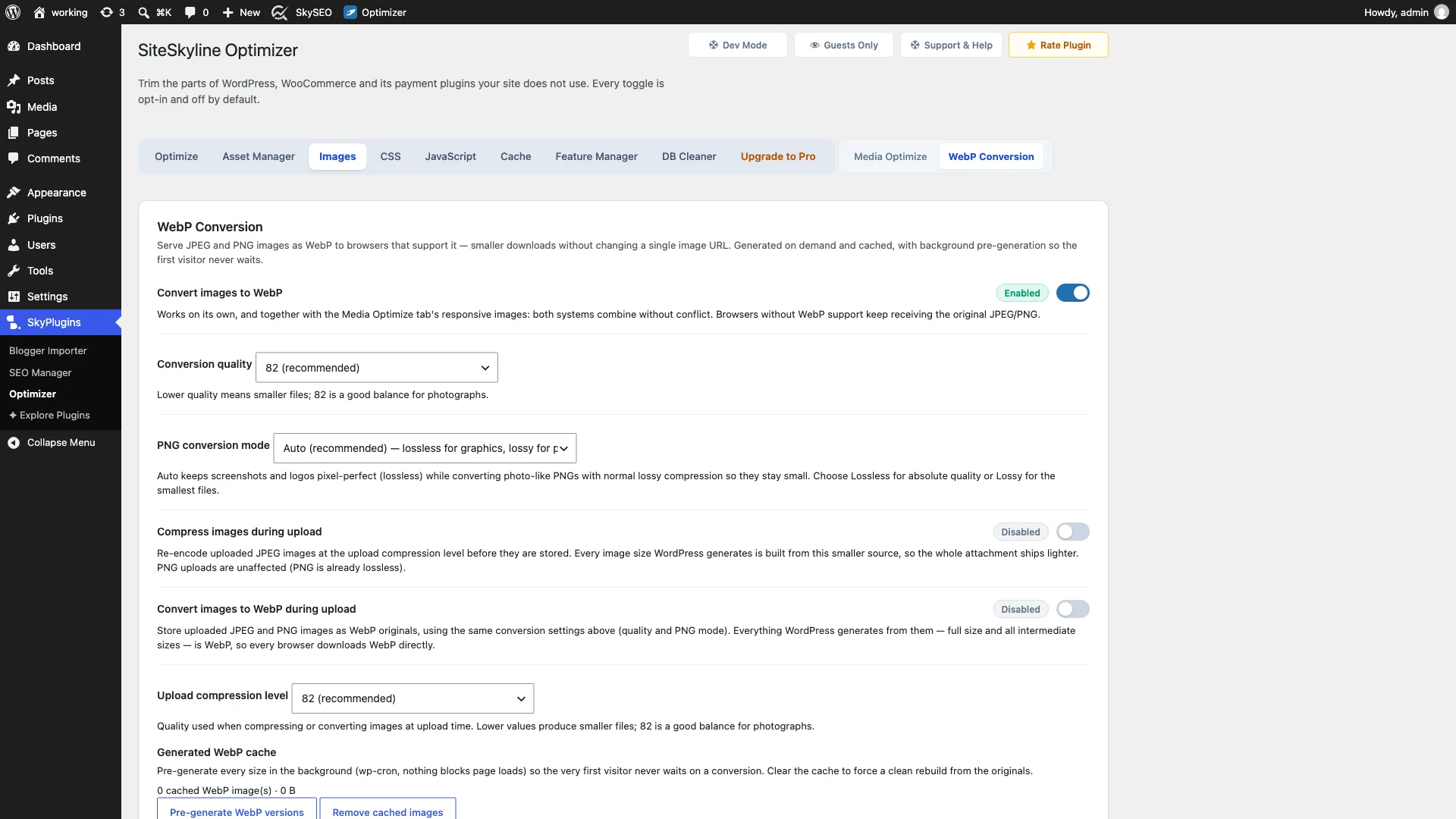
On this dashboard, you will find the master Convert images to WebP toggle. When enabled, SOptimizer intercepts incoming image requests and delivers cached WebP versions to browsers that support it. If an older browser (such as legacy Internet Explorer) requests the image, SOptimizer automatically falls back to your original JPEG or PNG file without any configuration needed.
Step 2: Configure Image Quality and Upload Conversion Modes
Next, fine-tune your compression settings to balance maximum visual sharpness with smallest file size:
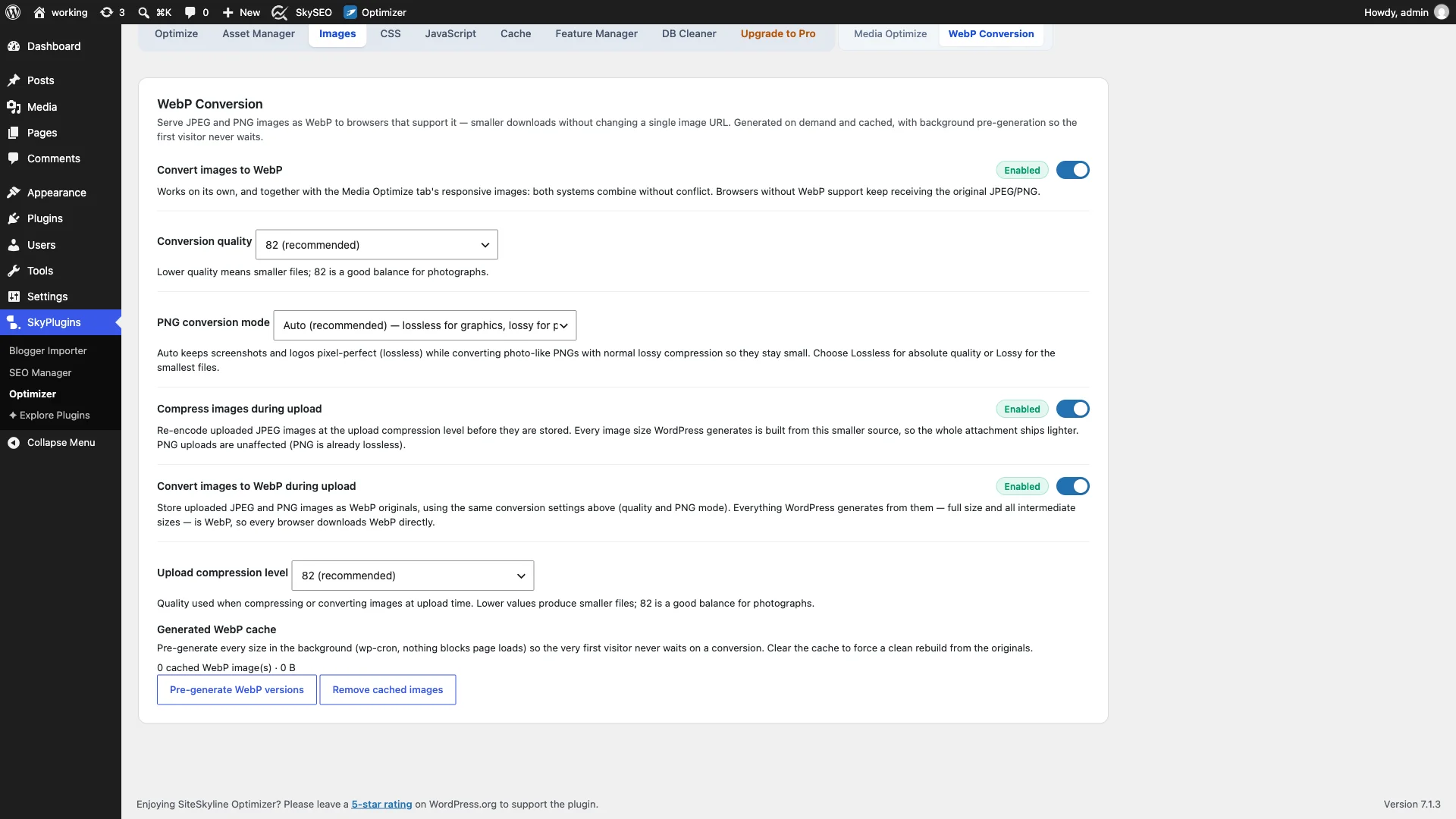
- Conversion Quality: Indstil dette til 82 (recommended). Through extensive testing, an 82 quality index delivers virtually indistinguishable visual fidelity while maximizing byte reduction.
- PNG Conversion Mode: Vælge Auto (recommended). This intelligent setting keeps screenshots, vector icons, and transparent brand logos pixel-perfect using lossless compression, while applying lossy WebP compression to photographic PNGs.
- Convert Images to WebP During Upload: Enable this toggle to immediately store uploaded JPEG and PNG files as WebP originals. Every thumbnail size generated by WordPress will automatically be WebP from day one.
- Compress Images During Upload: Re-encodes uploaded images at your target compression level before storing, preventing gigabytes of raw, unoptimized camera uploads from cluttering your web server disk space.
Step 3: Pre-Generate Your WebP Cache in the Background
While SOptimizer automatically converts missing images upon first request, you want to guarantee that even the very first visitor to an older blog post receives instantaneous WebP delivery.
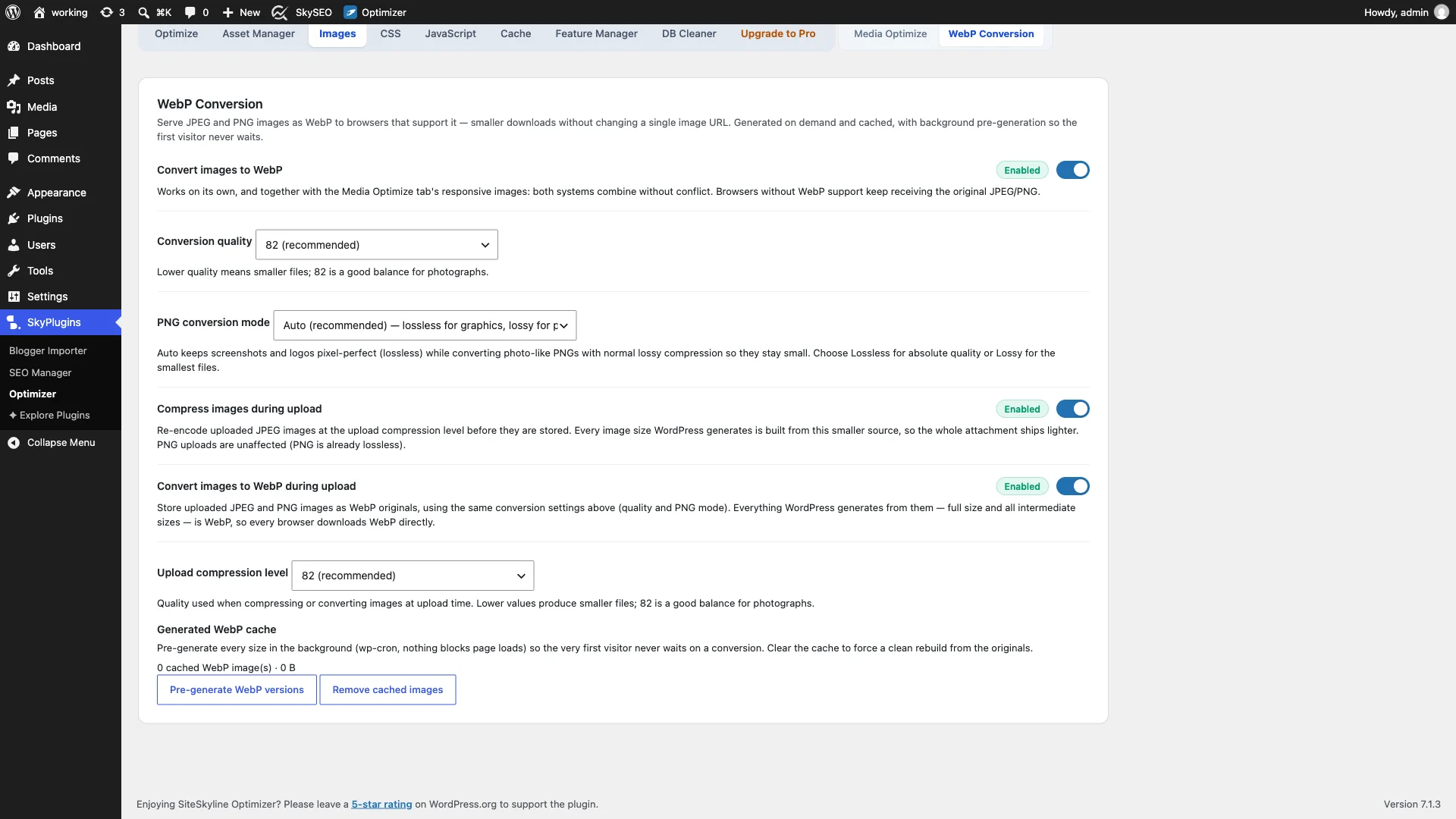
Rul ned til Generated WebP cache card and click Pre-generate WebP versions. SOptimizer schedules background cron tasks that systematically convert all existing media library attachments and thumbnails into WebP. Because this runs asynchronously in the background, your server stays responsive and live visitors experience zero slowdowns.
Step 4: Enable Responsive Images & Cumulative Layout Shift (CLS) Fixes
File compression is only half the battle. If a mobile phone downloads a desktop-sized 2000px image, bandwidth is still wasted. Click on the Media Optimize tab (section=images&tab=images) to configure responsive image delivery.
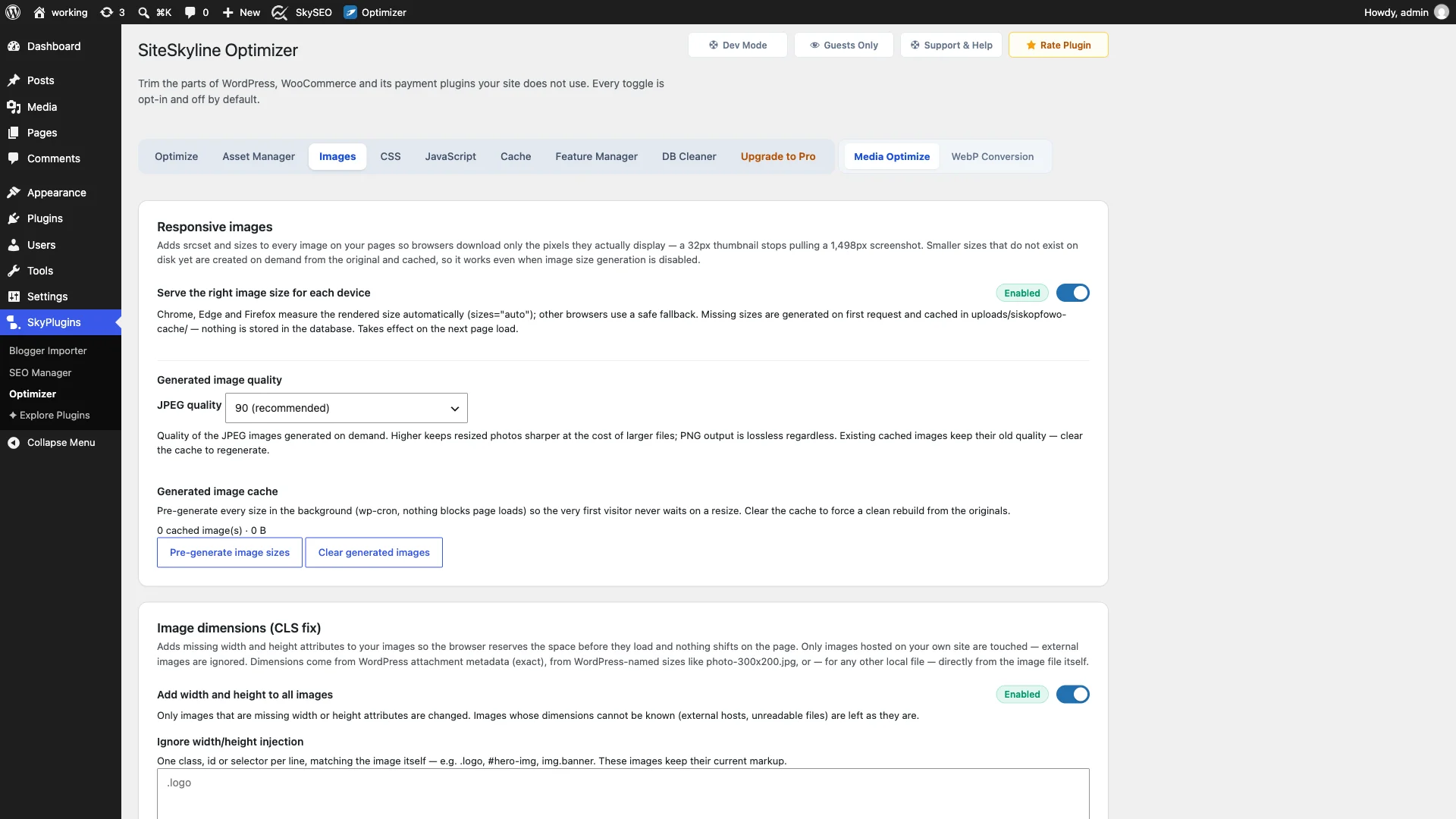
- Responsive Images: Turn on “Serve the right image size for each device”. SOptimizer automatically adds
srcsetogsizes="auto"so modern browsers measure rendered dimensions and only fetch the necessary resolution. - Image Dimensions (CLS Fix): Aktiver “Add width and height to all images”. Missing width and height attributes cause images to push text down as they load, creating visual layout jumps. By reserving the exact aspect ratio space in the browser layout engine before downloading, SOptimizer drops your Cumulative Layout Shift (CLS) score to zero!
Step 5: Configure Smart Lazy Loading & LCP Preload Rules
To further accelerate page rendering, scroll down on the Media Optimize tab to the Doven indlæsning og Preload Images sections.
- Lazy Load All Images & Media: Automatically appends
loading="lazy"to images, iframes, YouTube embeds, and Vimeo videos across your entire theme and widgets. - Exclusion Rules: Easily add CSS selectors (e.g.,
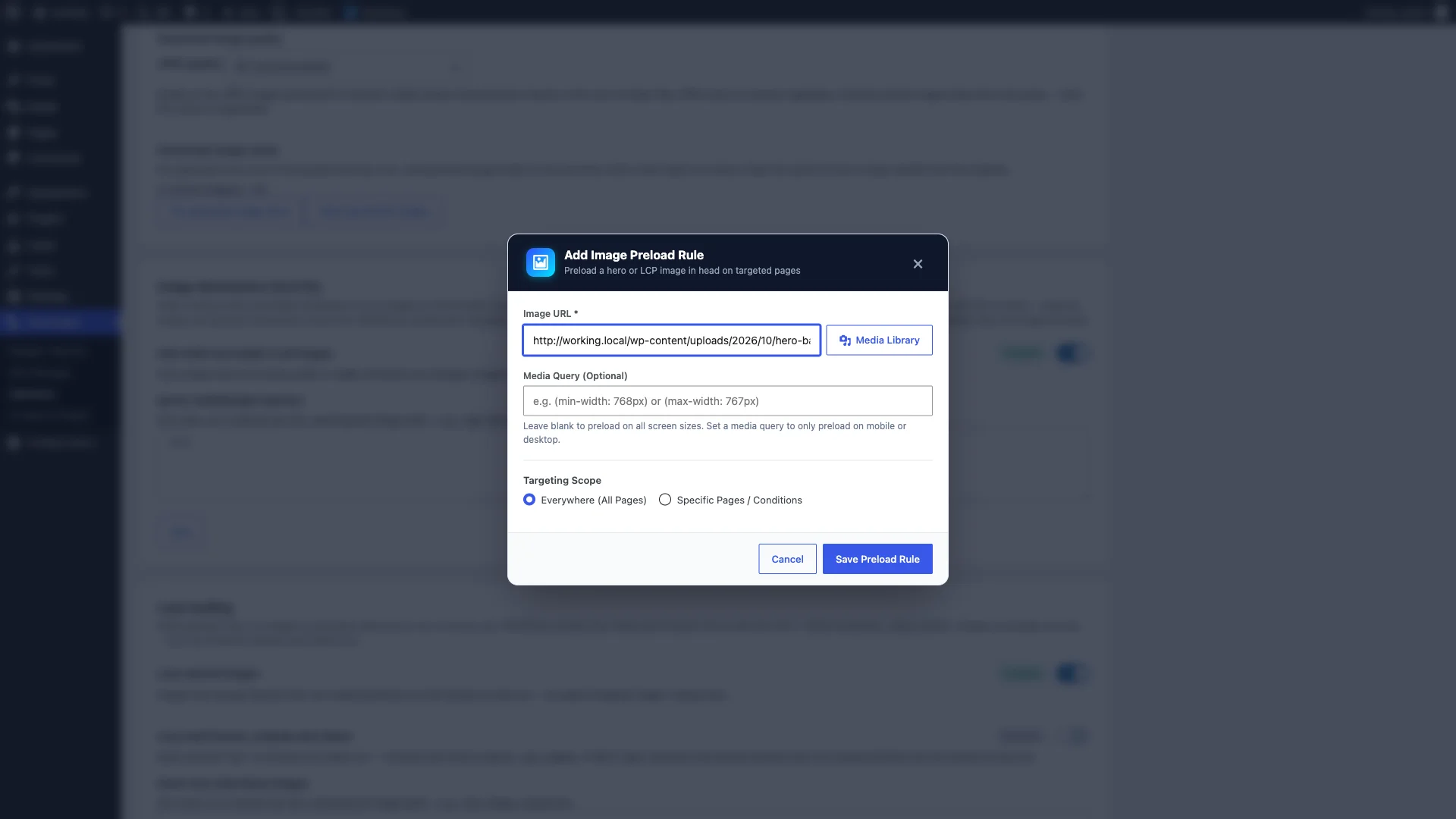
.hero, #logo, img.banner) to the “Never lazy-load these images” box so above-the-fold assets load immediately without delay. - Hero & LCP Preload Rules: Klik Add Preload Image to inject a
<link rel="preload" as="image" fetchpriority="high">tag in your document head for critical hero banners on your homepage or landing pages, giving your Largest Contentful Paint a massive boost.
Step 6: Verify WebP Delivery and Bandwidth Savings on the Frontend
To verify that WebP is actively serving on your live website, open any frontend page in an incognito browser window or test your site with Chrome DevTools.
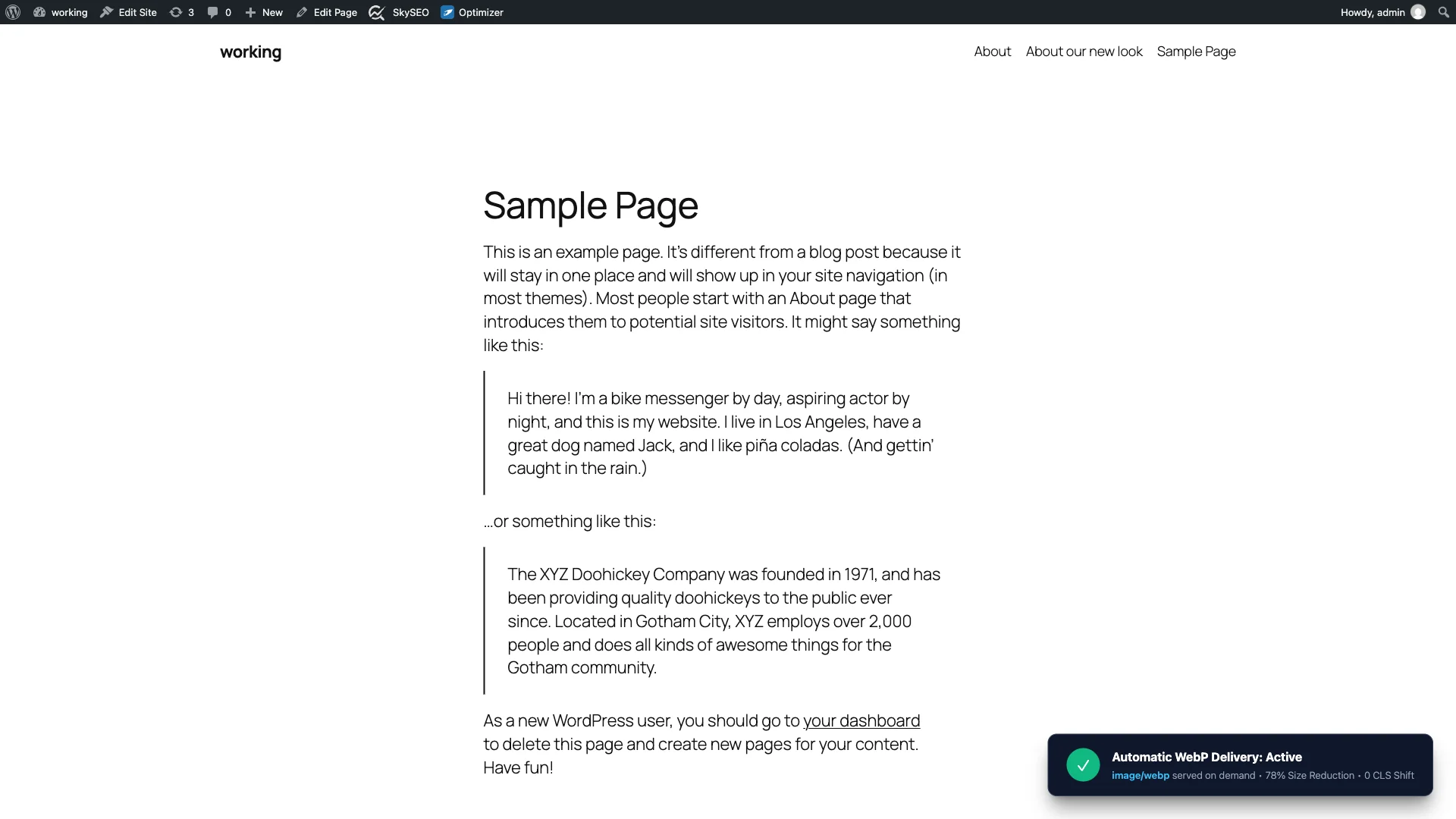
Åben Chrome DevTools (F12), switch to the Network tab, and filter by Img. Refresh the page and inspect the Type column. You will see that images are delivered with the MIME type image/webp. Comparing the file size against your original uploads reveals savings between 60% and 80%, all while your layout stays rock-solid with zero layout shifts.
WebP Optimization Comparison: SOptimizer vs Alternatives
| Feature | SOptimizer WebP | External SaaS Plugins (ShortPixel, Imagify) | Default WordPress 6.x |
|---|---|---|---|
| Monthly Image Quotas | Unlimited (100% Free & Local) | Strict monthly limits or paid subscriptions | No conversion built-in |
| Server Privacy | Images never leave your web server | Images uploaded to 3rd-party cloud servers | Local |
| URL & SEO Preservation | Preserves original URLs seamlessly | Often alters URLs or requires CDN redirects | N/A |
| Fallback Support | Automatic JPEG/PNG fallback for legacy browsers | Requires complex .htaccess rewrite rules | N/A |
| Responsive Image Sizing | Yes (srcset + sizes=”auto”) | Varies / Often requires add-on plugin | Basic srcset only |
| CLS Dimension Fix | Yes (Automatic width/height injection) | Ingen | Ingen |
Operational Checklist for WordPress WebP Optimization
- Verify WebP Support on Server: Confirm your hosting environment supports GD or ImageMagick with WebP capability (standard across 99% of modern hosts).
- Keep Original Media Intact: SOptimizer stores WebP versions alongside originals, ensuring you can regenerate or revert at any time without losing original high-res assets.
- Exclude Hero Images from Lazy Loading: Ensure above-the-fold banners are excluded from lazy loading to maximize your LCP score.
- Run Pre-Generation in Batches: For huge libraries with tens of thousands of images, allow the background cron job sufficient time to complete without interruption.
- Audit with PageSpeed Insights: Re-test your URLs on Google PageSpeed Insights to verify the elimination of “Serve images in next-gen formats” and “Properly size images” warnings.
Frequently Asked Questions (FAQs)
Will WebP images display on Apple devices and Safari?
Yes! Apple added full native support for WebP in iOS 14 and macOS Big Sur across Safari. For the fraction of one percent of visitors using legacy browsers from over five years ago, SOptimizer automatically detects the browser accept header and delivers the original JPEG or PNG file.
Does converting to WebP hurt my Google Image SEO rankings?
No. Google officially recommends WebP and actively rewards fast-loading websites in organic search. Furthermore, because SOptimizer serves WebP transparently using content negotiation without altering your media URLs, your existing indexation and image rankings are completely preserved.
Can I convert images to WebP on upload automatically?
Yes. By enabling the “Convert images to WebP during upload” setting in SOptimizer, every new JPEG or PNG photo you drop into your WordPress media library is automatically converted and stored as WebP, along with all intermediate thumbnail sizes.
Ready to supercharge your WordPress image performance? Download SiteSkyline Optimizer today and start delivering lightweight WebP images to your visitors!