Did you know that every default WordPress installation loads dozens of legacy scripts, discovery tags, and obsolete styles on every single page view? Even modern, well-built websites frequently suffer from 100KB to 200KB of unnecessary core bloat before their actual content begins loading.
Over the past twenty years, WordPress has prioritized backwards compatibility above all else. While this ensures that legacy plugins from 2009 continue working, it also means your site enqueues jQuery Migrate layers, Windows Live Writer manifests, Really Simple Discovery links, and redundant emoji detection scripts that modern browsers and modern users have not needed for over a decade.
In this comprehensive guide, we will walk you through how to safely clean up and supercharge your WordPress site by disabling core bloat using SiteSkyline Optimizer (SOptimizer). We will also explore the modern Speculation Rules API to enable instant pre-rendering on internal link hover.
Why Disabling WordPress Core Bloat Matters for Performance & Security
Each extra stylesheet, script, and meta tag enqueued in your HTML <head> impacts site performance and Core Web Vitals in three critical ways:
- Unnecessary HTTP Requests & Bandwidth: Scripts like
jquery-migrate.min.js(~40 KB uncompressed) and the frontenddashicons.min.css(~100 KB) add heavy payloads to every visitor session. - Main Thread Blocking & Render Latency: Inline emoji detection scripts execute JavaScript synchronously during initial document parsing, stealing CPU cycles and delaying First Contentful Paint (FCP).
- Information Disclosure: El valor predeterminado
generatortag broadcasts your exact WordPress version number in plain text, making it trivial for automated bots to fingerprint unpatched vulnerabilities.
| WordPress Core Component | Default Behavior | SOptimizer Clean Action | Performance & Security Gain |
|---|---|---|---|
| jQuery Migrate | Loaded on all pages for legacy jQuery 1.x compatibility | Purged from frontend script queue | ~40 KB payload reduction, zero script execution |
| WordPress Emojis | Synchronous JS script & inline CSS in <head> | Completely disabled; native emojis preserved | Faster FCP, removes 2 HTTP requests & 10 KB JS |
| Frontend Dashicons | Loaded on frontend for non-logged-in visitors | Only loaded for logged-in admin users | ~100 KB font & stylesheet eliminated |
| Page Head Clutter | Enqueues RSD, WLW manifest, shortlinks, generator | Strips obsolete tags and hides WP version | Eliminates information disclosure, cleaner DOM |
| oEmbed Scripts | Loads host scripts for embedding external posts | Disabled when external iframe embeds are unused | Fewer scripts executed on every page load |
| Speculative Loading | Inactive by default in standard WordPress | Enables native Speculation Rules API | Sub-second internal page transitions on hover |
Step 1: Choose a WordPress Cleanup Preset
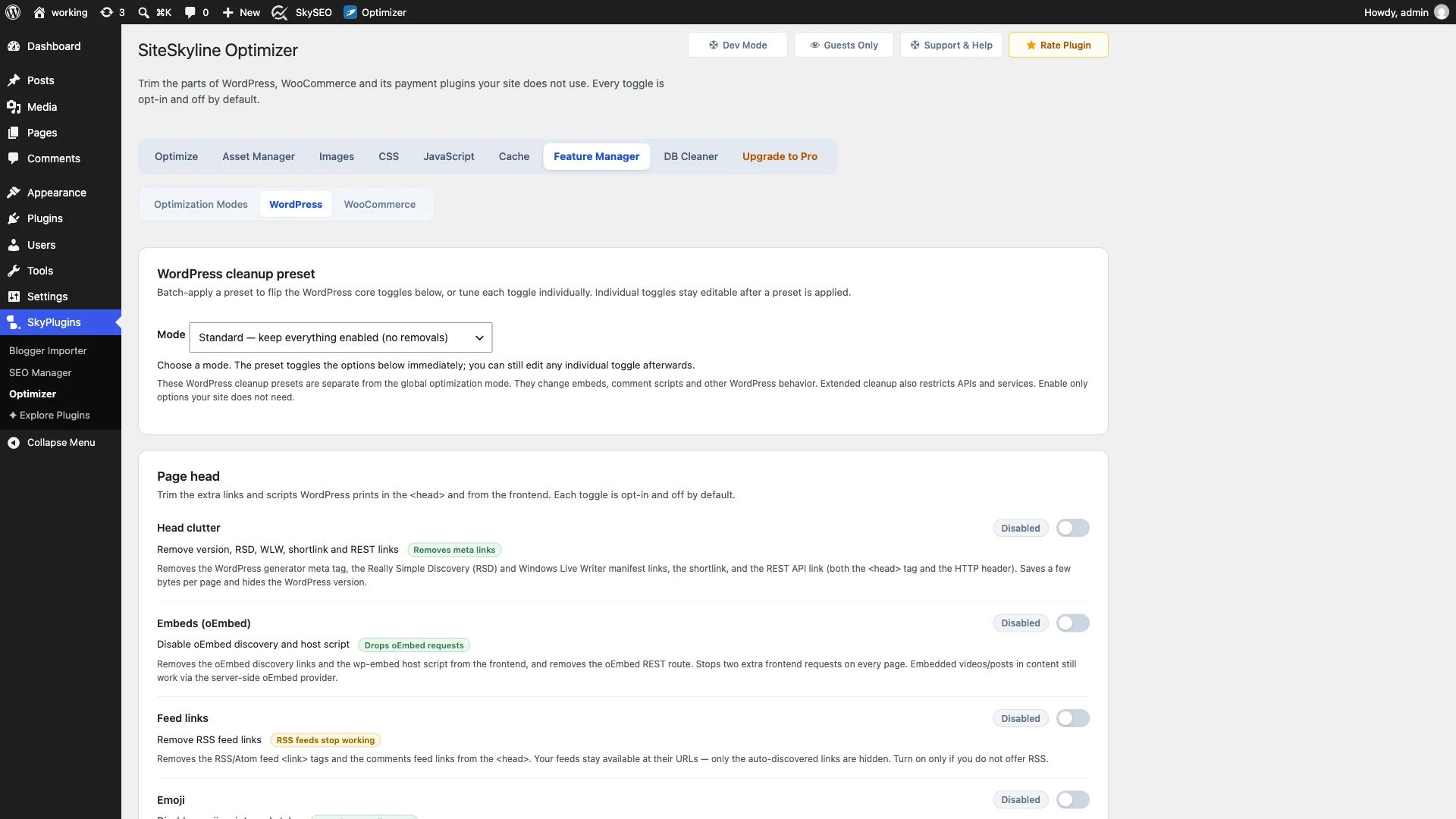
To begin purging bloat, navigate to your WordPress admin dashboard and open SiteSkyline Optimizer > Feature Manager > WordPress pestaña.
At the top of the interface, you will find the WordPress cleanup preset dropdown. This selector provides carefully calibrated configurations designed for different site profiles:
- Standard (Recommended): Cleans common head clutter, disables emojis, removes jQuery Migrate, and strips version tags without risking compatibility.
- Basic: A conservative preset for highly sensitive legacy setups.
- Extended: A comprehensive purge that also disables guest REST APIs, pingbacks, and XML-RPC for maximum hardening.
- Custom: Allows granular control over every individual feature switch.
Step 2: Purge Page Head Clutter and Redundant Embeds
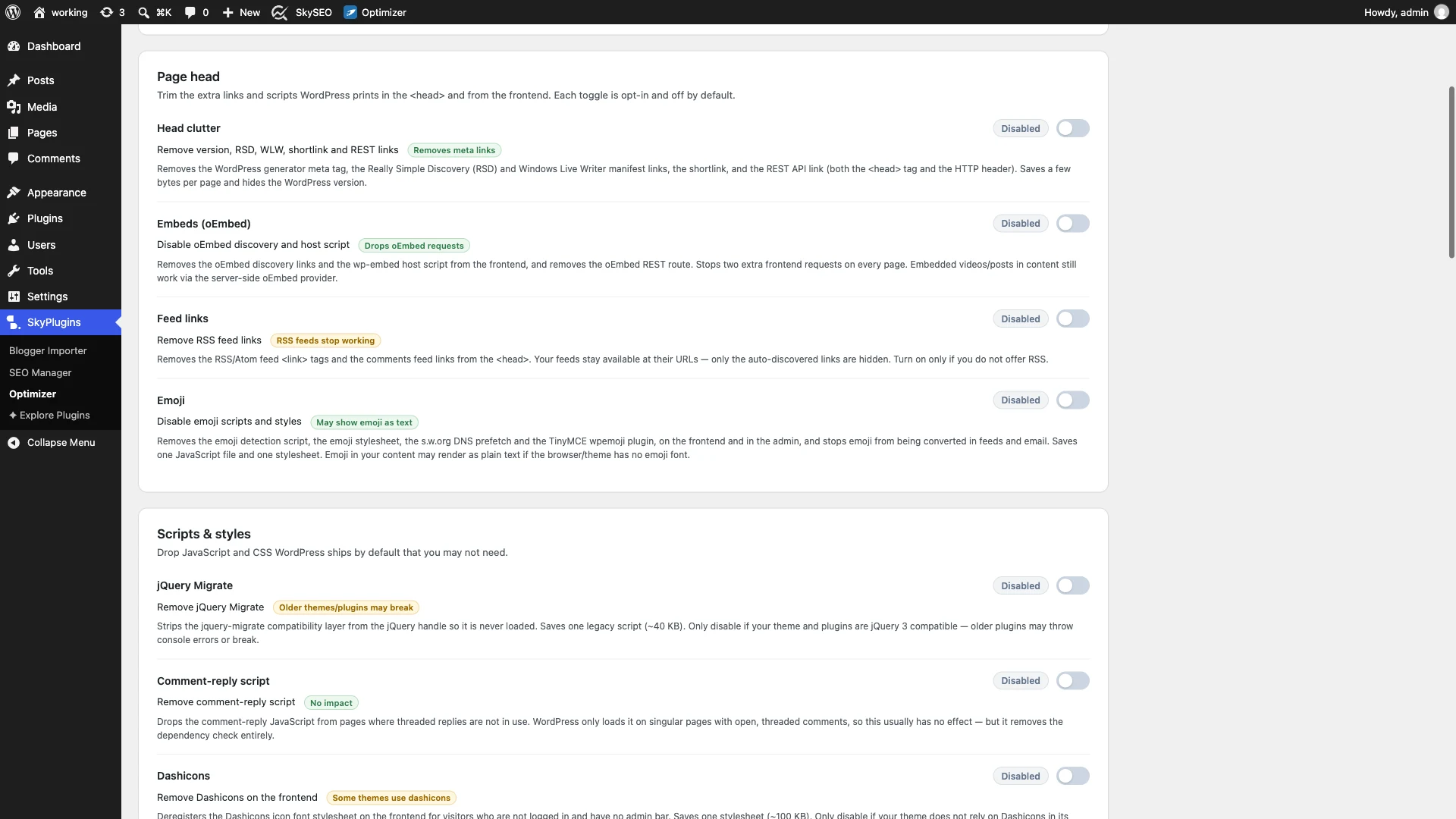
Next, locate the Page head section. By default, WordPress inserts multiple meta tags and discovery links that modern browsers do not require:
- Really Simple Discovery (RSD): Used by ancient desktop blogging software like Windows Live Writer. Safe to purge on 100% of modern websites.
- Windows Live Writer Manifest: Another legacy manifest file enqueued by default.
- WordPress Generator Tag: Publicly broadcasts your WordPress version. Hiding this is an essential security hardening step.
- Shortlink: Adds an unneeded
<link rel="shortlink">tag to your document header. - Embeds (oEmbed): Disables the scripts that allow other WordPress sites to embed your posts via iframes. If you do not rely on remote iframe embedding, disabling this saves unnecessary JavaScript.
Step 3: Disable Emojis and Unused RSS Feed Links
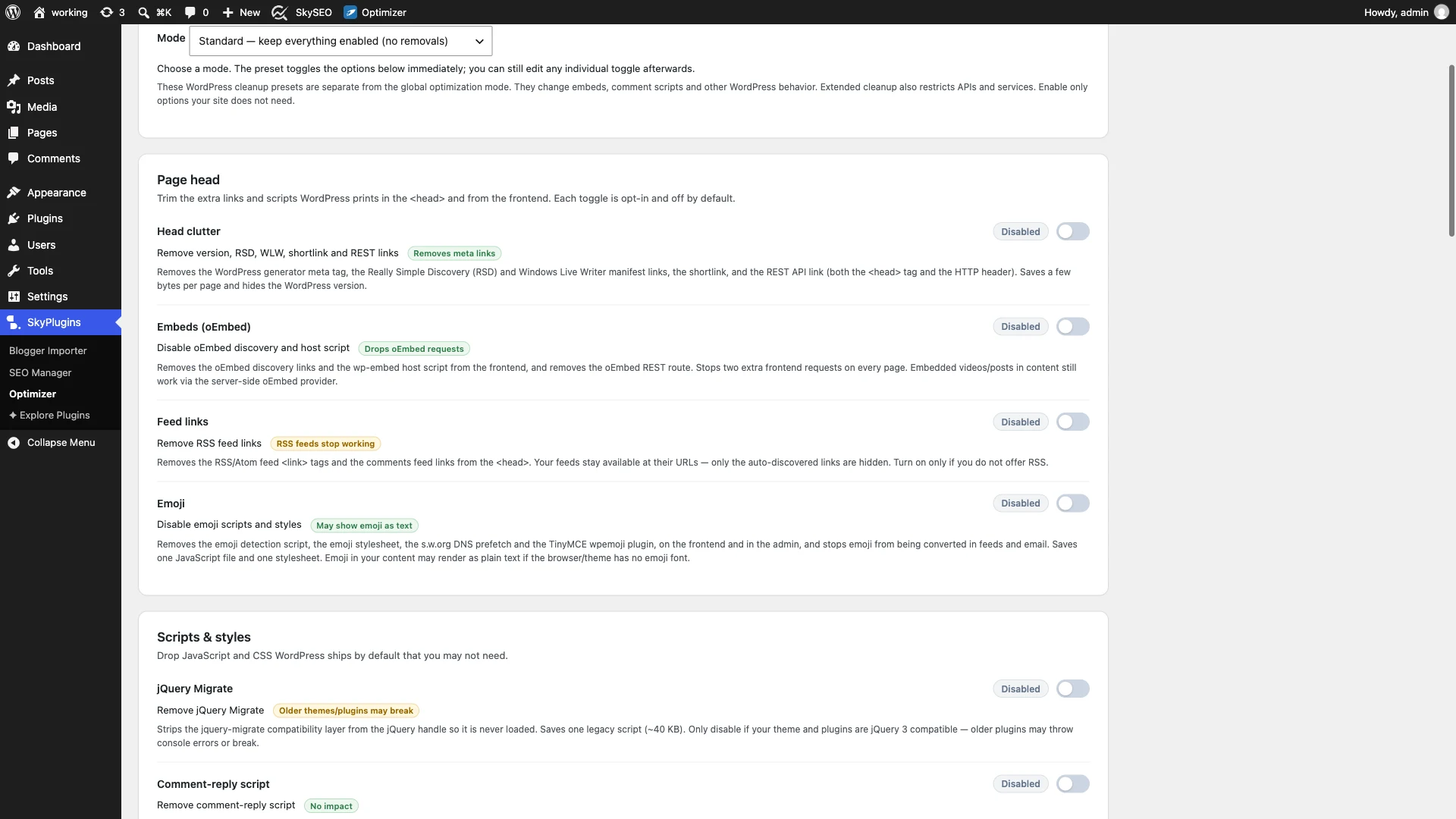
Scrolling down in the Page Head section reveals two major optimization toggles: Feed links y Emoji.
When emojis were introduced to WordPress years ago, older operating systems lacked native emoji support. WordPress solved this by injecting a script called wp-emoji-release.min.js and accompanying inline styles to convert unicode characters into SVG images. Today, every modern smartphone, tablet, and operating system natively supports emojis natively. Disabling WordPress emojis removes the render-blocking script completely while preserving full native emoji rendering.
If you run a business showcase, agency landing page, or eCommerce catalog where users do not subscribe to RSS readers, you can also toggle off Feed links to eliminate auto-discovery RSS and Atom headers.
Step 4: Remove Legacy jQuery Migrate and Frontend Dashicons
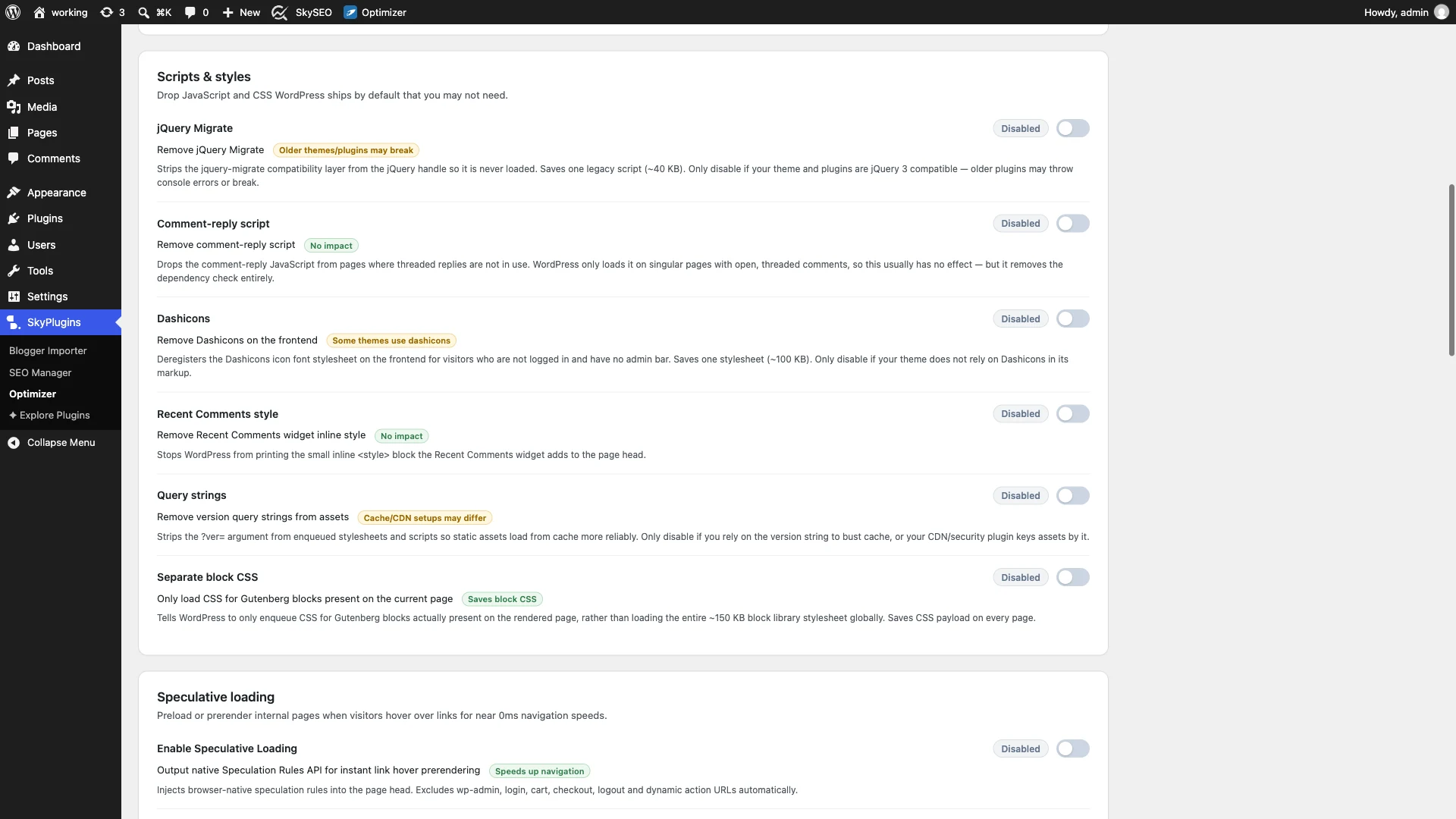
Proceed to the Scripts & styles card. This is where you will achieve substantial payload weight reductions:
- jQuery Migrate: A script designed to support outdated jQuery APIs from over a decade ago. If your theme and active plugins use modern JavaScript,
jquery-migrate.min.jsis completely redundant. Removing it instantly trims roughly 40 KB of script payload. - Dashicons: WordPress loads the admin icon font (
dashicons.min.css) on frontend pages for anonymous visitors even when no icons are displayed. Disabling Dashicons for non-logged-in users cuts nearly 100 KB of unnecessary styling. - Comment-reply script: Disables the dynamic reply script on pages or post types where comments are disabled.
- Query strings: Strips version query strings (like
?ver=6.7) from static assets to improve CDN and browser cacheability.
Step 5: Supercharge Transitions with Speculative Loading & Prerendering
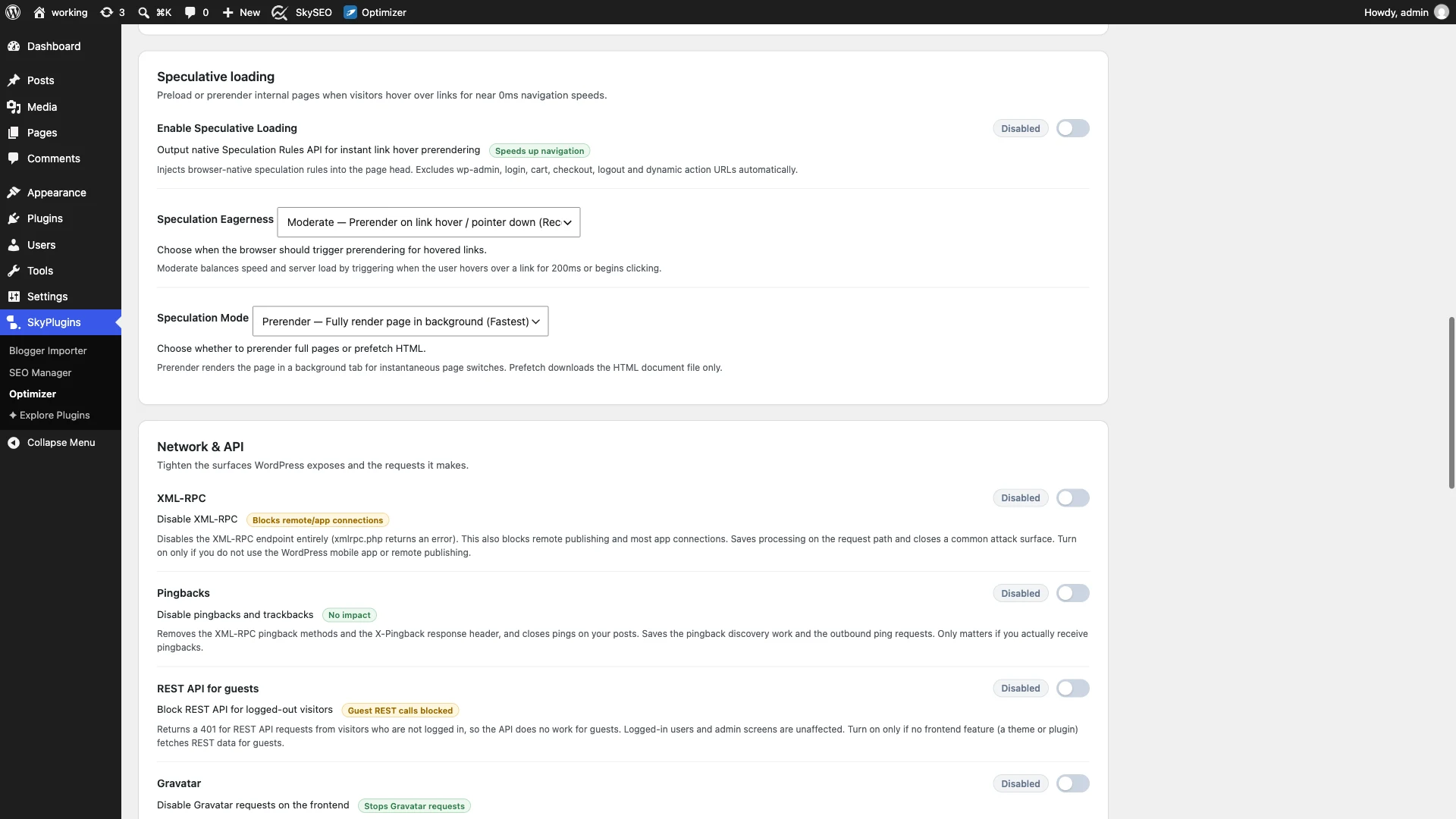
Beyond removing bloat, SiteSkyline Optimizer includes native support for the cutting-edge Speculation Rules API under the Speculative loading sección.
Traditional prefetching downloads HTML assets in the background, but the browser still has to parse and render them upon click. With SOptimizer’s Speculative Loading set to Prerender, the browser fully renders the destination page into an invisible background document when a visitor hovers over or hovers near a link. The moment they click, the page transition is instantaneous—delivering a true zero-millisecond perceived load time.
- Enable Speculative Loading: Toggle to active.
- Speculation Eagerness: Set to Moderado (triggers when the pointer hovers over a link) or Conservative (triggers on mousedown).
- Speculation Mode: Elegir Prerender for maximum instant page transitions.
Step 6: Verify Clean Document Head and Network Requests
Once you click Guardar cambios at the bottom of the Optimizer dashboard, open your live website in an Incognito window and inspect the page source or Chrome DevTools Network panel:
- Verify that the
wp-emoji-release.min.jsscript is completely absent from the HTML head. - Confirm that
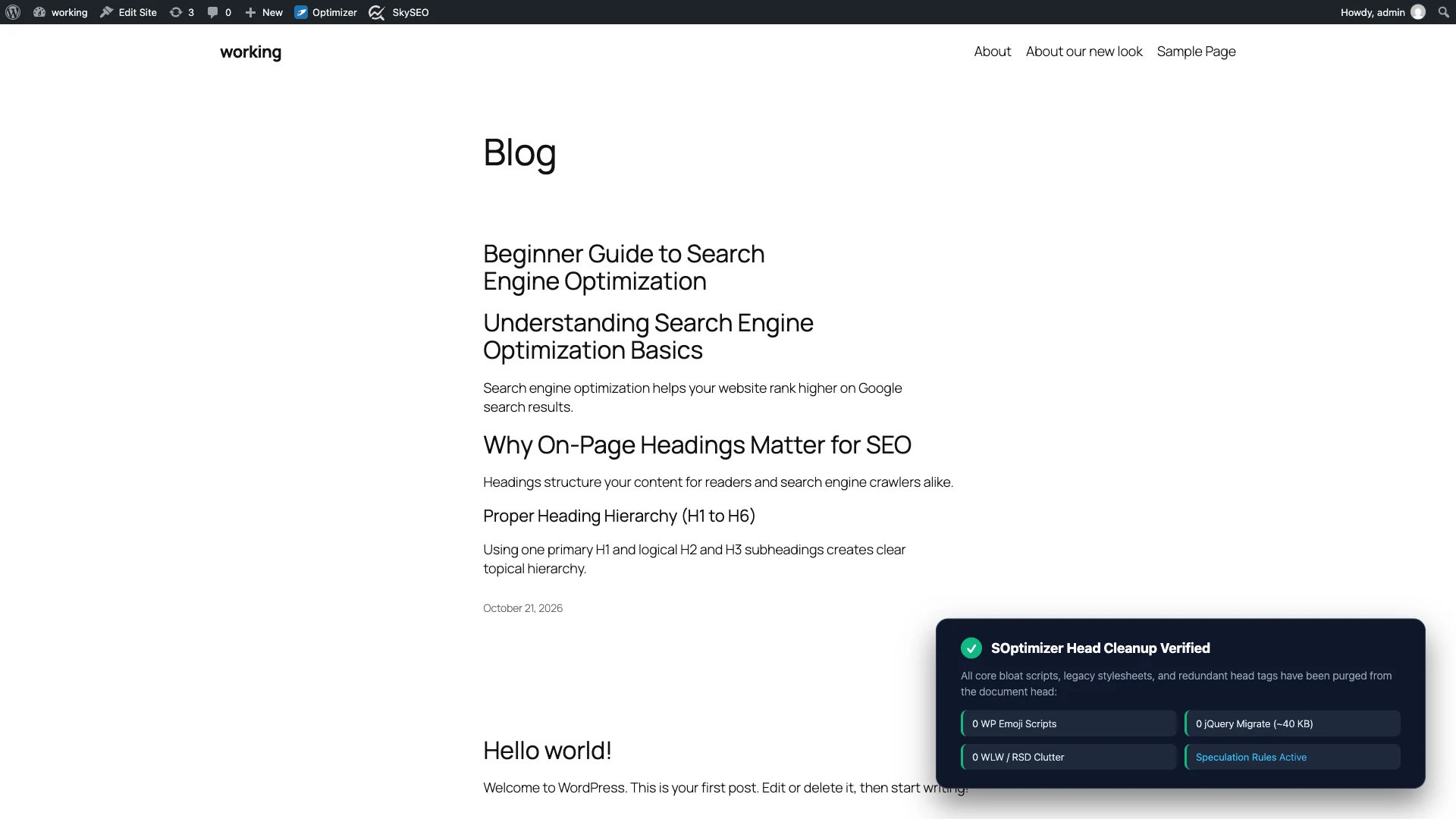
jquery-migrate.min.jsydashicons.min.cssare no longer enqueued. - Check the bottom of your HTML document for the clean JSON-based
<script type="speculationrules">snippet powering instant prerendering. - Notice the dramatic reduction in total HTTP requests and total page weight.
Preguntas frecuentes
Will disabling jQuery Migrate break any of my existing plugins?
Most modern WordPress plugins developed or updated in the last five to seven years use modern jQuery syntax and do not need jQuery Migrate at all. However, if you are using an abandoned or legacy plugin that relies on deprecated methods (like .live() en lugar de .on()), it may throw a JavaScript console notice. If you ever notice an issue, simply toggle jQuery Migrate back on in SOptimizer or use Safe Mode.
Do emojis still display properly if I disable the WordPress emoji script?
Yes, absolutely! Modern devices (iOS, Android, macOS, Windows 10/11, and Linux) have full native emoji font support built directly into their operating systems. Disabling the WordPress emoji script simply prevents WordPress from downloading its own duplicate SVG graphics, saving over 10 KB of blocking JavaScript while your emojis look crisp and native.
What is the difference between Prefetch and Prerender in Speculative Loading?
Prefetch instructs the browser to download the HTML document of the target URL into the cache, ready to be read when clicked. Prerender goes one step further: the browser actually parses the HTML, executes the CSS and JavaScript, and renders the layout in an invisible background tab. When the visitor clicks the link, the transition is instantaneous because the page is already fully built.
Can I disable XML-RPC and REST API for guests?
Yes. In the Network & API section of SiteSkyline Optimizer, you can disable XML-RPC to protect against brute-force amplification attacks and disable guest REST API access to prevent bots from enumerating usernames and endpoints, hardening your security posture without sacrificing performance.