Does your WordPress site fail Google’s Core Web Vitals assessment due to poor Interacción con la siguiente pintura (INP) or high Total Blocking Time (TBT)? When web browsers encounter JavaScript tags in your document head, they halt all HTML parsing and visual rendering until those scripts are completely downloaded, parsed, and executed. This creates sluggish user interactions and delays first paints on mobile devices.
To fix this bottleneck and achieve snappy user responsiveness, you need two complementary techniques: deferring JavaScript to the footer so parsing is never blocked, and delaying non-critical JavaScript execution until a visitor actually interacts with the page. In this step-by-step tutorial, we will show you how to defer and delay JavaScript in WordPress safely without breaking your website using SOptimizer.
Understanding Defer vs Delay: What is the Difference?
While often confused, deferring y delaying solve different performance challenges in the browser lifecycle:
- Defer JavaScript: Tells the browser to download the script in parallel during HTML parsing, but delays execution until the HTML document has been fully parsed. In SOptimizer, scripts and their matching inline bootstrap snippets are neatly moved to the footer in their original sequence, preventing render-blocking delays while guaranteeing that dependency pairs continue working.
- Delay JavaScript Execution: Converts non-critical scripts (such as analytics, tracking pixels, marketing chat widgets, and heatmaps) into inert text placeholders. The browser completely skips them during page load, freeing up 100% of the CPU main thread. The instant the visitor touches the screen, moves their mouse, scrolls, or presses a key, the scripts execute sequentially.
Combining both methods eliminates render-blocking warnings and optimizes both First Contentful Paint (FCP) and Interaction to Next Paint (INP).
Step 1: Access the JavaScript Optimization Dashboard in SOptimizer
First, make sure you have installed and activated SiteSkyline Optimizer (SOptimizer). From your WordPress admin dashboard, navigate to Optimizer » JavaScript.
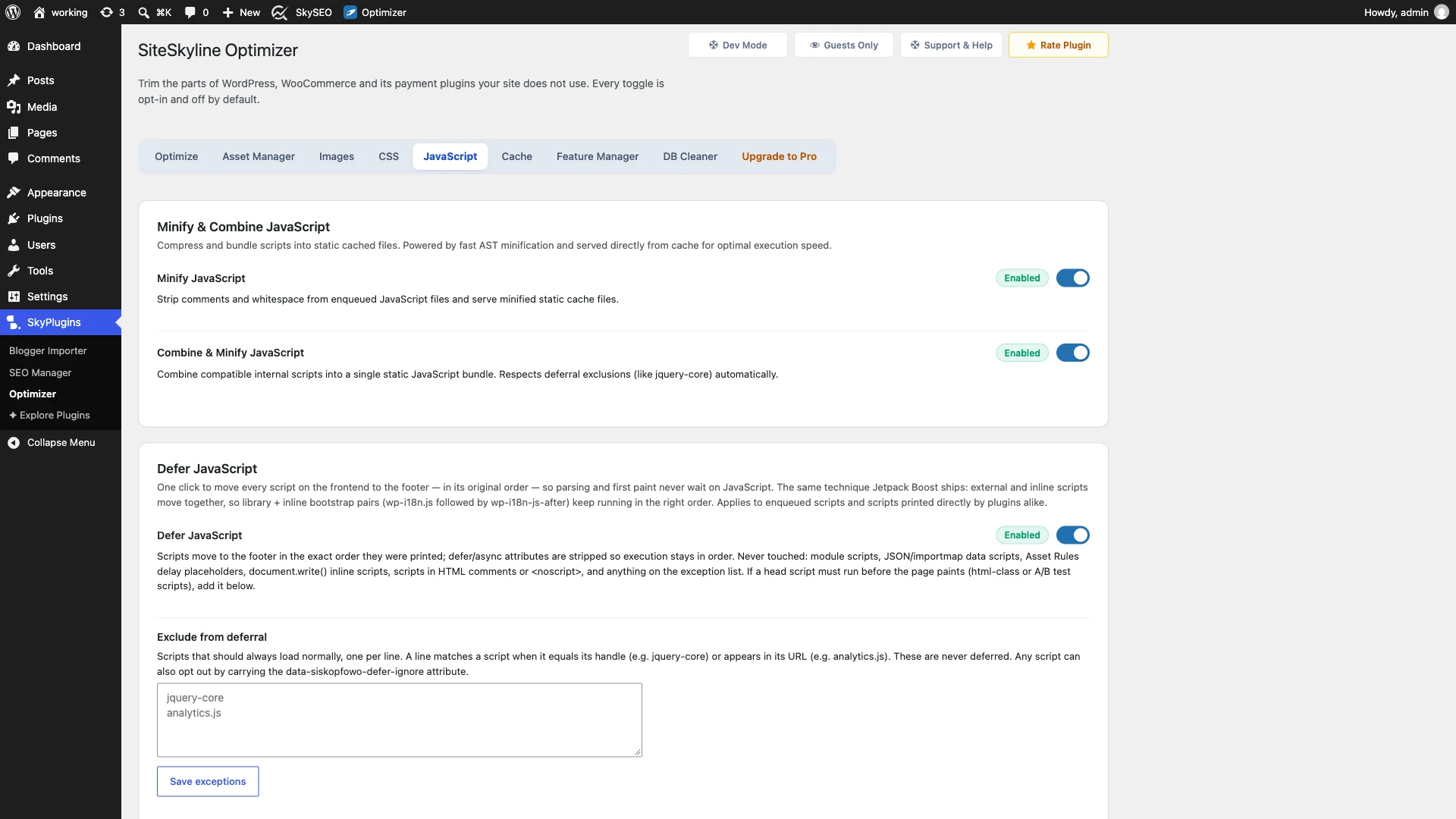
At the top of the dashboard, you will find Minify JavaScript y Combine & Minify JavaScript. (Note: These options require Page Caching to be enabled so optimized static files are served without dynamic PHP overhead). Enabling Minify strips out comments and unnecessary whitespace using lightning-fast AST processing, significantly trimming your transfer payload.
Step 2: Enable Defer JavaScript to Move Scripts to the Footer
Next, scroll down to the Defer JavaScript module. This is one of the most effective one-click performance boosts in WordPress.
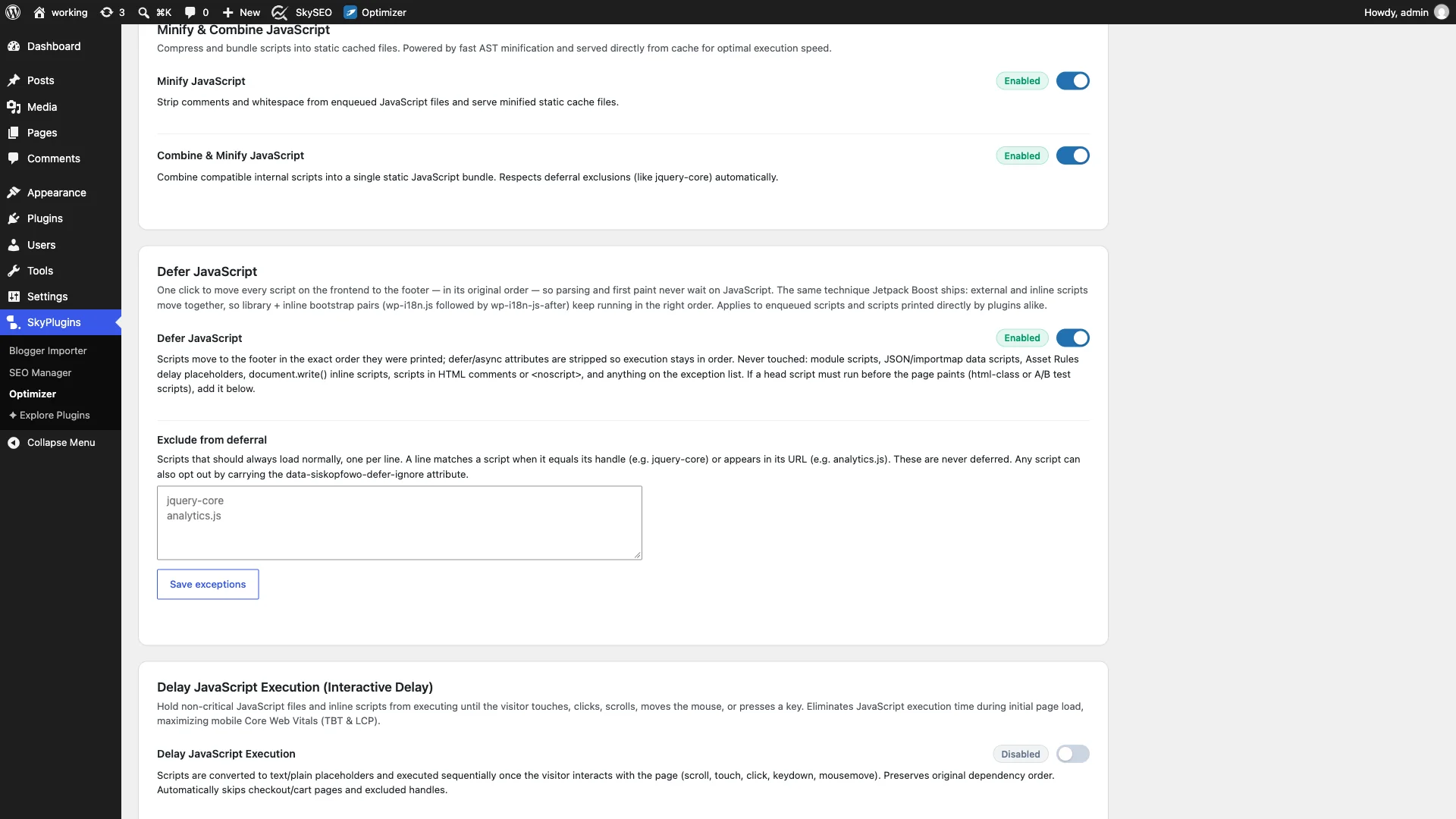
Enciende el Defer JavaScript toggle. Unlike naive plugins that simply slap defer attributes on script tags (which can break inline scripts that depend on external libraries), SOptimizer moves every external script and its corresponding inline configuration code together to the footer in exact printing sequence.
SOptimizer automatically protects critical infrastructure: module scripts, JSON/importmap data blocks, and document.write() scripts are never touched, ensuring total theme stability.
Step 3: Exclude Critical Scripts from Deferral
Some scripts must run in the document head before the page paints. Examples include anti-flicker snippets for A/B testing, critical layout toggles, or essential tag managers.
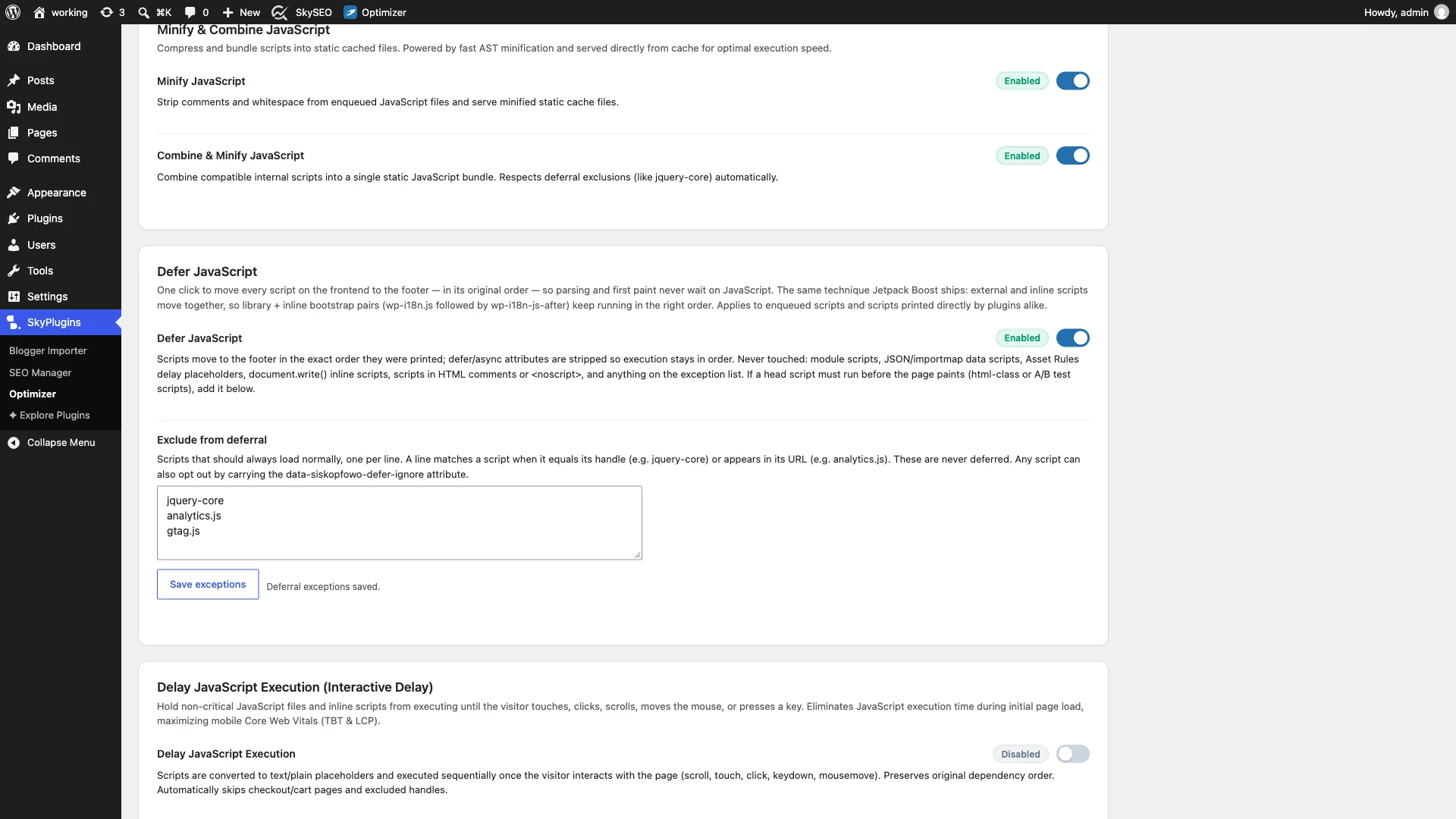
Bajo Exclude from deferral, enter script handles (such as jquery-core) or partial URL keywords (such as analytics.js o gtag.js), one per line. Any script matching these entries will be ignored by the deferral engine and loaded normally in the document head. Click Save exceptions to apply your rules.
Step 4: Enable Delay JavaScript Execution for Interactive Speed
To eliminate Total Blocking Time (TBT) and pass Google’s Interaction to Next Paint (INP) metric with flying colors, scroll down to the Delay JavaScript Execution (Interactive Delay) sección.
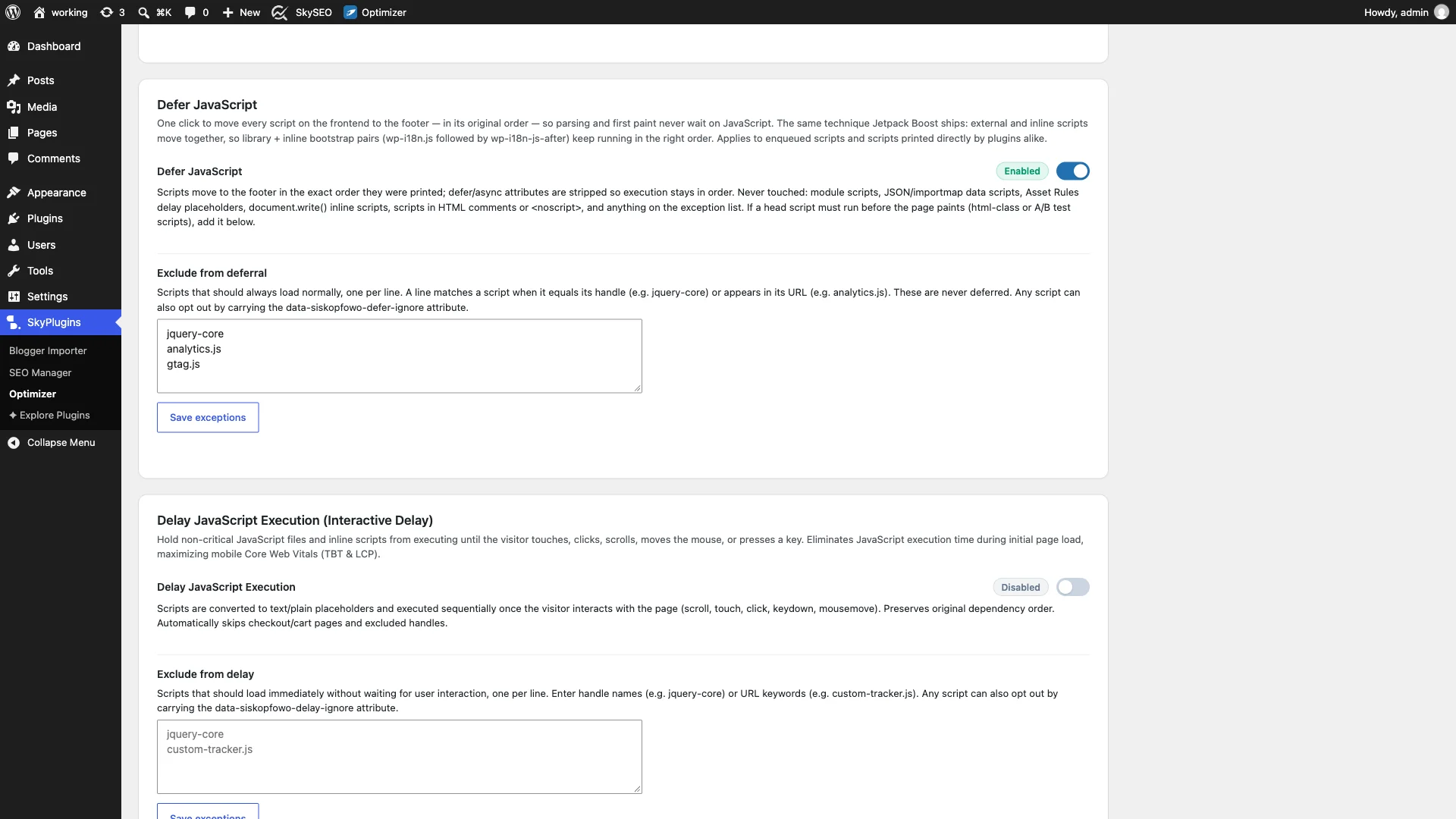
Enciende el Delay JavaScript Execution toggle. Once enabled, SOptimizer converts non-critical scripts into text/plain placeholders during initial page load. The browser paints the screen instantly without executing heavy third-party tracking libraries. As soon as the visitor interacts with the page (via scroll, touch, mouse movement, or key press), the scripts execute sequentially in dependency order.
Step 5: Exclude Essential Interactive Handlers from Delay
If your website relies on scripts that must be active immediately—such as GDPR/cookie consent dialogs, mobile navigation drawer triggers, or essential conversion pixels—you should exclude them from interactive delay.
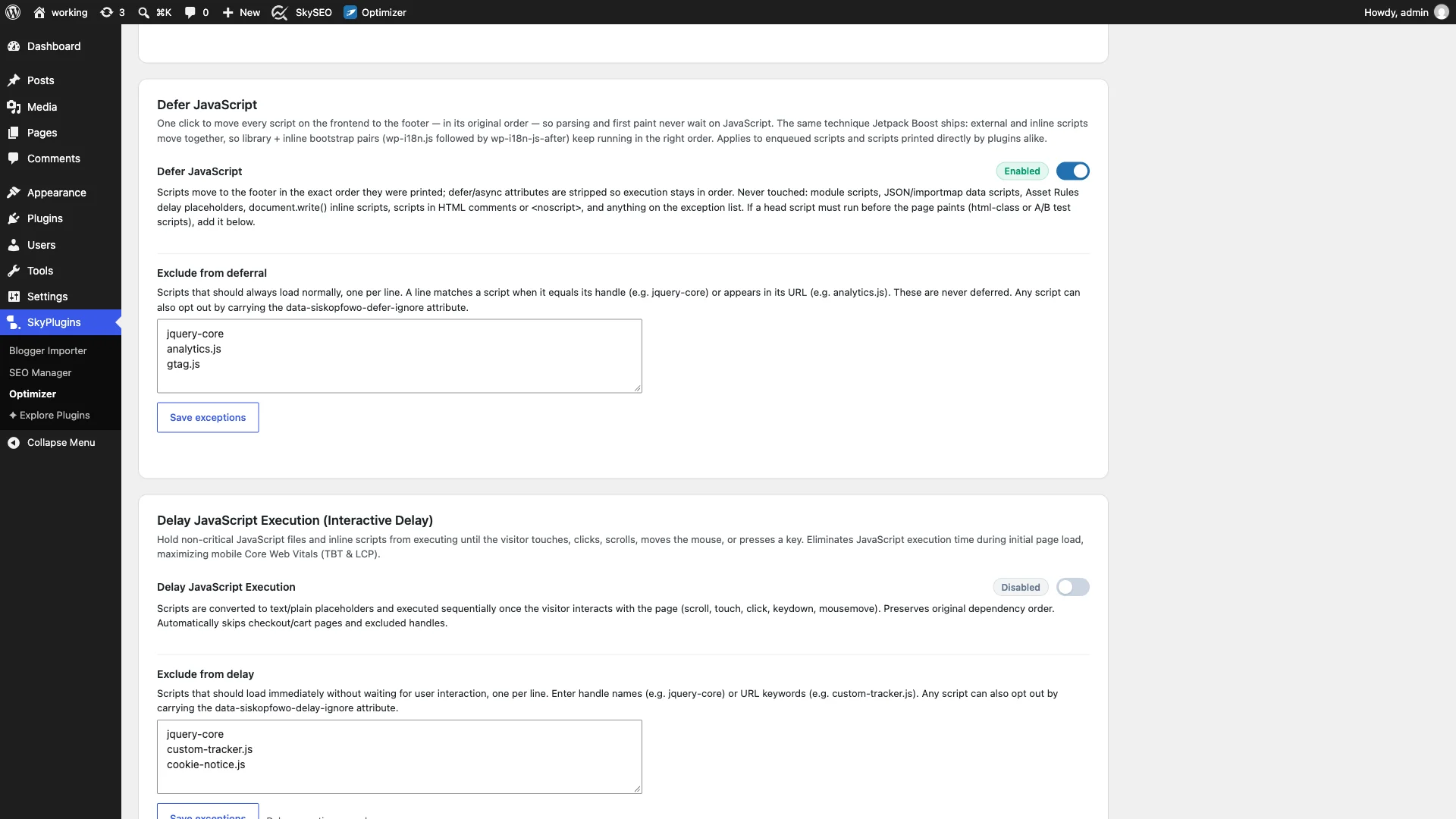
En el Exclude from delay textarea, list any handles or URL strings (e.g. jquery-core, custom-tracker.js, cookie-notice.js) that should execute immediately on paint. Click Save exceptions. Alternatively, you can add the attribute data-siskopfowo-delay-ignore directly to custom script tags in your theme.
Step 6: Verify INP & TBT Improvements on the Frontend
Now it is time to verify your optimizations on the live site. Open your website in an incognito window and launch Chrome DevTools (F12 » Performance / Network).
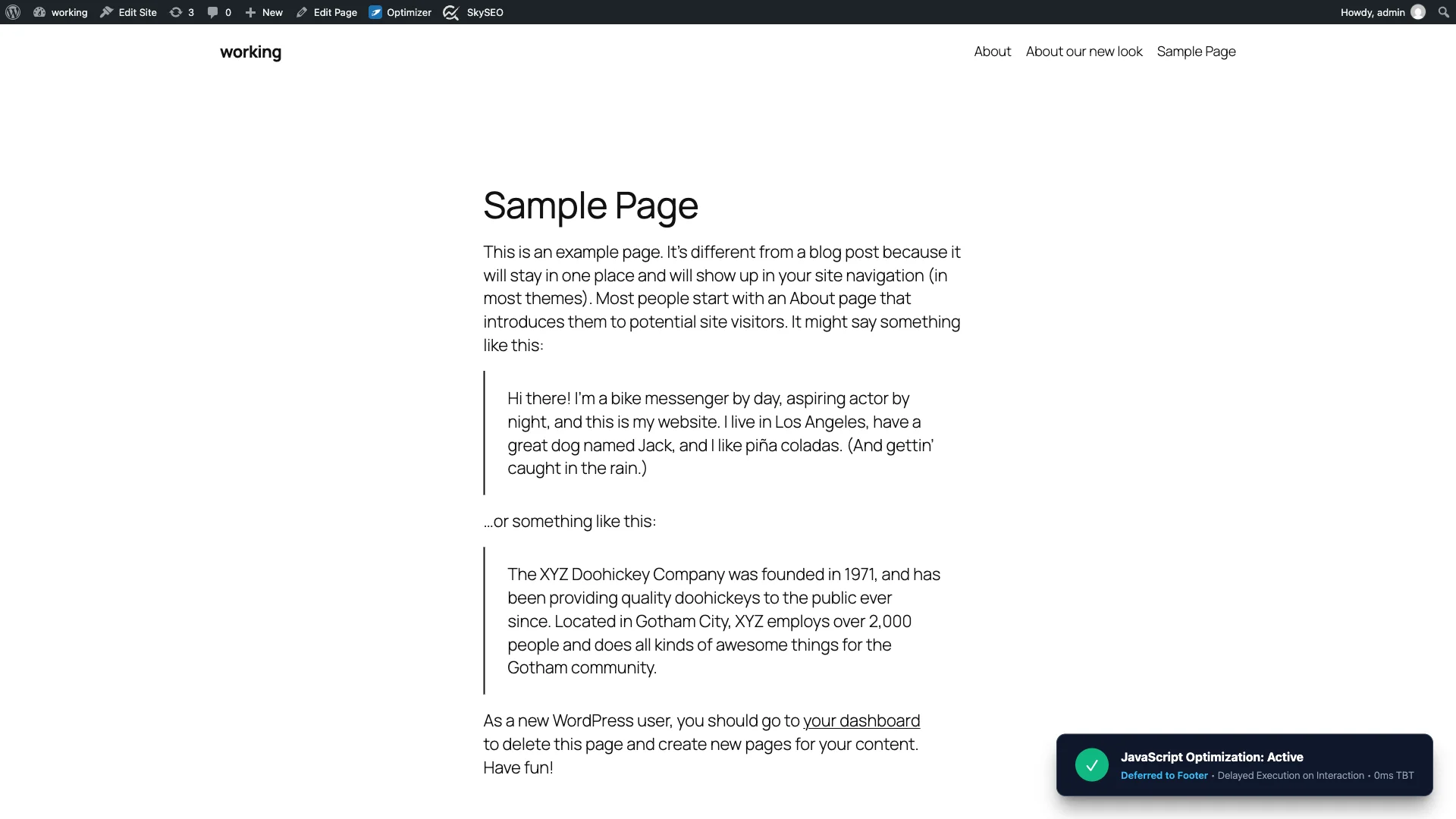
Inspect the page markup: you will confirm that scripts are positioned in the footer and non-critical assets remain dormant until interaction. Running a Google PageSpeed Insights test will confirm that Total Blocking Time (TBT) drops to virtually zero, while your Interacción con la siguiente pintura (INP) score settles well into the green zone (under 100 milliseconds).
JavaScript Optimization Comparison: SOptimizer vs Alternatives
| Característica | SOptimizer JavaScript | WP Rocket | Autoptimize |
|---|---|---|---|
| Sequential Footer Deferral | Yes (Preserves inline bootstrap pairs) | Basic attribute injection | Requires manual exclusion tuning |
| Interactive Delay (User Events) | Yes (Scroll, click, touch, keydown) | Yes (Paid feature) | No (Requires paid add-ons) |
| Order & Dependency Preservation | Guaranteed AST dependency sequence | Variable | Often causes jQuery errors |
| Page Cache Integration | Built-in static caching engine | Built-in | Separate plugin needed |
| Precio | 100% Free & Open Source | Paid subscription (\$59+/year) | Freemium |
Operational Checklist for Deferring and Delaying JavaScript
- Enable Page Caching First: Make sure Page Caching is turned on in SOptimizer so minified script bundles are served strictly from static cache.
- Test Primary Navigation Menus: On mobile devices, test your hamburger menu and dropdown menus to confirm they open smoothly. If they hesitate before first touch, exclude their menu script from delay.
- Exclude Form Verification Scripts: If your contact form relies on client-side validation libraries, test form submissions or exclude the validation script.
- Keep Analytics Orderly: You can safely delay Google Analytics or Facebook Pixel until first user interaction; PageSpeed scores will surge while tracking accuracy remains intact.
- Monitor Search Console Core Web Vitals: Track your real-user 75th-percentile INP score in Google Search Console to confirm consistent green ratings across mobile traffic.
Frequently Asked Questions (FAQs)
Will delaying JavaScript hurt my Google Analytics tracking?
No. When visitors land on a page, they instinctively scroll, click, or move their mouse within milliseconds. The moment any user event occurs, Google Analytics fires immediately and records the pageview without loss of data.
What should I do if a script breaks after enabling Defer?
If an interactive element stops working, open your browser console (F12) to see which script threw an error (usually $ is not defined or missing jQuery). Simply add jquery-core hasta el “Exclude from deferral” box and save exceptions to fix it instantly.
How does delaying JavaScript improve Interaction to Next Paint (INP)?
INP measures the delay between a user tapping or clicking a button and the browser updating the screen. When background scripts are constantly evaluating on the main thread, user interactions get queued up in a long task delay. By delaying non-critical scripts, the main thread remains completely idle, allowing user clicks to register and paint instantaneously.
Ready to eliminate render-blocking scripts and boost your Core Web Vitals? Download Optimizador de SiteSkyline today and unleash lightning-fast JavaScript delivery on your WordPress site.