When shoppers land on an ecommerce archive or category page with dozens of similar items, decision paralysis sets in. Without visual cues, customers struggle to identify which products are most popular, proven, or trending. Amazon solved this challenge by introducing distinct merchandising badges like “Best Seller” और “#1 Trending”—instantly directing customer attention and boosting click-through rates by up to 35%.
In this tutorial, you will learn how to add automated, algorithmic Product Badges in WooCommerce using the 100% free SiteSkyline Smart Sales प्लगइन।
Why Manual Badge Plugins Fail Store Owners
Most WordPress badge plugins on the market operate like simple graphic sticker managers. They require store managers to manually check sales reports, edit individual products, and manually toggle badges on and off. This approach introduces major issues:
- High Maintenance Overhead: If sales trends shift or a product sells out, manually assigned badges become inaccurate unless you constantly audit your catalog.
- Lack of Real-Time Credibility: Manual badges often feel fake or arbitrary to savvy shoppers. When badges are derived purely from subjective merchant choice rather than real sales data, trust erodes.
- Database Bloat & Page Drag: Many badge plugins load heavy graphic assets, jQuery dependencies, or bulky inline styles that hurt Core Web Vitals and Largest Contentful Paint (LCP).
- No Velocity Sensitivity: A product that suddenly surges in popularity over the weekend won’t get a “Trending” tag unless someone manually updates it on Monday morning.
Product Badge Solutions Comparison
| विशेषता | SiteSkyline Smart Sales (Free) | Generic Badge Plugins | Enterprise SaaS Merchandisers |
|---|---|---|---|
| Computation Method | Automated algorithmic sales velocity | Manual checkbox per product | Machine learning telemetry |
| Badge Types Included | Best Seller, Trending, Hot, Rising, New | Custom static ribbons | Dynamic behavioral tags |
| Database Performance | Pre-computed meta, zero query load | Multiple postmeta joins | Cloud API calls |
| Sensitivity Controls | Threshold sliders (% top sales, velocity) | None (binary active/inactive) | Algorithmic configuration |
| Rendering Footprint | Pure scoped CSS & Dashicons (< 1KB) | Heavy image stickers / PNGs | Injected DOM elements |
| लागत | $0 (100% Free) | $29 – $79 one-time | $199 – $999+ / month |
Step-by-Step Implementation Guide
Step 1: Enable the Auto-Computed Product Badges Engine
अपने WordPress डैशबोर्ड से, यहां जाएं Smart Sales > Optimizations. Locate the Auto-Computed Product Badges module card and toggle the switch to active.
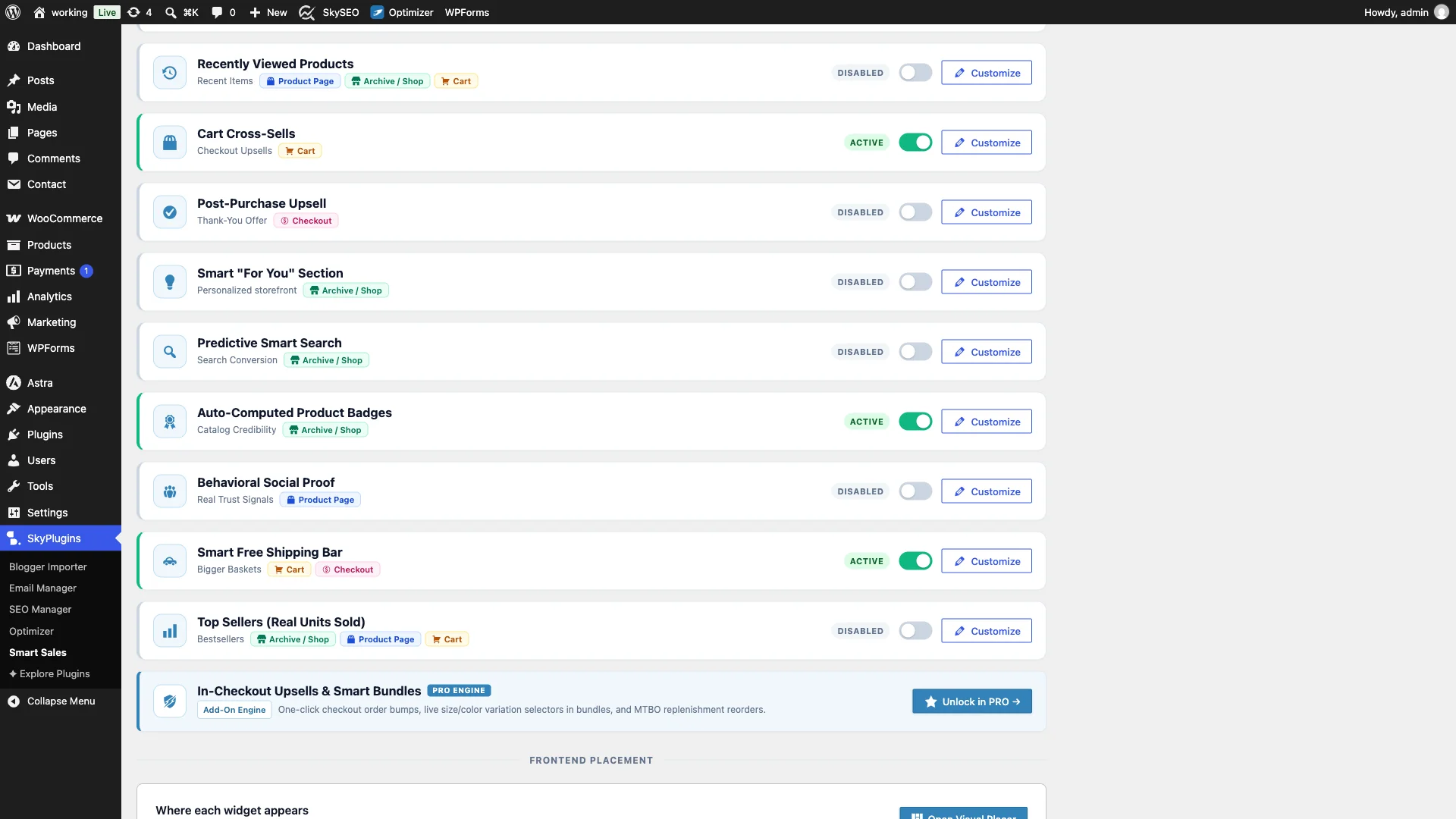
Once activated, the badge engine hooks seamlessly into WooCommerce shop loops (woocommerce_before_shop_loop_item_title), automatically displaying badges right above product titles across your store archive, category pages, and search results.
Step 2: Customize Badge Types and Sensitivity Thresholds
क्लिक करें अनुकूलित करें button on the Product Badges card to expand the inline configuration panel. Here you have full control over which badges appear and how strictly they are earned.
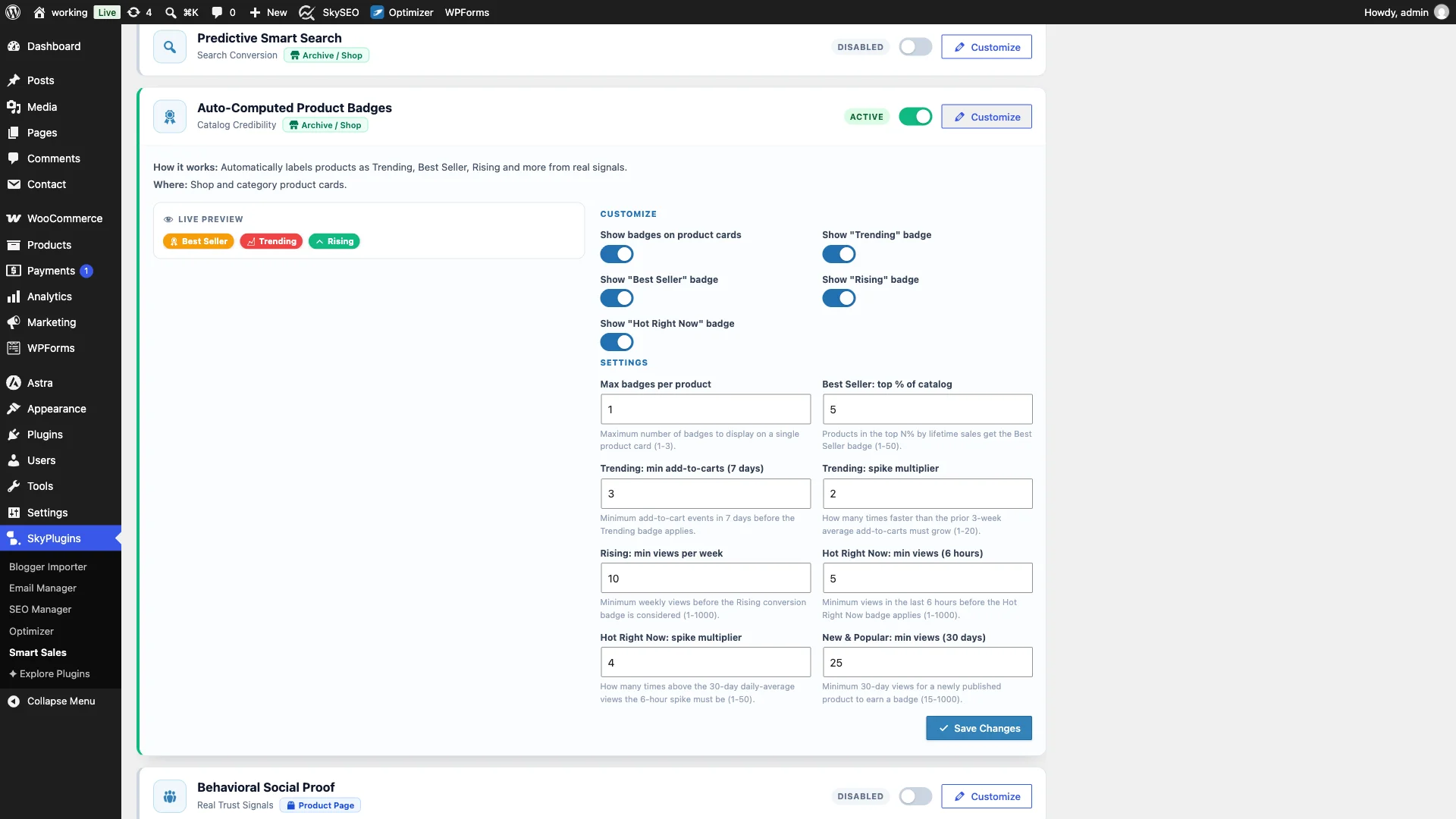
You can enable or disable individual badge classes (Trending, Best Seller, Rising, और Hot Right Now), specify the maximum number of badges permitted per product (default is 1 to avoid visual clutter), and adjust the Best Seller: top % of catalog threshold (e.g., top 5% of all-time sales).
Step 3: Behavioral Telemetry and Sales Velocity Attribution
Smart Sales determines badge eligibility using genuine on-site telemetry rather than arbitrary merchant flags. Under Smart Sales > Settings, you can review the Behavioral Algorithm Weights that govern velocity calculations.
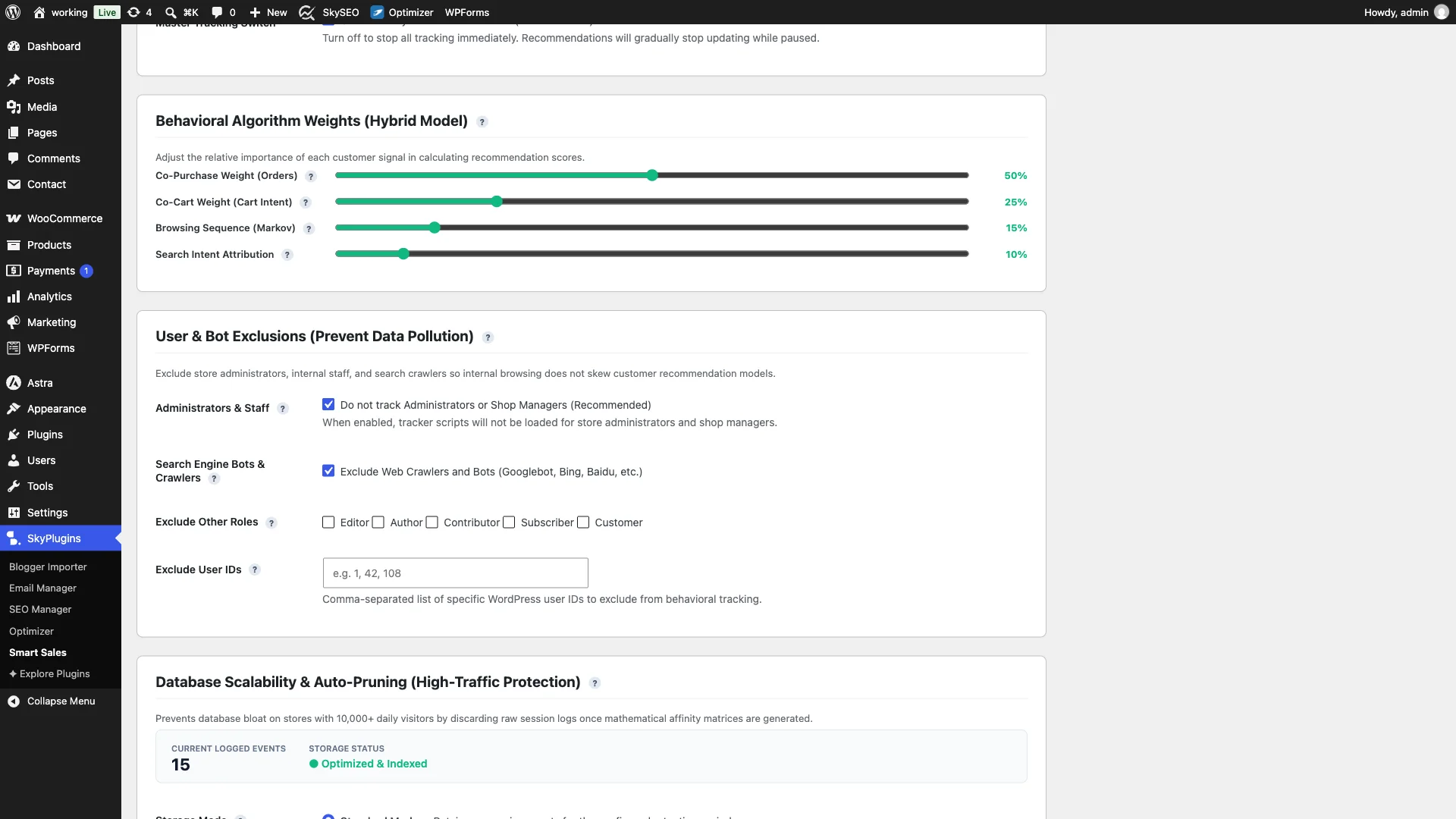
The engine balances verified order co-purchases (50%), cart additions (25%), browsing sequences (15%), and search intent attribution (10%). This ensures that fast-moving seasonal items or viral products receive appropriate badge recognition automatically as consumer interest spikes.
Step 4: Frontend Live Preview – Shop Catalog Archive Grid
Now navigate to your live storefront shop archive (/shop/). The product catalog immediately renders with clear, high-contrast badges positioned directly above product titles.
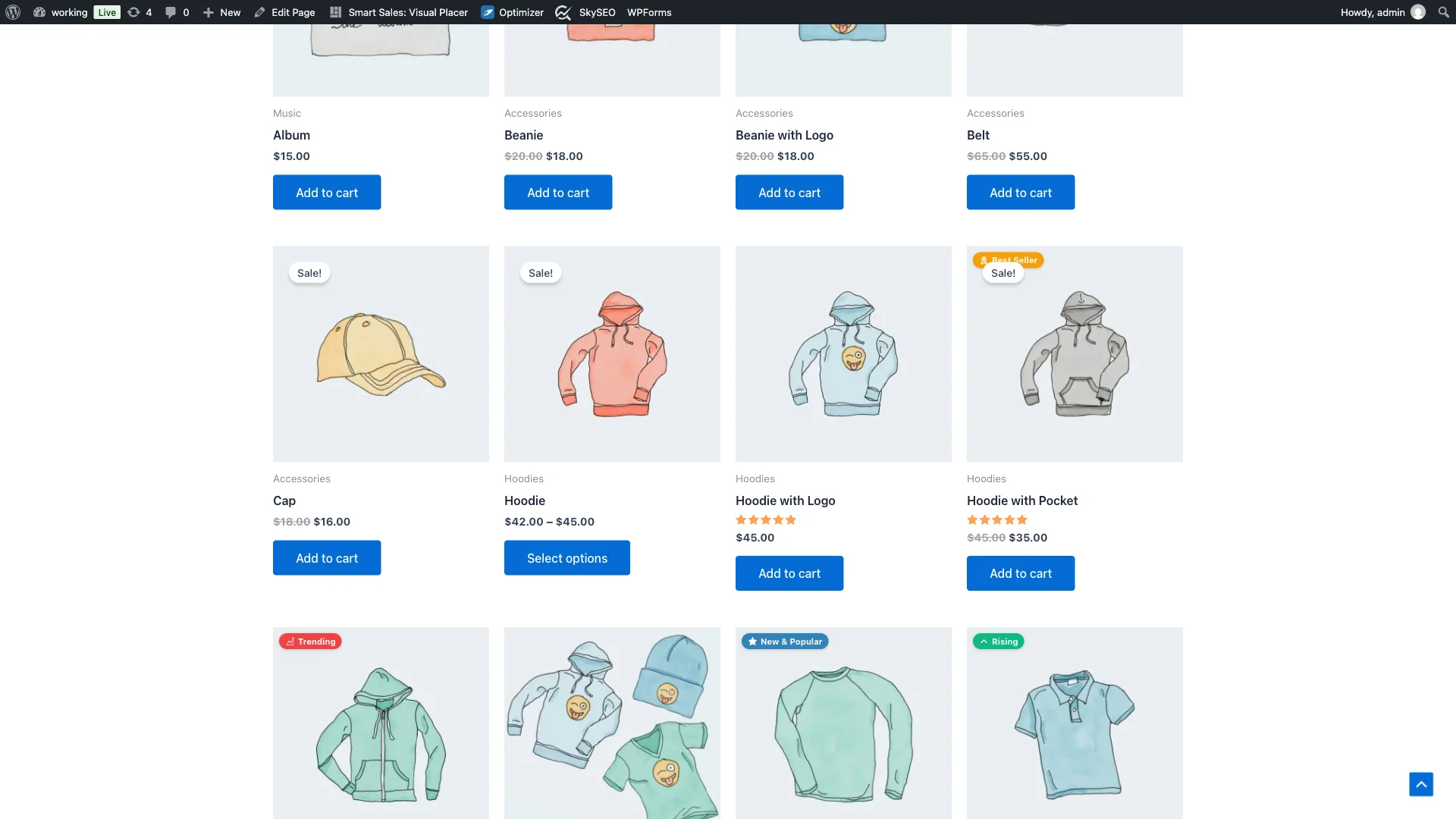
Notice how naturally the badges integrate with the grid. The Hoodie with Pocket prominently displays a Best Seller badge, the Hoodie with Zipper showcases Trending, and the Long Sleeve Tee displays New & Popular. Browsing shoppers immediately recognize which items command high demand.
Step 5: Visual Styling, Typography & Dashicon Accents
Smart Sales uses clean, modern badge typography paired with crisp Dashicon iconography, ensuring badges remain sharp on high-DPI Retina screens without degrading site performance.
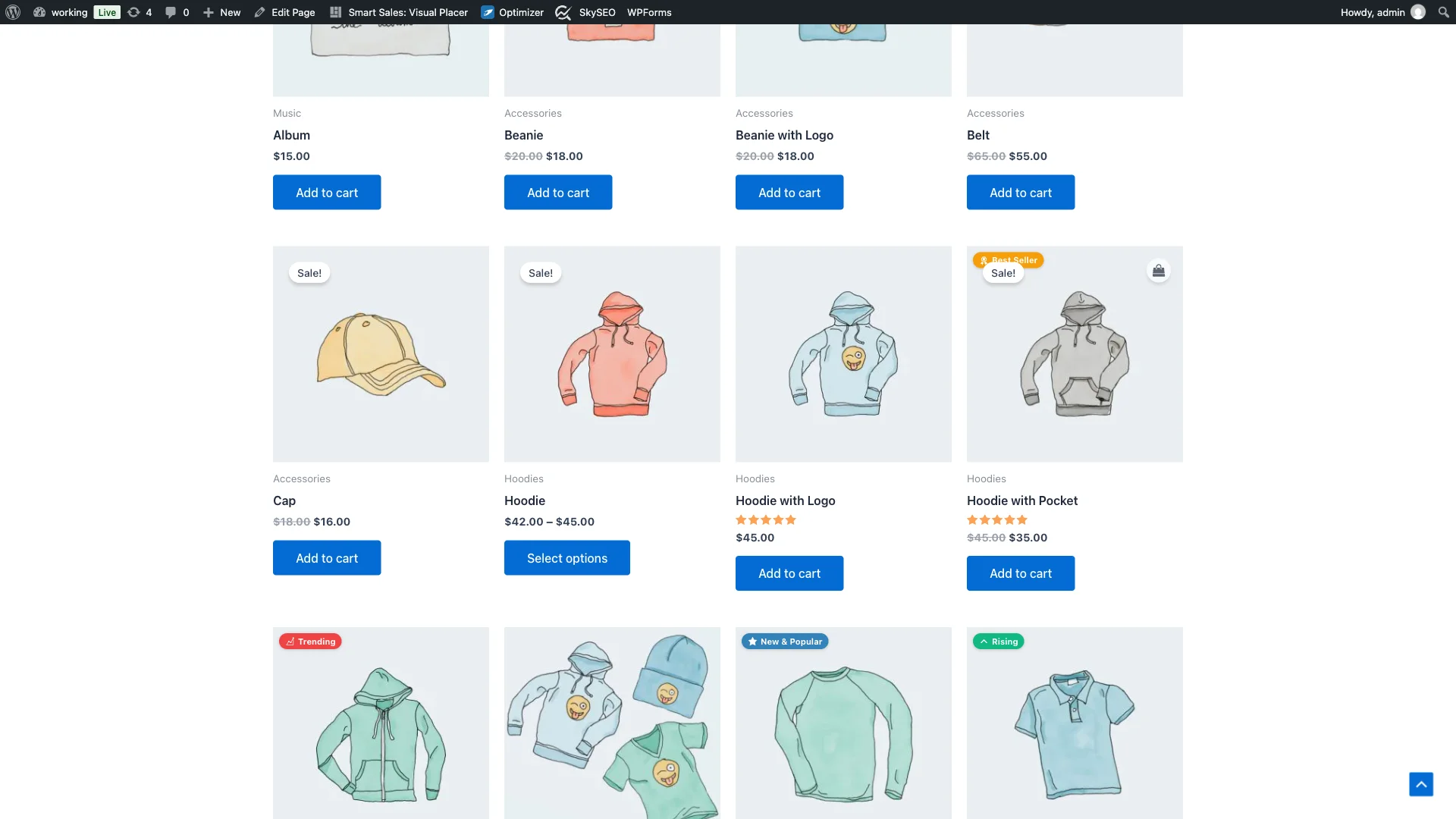
The Best Seller badge uses an authoritative golden trophy icon with subtle pill borders, while the Trending badge sports an energetic growth chart icon. These micro-visuals establish instant credibility without distracting from product photography.
Step 6: Category Archive Pages & Merchandising Focus
When customers filter down to specific product categories—such as Hoodies—the badges provide invaluable merchandising guidance within a narrow competitive cluster.
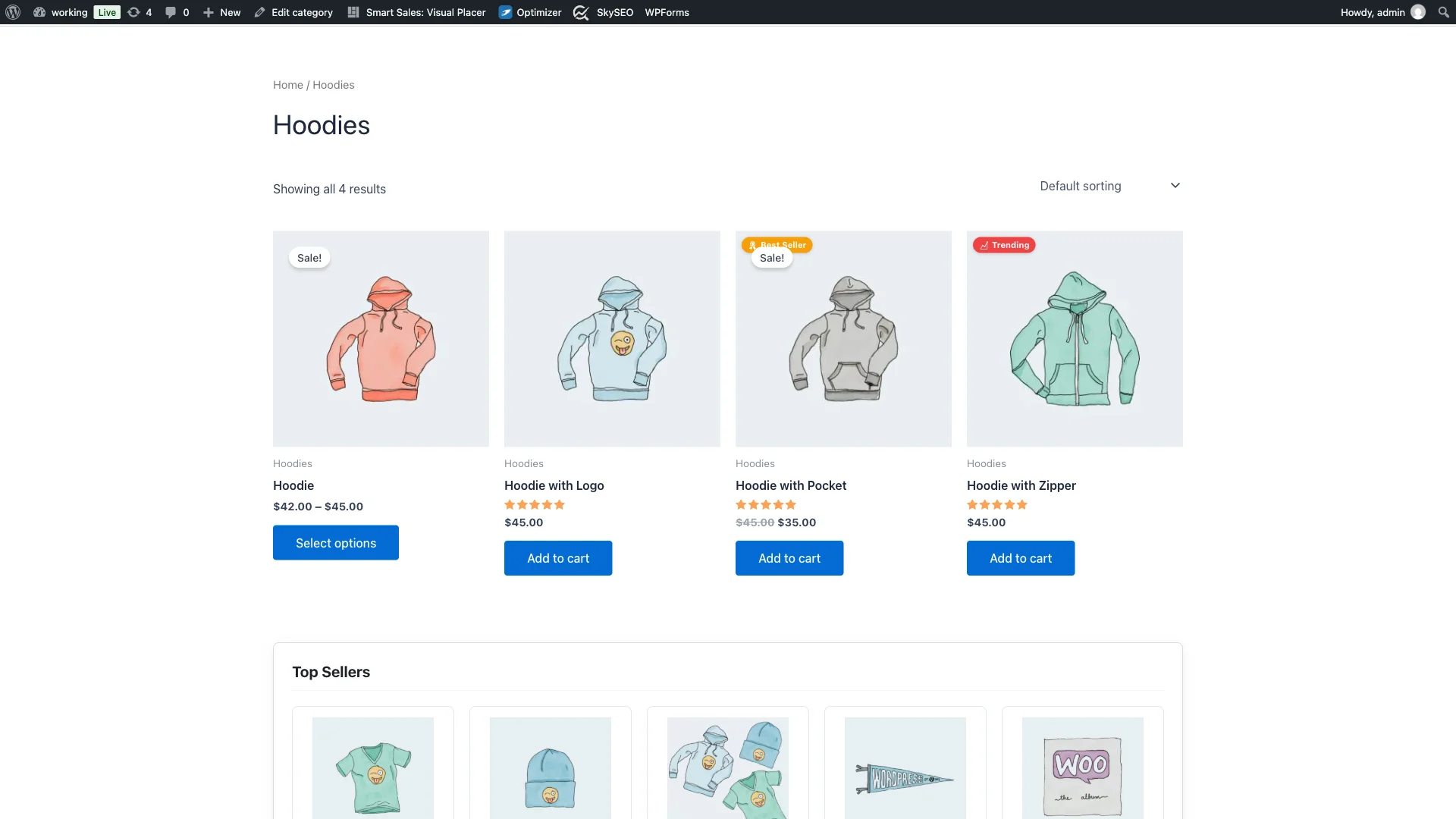
Instead of guessing which hoodie offers the best fit, quality, or customer satisfaction, shoppers are immediately drawn to the Best Seller और Trending options, accelerating time-to-purchase and elevating customer satisfaction.
How the 5 Auto-Computed Badge Types Function
- Best Seller (
best_seller): Automatically granted to products in the top percentile of all-time sales (default: top 5%). This highlights your most proven revenue drivers. - Trending (
trending): Awarded to products exhibiting a rapid surge in add-to-cart velocity over the past 7 days compared to their historical 3-week baseline. - Hot Right Now (
hot_now): Identifies products experiencing an immediate spike in page views within the last 24 hours, perfect for flash sales or social media mentions. - Rising (
rising): Highlights items demonstrating consistent week-over-week conversion rate improvements, surfacing up-and-coming catalog gems. - New & Popular (
new_popular): Applied to newly cataloged products (under 30 days old) that achieve immediate early customer engagement, giving new inventory a promotional launch boost.
Best Practices for Product Badging in Ecommerce
- Preserve Scarcity (Max 1 Badge Per Product): If every item has multiple flashing ribbons, badges lose their psychological power. Limiting badges to 1 per card ensures each tag retains high visual impact.
- Keep Thresholds Honest: Restrict Best Seller badges to the top 5% or 10% of your store. Over-tagging dilutes customer trust.
- Ensure High Color Contrast: Verify that badge text colors meet WCAG AA contrast standards against your store’s background palette for maximum readability.
- Combine with Social Proof Signals: Pair product badges on archive grids with SiteSkyline behavioral social proof counters (“X bought in the last 24 hours”) on single product pages for a consistent merchandising funnel.
अक्सर पूछे जाने वाले प्रश्न (FAQ)
How often are badges recalculated?
Smart Sales runs its badge recalculation routine automatically once per day via WordPress Action Scheduler / WP-Cron. Computed badge assignments are stored directly in product postmeta, ensuring that catalog page rendering requires zero runtime calculations or heavy SQL queries.
Will badges work if I have a newly launched store with low sales?
Yes. If your store has limited sales history, the engine dynamically emphasizes “New & Popular” and “Hot Right Now” badges based on real-time browsing sessions, ensuring your storefront displays compelling visual cues while long-term sales data accumulates.
Can I customize the badge colors to match my brand?
Yes. All badge styling is governed by clean CSS classes (.ssmasa-badge-bestseller, .ssmasa-badge-trending, etc.). You can easily override background colors, border radiuses, and font sizes using the WordPress Customizer Additional CSS panel.
Does this replace or conflict with default WooCommerce “Sale!” badges?
No. SiteSkyline Smart Sales badges are hooked into woocommerce_before_shop_loop_item_title, while standard WooCommerce “Sale!” bubbles render separately inside woocommerce_before_shop_loop_item. Both coexist harmoniously without overlapping.
Are badges mobile-friendly and responsive?
Yes. Badges automatically scale down on mobile screens, utilizing compact padding and inline Dashicon symbols to ensure they fit neatly within 2-column smartphone grid layouts without clipping.
Can I programmatically register custom badge types?
Yes! Developers can use the ssmasa_badge_types filter to define new badges, assign custom dashicons, and define custom algorithmic conditions via clean WordPress action and filter hooks.
Setup Checklist
- ✅ Activate SiteSkyline Smart Sales plugin from WordPress.org.
- ✅ Enable “Auto-Computed Product Badges” in the Optimizations panel.
- ✅ Set Best Seller catalog percentage (recommended: 5%).
- ✅ Verify badge display toggles (Trending, Best Seller, Rising, Hot).
- ✅ Inspect the live shop catalog and category archive pages.
- ✅ Verify responsive scaling on mobile viewports.
Level Up Your Store’s Visual Merchandising
Directing customer attention to your most popular, high-converting products is one of the easiest ways to lift catalog engagement and revenue. With SiteSkyline Smart Sales, you can deploy Amazon-style merchandising badges in minutes—completely automated and 100% free.