Are you still sending generic discount codes like WELCOME10 या SAVE20 to your email subscribers? Have you ever wondered why shoppers who came through organic search suddenly apply a 20% discount code at checkout without ever joining your newsletter?
Generic discount codes are an open invitation to margin erosion. Within hours of sending an email blast, common promotional codes are scraped and submitted to browser extensions like Honey, Capital One Shopping, and coupon aggregator sites like RetailMeNot and Reddit. As a result, shoppers who were already fully prepared to buy at full price get an unintended discount, directly eroding your profit margins.
The solution is automated dynamic coupon generation. By generating a completely unique, randomized coupon code for each individual recipient—restricted strictly to their customer email address and set with a short-lived auto-expiration deadline—you protect your profit margins while creating authentic purchasing urgency.
In this step-by-step tutorial, you will learn how to use SiteSkyline Email Campaign Manager to automatically generate single-use WooCommerce coupons inside your automated email sequences without installing bloated third-party add-ons or paying monthly SaaS fees.
Why Dynamic Single-Use Coupons Beat Static Codes Every Time
Offering promotional discounts is one of the most reliable ways to convert first-time visitors and re-engage dormant customers. However, the mechanism you use to deliver that discount makes all the difference:
- Zero Code Leakage: Because each code is generated randomly (e.g.
SKY-104-E7F2B9) and restricted to the recipient’s specific email address, sharing the code on coupon aggregators or Reddit is completely futile. - Guaranteed Single Redemption: Each voucher is configured for a strict 1-time usage limit. Once redeemed by the customer, WooCommerce automatically expires the code.
- Authentic Urgency with Auto-Expiry: By tying the coupon to an automatic expiration window (such as 48 hours or 7 days from the time the email is dispatched), you create real, actionable urgency that drives immediate purchases.
- Complete Catalog Protection: You can define minimum cart spend thresholds and exclude items already on sale, ensuring discounts are only applied to high-margin transactions.
| Coupon Property | Static Coupon (e.g. SAVE10) | SaaS Dynamic Coupon Tools | SiteSkyline Email Campaign Manager |
|---|---|---|---|
| Code Uniqueness | ❌ Single code shared with everyone | ✅ Unique randomized per user | ✅ Native unique alphanumeric generator |
| Coupon Leak Protection | ❌ Scraped by Honey & coupon sites | ✅ Protected via webhook sync | ✅ Restricted to recipient billing email |
| Usage Limits | ❌ Requires broad global limit | ✅ Single-use per contact | ✅ Native 1-time redemption enforcement |
| Database Storage | 1 static coupon in database | Stored on external third-party servers | ✅ Generated directly in WooCommerce core |
| Monthly Pricing | Free (Default WooCommerce) | ❌ $29 to $199/month | ✅ 100% self-hosted, unlimited coupons |
| Merge Tag Integration | Manual text entry | API shortcodes | ✅ Instant {{coupon.code}} merge tags |
Step 1: Navigating the Email Campaign Manager Dashboard
To begin configuring dynamic coupons, log in to your WordPress admin dashboard and click on Email Manager बाएं साइडबार मेनू में।

SiteSkyline integrates directly with WooCommerce’s native coupon engine (WC_Coupon), ensuring that dynamically created vouchers adhere to WooCommerce tax, currency, and cart calculation standards.
Step 2: Creating a Campaign & Selecting the Trigger
क्लिक करें Create New Campaign button to launch the visual sequence builder.

Configure the campaign setup:
- Campaign Title: Enter a recognizable name, such as
Automated Customer Welcome & 20% Dynamic Coupon. - Select Source Integration: चुनना Woocommerce. SiteSkyline immediately hooks into WooCommerce customer and order lifecycles.
- Select Event Trigger: चुनना Customer Signup (
customer_signup). This trigger fires automatically whenever a new customer registers an account through your checkout, account creation page, or registration form.
Step 3: Setting Audience Rules & Role Eligibility
Advance to Step 2: Audience Filters & Rules. Controlling who is eligible for automated discount incentives ensures that only authentic new shoppers receive special introductory pricing.

You can fine-tune targeting with conditions:
- User Role Targeting: Target users with the Customer role while excluding administrative or staff test accounts.
- First-Time Buyers Only: Restrict dynamic coupons so that existing customers who re-register with alternative accounts cannot claim introductory discounts.
- Universal Registration Trigger: Keep conditions broad to deliver a welcome voucher to 100% of newly created store accounts.
Step 4: Enabling the Dynamic Coupon Engine in Sequence Step
Advance to Step 3: Email Sequence Builder. क्लिक Edit Email on the Root Email (Step #1) card to open the email configuration modal.
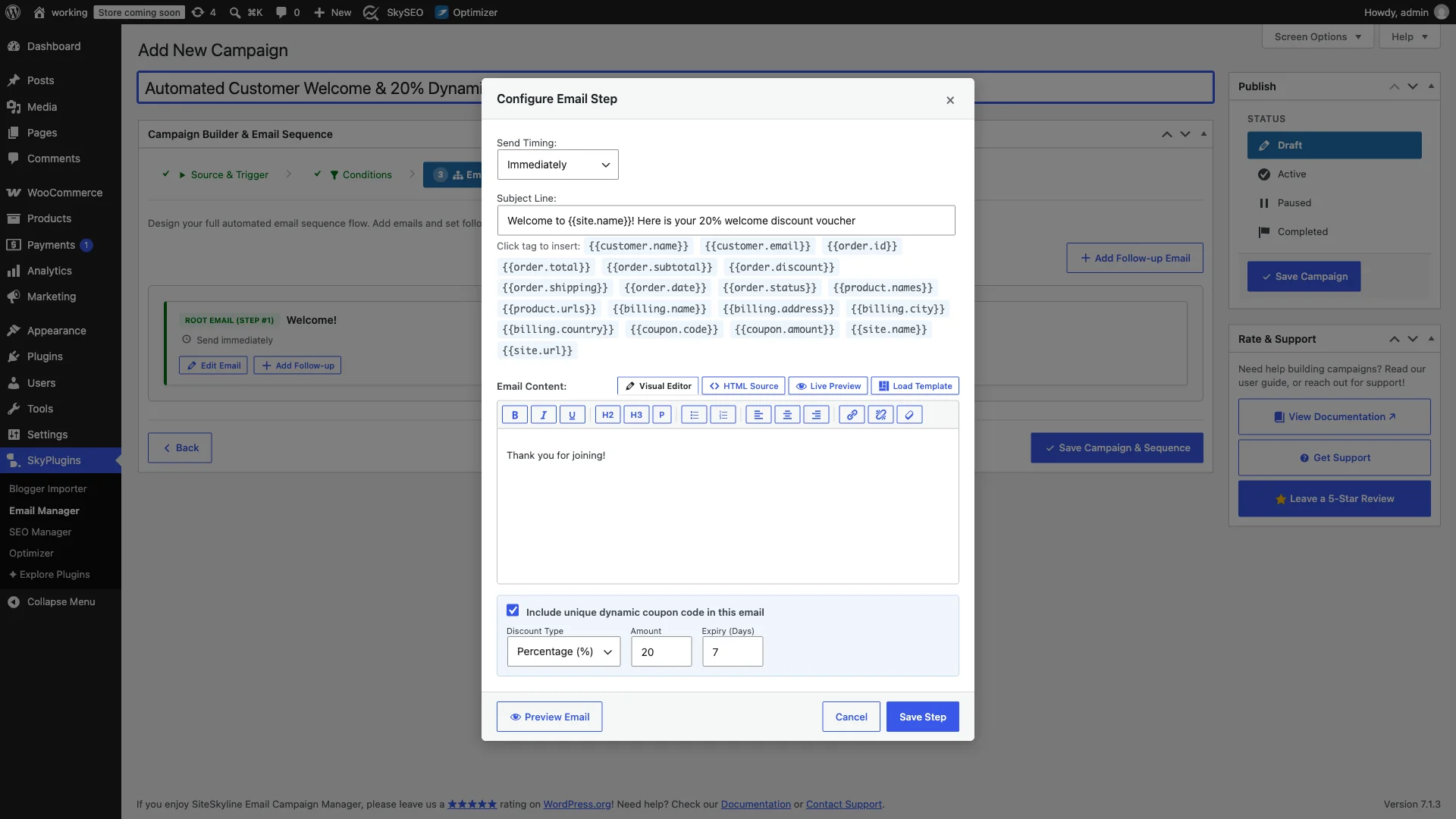
Configure the dynamic coupon parameters:
- Timing: चुनना Send immediately so the welcome coupon hits the customer’s inbox while they are actively shopping.
- Subject Line:
Welcome to {{site.name}}! Here is your 20% welcome discount voucher - Enable Dynamic Coupon: Check the box to activate SiteSkyline’s automatic coupon generation engine.
- Discount Type: चुनना Percentage Discount (or Fixed Cart Discount).
- Coupon Amount: Set to
20for a 20% discount. - Expiry Duration: Set to
7days. Once this period elapses, the coupon expires automatically in WooCommerce.
Step 5: Embedding Dynamic Coupon Merge Tags into Email Copy
Scroll down to the email content editor in the modal. SiteSkyline replaces merge tags with live customer and coupon data at the exact moment of sending.

Use these dynamic coupon merge tags in your email body:
{{coupon.code}}: Renders the randomized, unique alphanumeric coupon key (e.g.SKY-82-F19C4A).{{coupon.amount}}: Displays the formatted discount percentage or amount (e.g.20%).{{coupon.expiry}}: Renders the human-readable expiration date based on your WordPress date format settings.
<p>Hi {{customer.name}},</p>
<p>Welcome to <strong>{{site.name}}</strong>! We are thrilled to have you join our shopping community.</p>
<p>To help you get started on your first purchase, we have created an exclusive, single-use <strong>20% discount coupon</strong> just for you:</p>
<div style="background:#f0f6fc;border:2px dashed #2271b1;border-radius:8px;padding:20px;text-align:center;margin:25px 0;">
<span style="font-size:13px;text-transform:uppercase;letter-spacing:1px;color:#50575e;font-weight:600;display:block;margin-bottom:6px;">Your Exclusive Welcome Voucher</span>
<span style="font-size:24px;font-weight:bold;color:#2271b1;letter-spacing:2px;display:block;margin-bottom:8px;">{{coupon.code}}</span>
<span style="font-size:13px;color:#50575e;">Save {{coupon.amount}} off your entire order • Valid for 7 days</span>
</div>
<div style="text-align:center;margin:25px 0;">
<a href="{{site.url}}" style="background:#2271b1;color:#ffffff;padding:12px 28px;border-radius:4px;text-decoration:none;font-weight:bold;display:inline-block;">Explore the Catalog & Redeem Savings →</a>
</div>
<p>This coupon is exclusively locked to your account email ({{customer.email}}) and expires in 7 days.</p>
<p>Happy shopping,<br>The {{site.name}} Team</p>क्लिक Save Step at the bottom of the modal to save your template.
Step 6: Reviewing the Flowchart & Activating Campaign
Return to the visual Sequence Builder canvas to inspect your completed automation flow. The visual node displays your subject line, delivery timing, and the green Dynamic Coupon Enabled badge.

To launch the automated coupon workflow:
- Send a Test Email: Click into the step and click Preview / Send Test. SiteSkyline creates a test voucher in WooCommerce and verifies delivery to your inbox.
- Set Status to Active: In the right-hand प्रकाशित करें sidebar, select the सक्रिय radio option.
- Save Campaign: नीले पर क्लिक करें Save Campaign बटन।
Your automated dynamic coupon generator is now officially live! Every time a new customer registers on your WooCommerce store, a unique, single-use voucher will be created and dispatched automatically.
अक्सर पूछे जाने वाले प्रश्न (FAQ)
Where are the generated coupons stored in WordPress?
Every generated coupon is stored as a native WooCommerce coupon post type in your WordPress database under Marketing → Coupons. They behave exactly like coupons you manually create, supporting usage tracking, order attribution, and standard WooCommerce reporting.
What prevents another shopper from using a leaked coupon code?
SiteSkyline automatically restricts the generated coupon to the recipient’s customer email address using WooCommerce’s native customer_email restriction setting. If any other visitor attempts to enter the coupon at checkout, WooCommerce displays an error: “This coupon is not valid for your email address.”
Do expired coupons clutter the WordPress database forever?
No. SiteSkyline sets a strict date_expires timestamp on every coupon. WooCommerce natively prevents expired coupons from applying to carts. Furthermore, SiteSkyline includes routine database housekeeping tools to purge expired, single-use coupons on a scheduled interval.
Can I use dynamic coupons in multi-step follow-up drips?
Yes. You can attach dynamic coupons to any step in your visual sequence tree—including abandoned cart reminders, win-back campaigns for dormant customers, or post-purchase review requests.