Are bloated stylesheets and unoptimized JavaScript files tanking your WordPress site’s PageSpeed scores? Do you spend hours manually guessing which plugin scripts are safe to defer or unload on specific pages?
Modern WordPress themes and plugins enqueue scripts globally across your entire website—even on pages where their functionality is completely absent. A contact form plugin might load its validation scripts on your homepage, or a slider plugin might inject CSS on simple text articles. Manually auditing every page template with browser developer tools is slow, confusing, and risks breaking interactive site features.
In this step-by-step tutorial, you will learn how to automate your entire script audit and optimization workflow using the 자산 분석기 내부에 SiteSkyline Optimizer (SOptimizer). We will show you how to perform full-site sweeps, inspect real coverage data, and use automated heuristics to defer, delay, and unload assets safely.
Why Automated Asset Sweeping is Superior to Manual Optimization
Optimizing scripts manually often leads to broken layouts because plugins frequently depend on shared libraries (like jQuery or WordPress Core utils). SiteSkyline Optimizer’s Asset Sweeper removes the guesswork by tracking live asset coverage across your actual published content:
- Full-Site Template Crawling: Instead of inspecting one URL at a time, Auto-Analyze sweeps homepages, single posts, pages, archives, and custom post types in the background.
- Global vs. Page-Specific Classification: Instantly identify whether a script loads globally (e.g. 4/4 pages) or is confined to specific templates (e.g. 1/4 pages).
- Granular Rule Engine: Apply targeted rules (Defer, Async, Delay until user interaction, Inline, Preload, Move to Footer, or Unload) with conditional targeting.
- Auto-Optimize Sweeper: Automatically detects non-destructive optimizations that defer heavy secondary scripts without breaking core site functionality.
| Capability | Manual Asset Management | SOptimizer Asset Sweeper | Performance Advantage |
|---|---|---|---|
| Asset Discovery | Manual inspection of page source on every URL | Automated background sweep across all templates | Saves hours of manual debugging |
| Coverage Analysis | Difficult to know if an asset is needed globally | Live badges show exact template distribution | Prevents breaking features on untested pages |
| Optimization Actions | Limited to crude on/off disabling | Defer, Async, Delay, Inline, Preload, Footer, Unload | Precision control over browser critical path |
| Automation Heuristics | Manual trial-and-error testing | 1-Click “Auto-Optimize Site” engine | Instant, safe Core Web Vitals boost |
Step 1: Open the Asset Analyzer in SiteSkyline Optimizer
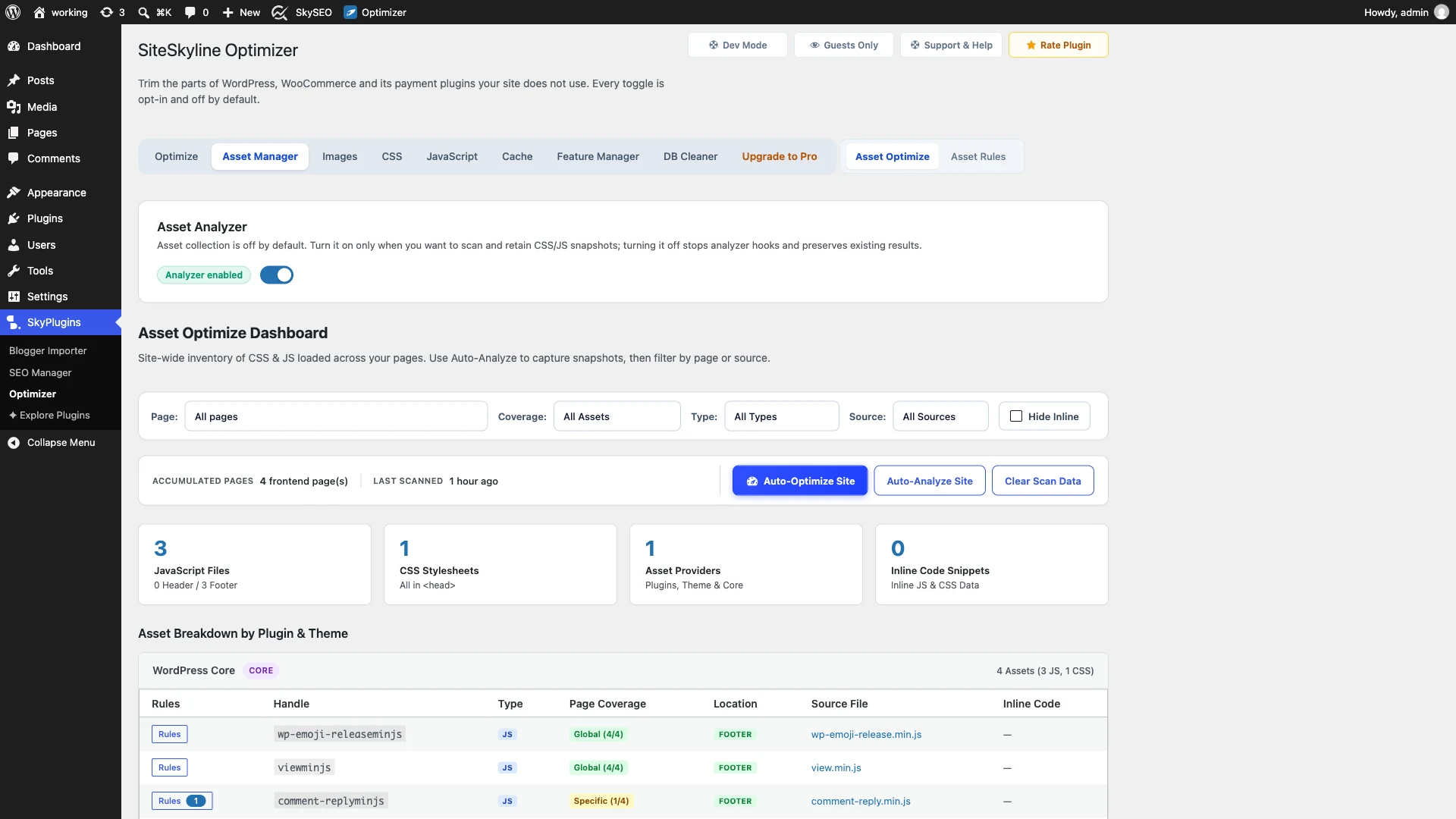
To begin, log into your WordPress administrative dashboard and navigate to SiteSkyline Optimizer > Asset Manager > Asset Analyzer.
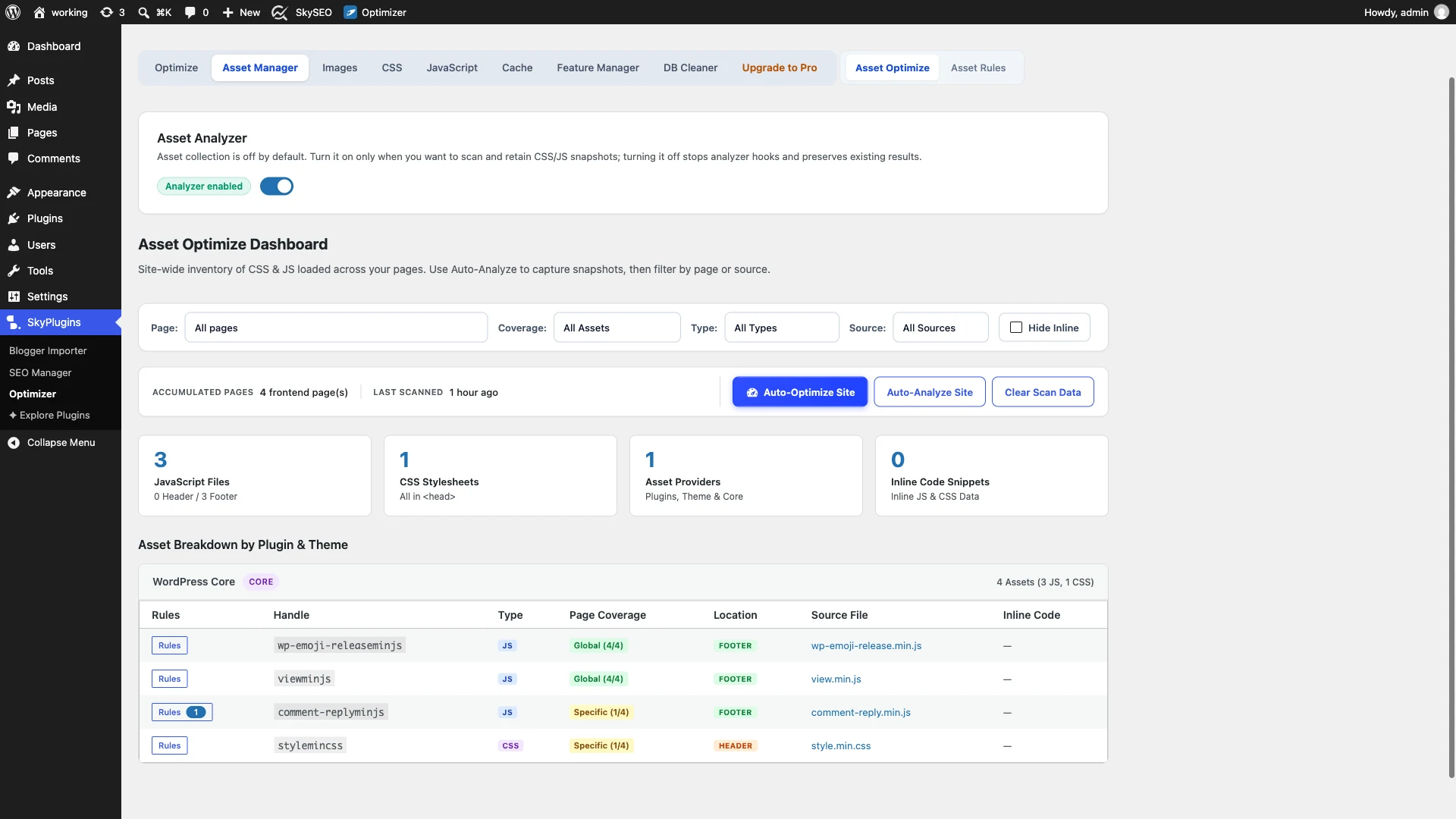
The Asset Analyzer dashboard provides high-level telemetry on your site’s asset health. You will see summary metrics tracking accumulated pages scanned, total JavaScript files (distinguishing between header and footer placement), CSS stylesheets, and unique asset providers.
Step 2: Run a Complete Site-Wide Asset Sweep
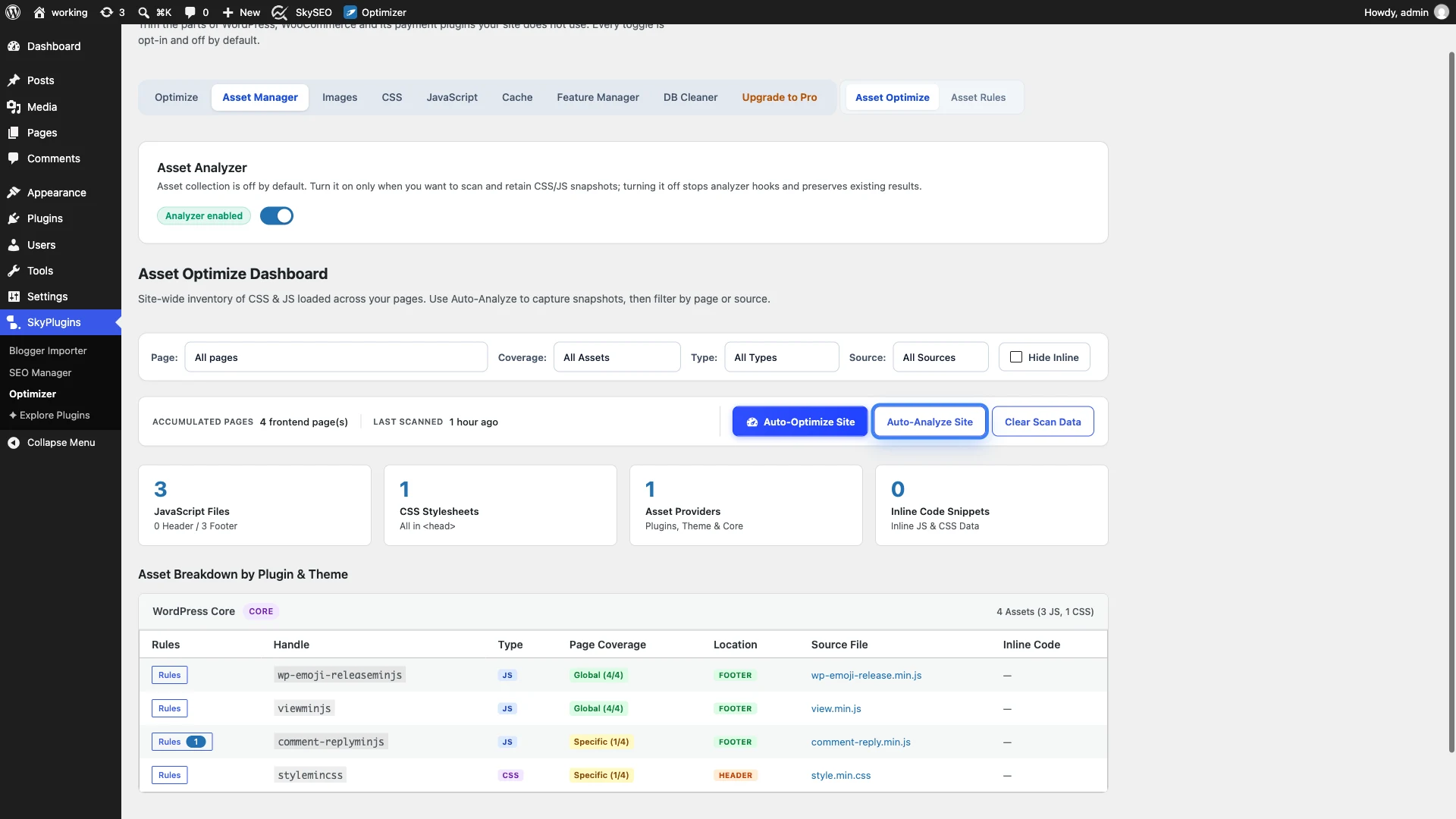
Next, initiate an automated snapshot of your site’s enqueued resources by clicking the Auto-Analyze Site 단추.
SiteSkyline Optimizer scans your published page hierarchy via headless background requests. It collects accurate script handles, file URLs, dependencies, and execution contexts across your homepage, articles, landing pages, and category archives without interfering with active visitors or altering database tables.
Step 3: Inspect Asset Coverage & Breakdown by Plugin
Once the analysis completes, scroll to the Asset Breakdown by Plugin & Theme table.
Assets are intelligently grouped by their provider (e.g. WordPress Core, your active theme, WooCommerce, or specific plugins). Use the interactive filter toolbar to narrow down your view:
- Page Filter: View all assets site-wide or focus on a specific template URL.
- Coverage Filter: Filter by Global Only (All Pages) vs. Page-Specific Only.
- Type Filter: Toggle between JavaScript (
.js) and CSS (.css). - Source Filter: Isolate third-party plugins, themes, or core WordPress files.
Step 4: Configure Granular Asset Optimization Rules
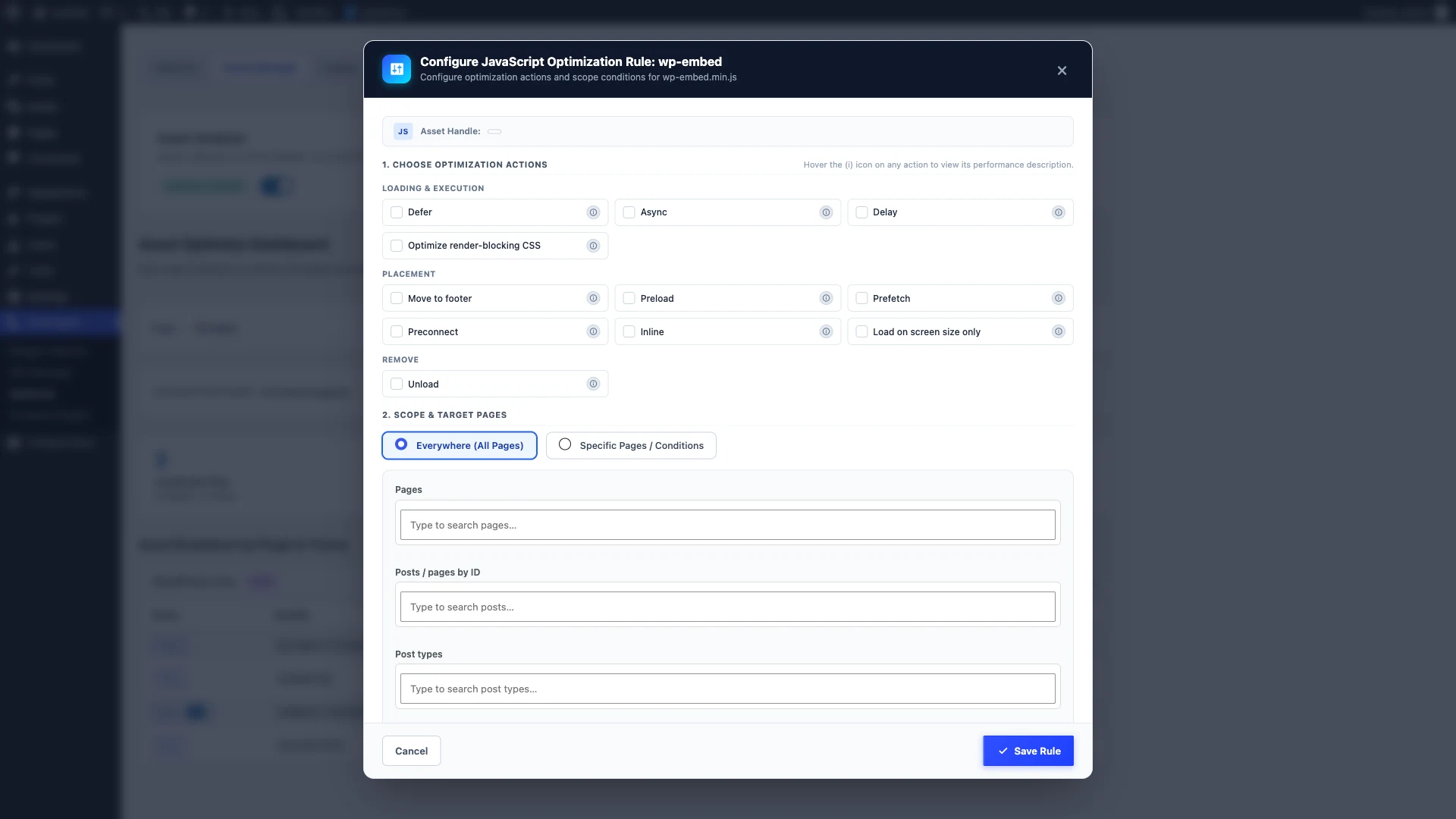
To optimize a specific script or stylesheet, click the Rules button next to any item in the table. This opens the Asset Optimization Rule modal.
SiteSkyline Optimizer offers an unmatched selection of performance actions tailored to modern browser rendering:
- Defer: Loads the script after HTML parsing completes so it never blocks rendering. Ideal for secondary plugins and widgets.
- Async: Downloads independently and executes immediately. Great for standalone tracking and analytics scripts.
- Delay: Completely pauses the script until the user first scrolls, clicks, or touches the screen. Essential for third-party chat widgets and marketing pixels.
- Move to Footer: Moves scripts out of the document
<head>down to the closing body tag. - Unload: Completely prevents the script from loading on pages where it is never used.
- Screen Size Condition: Use CSS media queries to only download assets on desktop or mobile viewports.
Step 5: Use 1-Click Auto-Optimize for Automated Gains
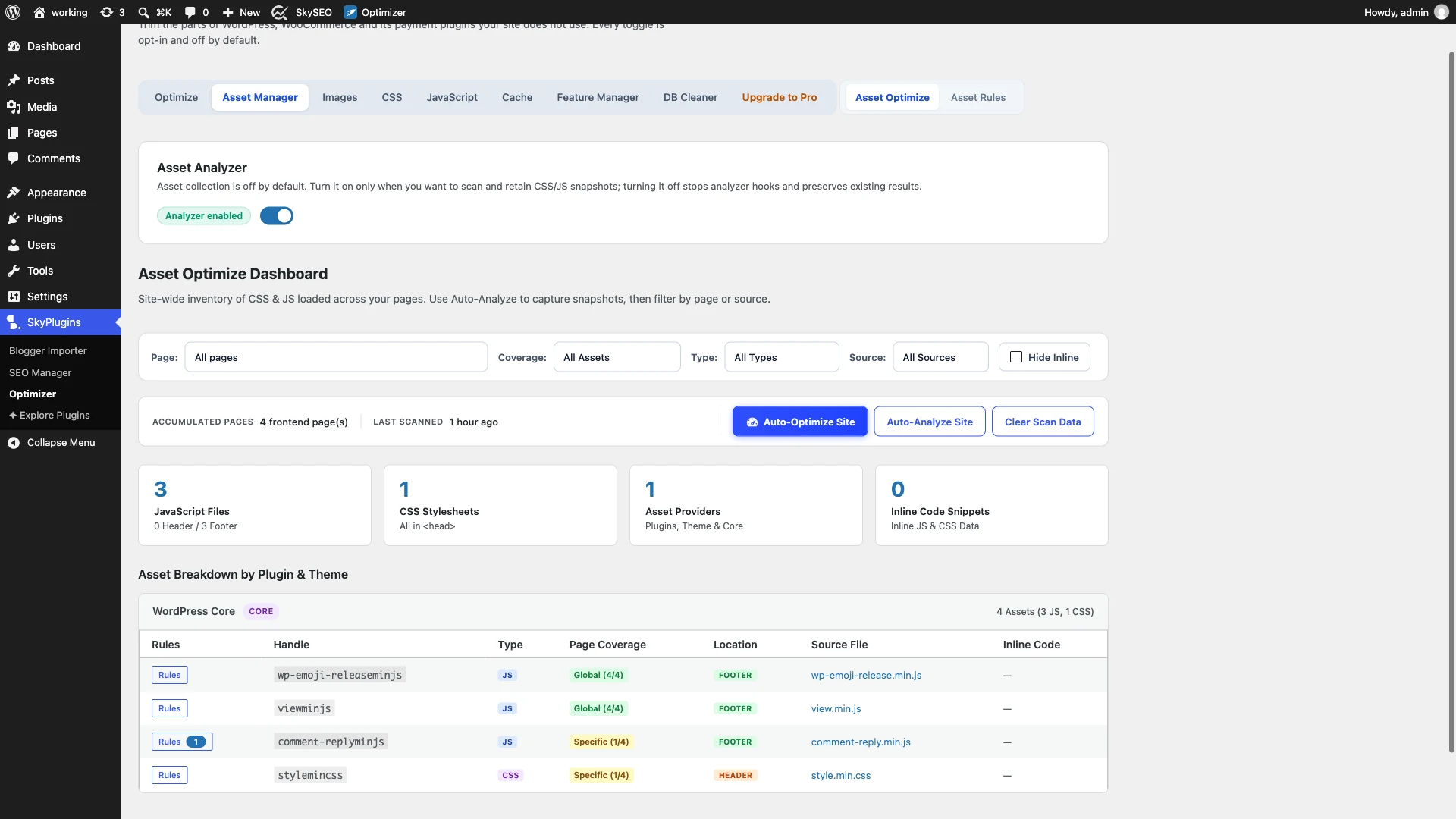
If you have dozens of plugins and don’t want to configure every rule by hand, SiteSkyline Optimizer includes an intelligent Auto-Optimize Site engine.
Click the primary Auto-Optimize Site button. SOptimizer’s rule engine evaluates your scanned dependency tree and coverage statistics. It automatically applies safe, non-destructive script deferrals to non-critical assets while keeping critical layout dependencies untouched.
Step 6: Verify Optimized Network Waterfall on the Frontend
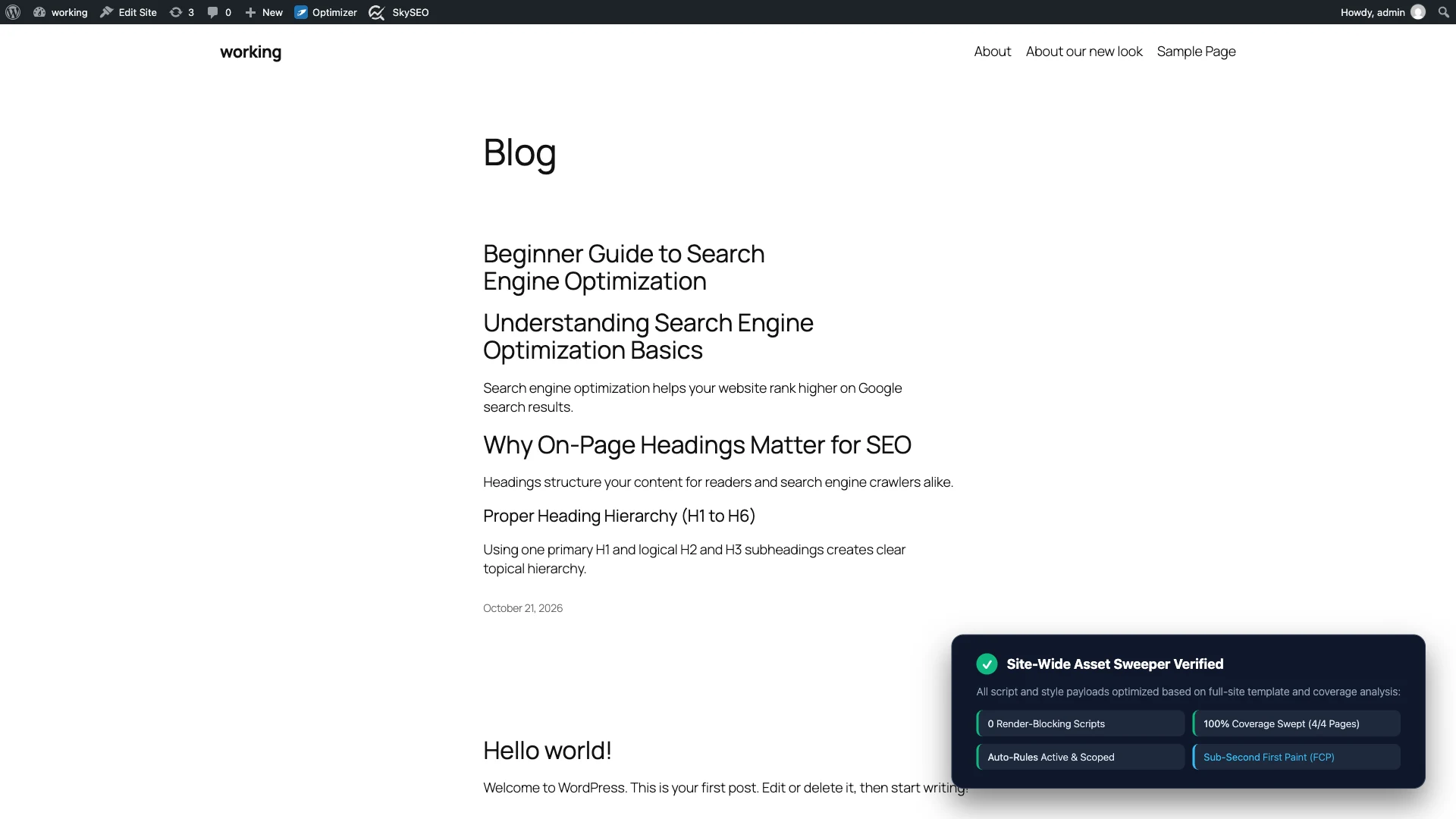
To confirm your performance gains, open your live website in an Incognito window and audit the page using Chrome DevTools:
- 아래 Network panel, observe that heavy JavaScript files no longer block the initial HTML stream.
- 확인해보세요 Coverage tab to verify that unused CSS and JS execution is drastically reduced.
- Notice the significant reduction in Total Blocking Time (TBT) and improved 다음 페인트(INP)와의 상호작용.
- Experience an instantaneous First Contentful Paint without visual freezing.
자주 묻는 질문
Does the Asset Analyzer slow down my live website?
No. The Asset Analyzer operates only on demand when an administrator triggers a scan. It executes sweeps using internal background requests. Normal visitors never experience any tracking overhead, database logging, or performance impact.
What is the difference between Defer and Delay?
Defer tells the browser to download the script in parallel with HTML parsing, but delays execution until the document is completely parsed. Delay goes a step further: the browser does not even download or execute the script until the visitor touches the screen, moves their mouse, or presses a key. Delay is ideal for heavy marketing pixels, Google Analytics, and live chat widgets.
Can I restore my original configuration if something breaks?
Yes. Every rule created by the Asset Analyzer or Auto-Optimize can be modified, paused, or deleted with a single click. Furthermore, switching SiteSkyline Optimizer into Safe Mode immediately pauses aggressive rules, keeping your website 100% accessible at all times.
How often should I run Auto-Analyze?
You only need to run Auto-Analyze whenever you install a new plugin, switch themes, or make significant changes to your site’s design layout.