
Even if you publish high-quality content and target the right keywords, hidden technical SEO errors can silently destroy your search rankings. Broken hyperlinks, missing image alt text, bloated meta descriptions, and non-canonical archives prevent search engine crawlers from indexing your site efficiently and cost you valuable organic traffic.
Conducting regular technical SEO audits ensures your site remains healthy, fast, and compliant with Google’s indexing guidelines. In the past, running an audit required expensive third-party SaaS subscriptions like Ahrefs or Semrush, which crawl your site externally without direct access to your WordPress database.
In this step-by-step tutorial, we will show you how to run a complete technical SEO audit right inside your WordPress dashboard using Sky SEO Manager, automate routine crawl schedules, and resolve common issues with one click.
Why Regular Technical SEO Audits Are Essential
Technical SEO forms the foundation of your website’s search performance. When search engine bots like Googlebot or Bingbot crawl your domain, they encounter technical roadblocks that sap crawl budget and trigger indexing penalties.
Performing routine on-site technical audits delivers three crucial advantages:
- Preserves Crawl Budget: Eliminating 404 broken links, endless redirect loops, and server-timeout pages ensures search bots spend their time indexing your highest-converting content.
- Improves Search Snippet Click-Through Rates: Detecting truncated meta titles and overly long descriptions lets you refine your SERP presentation before search engines rewrite your snippets.
- Maintains Accessibility & On-Page Signals: Flagging missing image alt attributes and improper heading hierarchies ensures both visually impaired users and machine crawlers understand your page structure.
Comparison: Traditional SaaS Crawlers vs. Sky SEO Analyzer
Here is how running native WordPress audits compares against traditional cloud-based crawlers:
| 특징 | Third-Party SaaS Crawlers (Ahrefs/Semrush) | Sky SEO Manager (Native WordPress) |
|---|---|---|
| 가격 | $99 to $499+ per month | 100% Free & Built into WordPress |
| Database Access | External crawling only (misses backend draft/taxonomy meta) | Deep database inspection across posts, pages, and taxonomy terms |
| Server Impact | Can trigger hosting rate-limits and bot firewall blocks | Server-safe background batching with custom timeouts and link caching |
| Fix Execution | Manual copy-pasting into WordPress | One-click automated fixes directly applied to database |
| Client Reporting | Watermarked cloud dashboards | Instant one-click Print / Save PDF audit reports |
Step 1: Configure Crawl & Batch Scan Settings
To start your technical SEO audit, log in to your WordPress admin dashboard and navigate to SkySEO » SEO Manager. Next, click on the SEO 분석기 tab in the navigation menu.
At the top of the interface, you will see your site health overview, including your overall 사이트 점수 (out of 100), real-time counters for processed pages, and total issues found.
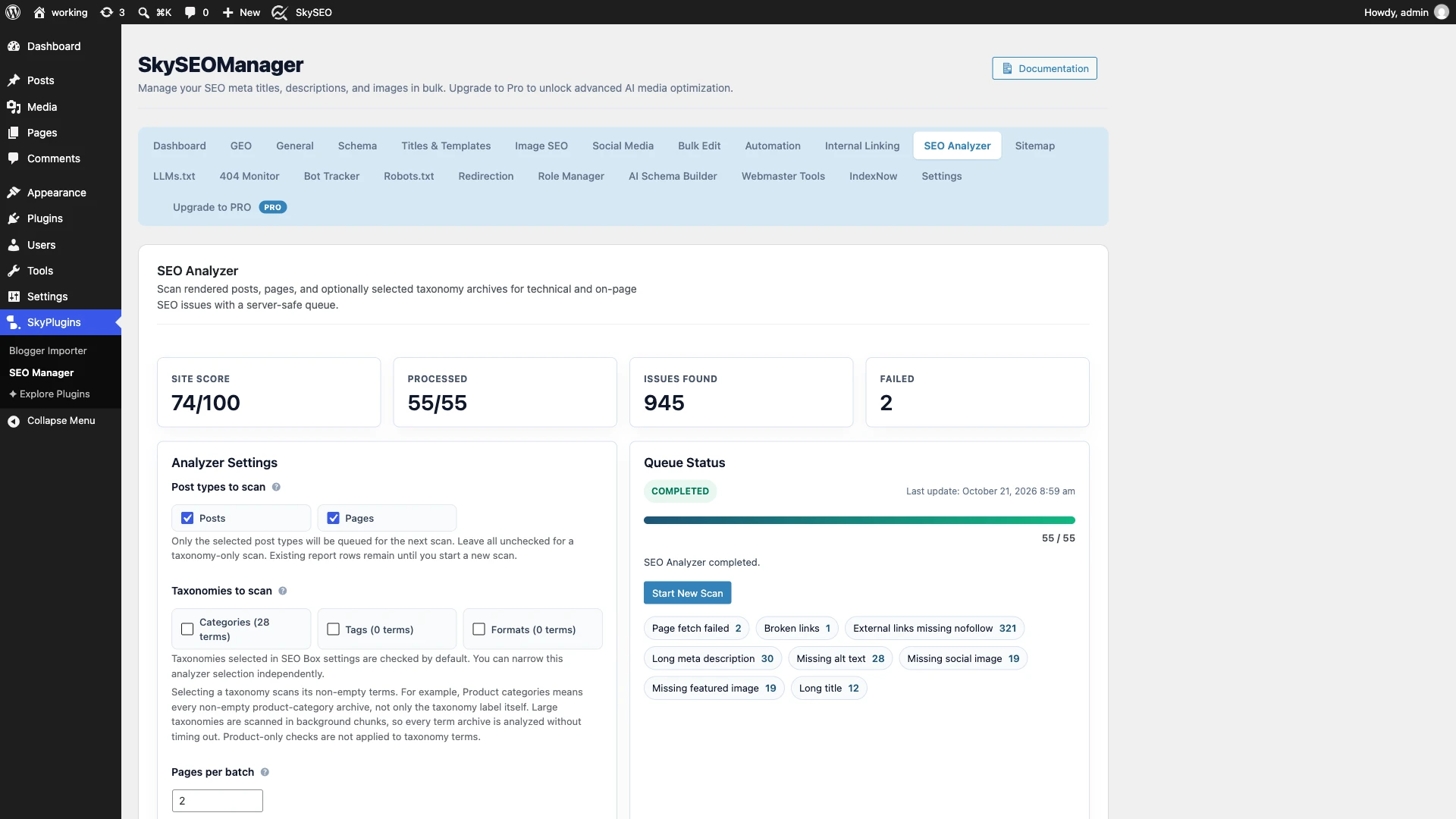
내부 Analyzer Settings card, customize your crawl scope:
- Post types to scan: Check 게시물 그리고 페이지. You can also include custom post types such as WooCommerce Products or Portfolios.
- Taxonomies to scan: Select category or tag archives. The analyzer processes non-empty terms in background chunks so large taxonomies never time out.
- Pages per batch: Default is
10. If you are on shared hosting, keep this between 5 and 10 to prevent server memory spikes. - Link timeout & Cache TTL: Set HTTP connection timeouts (default:
10 seconds) and link cache duration (default:24 hours) to prevent redundant external network requests.
Step 2: Automate Audit Schedules & Email Alerts
Technical debt accumulates as content creators publish new articles, change URLs, and embed external links. Instead of having to remember to scan your site manually, you can automate audits to run on a recurring schedule.
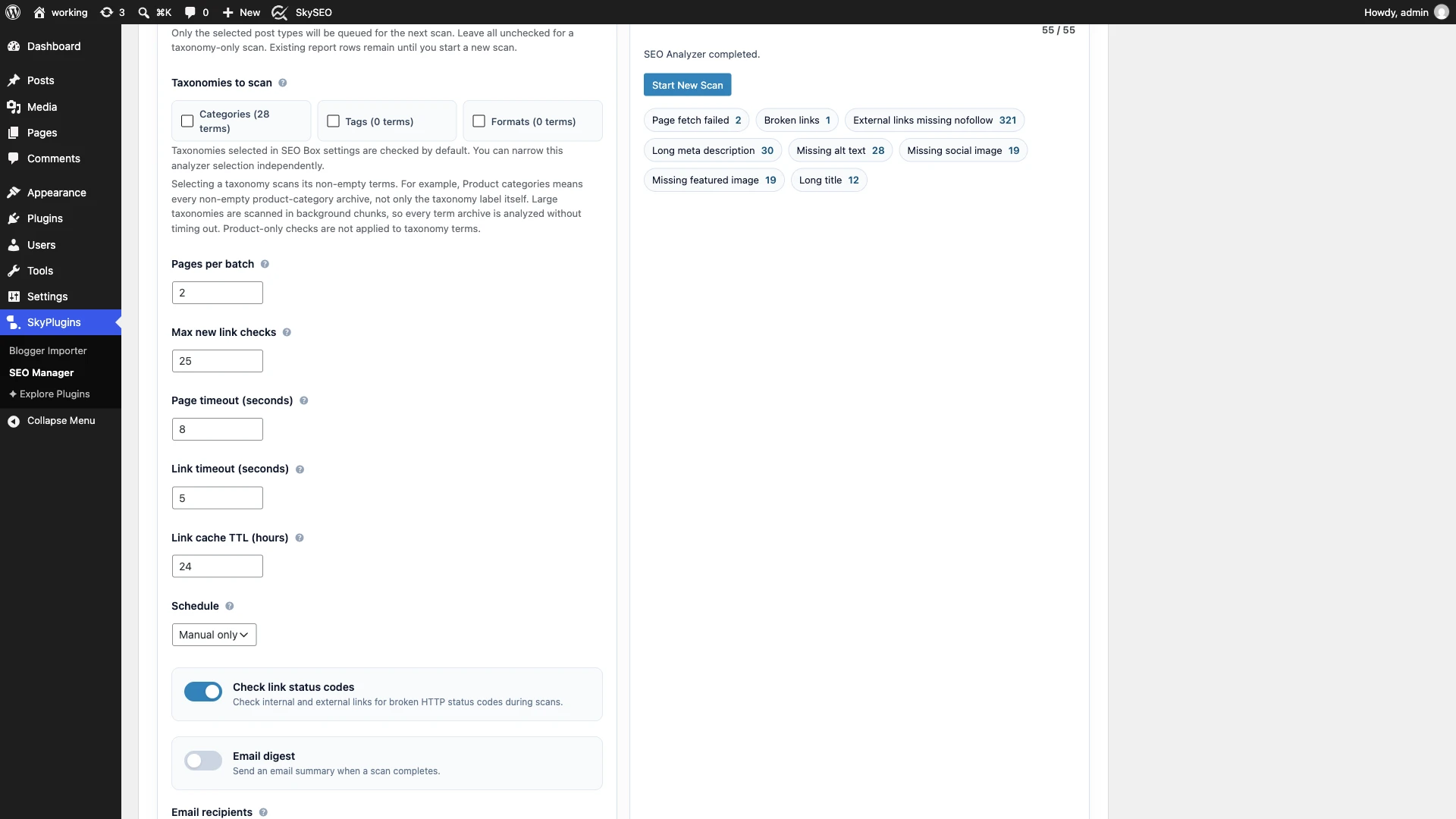
- Schedule: 선택하다 Weekly 또는 매월 from the dropdown menu. Sky SEO Manager leverages native WordPress cron to crawl your site during low-traffic periods.
- Email recipients: Enter one or more admin email addresses separated by commas (e.g.,
[email protected]). Whenever a scheduled audit completes, a summary report is automatically delivered to your inbox. - Send Test Email: Click the test button to verify that your WordPress SMTP or mail configuration delivers messages properly.
Once your schedule is configured, click Start New Scan in the Queue Status box to initiate the audit.
Step 3: Analyze Overall Site Health & Priority Action Plan
When the crawl queue completes, scroll down to the Issue Summary badges and the Priority Action Plan.
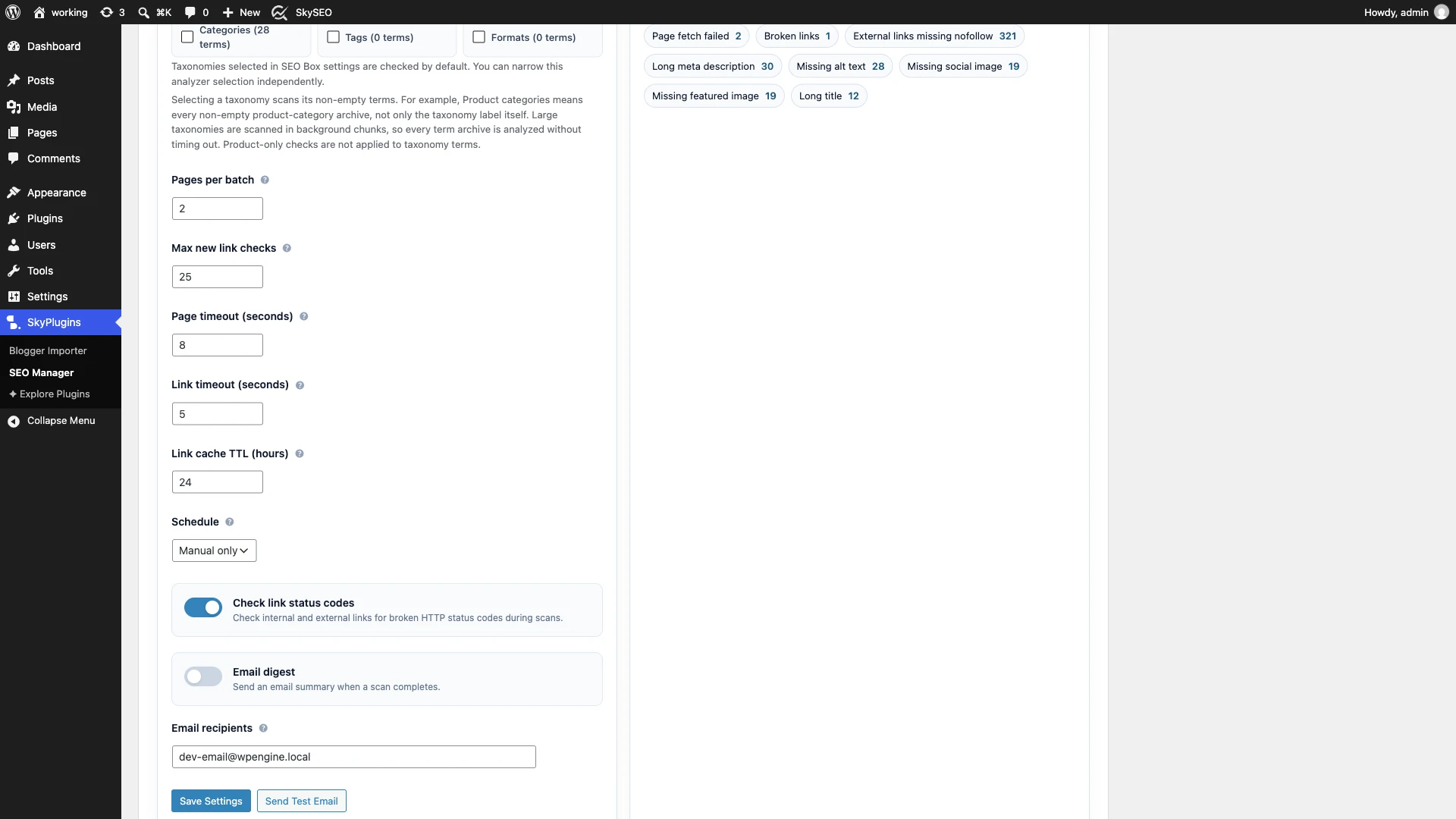
The analyzer automatically tallies and groups errors by urgency:
- Page fetch failed / Broken links: Critical errors where links point to dead pages or 404 responses.
- External links missing nofollow: Outbound affiliate, sponsored, or untrusted external links lacking
rel="nofollow"tags. - Missing alt text: Images published without descriptive alternative text, hurting both accessibility and Google Image search visibility.
- Long meta descriptions & titles: Snippets exceeding recommended character limits (60 characters for titles, 160 characters for meta descriptions) that get truncated on mobile and desktop SERPs.
- Missing social & featured images: Articles lacking Open Graph banners that display poorly when shared across social channels.
Step 4: Inspect Detailed Per-Page Crawl Diagnostics
To address problems on specific posts or landing pages, inspect the interactive SEO 보고서 table.
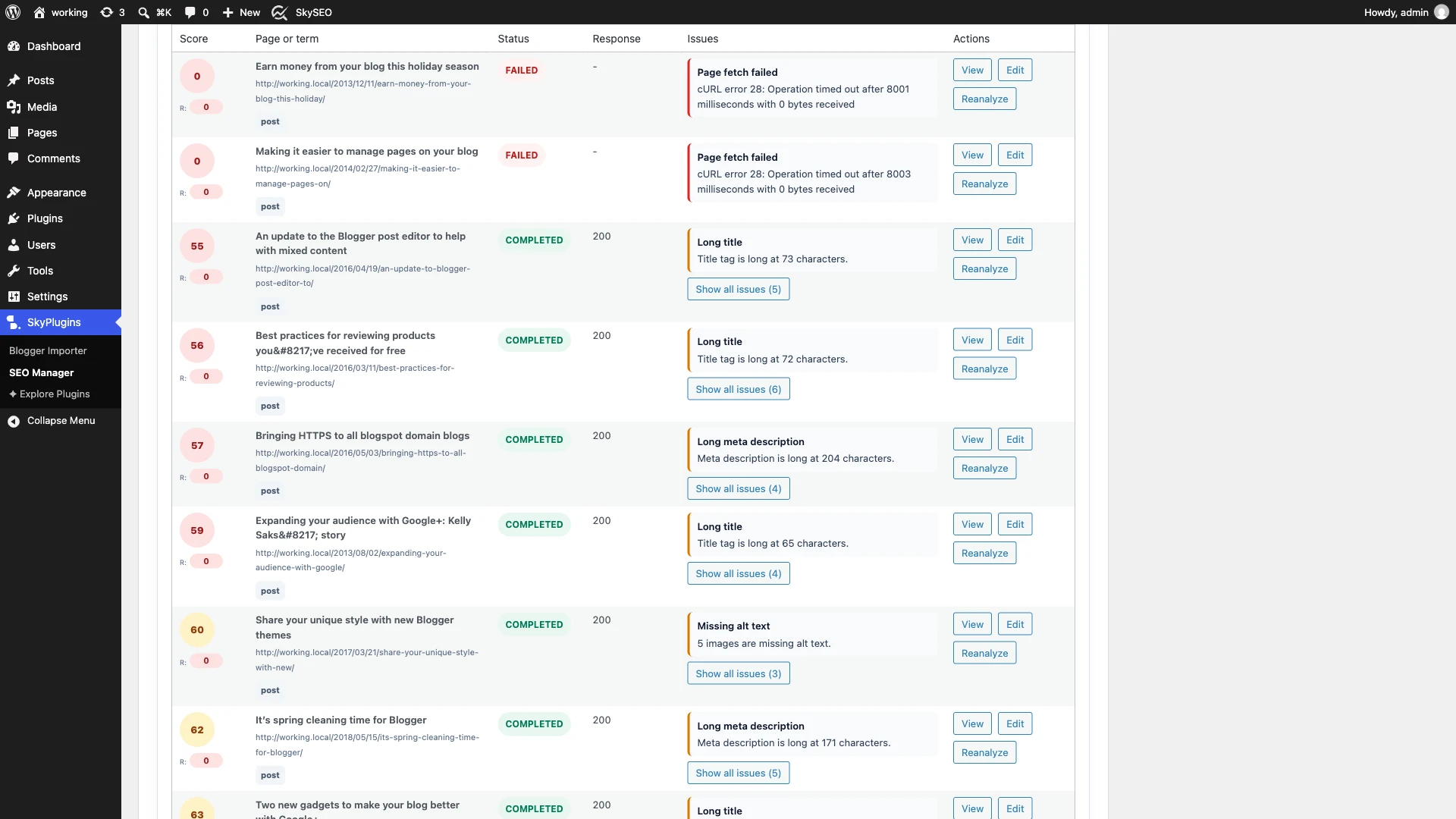
Each row in the report highlights:
- Page Title & URL: The full permalink and title of the analyzed document.
- Readability & SEO Score: A quick visual health gauge for each piece of content.
- Specific Issue Badges: Color-coded tags detailing exactly what is wrong (e.g., Add missing image alt text, Add nofollow to external links).
- Row Actions: 딸깍 하는 소리 보다 to check the live front-end page, Edit to launch the Gutenberg block editor with the Sky SEO metabox preloaded, or Reanalyze after making changes to verify the fix immediately.
Step 5: Execute One-Click Automated Basic Fixes
Fixing hundreds of missing alt attributes or appending nofollow tags to affiliate links manually across 50 blog posts could take an entire afternoon. Sky SEO Manager includes a built-in automated remediation engine.
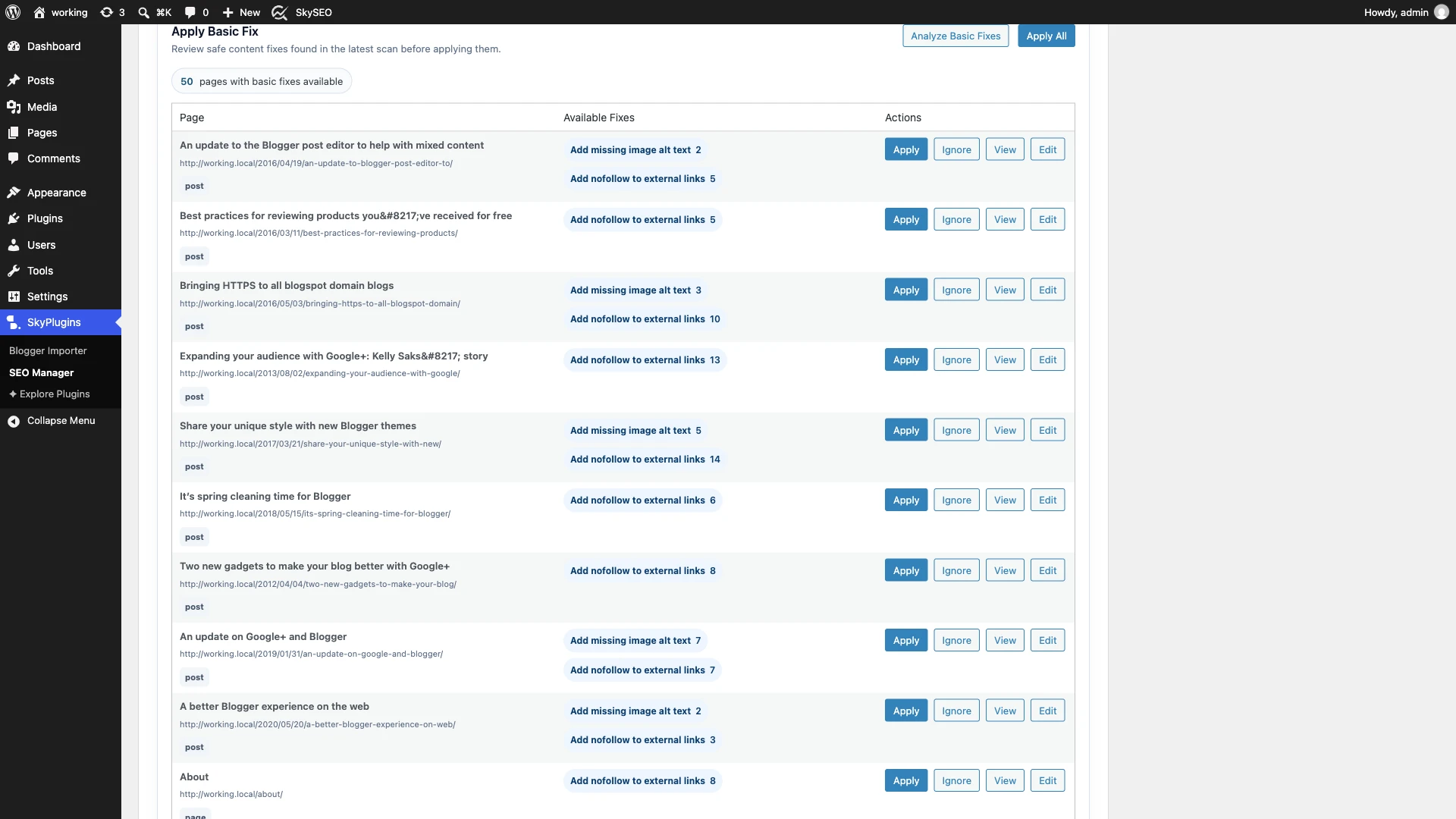
- 다음을 클릭하세요. 기본 수정 tab located just above the report table.
- 다음을 클릭하세요. Analyze Basic Fixes button. The engine parses your scan database to find safe, automated adjustments.
- Review the proposed fixes for each post (such as Add missing image alt text 또는 Add nofollow to external links).
- 딸깍 하는 소리 적용하다 to remediate an individual post, or click Apply All to execute all safe corrections site-wide in a single batch.
All applied modifications are logged in the Recent Applied Fixes history ledger so you maintain full auditability over content updates.
Step 6: Export Client-Ready PDF SEO Audit Reports
If you run an agency, manage client websites, or collaborate with an in-house development team, you need a polished deliverable summarizing site health.
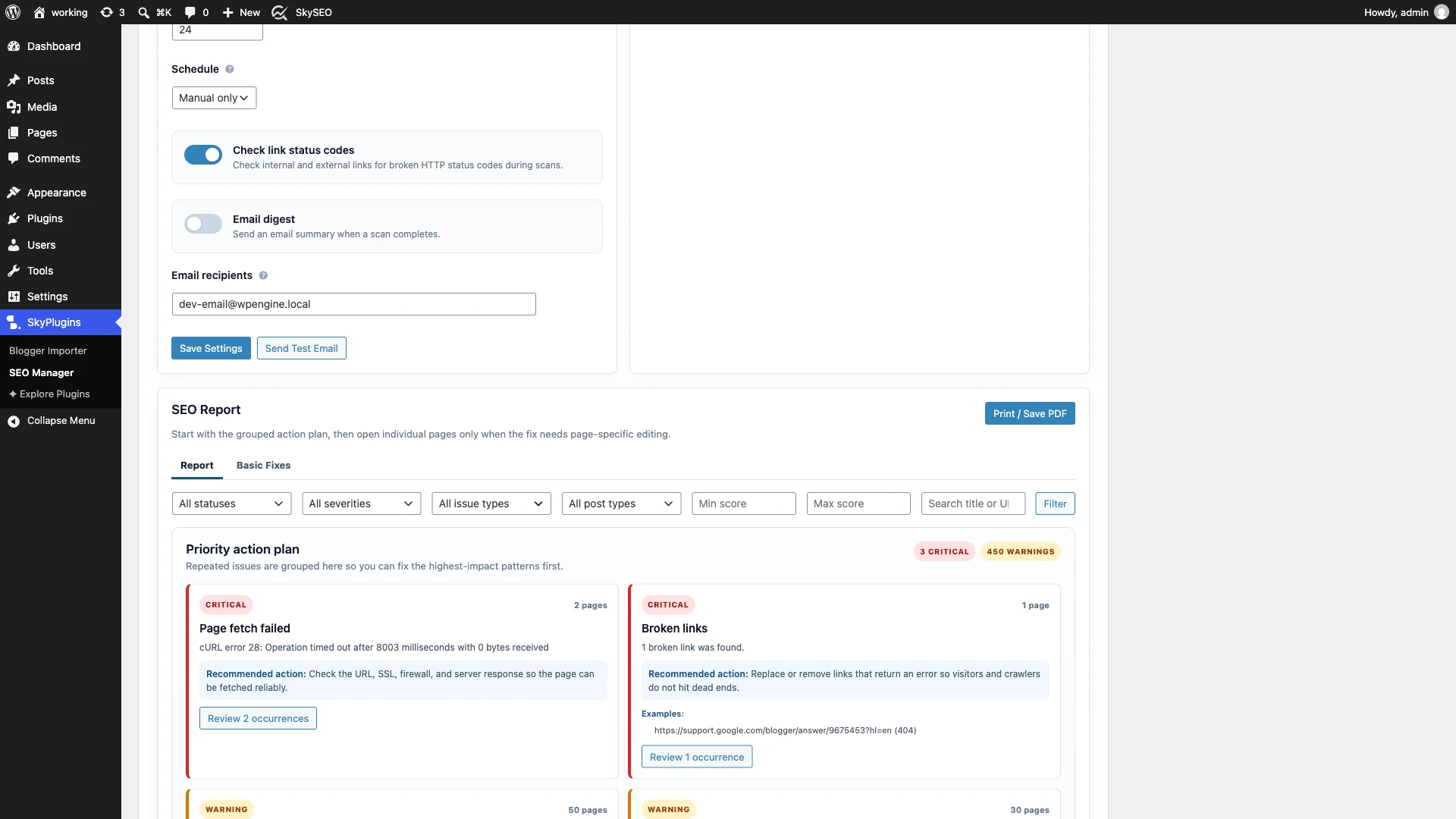
Inside the SEO Report header, click the Print / Save PDF button. Sky SEO Manager formats your audit scores, issue summary badges, priority action items, and crawl details into a clean print-ready stylesheet. You can save it as an executive PDF report or send it straight to your printer.
Technical SEO Audit Checklist for WordPress
Before launching a new site or quarterly marketing campaign, run through this quick technical checklist:
- Clean Broken Links: Ensure zero 404 links point internally or externally from your primary navigation and body copy.
- Audit External Link Attributes: Append
rel="nofollow"또는rel="sponsored"to all affiliate and paid promotional links. - Verify XML Sitemaps: Confirm that your XML sitemap is active, submitted to Google Search Console, and only includes indexable URLs.
- Validate Robots.txt & LLMs.txt: Check that your crawler directive files properly allow search bots and AI engines to discover high-value content.
- Optimize Meta Snippets: Keep titles under 60 characters and descriptions between 120 and 155 characters for optimal SERP display.
- Enforce Image Alt Text: Ensure all informational graphics feature concise, descriptive alternative text for screen readers and visual search.
Frequently Asked Questions (FAQs)
How often should I run a technical SEO audit in WordPress?
For active blogs and ecommerce stores publishing several times a week, running a weekly automated audit is ideal. For smaller business websites, a monthly scan is sufficient to catch broken links and metadata issues.
Will scanning my website slow down my server?
No. Sky SEO Manager uses server-safe batching (default 10 pages per batch) with custom timeout limits and link caching. You can adjust the batch size down to 5 if your site is hosted on entry-level shared hosting.
What is the difference between a broken link and an external link missing nofollow?
A broken link returns an HTTP 404 or connection error, harming user experience and crawl efficiency. A link missing nofollow functions properly for visitors, but passes search equity to third-party domains when it should be marked as sponsored or untrusted.
Can I export audit results to show clients?
Yes. Clicking the “Print / Save PDF” button generates a clean, unbranded diagnostic report formatted for PDF export or client presentation.
We hope this step-by-step tutorial helped you learn how to run a complete technical SEO audit in WordPress. You might also want to read our guide on How to Fix Broken Links in WordPress or explore our tutorial on How to Customize SEO Titles and Meta Description Templates.