Are you wondering how to make your WordPress website discoverable and citable by artificial intelligence assistants like ChatGPT, Perplexity, Claude, and Google Gemini? In the new era of 生成式引擎优化 (GEO), traditional search engine crawlers are no longer the only bots you need to cater to. AI models need concise, structured, machine-readable summaries of your content without wading through bloated HTML markup or complex JavaScript scripts.
That is where the proposed web standard llms.txt comes in. By serving a curated Markdown file at /llms.txt on your WordPress domain, you provide AI search agents with a direct roadmap of your top articles, product pages, and brand summaries.
In this step-by-step tutorial, we will show you how to generate, customize, and serve an llms.txt file in WordPress using Sky SEO Manager to maximize your Generative Engine Optimization visibility and win high-authority AI citations.
What is an llms.txt File and Why Does Your WordPress Site Need One?
一个 llms.txt file is a standardized, plain-text Markdown file hosted in the root directory of your website (e.g., https://yoursite.com/llms.txt). Just like robots.txt tells web crawlers where they can and cannot go, and sitemap.xml provides search engines with a full URL index, llms.txt is specifically formatted for Large Language Models (LLMs).
When an AI agent (such as PerplexityBot, GPTBot, or ClaudeBot) visits your website to answer a user’s question, it has a limited context window and token budget. Traditional web pages contain thousands of lines of HTML wrappers, styles, scripts, and tracking pixels that waste tokens and dilute meaning.
一个 llms.txt file solves this by offering:
- Curated Site Context: An executive summary of what your business does and who it serves right under the main H1 tag.
- Priority Directives: Direct links to your authoritative cornerstone content, eliminating noise from duplicate archive pages.
- Up to 47% Higher Citation Rates: AI engines cite pages that offer structured, verified facts far more reliably than unstructured competitors.
- Zero Server Load: Sky SEO Manager serves the file dynamically as a lightweight Markdown response without database strain.
Comparison: Traditional SEO vs. Generative Engine Optimization (GEO)
Understanding how generative search differs from traditional Google organic ranking is essential for modern webmasters:
| SEO Factor | Traditional Search Engine Optimization (SEO) | 生成式引擎优化 (GEO) |
|---|---|---|
| Primary Audience | Google, Bing, human searchers clicking blue links | LLMs (ChatGPT, Perplexity, Gemini, Claude) synthesizing direct answers |
| Discovery File | robots.txt 和 sitemap.xml |
llms.txt and structured JSON-LD Schema |
| Data Format | HTML DOM structure with CSS styling | Clean Markdown headings, bullet points, and quotes |
| Ranking Objective | Top 10 organic position in Search Engine Results Pages (SERPs) | Direct quotation, source footnote, or brand recommendation |
| Context Requirement | Keyword density, backlinks, meta titles | Concise site summaries, factual statistics, expert citations |
Step 1: Enable the LLMs.txt Module in Sky SEO Manager
The easiest way to generate and maintain an llms.txt file on WordPress without writing custom server rewrite rules is using Sky SEO Manager.
To begin, log in to your WordPress admin dashboard and navigate to SkySEO » SEO Manager. Next, click on the LLMs.txt tab in the top navigation bar.
At the top of the interface, toggle on the Enable LLMs.txt switch. When enabled, Sky SEO Manager immediately initializes dynamic serving for /llms.txt at your site’s root URL.
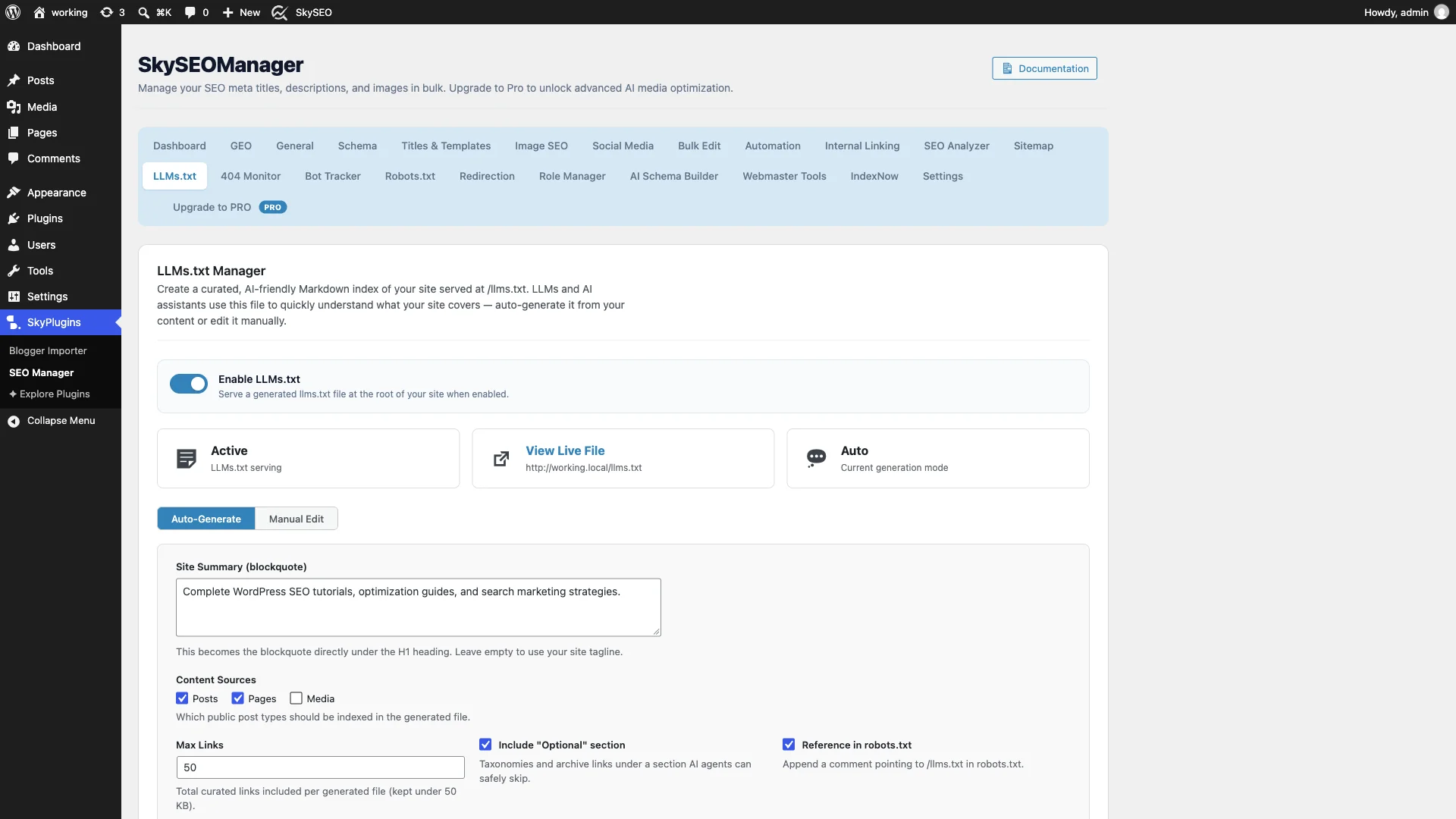
You will see three real-time indicator cards:
- Active Status: Confirms whether the file is actively served to visiting user-agents.
- View Live File: A direct clickable link to inspect your rendered
/llms.txtoutput. - Generation Mode: Displays whether your index is running in Auto generation or 手动 editor mode.
Step 2: Configure Your Site Summary and Content Sources
Under the status cards, you can tailor how your llms.txt is compiled by adjusting the content parameters:
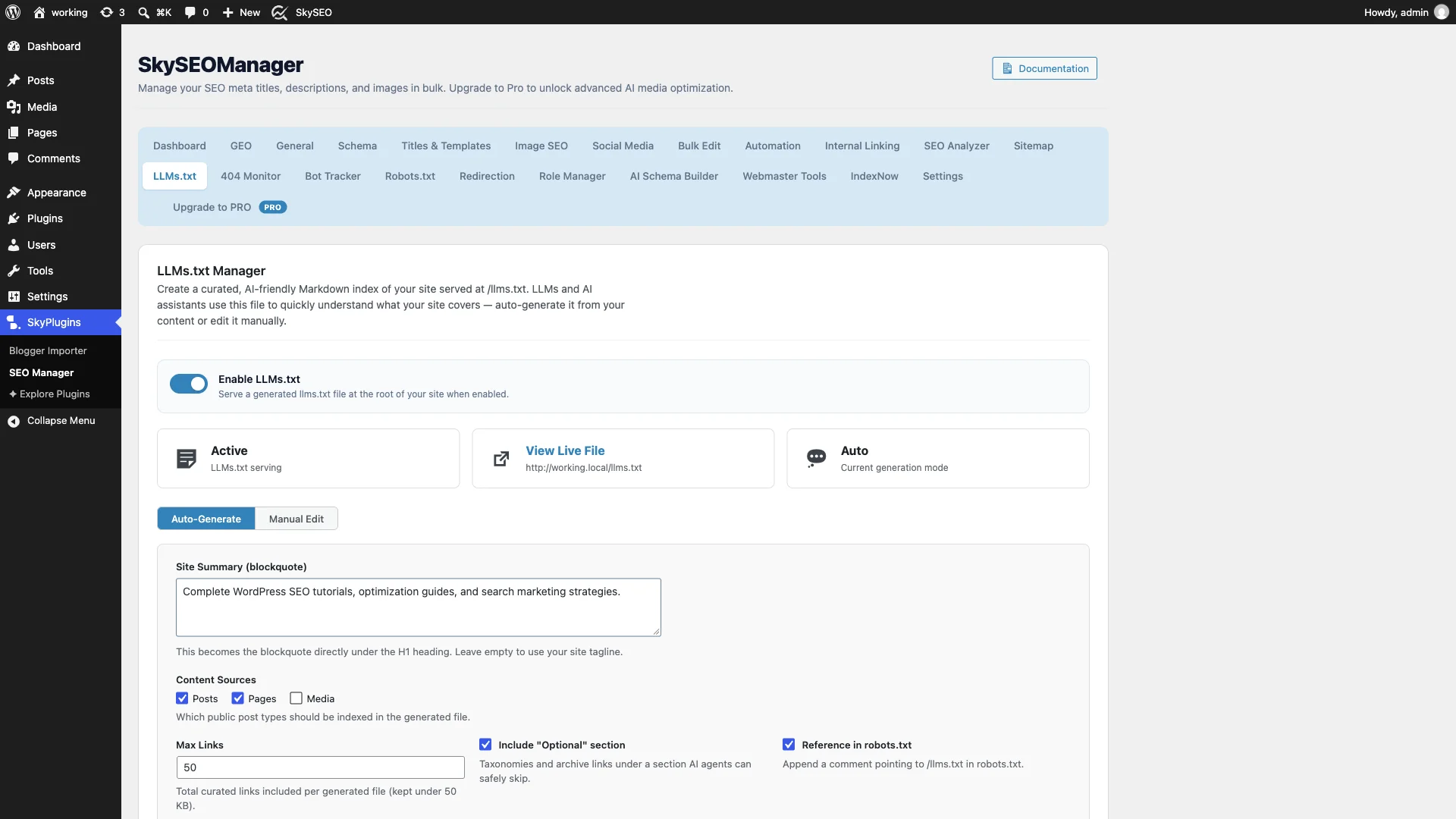
- Site Summary (blockquote): Enter a 1–2 sentence factual summary of your website. This text is converted into a prominent Markdown blockquote (
> Summary) placed immediately below the primary H1 site title. If left blank, Sky SEO Manager defaults to your WordPress tagline. - Content Sources: Check the boxes for the public post types you want indexed. In most cases, checking 帖子 和 页数 is ideal. Avoid checking heavy media attachments to keep your payload lean.
- Max Links: Specify the total number of curated links included in the file (default is 50). Keeping the file size under 50 KB guarantees that AI engines can ingest the entire document within a single token chunk without truncation.
Step 3: Fine-Tune Your File in Manual Edit Mode (Optional)
By default, Sky SEO Manager operates in Auto-Generate mode, which automatically keeps your llms.txt updated whenever you publish new articles or update existing pages.
However, if you want complete editorial control over the Markdown syntax—such as reordering your flagship landing pages, adding custom developer instructions, or creating specialized sections—simply click the Manual Edit 按钮。
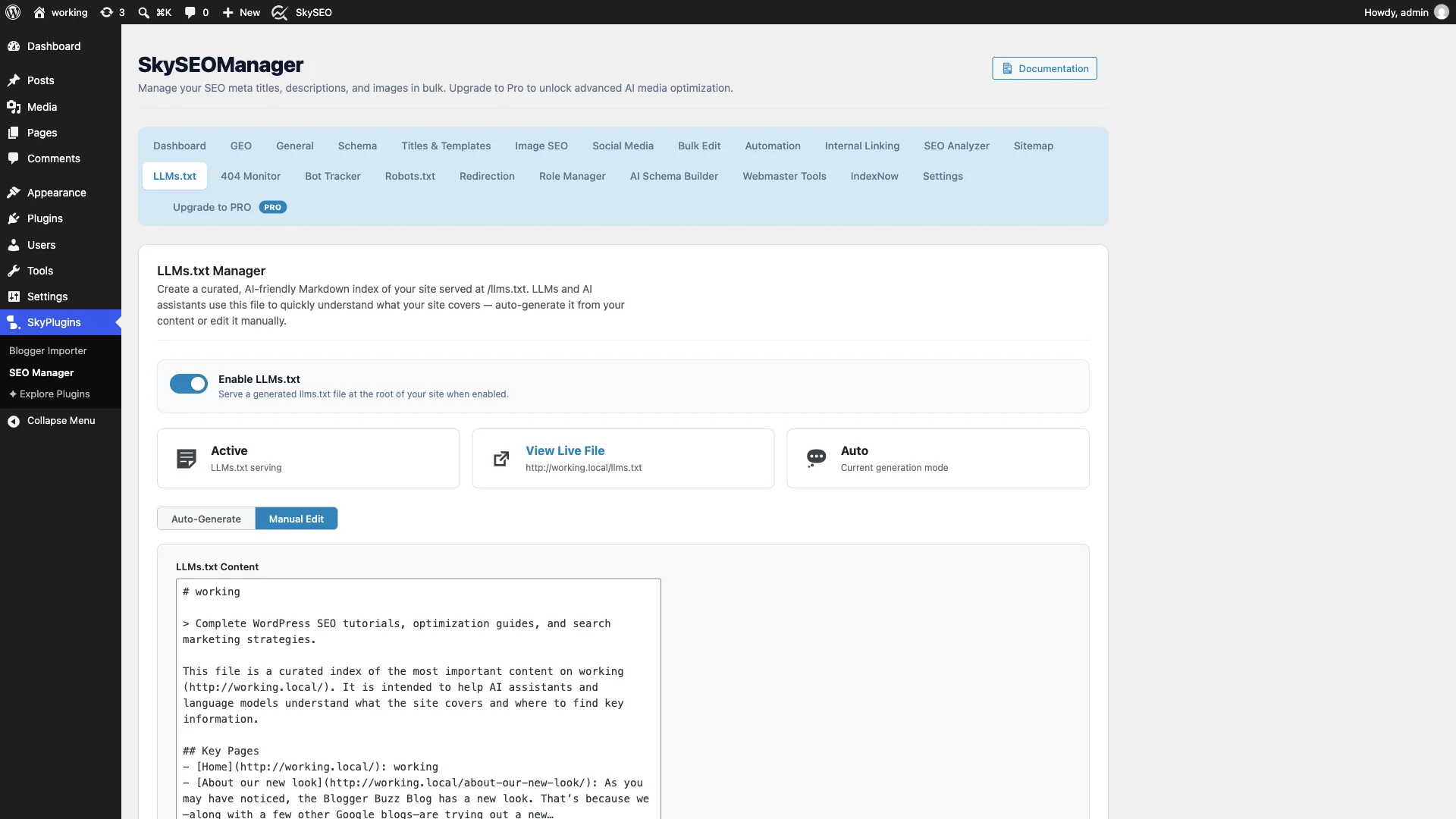
In the interactive code editor, you can edit the Markdown structure directly. You can specify exact URLs, custom descriptions, and even include specific instructions on how LLMs should interpret your site’s data.
Step 4: Enable the Robots.txt Reference & Save
For AI crawlers to discover your llms.txt file automatically, they need a pointer. Just like XML sitemaps are referenced inside robots.txt, adding an llms.txt reference ensures crawlers find it during their initial site scan.
Ensure the Reference in robots.txt checkbox is checked. Sky SEO Manager will automatically append the comment directive to your virtual robots.txt file:
# llms.txt: https://yoursite.com/llms.txt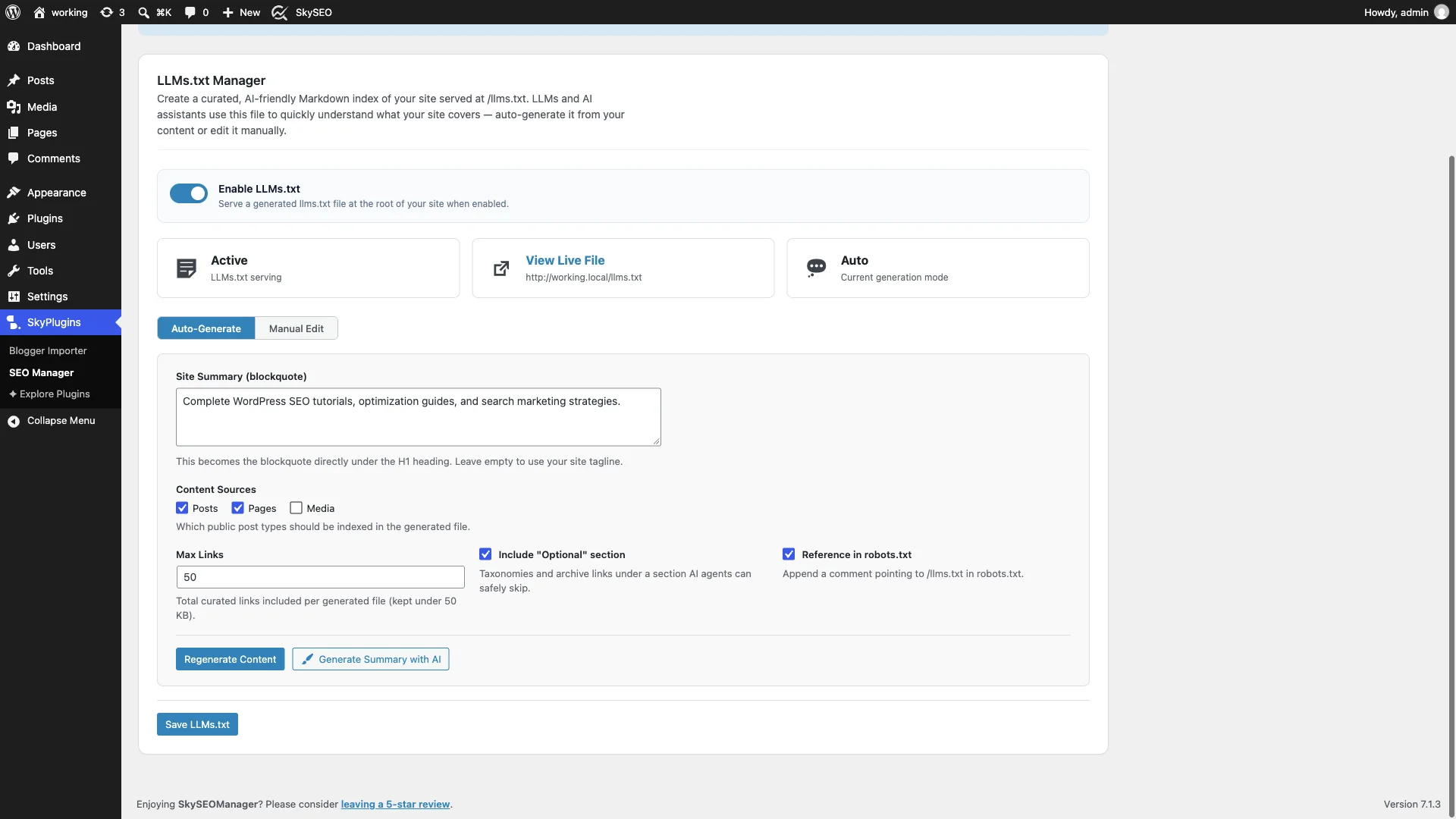
Once you are satisfied with your configuration, click the blue Save LLMs.txt button at the bottom of the page.
Step 5: View and Verify Your Live /llms.txt Endpoint
To verify that your file is actively being served, open a new browser tab and navigate to https://yoursite.com/llms.txt, or click the View Live File link in the dashboard.
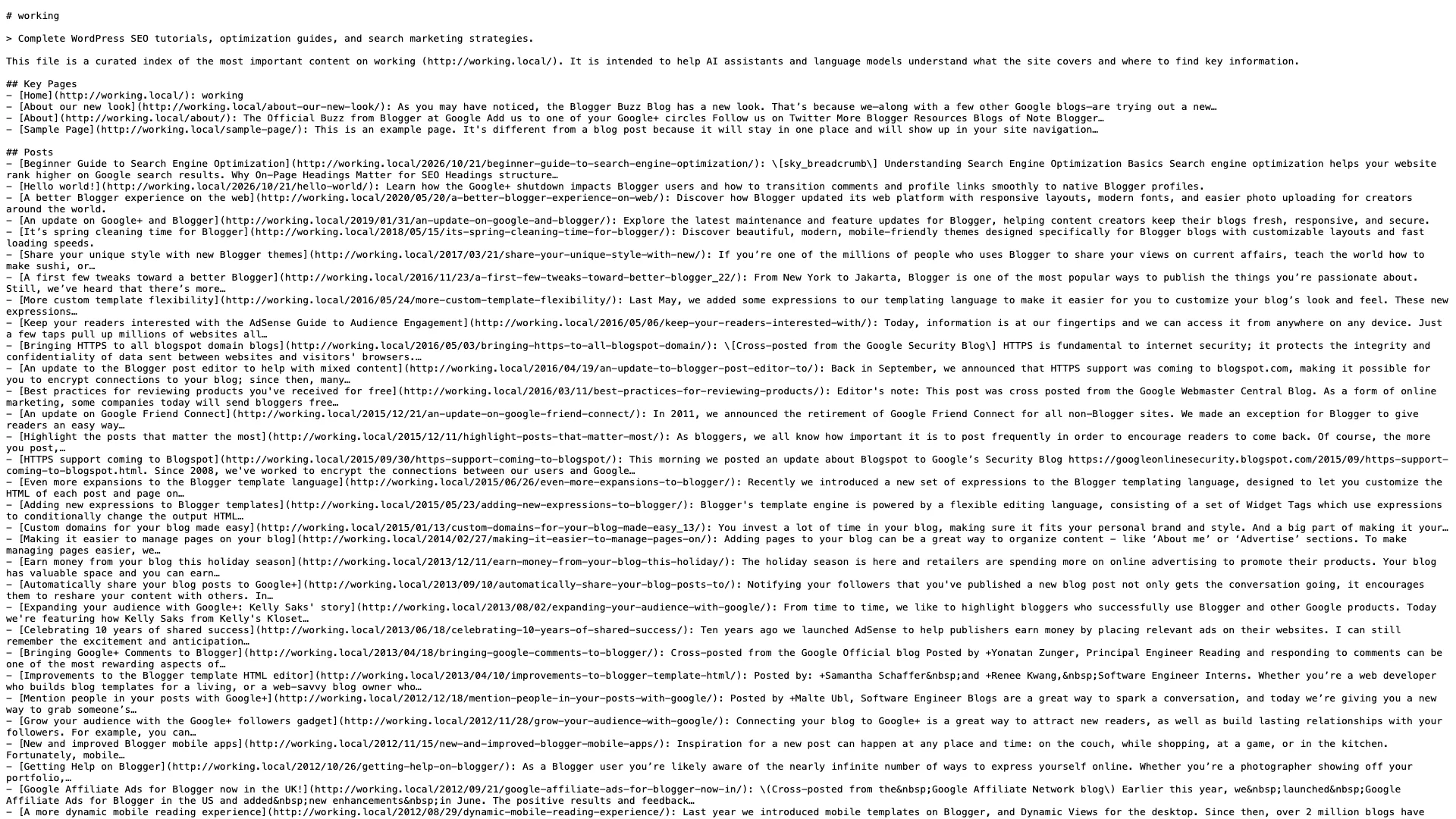
Notice how the output adheres cleanly to standard LLM ingestion format:
# Site Title— The root level heading introducing your website.> Executive Summary— The blockquote establishing core context for retrieval models.## Key Pages— Primary static pages that define your business, about page, and service offerings.## Posts— Your most relevant, authoritative articles with concise excerpts.## Optional— Secondary taxonomy archives and categories that AI models can safely skip if token limits are tight.
Step 6: Audit AI Search Discovery & Citation Performance
Once your llms.txt file is live and referenced in robots.txt, generative search engines like Perplexity, ChatGPT Search, and Gemini begin leveraging your curated index when synthesizing answers.
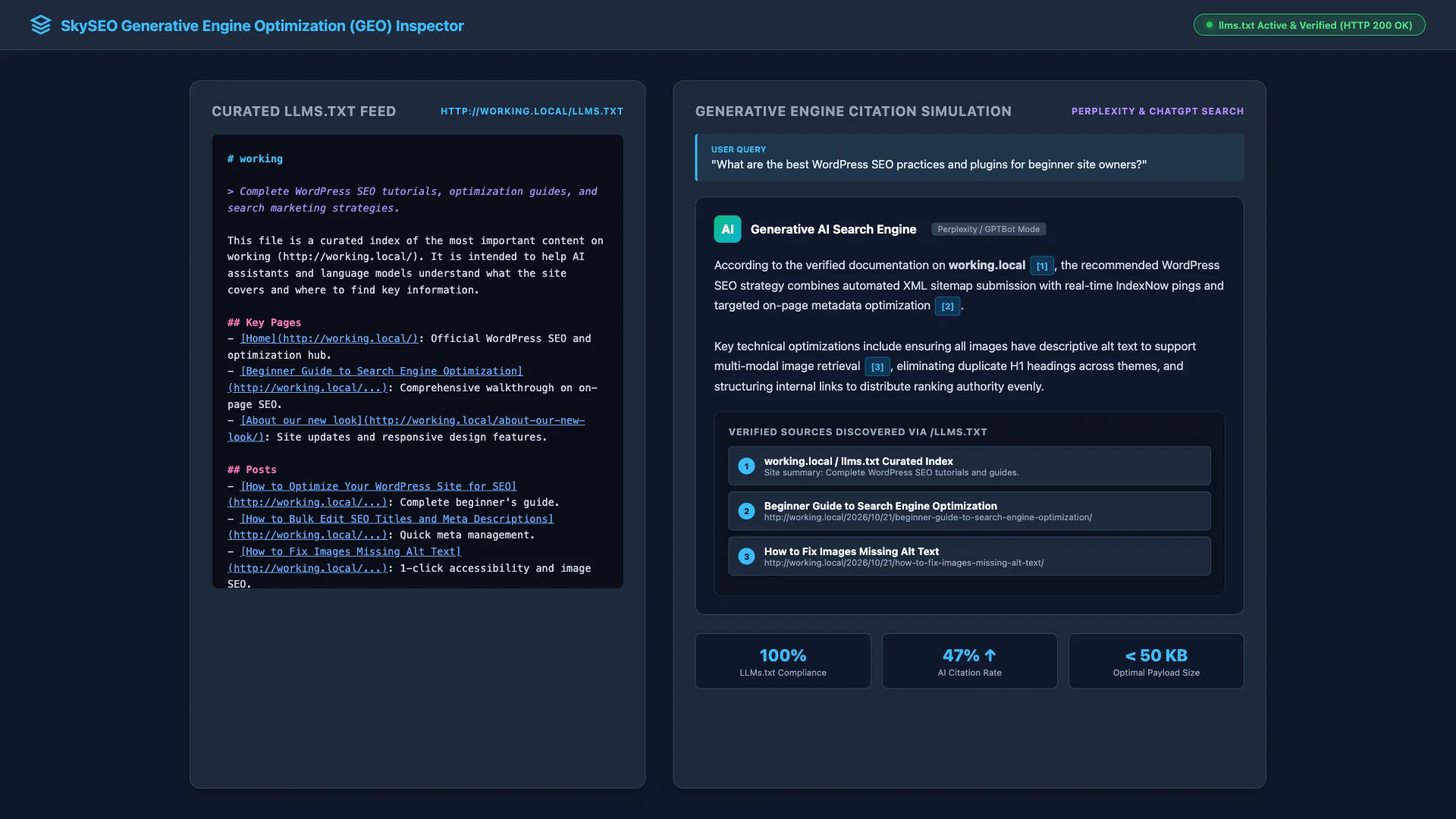
When users ask complex questions related to your niche, AI assistants can directly parse your curated links and cite your exact URL as an authoritative source badge [1], driving high-intent referral traffic directly to your website.
Best Practices for Generative Engine Optimization (GEO) in WordPress
To maximize the citation frequency of your WordPress content across AI assistants, keep these proven GEO strategies in mind:
- Keep File Size Under 50 KB: AI crawlers often process documents in fixed token batches. Keeping your
llms.txtunder 50 KB guarantees rapid ingestion without truncation. - Include Concrete Statistics and Data Points: Research shows that content featuring specific statistics with named sources achieves up to a 40% higher citation rate in AI overviews.
- Answer Questions in the First 100 Words (BLUF Rule): AI models read from the top down. Follow the “Bottom Line Up Front” (BLUF) rule by answering the reader’s question directly before diving into background context.
- Combine LLMs.txt with Schema Markup: Pages that pair structured
llms.txtindices with Schema.org JSON-LD structured data enjoy a 47% higher top-3 citation rate across generative search engines.
Frequently Asked Questions About WordPress LLMs.txt
What is an llms.txt file?
一个 llms.txt file is a lightweight Markdown index hosted at the root of a domain. It provides AI agents and LLMs with a clean, structured overview of your site’s most important content and business details.
Will an llms.txt file replace my XML sitemap?
No. XML sitemaps remain essential for traditional search engines like Google and Bing. An llms.txt file works alongside your XML sitemap, specifically optimized for language models that prioritize curated Markdown context over complete URL lists.
Does ChatGPT or Perplexity automatically read /llms.txt?
Yes. AI web crawlers such as GPTBot, PerplexityBot, and ClaudeBot look for /llms.txt or follow the directive in your robots.txt file to rapidly map and index your high-priority content.
Can I exclude private or draft content from my llms.txt file?
Yes. Sky SEO Manager only indexes publicly published posts and pages. Drafts, password-protected posts, and private content are automatically excluded from the generated index.
We hope this tutorial helped you learn how to create and configure an llms.txt file in WordPress for ChatGPT and Perplexity. You may also want to check out our complete guide on How to Optimize Your WordPress Site for SEO or our guide on How to Create XML Sitemaps with Instant IndexNow.