Have you ever shared a link to your latest WordPress blog post on Facebook, Twitter, LinkedIn, or WhatsApp, only to find a missing image thumbnail, a distorted cropped graphic, or random text scraped from your sidebar? When social media previews look broken, people scroll right past your content, slashing your potential viral reach and social referral traffic.
To control exactly how your content displays across social networks, your site must output standardized Open Graph (OG) meta tags 和 推特卡. These hidden HTML protocols tell social crawlers which high-resolution image, catchy headline, and summary description to showcase inside news feeds.
In this step-by-step tutorial, we will show you how to set up Open Graph metadata, configure large Twitter Cards, and connect your brand’s social profiles for E-E-A-T in WordPress using Sky SEO Manager.
Why Open Graph Meta Tags & Twitter Cards Matter
Originally introduced by Facebook and now adopted across all major networks—including Twitter (X), LinkedIn, Pinterest, Discord, and messaging apps—Open Graph transforms boring hyperlinked text into rich, interactive media cards.
Implementing proper social metadata offers three major benefits:
- Up to 300% Higher Social Click-Through Rates: Posts with large, crisp 1200×630 preview banners command significantly more screen real estate on mobile devices than plain text links.
- Consistent Brand Messaging: You choose the exact headline and hook that social searchers see, preventing networks from extracting irrelevant text or copyright notices.
- Stronger E-E-A-T Authority Signals: Connecting your verified social profiles embeds Schema.org
sameAslinks into your organization graph, helping Google verify your brand entity.
Comparison: Plain Links vs. Open Graph & Twitter Cards
Here is what happens when someone shares your URL with and without social metadata configured:
| Element | Without Social Meta Tags | With Sky SEO Manager Open Graph |
|---|---|---|
| Preview Image | Missing, blank gray box, or low-res avatar | Stunning 1200×630 featured image or branded fallback |
| Card Headline | Raw URL or default unformatted site title | Optimized social headline designed for social virality |
| Summary Description | Random sidebar, footer, or navigation text | Clean, persuasive post excerpt or custom social hook |
| Brand Attribution | 没有任何 | Direct @username Twitter handle and Facebook Page link |
| Mobile Presentation | Tiny thumbnail, easily overlooked | Edge-to-edge full-bleed mobile banner card |
Step 1: Connect Social Media Profiles for E-E-A-T
To begin configuring your social presence, log in to your WordPress admin dashboard and navigate to SkySEO » SEO Manager. Next, click on the Social Media tab in the navigation menu.
At the top of the interface, you will find the Social Media Profiles (E-E-A-T) section. Here, you can link your official business profiles across major platforms.
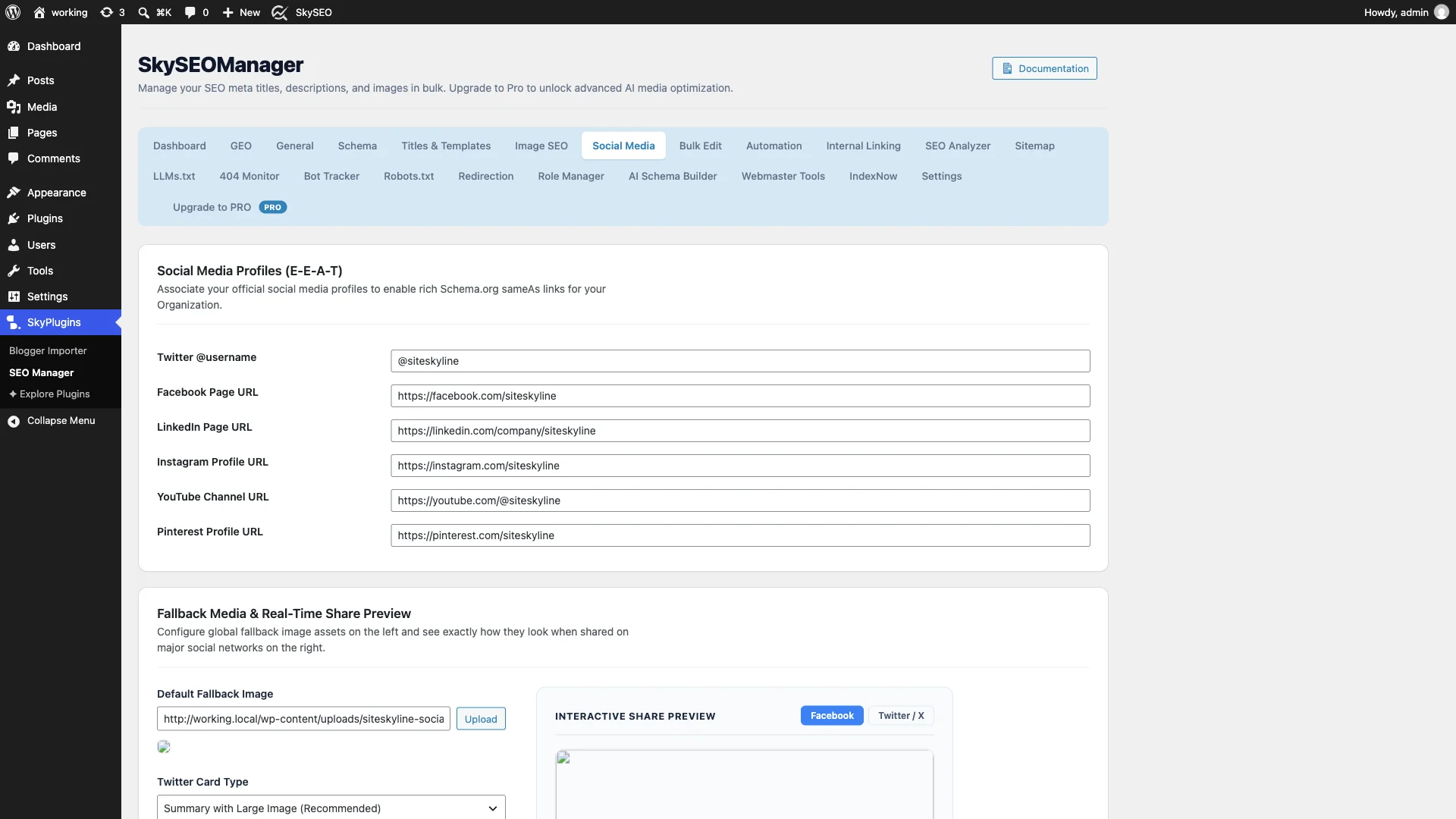
Enter your profile URLs and handles for:
- Twitter @username: Your primary site handle (e.g.,
@siteskyline). - Facebook Page URL: Your official Facebook business page.
- LinkedIn Page URL: Your company LinkedIn profile.
- Instagram Profile URL: Your business Instagram handle URL.
- YouTube Channel URL: Your official YouTube video channel.
- Pinterest Profile URL: Your verified Pinterest account.
When configured, Sky SEO Manager automatically feeds these URLs into your homepage Schema.org Organization structured data under the sameAs property, helping search engines confirm your brand’s legitimacy.
Step 2: Set Fallback Media & Choose Your Twitter Card Type
While single blog posts typically use their WordPress featured image as their social banner, what happens when someone shares your homepage, about page, or contact form? Without a default fallback image, those links display without graphics.
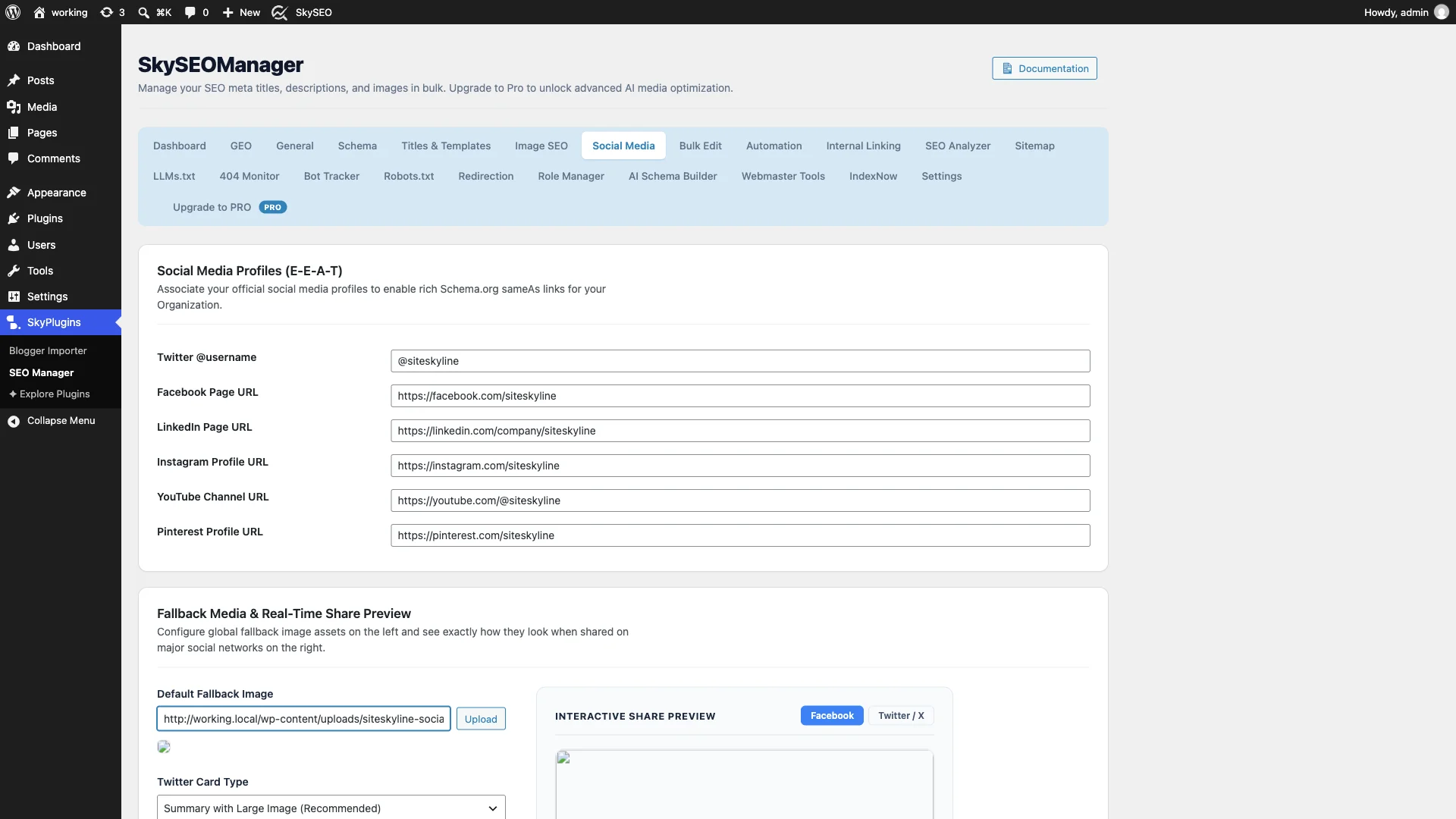
- Default Fallback Image: 单击 Upload button or paste the URL of a high-resolution branded graphic (recommended dimensions: 1200×630 pixels). This image will automatically be used whenever a shared page lacks a dedicated featured image.
- Twitter Card Type: 选择 Summary with Large Image (Recommended) from the dropdown menu. This renders full-width, edge-to-edge images on Twitter (X) timelines, capturing far more visual attention than the smaller square “Summary Card” format.
Step 3: Preview Your Facebook Feed Card in Real Time
Instead of publishing your post and hoping it looks good on Facebook, Sky SEO Manager features an Interactive Share Preview directly beside your settings.
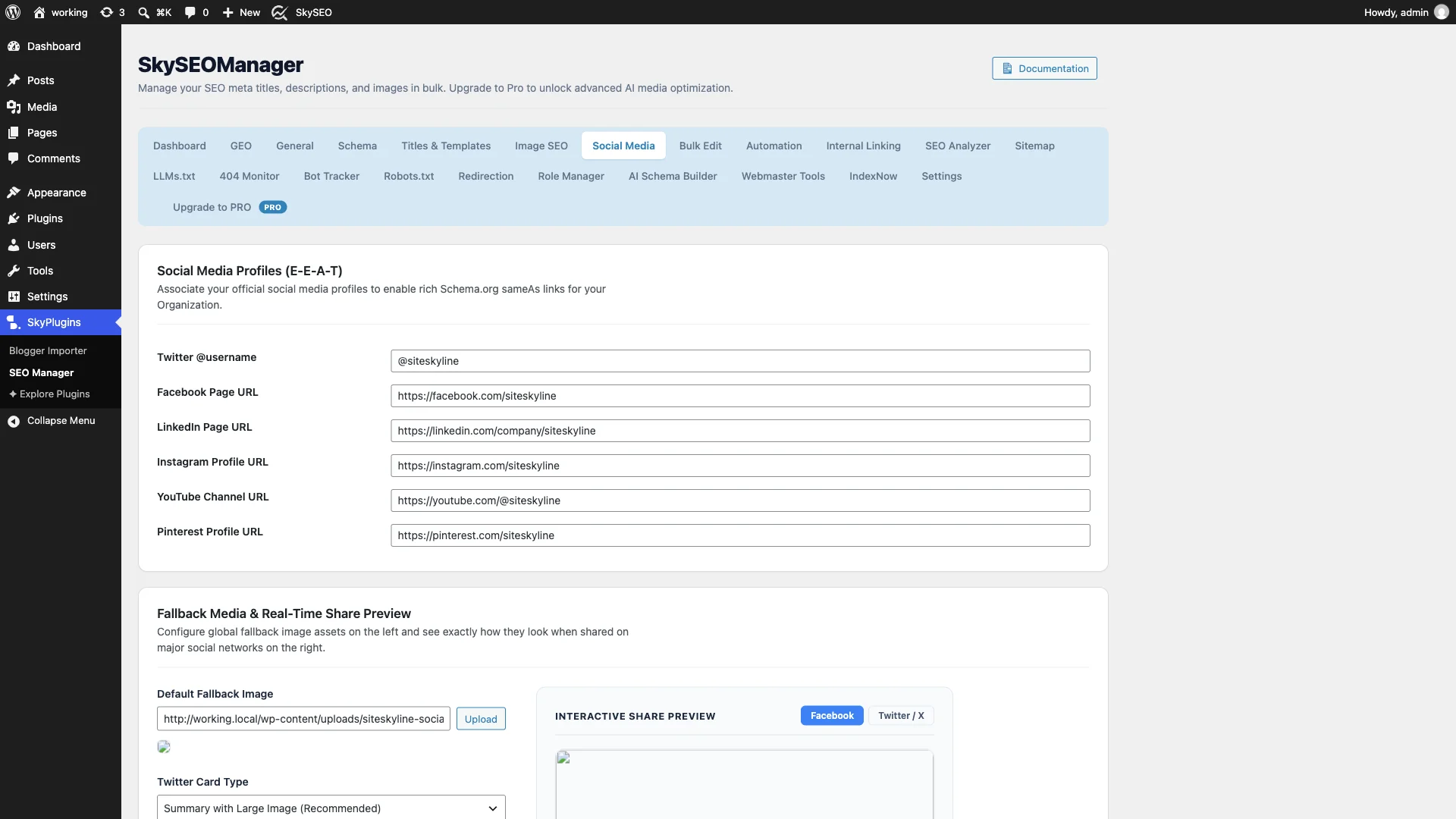
Clicking the Facebook tab instantly renders a live mockup showing:
- Your full-width 1200×630 Open Graph banner graphic.
- Your capitalized domain name (e.g.,
WORKING.LOCAL). - Your social headline and clean excerpt summary.
Step 4: Test Your Responsive Twitter / X Share Card
Twitter (X) processes metadata differently than Facebook, using dedicated twitter:card 和 twitter:site tags.
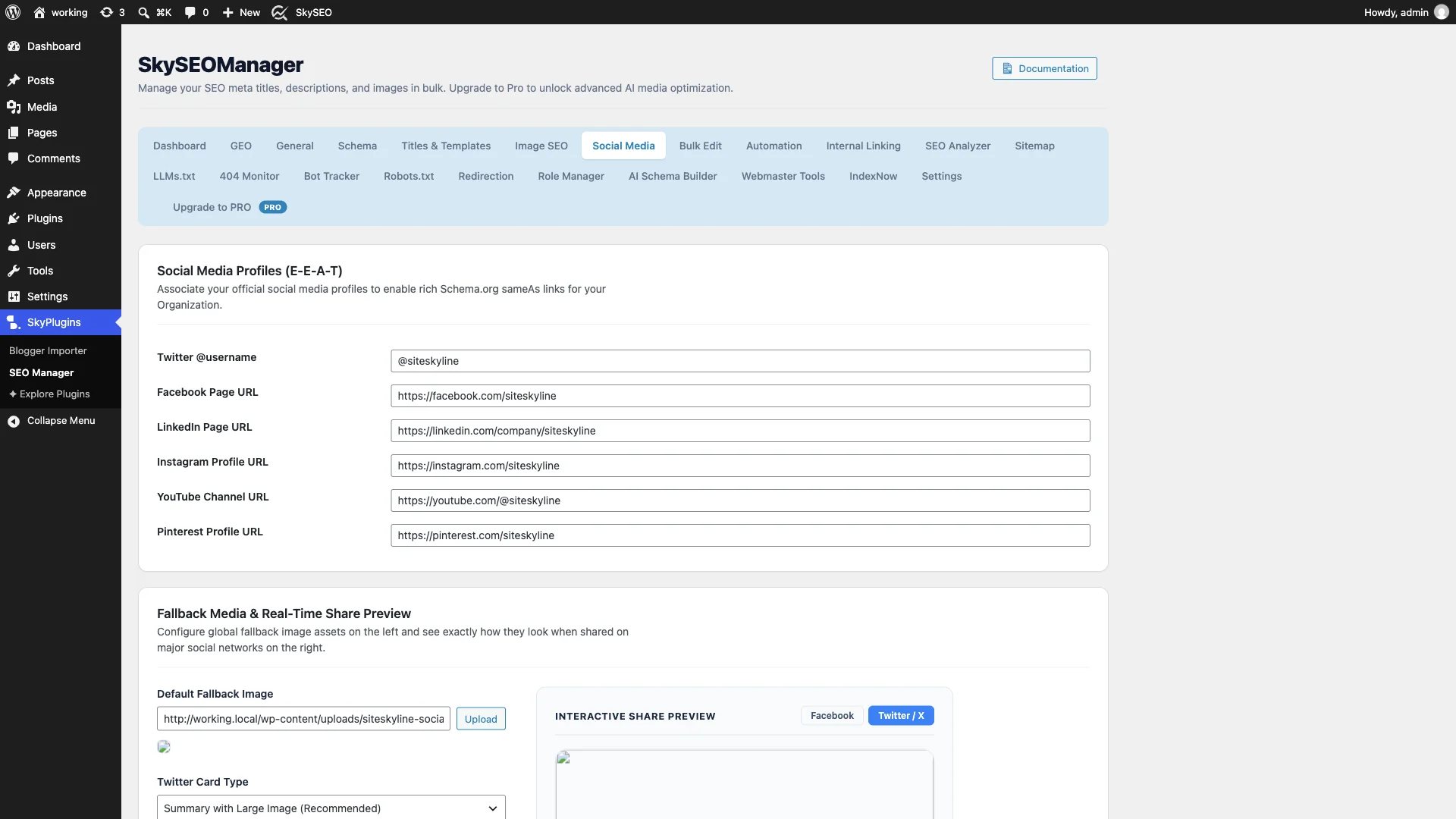
切换到 Twitter / X tab in the preview simulator. You can confirm that your card utilizes the full horizontal timeline format, that your image framing is properly centered, and that your site handle is properly linked.
Step 5: Add Platform Verification & Brand Watermarks
向下滚动到 Platform Verification & IDs 和 Image Watermark sections to unlock advanced publisher capabilities:
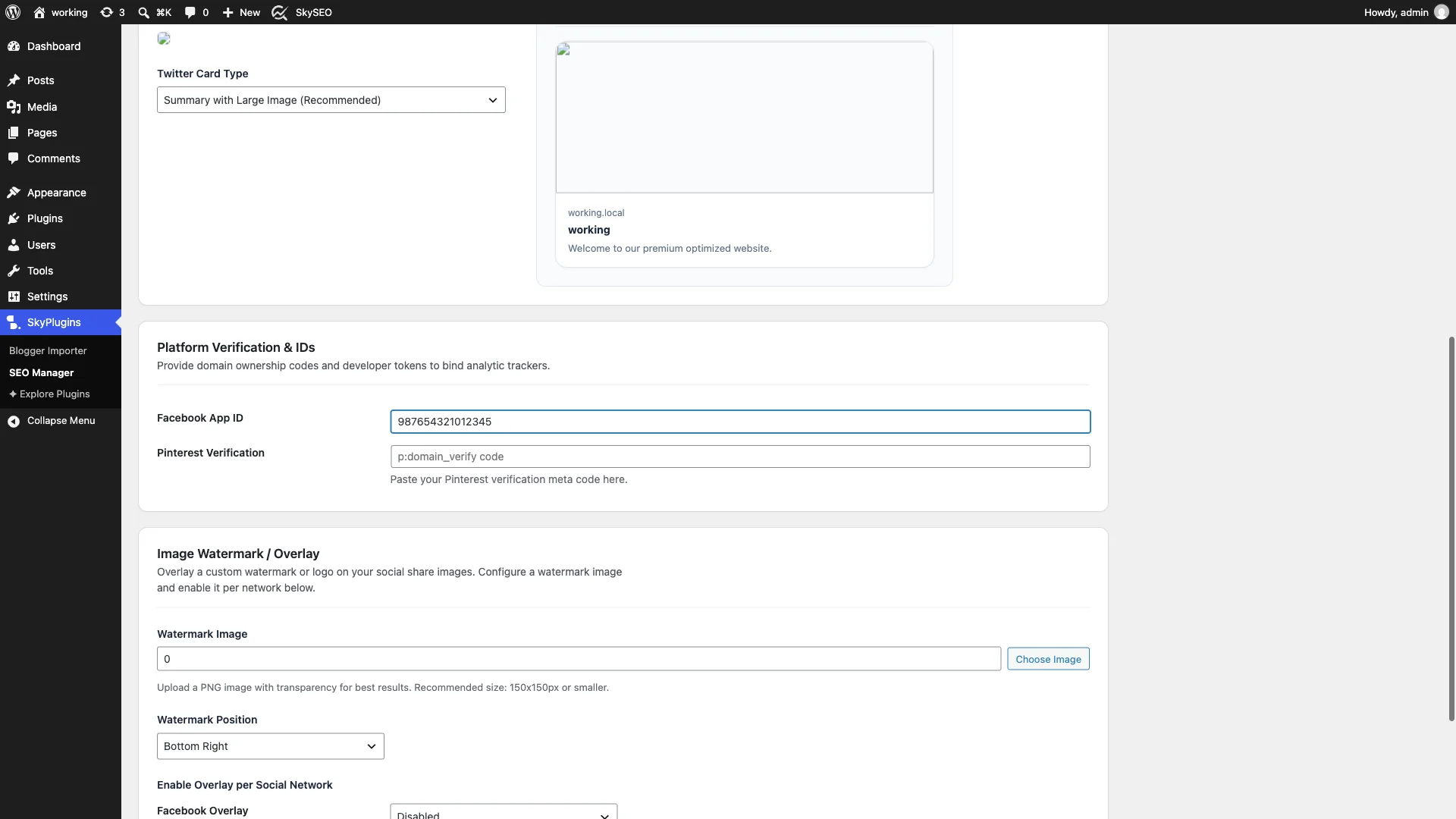
- Facebook App ID: If you use Facebook Insights or Meta Business Manager to monitor social analytics, paste your numeric App ID here to associate shared URLs with your developer account.
- Pinterest Verification: Paste your unique Pinterest verification meta code to claim your domain profile and enable Rich Pins for products and articles.
- Watermark Image & Position: To protect your original graphics from unauthorized scraping, you can upload a transparent PNG logo and choose its overlay position (such as Bottom Right 或 Center). Sky SEO Manager can automatically stamp this watermark onto your social share images.
Once your options are configured, scroll down and click the blue 保存更改 按钮。
Step 6: Validate Your Live Social Meta Tags
To confirm that social media crawlers can properly read your tags, view the HTML source of your published post or homepage.
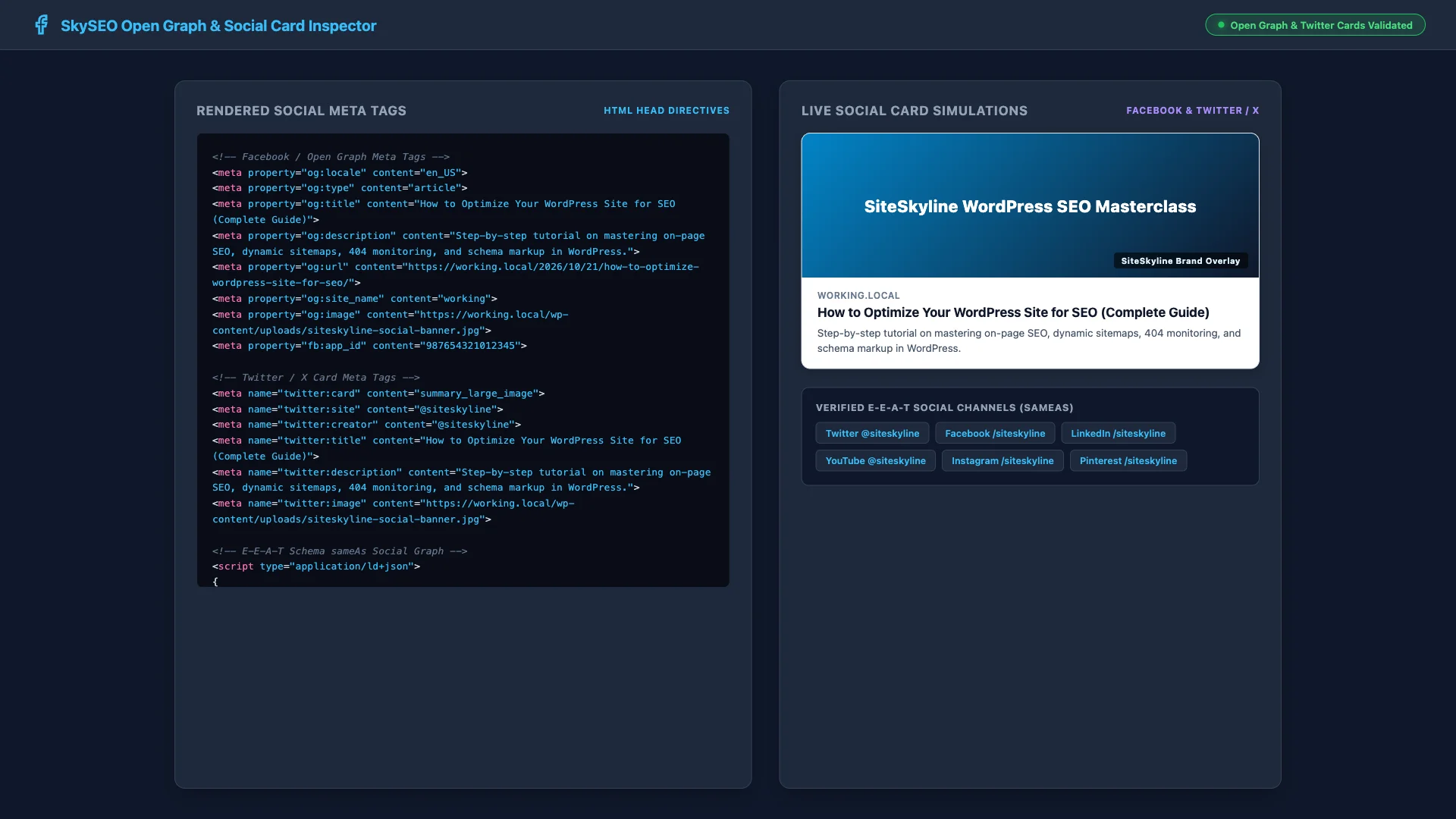
You can also paste your live URL into official social debugging tools:
- Facebook Sharing Debugger — Forces Facebook’s crawler to refresh its cache and inspect your
og:image,og:title, 和fb:app_id. - Twitter / X Card Validator — Confirms that your
summary_large_imagecard is verified and ready for timeline distribution. - LinkedIn Post Inspector — Clears LinkedIn’s cache and previews B2B post formatting.
Best Practices for Social Media Image Optimization
To ensure your images look crisp on every mobile device and high-DPI display, keep these recommendations in mind:
- Use the Golden 1.91:1 Aspect Ratio: The optimal social banner size across Facebook, Twitter, and LinkedIn is 1200 × 630 pixels.
- Keep File Sizes Under 5 MB: Compress your social images to under 1 MB using WebP or optimized JPEG format for rapid loading over cellular networks.
- Keep Critical Text Centered: Some mobile apps crop the outer 5% of social images. Place logos and focal text inside the central “safe zone” to avoid edge cutoff.
- Customize per Post When Needed: In the Gutenberg editor, use the Sky SEO metabox to upload tailored social graphics that differ from your main on-page hero image.
Frequently Asked Questions (FAQs)
What are Open Graph meta tags?
Open Graph meta tags are HTML snippets placed in the <head> section of a webpage that tell social media networks how to format link previews with images, titles, and descriptions.
What is the difference between summary and summary_large_image on Twitter?
一个 summary card displays a small square thumbnail next to your text, while summary_large_image renders a full-bleed, edge-to-edge banner that commands significantly more clicks in user timelines.
Why is Facebook showing an old image after I updated my post?
Social networks cache preview images for up to 30 days. To force Facebook to fetch your updated graphic, paste your URL into the free Facebook Sharing Debugger and click “Scrape Again”.
Can I customize social sharing cards for individual posts?
Yes. While global fallback settings apply automatically across your site, you can set custom social titles, descriptions, and images for any individual post or page inside the Sky SEO metabox in WordPress.
We hope this step-by-step tutorial helped you learn how to set up Open Graph metadata and Twitter Cards in WordPress. You might also want to read our guide on How to Customize SEO Titles and Meta Description Templates or check out our tutorial on How to Optimize Your WordPress Site for SEO.