When a new user signs up on your WordPress site—whether registering for a membership, creating a customer profile, or subscribing to your community—the very first email they receive sets the standard for their entire relationship with your brand. Unfortunately, the default WordPress welcome email is notoriously sterile: a generic, unstyled notification containing only an unformatted login link.
By replacing this robotic notification with a structured, automated welcome email sequence, you can activate new accounts immediately, introduce your most valuable resources, set clear expectations, and dramatically reduce first-week churn. In this comprehensive step-by-step tutorial, you will learn how to build an automated, multi-step onboarding drip for new WordPress registrations using SiteSkyline Email Campaign Manager—all hosted natively inside your WordPress dashboard with zero external SaaS fees.
Why Default WordPress Registration Emails Harm User Retention
Default WordPress core sends an automated transactional email whenever the user_register hook fires. While functional from a purely technical standpoint, it suffers from severe limitations that cripple early user engagement:
- Zero Visual Branding: Plain unformatted text without your logo, company color palette, or typography leaves an amateur first impression.
- No Onboarding Pathway: Default emails provide no links to getting-started guides, documentation, account portals, or community groups.
- One-and-Done Communication: Core WordPress cannot send follow-up drips (Day 2 feature highlights, Day 5 check-ins, or Day 10 surveys).
- Lack of Role-Based Segmentation: Administrators, Subscribers, Authors, and WooCommerce Customers all receive identical generic registration notices unless segmented.
Comparison: Core WordPress vs. SiteSkyline Automated Onboarding
| Onboarding Feature | WordPress Core Default | SiteSkyline Email Campaign Manager |
|---|---|---|
| Visual Template Design | Plain unstyled ASCII text | Drag-and-drop visual builder & responsive layouts |
| Multi-Step Email Drips | Single immediate email only | Unlimited sequential drips (e.g., Day 0, Day 2, Day 5) |
| Role-Based Targeting | No role-specific logic | Filter triggers by Subscriber, Customer, Editor, etc. |
| Dynamic Merge Tags | Basic username / password link only | {user_first_name}, {user_display_name}, login links, metadata |
| Engagement Tracking | Zero analytics | Real-time open rates, click tracking, delivery logs |
| Hosting Architecture | Local WP mail() | Native self-hosted queue with custom SMTP integration |
Step-by-Step Guide: Setting Up Your Automated Welcome Sequence
Step 1: Access the Email Campaign Manager Dashboard
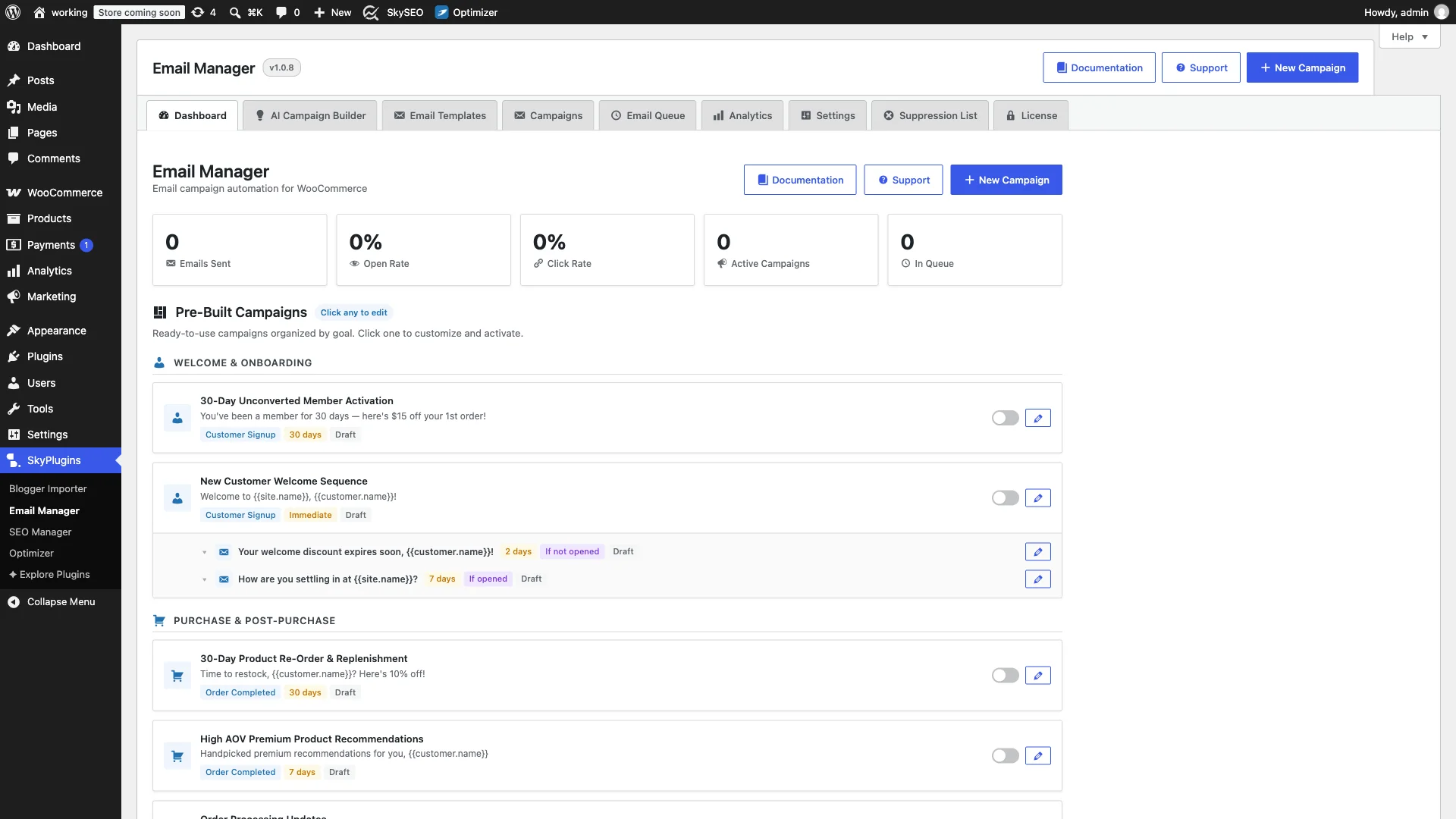
Log into your WordPress administration dashboard and navigate to Email Manager → All Campaigns. The centralized campaign management console displays your active automations, completed sends, recipient interaction rates, and real-time open statistics across your entire communication infrastructure.
Step 2: Select the WordPress User Registration Trigger
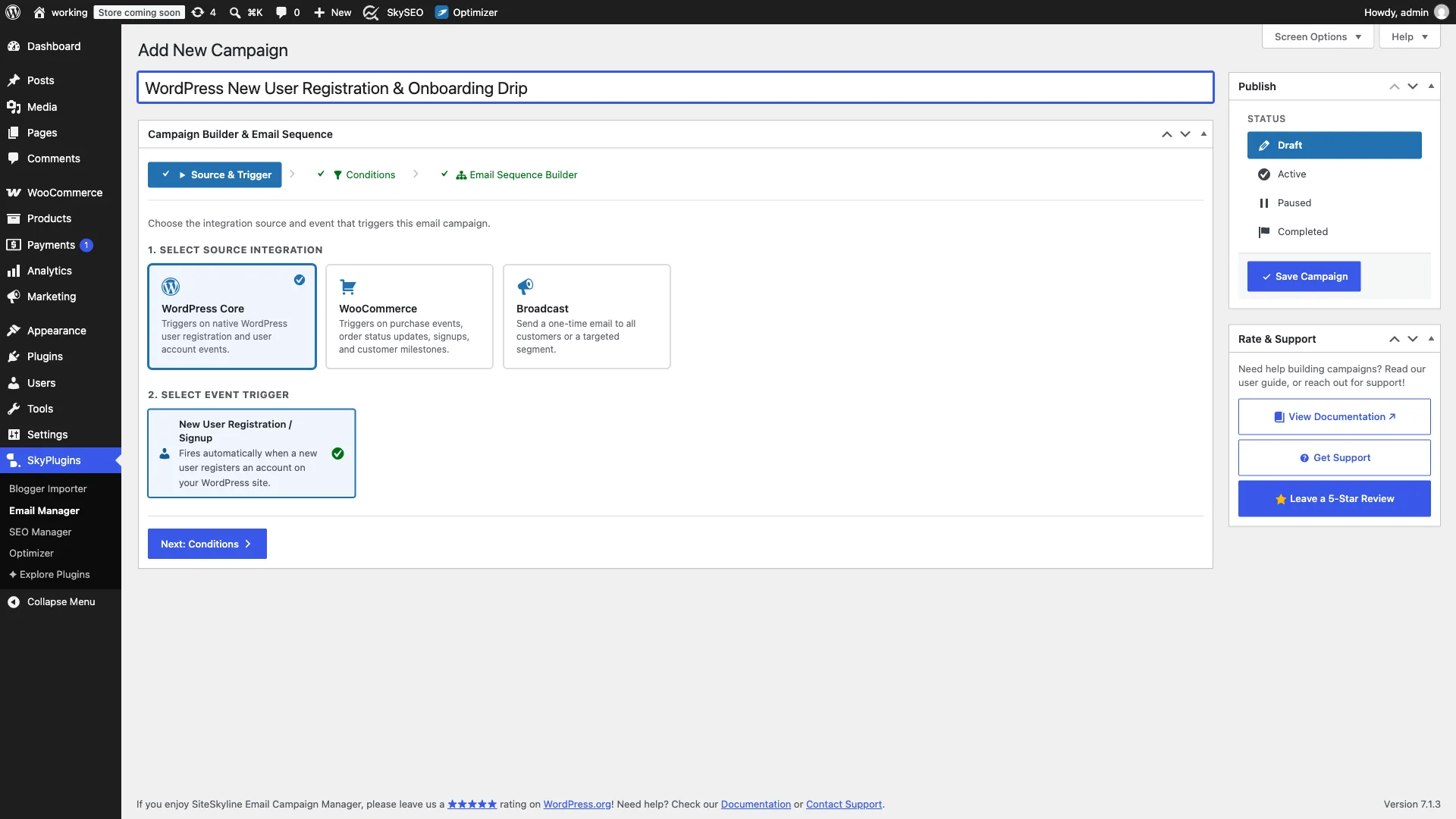
انقر فوق Add New Campaign button at the top of the dashboard. Name your campaign (e.g., “New User Welcome & Onboarding Series”) and choose WordPress Core as the Source Integration. Next, select New User Registration as your Event Trigger.
This trigger hooks directly into WordPress core registration events, activating instantly whether a user signs up via /wp-login.php?action=register, a front-end registration modal, a WooCommerce account creation prompt, or a third-party membership plugin.
Step 3: Define User Role Audience Rules and Filters
Advance to Step 2: Audience Filters & Conditions. Here, SiteSkyline allows you to restrict the onboarding drip to specific user roles or leave it set to all registered users:
- All User Roles: Dispatches the welcome sequence to any newly created account across your website.
- Target Specific Roles: Restrict to
Subscriber,Customer,Member، أوContributorso that internal admins and backend staff do not receive consumer-facing drips.

Step 4: Design the Immediate Welcome Email (Step 1)
Proceed to Step 3: Email Sequence Builder. انقر Edit Email on the initial root trigger node. Configure this email to send Immediately upon registration.
In the message editor, craft an inviting greeting using dynamic personalization tags such as {user_first_name} أو {user_display_name}. Highlight three immediate action steps for the user:
- Verify Account & Access Dashboard: Direct link to your member dashboard or account settings.
- Explore Key Content: Direct links to your most popular getting started articles, video guides, or catalog collections.
- Join the Community: Links to your social channels, support helpdesk, or community forum.

Step 5: Add Multi-Step Onboarding Follow-Up Drips
To sustain engagement beyond Day 1, click Add Follow-up in the visual builder to create Step 2 of your drip series. Configure this follow-up email with a 2-day delay.
In this second email, introduce your site’s core features or highlight premium resources. You can also configure conditional branch logic (available in SiteSkyline Pro) to send specific follow-up variations based on whether the recipient opened or clicked links in the first email.

Step 6: Review Visual Sequence Flowchart & Activate Campaign
Examine the hierarchical flowchart in the campaign editor. Verify the delivery delays, parent-child triggers, and email subject lines. Use the built-in Send Test Email button to preview rendering across desktop and mobile devices.
Once verified, toggle the Campaign Status from Draft إلى نشيط in the right-hand sidebar and click Save Campaign. SiteSkyline will now automatically manage and deliver your welcoming drip sequence to every newly registered user.

Recommended 4-Part Welcome Drip Blueprint
If you are unsure what content to include across your sequence, here is a battle-tested 4-step framework used by top digital publishers and membership platforms:
- Email 1 (Immediate): Warm Welcome & Access Details — Deliver account confirmation, portal login links, and outline what to expect over the coming week.
- Email 2 (Day 2): The “Quick Win” Feature Tour — Guide users through your most popular feature, free resource download, or top-rated video guide.
- Email 3 (Day 5): Overcoming Roadblocks & Support — Address common beginner FAQs, introduce your customer support team, and invite replies to gather feedback.
- Email 4 (Day 8): Community & Upgrade Opportunities — Encourage participation in community forums or present an exclusive welcome discount for premium upgrades.
الأسئلة المتداولة (الأسئلة الشائعة)
Does SiteSkyline disable default WordPress registration emails?
Yes. When you enable the WordPress New User Registration trigger inside SiteSkyline, you can optionally suppress core WordPress transactional registration notifications to prevent duplicate emails from confusing your users.
Will this sequence trigger for users registered via third-party plugins?
Yes. As long as your membership, LMS, or social login plugin triggers the standard WordPress user_register hook, SiteSkyline will reliably detect the signup and queue your onboarding sequence.
How does SiteSkyline handle background email scheduling?
SiteSkyline utilizes an asynchronous database queue powered by the Action Scheduler or custom WP-Cron workers. Scheduled drips execute reliably in the background without slowing down page load times or registration requests for front-end users.
Automate Your Member Onboarding Today
Transforming cold registrations into passionate, engaged community members begins with an intentional welcome experience. With SiteSkyline Email Campaign Manager, you gain enterprise-grade email marketing automation directly within WordPress—without recurring SaaS bills, subscriber limits, or contact caps.