Did you know that over 60% of first-time e-commerce customers never make a second purchase? Are you constantly pouring money into acquiring new visitors while hundreds of previous buyers quietly slip away?
Every e-commerce brand experiences customer churn. Buyers purchase a product, have a great experience, and simply forget to return as daily life gets in the way. Without an automated retention mechanism, these warm relationships turn ice cold. Re-acquiring those same customers later via paid search or social media ads costs between 5 to 7 times more than retaining them in the first place.
Instead of manually combing through order logs to see who hasn’t purchased in months, you can set up an automated win-back sequence. By automatically detecting when a customer has not placed an order in 60 or 90 days, you can trigger a targeted, personalized nurture flow with curated recommendations, product updates, and an exclusive comeback incentive.
In this step-by-step tutorial, you will learn how to build an automated WooCommerce win-back email sequence using SiteSkyline Email Campaign Manager, complete with customer dormancy filters, smart conditional branching, and dynamic single-use discount vouchers.
Why Automated Customer Win-Back Sequences are Essential for E-Commerce
Increasing customer retention by just 5% can increase overall company profits by 25% to 95%, according to research by Bain & Company. Because past buyers already trust your checkout, payment methods, and delivery standards, re-activating them yields extraordinary returns:
- Dramatically Lower Acquisition Costs: Win-back campaigns target verified past purchasers whose contact information you already own, eliminating costly ad clicks.
- Higher Conversion Rates: Returning customers are 9 times more likely to convert than a brand-new prospect visiting your store for the first time.
- Larger Order Values: Repeat customers spend an average of 67% more in their third or fourth purchase than in their initial transaction.
- List Hygiene & Deliverability: Win-back automations help identify truly lost contacts, keeping your active mailing list fresh and maintaining stellar sender reputation.
| Capability | Manual Customer Outreach | Third-Party SaaS (Klaviyo/Omnisend) | SiteSkyline Email Campaign Manager |
|---|---|---|---|
| Inactivity Detection | Manual spreadsheet exports | External segment synchronization | ✅ Automated WooCommerce DB scan |
| Multi-Step Branching | ❌ Impossible to track | ✅ Supported (Requires high monthly tier) | ✅ Visual flowchart builder with branch logic |
| Comeback Coupons | Static shared discount codes | API-based coupon creation | ✅ Native unique 1-time coupon generation |
| Monthly Subscriber Fees | Free (Time-intensive) | ❌ $45 to $350+/month as list expands | ✅ 100% self-hosted, unlimited contacts |
| Customer Privacy & GDPR | Manual compliance | ❌ Customer order data synced to US clouds | ✅ Local database storage, zero external data leakage |
| Pre-Built Win-Back Workflows | ❌ None | Basic generic templates | ✅ Pre-built “Re-Engage Inactive” campaigns |
Step 1: Navigating the Email Campaign Manager Dashboard
To begin, log in to your WordPress admin dashboard and click on Email Manager في القائمة الجانبية اليسرى.

تحت Pre-Built Campaigns section, SiteSkyline provides ready-to-launch customer retention automations, including the Re-Engage Inactive Customers — $15 Gift و 90-Day Dormant Customer Reactivation workflows.
Step 2: Selecting the Customer Retention Automation Trigger
Open the win-back campaign editor to review the source integration and trigger event.
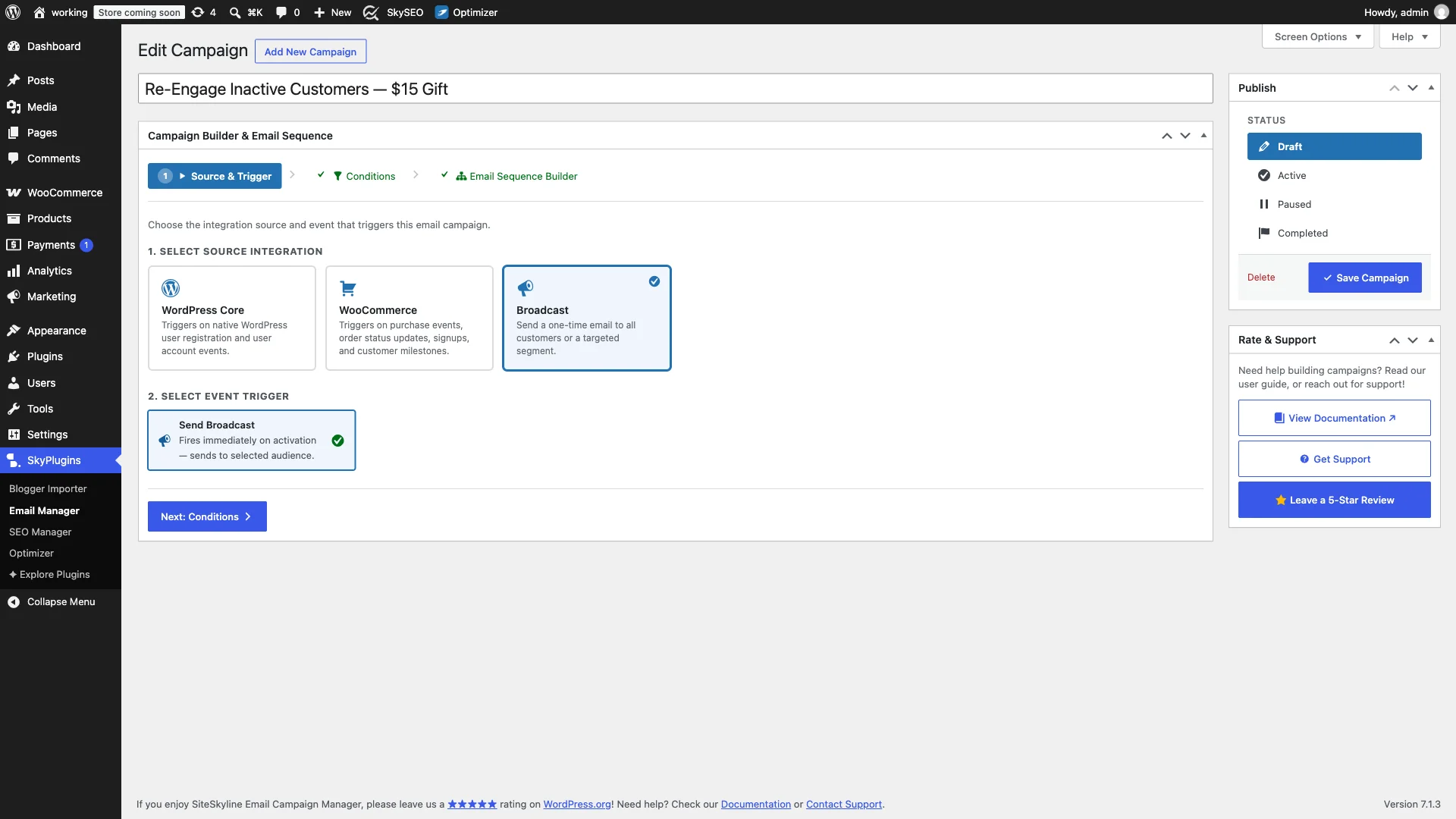
Configure the foundational trigger:
- Campaign Title:
Re-Engage Inactive Customers — $15 Gift. - Source Integration: حدد خيار Broadcast & Retention Campaigns module.
- Event Trigger: Choose the Broadcast / Scheduled Retention trigger. Unlike real-time triggers that fire immediately upon checkout, this engine dynamically scans your database for customers meeting specific recency conditions.
Step 3: Setting Inactivity Rules & Customer Dormancy Thresholds
Advance to Step 2: Audience Filters & Rules. This screen allows you to define the exact criteria that classify a customer as “dormant.”

Configure the dormancy filter:
- Target Audience: يختار No Purchase In (Days).
- Inactivity Threshold: Set the threshold to 60 days (or 90 days depending on your product lifecycle). For instance, coffee subscriptions or cosmetics might use 45 days, while furniture or durable electronics might use 120 days.
- Automatic Exclusion: Customers who made a purchase within the last 59 days are automatically excluded, ensuring frequent shoppers never receive unnecessary comeback emails.
Step 4: Writing the Initial “We Miss You” Comeback Email
Advance to Step 3: Email Sequence Builder. انقر Edit Email on the Root Email (Step #1) node to configure the opening message of your win-back series.

Set up the initial outreach parameters:
- Subject Line:
We miss you, {{customer.name}}! Here is $15 off your next order - Delivery Timing: Send immediately upon entering the dormant audience segment.
- Enable Dynamic Coupon: حدد المربع لـ Enable Dynamic Coupon. Configure a $15 Fixed Cart Discount with a 14-Day Expiration and prefix
COMEBACK. - Rich Content Body: Craft a welcoming message that acknowledges their absence without guilt, highlights newly launched catalog items, and presents the savings credit clearly:
<p>Hi {{customer.name}},</p>
<p>It has been a while since your last visit to {{site.name}}, and we wanted to check in!</p>
<p>A lot has happened since your last purchase—we have added exciting new collections and customer favorites to our store.</p>
<p>To welcome you back, here is an exclusive <strong>$15 comeback gift voucher</strong>:</p>
<div style="background:#f0fdf4;border:2px dashed #059669;padding:18px;border-radius:8px;text-align:center;margin:25px 0;">
<span style="font-size:12px;text-transform:uppercase;letter-spacing:1px;color:#065f46;font-weight:600;display:block;">Exclusive Comeback Credit</span>
<span style="font-size:24px;font-weight:bold;color:#059669;display:block;margin:6px 0;">{{coupon.code}}</span>
<span style="font-size:13px;color:#047857;">Take {{coupon.amount}} off your next purchase • Valid for 14 days</span>
</div>
<div style="text-align:center;margin:25px 0;">
<a href="{{site.url}}" style="background:#059669;color:#ffffff;padding:12px 28px;border-radius:4px;text-decoration:none;font-weight:bold;display:inline-block;">Claim Your $15 Credit & Shop Now →</a>
</div>
<p>This single-use credit expires automatically in 14 days. We can't wait to welcome you back!</p>
<p>Warm regards,<br>The {{site.name}} Team</p>انقر Save Step at the bottom of the modal to save your root email.
Step 5: Conditional Branching for Unopened Emails
Not every subscriber opens the first email. Inboxes are busy, and subjects get buried. Rather than blasting the same email twice, SiteSkyline’s visual sequence builder supports conditional branching based on recipient behavior.

Configure the child branch with smart behavioral logic:
- Condition: Set to Not Opened (
not_opened). This branch will execute exclusively for contacts who did not open Step 1. - Delay: Set delivery timing to 4 days after the initial send.
- Urgent Subject Line:
Is this goodbye? Your $15 credit expires soon ⌛ - Scarcity & Urgency Copy: Remind the recipient that their personalized voucher is nearing its expiration date, nudging them to claim their savings before it lapses.
انقر Save Step to commit the follow-up branch.
Step 6: Reviewing the Flowchart & Activating Campaign
Return to the visual Sequence Builder canvas. The sequence flowchart displays your complete multi-step retention workflow, including root delivery, conditional child branching (unopened follow-ups), and customer support alternatives.

To finalize and launch the campaign:
- Send a Test Email: Click into the step and click Preview / Send Test to confirm layout, styling, and coupon rendering in your personal inbox.
- Set Status to Active: In the right-hand نشر sidebar, select the نشيط radio option.
- Save Campaign: انقر على الزر الأزرق Save Campaign زر.
Your automated customer win-back engine is now active! As customers reach your 60-day dormancy threshold, SiteSkyline will automatically reach out, present your comeback incentive, and drive repeat revenue on complete autopilot.
الأسئلة المتداولة (الأسئلة الشائعة)
How often does SiteSkyline check for inactive customers?
SiteSkyline runs background scheduled tasks via WordPress Cron (wp_cron) to evaluate customer purchase recency. When a customer crosses the designated dormancy threshold without a new order, they are automatically queued for the sequence.
What happens if a customer places an order after receiving Email #1?
The moment WooCommerce records a new order status change for that customer, SiteSkyline automatically cancels any pending delayed follow-ups in their queue. The customer will not receive subsequent “We Miss You” reminders since they are now active buyers.
Can I offer percentage discounts instead of fixed dollar amounts?
Yes. In the Dynamic Coupon settings of each sequence step, you can select either Percentage Discount (e.g. 15% or 20%) or Fixed Cart Discount (e.g. $10 or $15) depending on your average order value and margin structure.
How does conditional branching know if an email was opened?
SiteSkyline includes a lightweight, privacy-compliant tracking mechanism stored directly in your local WordPress database. It tracks open events and link clicks locally without transmitting customer data to external third-party servers.