Do you want to know how to edit your WordPress robots.txt file and properly configure meta robots tags to control how search engines crawl and index your site? Search engine crawlers like Googlebot and Bingbot have limited crawl budgets. If your crawl directives aren’t optimized, search bots can waste time indexing duplicate search archives, paginated taxonomies, and admin scripts instead of your high-converting money pages.
In this comprehensive, beginner-friendly guide, we will show you step-by-step how to edit robots.txt using both a visual builder and raw editor, and how to manage global and post-level meta robots directives in WordPress using Sky SEO-Manager.
Robots.txt vs. Meta Robots: What Is the Difference?
Before modifying directives, it is essential to understand the distinct roles that robots.txt and meta robots tags play in search engine optimization:
- Robots.txt (Crawl Directives): An instruction file stored in your site’s root directory that tells search engine spiders which URLs and folders they are allowed or forbidden to crawl. It preserves your server bandwidth and crawl budget.
- Meta Robots Tags (Index Directives): HTML tags placed inside the
<head>section of individual web pages that inform search engines whether a specific URL should appear in search results (noindex) and whether crawler bots should pass authority to external links (nofollow).
A common beginner mistake is disallowing a page in robots.txt expecting it to drop out of Google. In reality, if Google finds external links pointing to a disallowed page, it may still index the URL without crawling the page content! The correct way to prevent indexation is to allow crawling in robots.txt and apply a noindex meta robots tag.
Step 1: Open the Visual Robots.txt Builder in Sky SEO Manager
WordPress automatically creates a basic, dynamic robots.txt file behind the scenes. However, editing it traditionally required uploading physical text files via FTP or modifying your .htaccess and Nginx rewrite rules. With Sky SEO Manager, you can edit your rules directly from your WordPress dashboard without touching code or server files.
To get started, navigate to SkyPlugins » SEO Manager from your WordPress admin dashboard and click on the Robots.txt tab in the navigation bar.
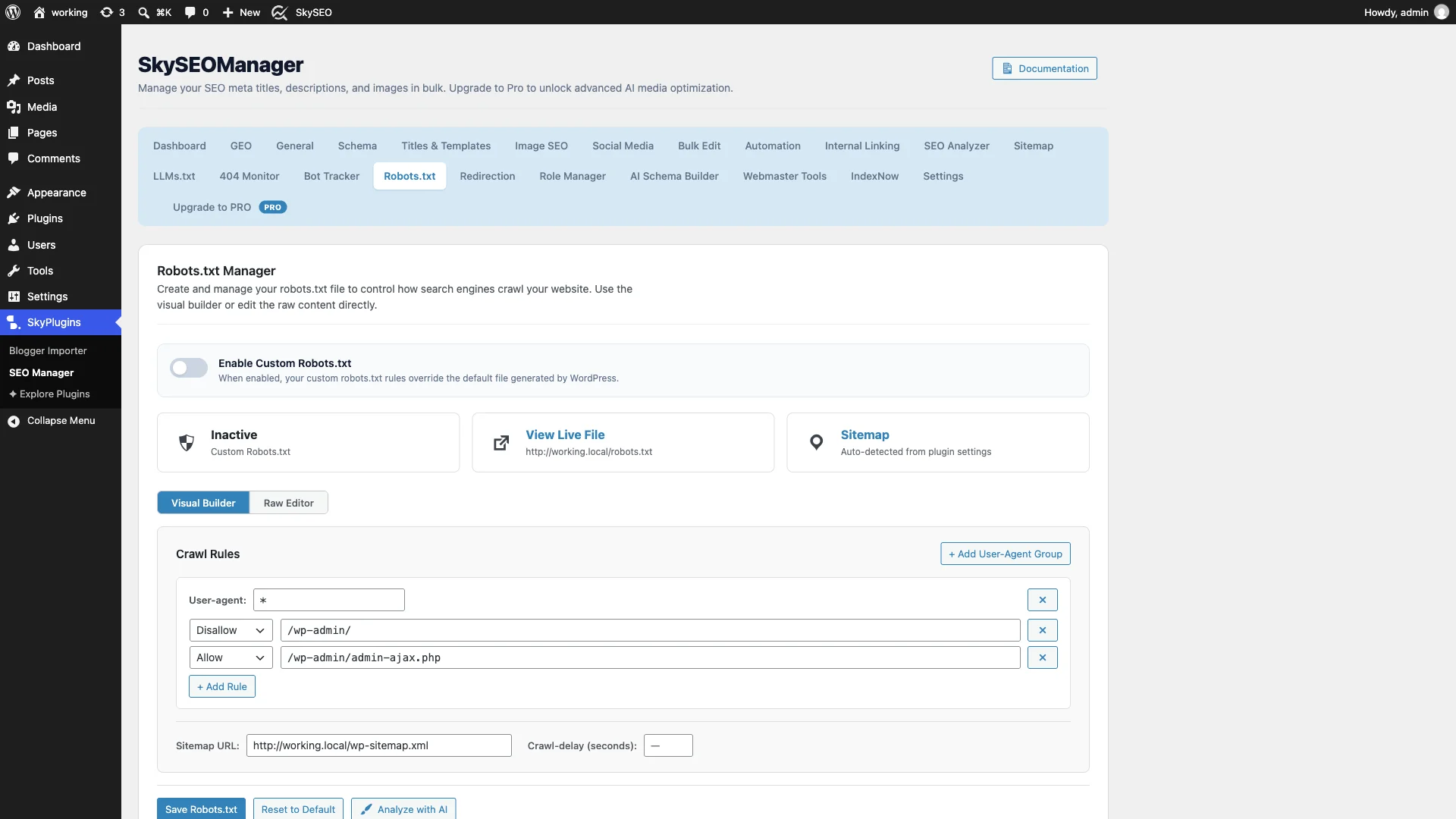
In the Visual Builder panel, you can:
- Set User-agent: Target all search engines (
*) or specify specific bots likeGooglebot,BingbotoderBaiduspider. - Add Allow/Disallow Rules: Define specific directory paths to allow or restrict with a single click. By default, Sky SEO Manager keeps
/wp-admin/disallowed while explicitly allowing/wp-admin/admin-ajax.phpso interactive front-end scripts function smoothly. - Specify XML Sitemap: Point search engine crawlers directly to your sitemap URL (e.g.,
http://yourdomain.com/sitemap.xml) to accelerate page discovery. - Crawl-delay: Optionally set a crawl delay in seconds to reduce server load from aggressive bots.
Step 2: Use the Raw Editor for Direct Directives and Custom Rules
If you are migrating from another SEO plugin, implementing rules from a technical SEO audit, or prefer code-based precision, Sky SEO Manager provides a syntax-highlighted Raw Editor.
Klicken Sie auf Raw Editor button at the top of the panel to view and modify your directives directly with line numbers.
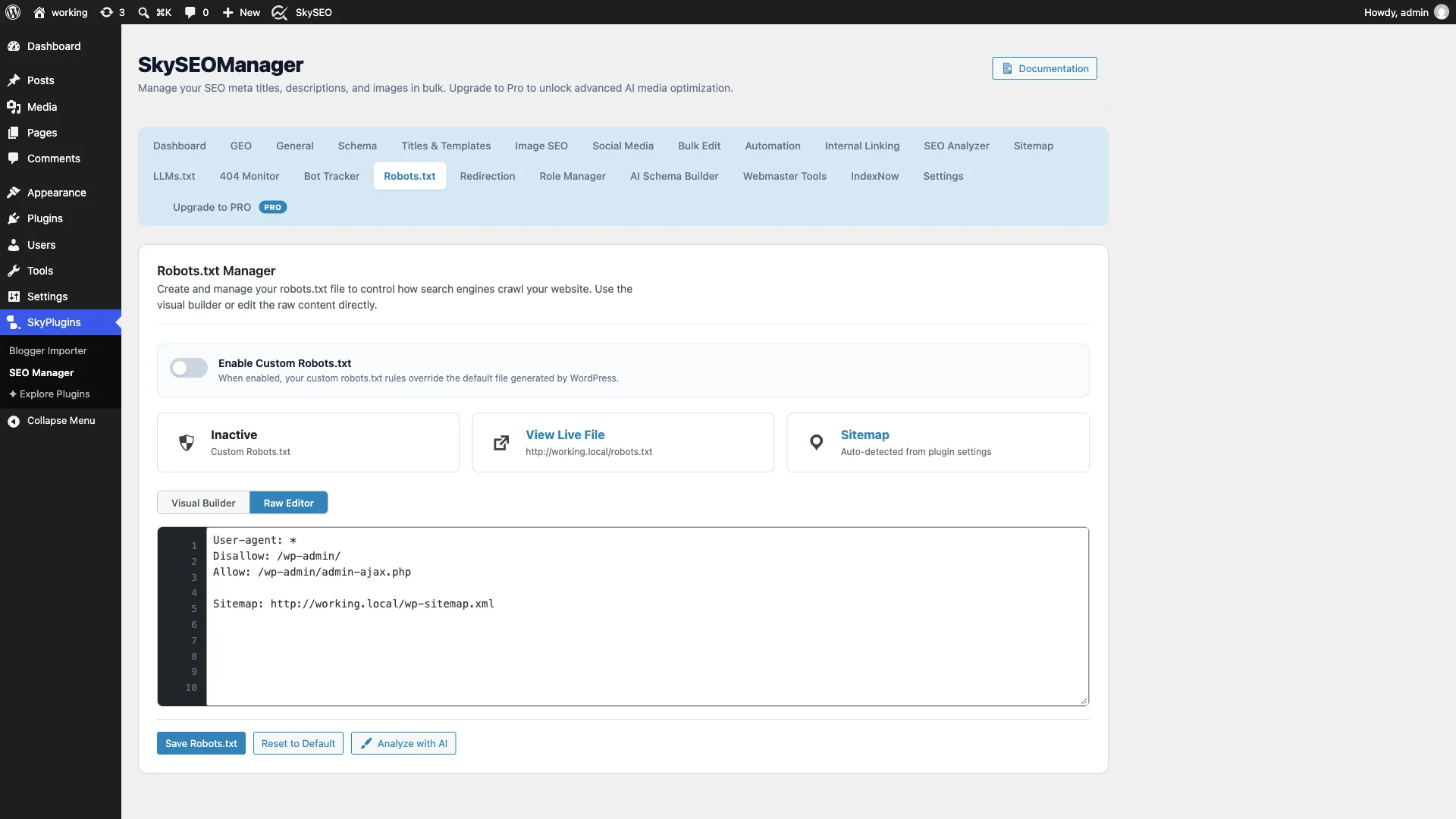
The changes you make in either the Visual Builder or Raw Editor stay completely synchronized, giving you complete flexibility regardless of your editing preference.
Step 3: Enable Custom Robots.txt and Save Changes
By default, WordPress serves its internal default robots rules. To take full control and activate your customized rules, switch the Enable Custom Robots.txt toggle to ON.
Once enabled, click the blue Save Robots.txt button at the bottom of the card.
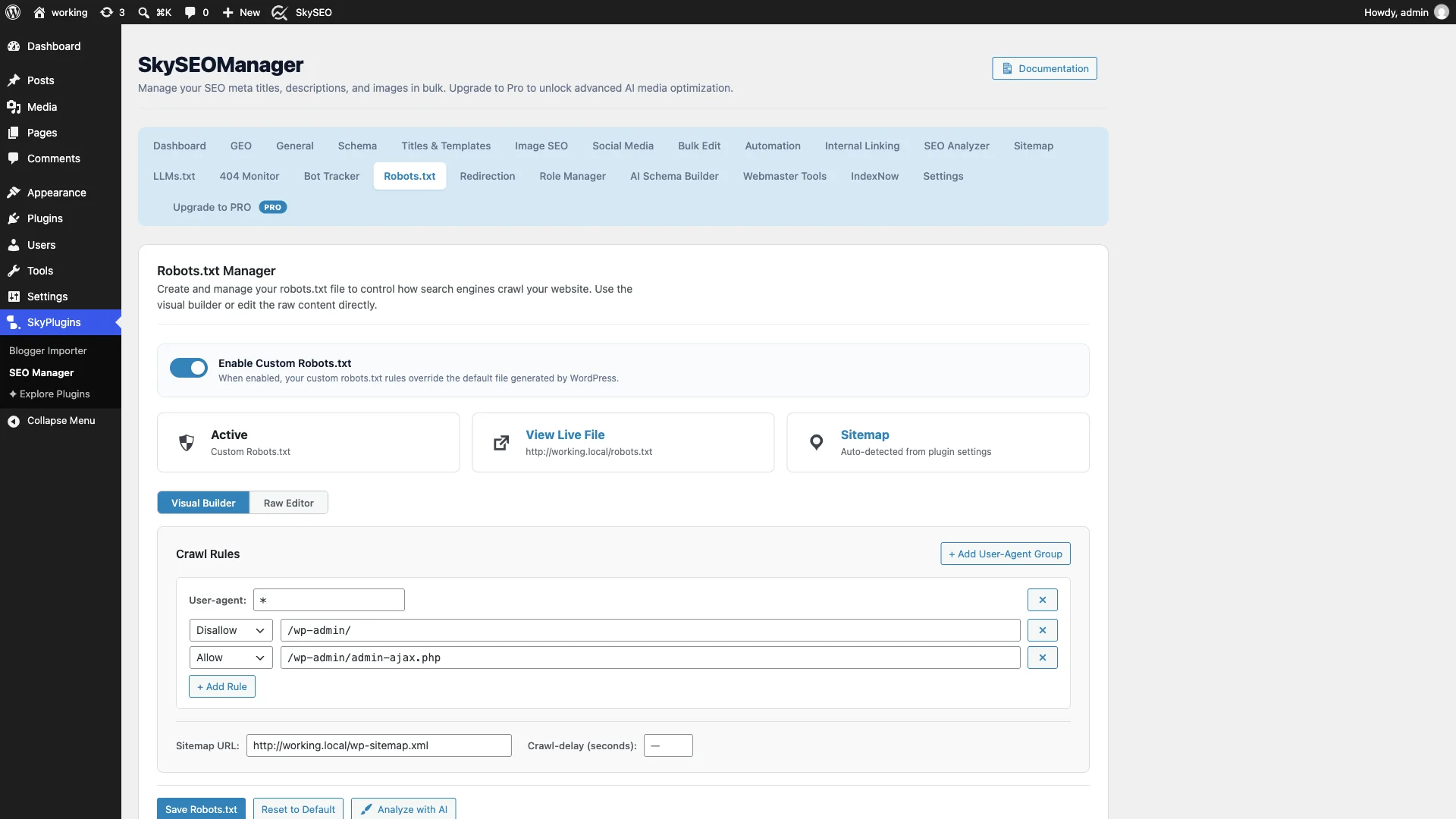
The status card at the top will instantly update to indicate that your custom robots.txt rules are active and overriding standard WordPress defaults.
Step 4: Verify Your Live Robots.txt File in the Browser
It is always recommended practice to verify your live robots.txt file in a new browser tab to ensure search bots receive the correct headers and content.
You can click the View Live File link in the status card or simply visit https://yourdomain.com/robots.txt in your web browser.

Notice how clean the output is. Search engine bots immediately understand where they are allowed to crawl and where your main XML sitemap index is located.
Step 5: Configure Sitewide Meta Robots Directives
Now that crawler paths are organized, you must ensure that low-value, duplicate, or administrative archive pages do not contaminate Google’s index. In Sky SEO Manager, you can configure sitewide meta robots rules in seconds.
Gehen Sie zu SkyPlugins » SEO Manager and click on the Allgemein tab. Scroll down to the Robots Meta Settings Abschnitt.
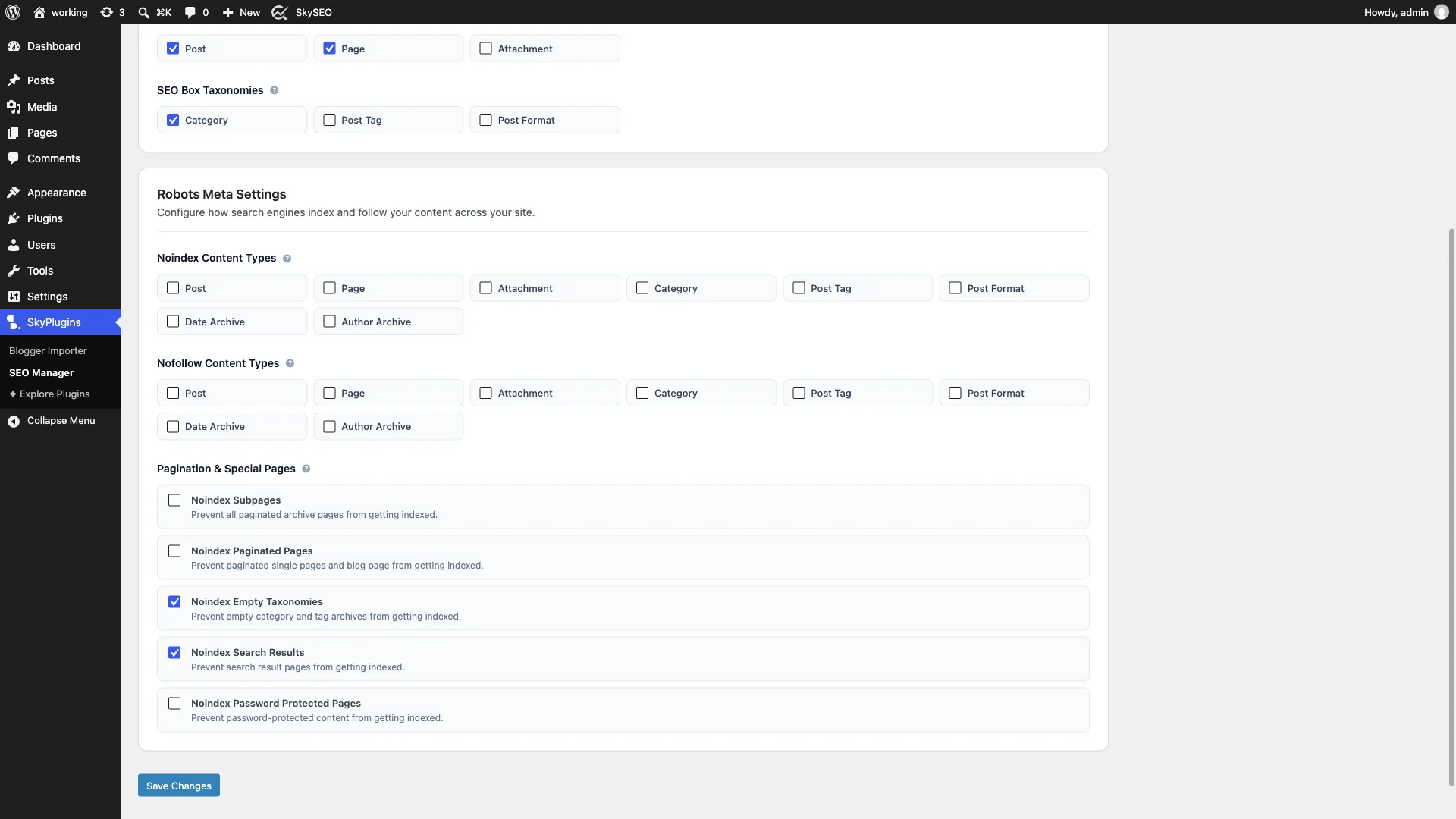
Here are the recommended settings for most WordPress websites:
- Noindex Subpages: Prevents paginated archive URLs (e.g.,
/blog/page/2/) from competing with your primary blog index. - Noindex Search Results: Keeps internal search result pages out of Google search, preventing thin content penalties.
- Noindex Empty Taxonomies: Prevents empty categories and unused tags from generating 404-like thin pages in the index.
- Noindex Date & Author Archives: On single-author websites, author archives are identical to your blog homepage. Applying
noindexprevents duplicate content issues. - Noindex Password Protected Pages: Prevents private member content and client portals from showing snippets in search engines.
Step 6: Set Post-Level Meta Robots in the Gutenberg Editor
What if you want to keep a specific landing page, private client proposal, or thank-you page completely hidden from search engines while keeping the rest of your site indexed?
Open any post or page in the WordPress block editor (Gutenberg). In the top right toolbar, click the SkySEO score button to open the sidebar, then switch to the Advanced Tab.
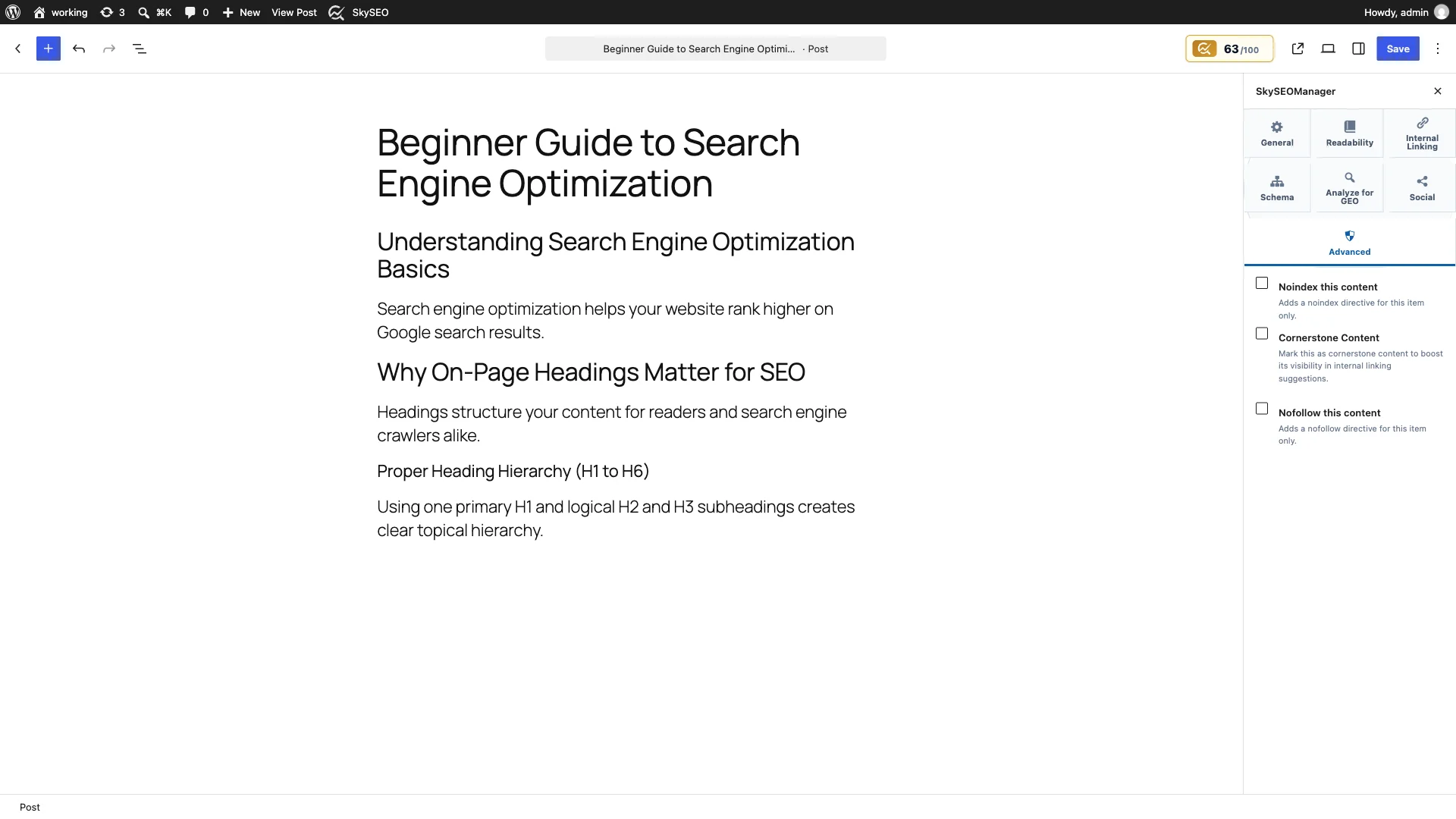
With a single toggle switch, you can activate:
- Noindex this content: Injects
<meta name="robots" content="noindex, follow">into the page header, ensuring search engines do not index the post while still allowing them to follow outbound internal links. - Nofollow this content: Prevents search crawlers from passing link equity or following any links on this specific URL.
Robots.txt vs. Meta Robots Comparison Table
Here is a quick summary table comparing how each directive operates in WordPress SEO:
| Besonderheit | Robots.txt Directives | Meta Robots Tags |
|---|---|---|
| Location | Root file: domain.com/robots.txt | HTML <head> tag on individual URLs |
| Primary Objective | Controls crawl behavior & server bandwidth | Controls search engine indexing & link equity |
| Stops Crawling? | Yes (Disallow prevents bots from crawling) | No (Bots must crawl page to read the meta tag) |
| Guarantees Noindex? | No (Disallowed URLs can still be indexed via external links) | Yes (Guarantees removal from search engine index) |
| Best Used For | Admin folders, cart pages, heavy scripts | Thank you pages, internal archives, thin content |
| Sitemap Directive | Yes (Provides crawler sitemap location) | No (Sitemaps are referenced in robots.txt) |
Frequently Asked Questions (FAQs)
Do I need a physical robots.txt file in my WordPress root folder?
No. WordPress generates a virtual robots.txt file dynamically. Sky SEO Manager hooks into this native WordPress API, allowing you to edit and customize rules without creating or maintaining physical text files via FTP.
Can I block Google from indexing a page using robots.txt?
No, you should never use robots.txt to block indexing. If you disallow a URL in robots.txt, search crawlers cannot access the page to read a noindex tag. If other sites link to that page, Google will still index the URL. To guarantee de-indexation, allow crawling and use the Noindex this content toggle in Sky SEO Manager.
Should I block /wp-admin/ in robots.txt?
Yes, but always ensure you allow /wp-admin/admin-ajax.php. Many modern WordPress themes and plugins require AJAX calls to render dynamic content on the front-end. Blocking admin-ajax.php can cause Googlebot to report mobile rendering and indexing errors.
Final Thoughts & Next Steps
Proper crawl management is the foundation of high-performance technical SEO. By combining a streamlined robots.txt file with precise meta robots indexation rules, you ensure search engines dedicate 100% of their crawl resources to ranking your best content.
To learn more about optimizing your WordPress site, check out our companion guides on How to Create and Submit XML Sitemaps with Instant IndexNow Und How to Monitor 404 Errors and Set Up 301 Redirects.