Does your website jump, flicker, or shift unexpectedly while loading? Have you noticed warnings in Google Search Console stating that your pages fail the Core Web Vitals Cumulative Layout Shift (CLS) audit?
One of the single most common culprits behind poor CLS scores in WordPress is missing image dimensions. When an image tag lacks explicit width そして height attributes, the browser cannot determine how much vertical space to reserve in the document layout. As the image finally downloads, it abruptly displaces text, headers, and buttons down the screen, frustrating your visitors and damaging your SEO rankings.
In this comprehensive guide, we will show you how to completely fix Cumulative Layout Shift and optimize your media delivery using SiteSkyline Optimizer (SOptimizer). You will learn how to automatically inject missing dimensions, configure responsive srcset attributes, set up native lazy loading, and preload critical Largest Contentful Paint (LCP) hero banners.
What Causes Cumulative Layout Shift in WordPress?
Google measures layout stability through the 累積レイアウト シフト (CLS) metric. A score below 0.1 is considered “Good”, while anything above 0.25 triggers severe ranking penalties in mobile search results.
In WordPress, image-related layout instability typically stems from four architectural issues:
- Omitted Width & Height Attributes: Page builders, custom blocks, and older themes frequently output raw
<img src="...">tags without dimension attributes. Without them, modern browsers cannot calculate the CSSaspect-ratiobefore downloading the image file. - Oversized Desktop Images on Mobile: Serving full-resolution 1920px desktop banners to mobile viewports wastes cellular data and causes layout recalculations as the browser struggles to scale the asset.
- Aggressive Lazy Loading Above the Fold: Applying
loading="lazy"to your primary hero image delays its discovery, severely worsening your Largest Contentful Paint (LCP) metric. - Unreserved Video & Iframe Embeds: Embedded YouTube videos and social widgets that load asynchronously often reflow surrounding content once their iframes initialize.
| Optimization Feature | Default WordPress Behavior | SOptimizer Media Optimization | Core Web Vitals Impact |
|---|---|---|---|
| Image Dimensions | Often missing in blocks, sliders & builder widgets | Auto-injects true width/height attributes | Permanently cures CLS (0.000 score) |
| Responsive Delivery | Standard basic srcset generation | Dynamic srcset + sizes="auto" with on-demand scaling | Reduces mobile data usage by up to 70% |
| 遅延読み込み | Standard core lazy loading on all content | Lazy loads images & iframes with smart hero exclusions | Prevents off-screen render blocking |
| Hero / LCP Preload | No native preloading mechanism in core | Targeted <link rel="preload"> with responsive media queries | Slashes LCP timing by 300ms to 800ms |
Step 1: Open the Media Optimize Dashboard
To access the layout shift and image optimization controls, log into your WordPress admin panel and navigate to SiteSkyline Optimizer > Images > Media Optimize.
The Media Optimize section contains dedicated modules designed specifically to stabilize your visual layout, serve device-specific image dimensions, and streamline viewport loading.
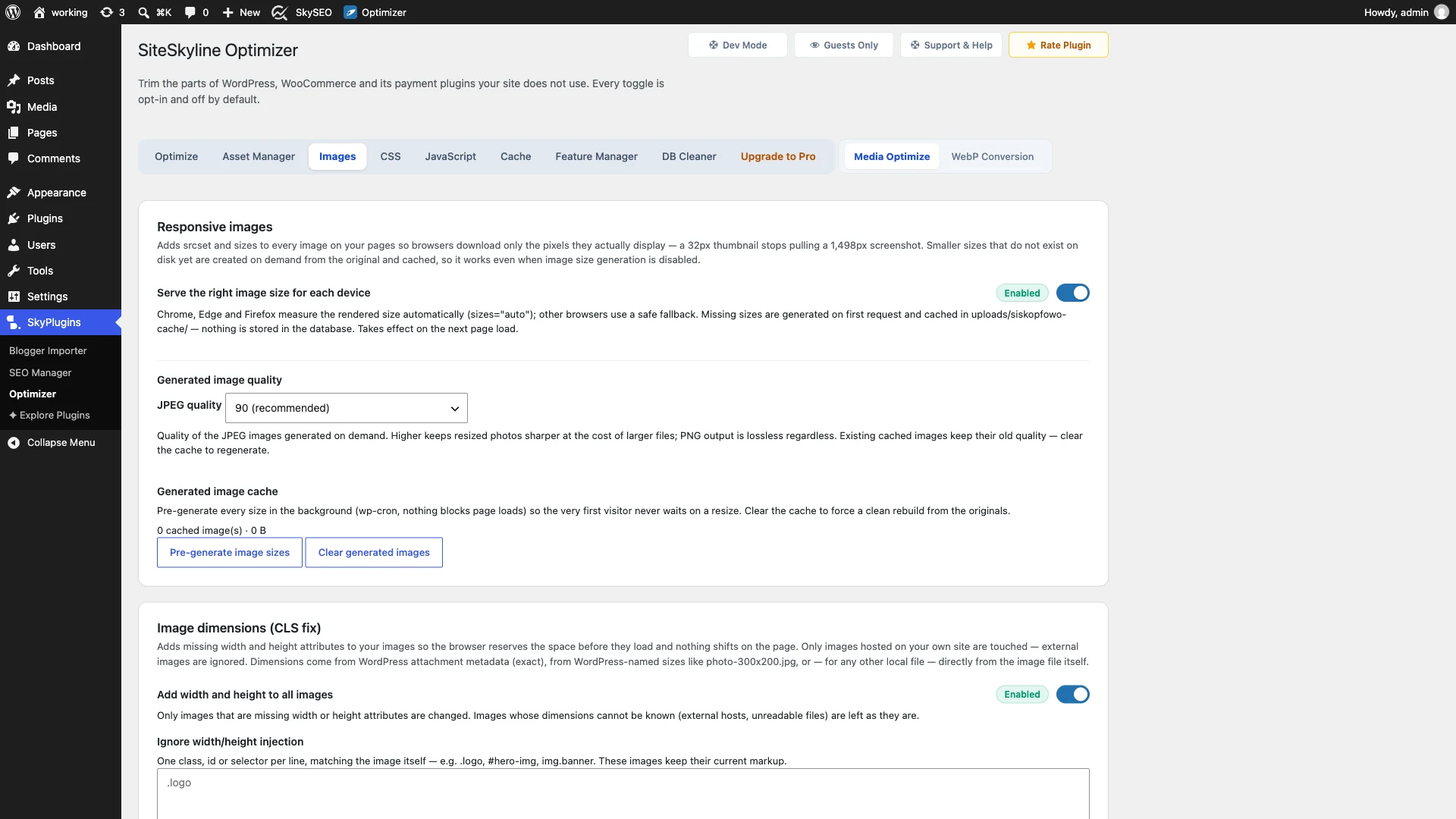
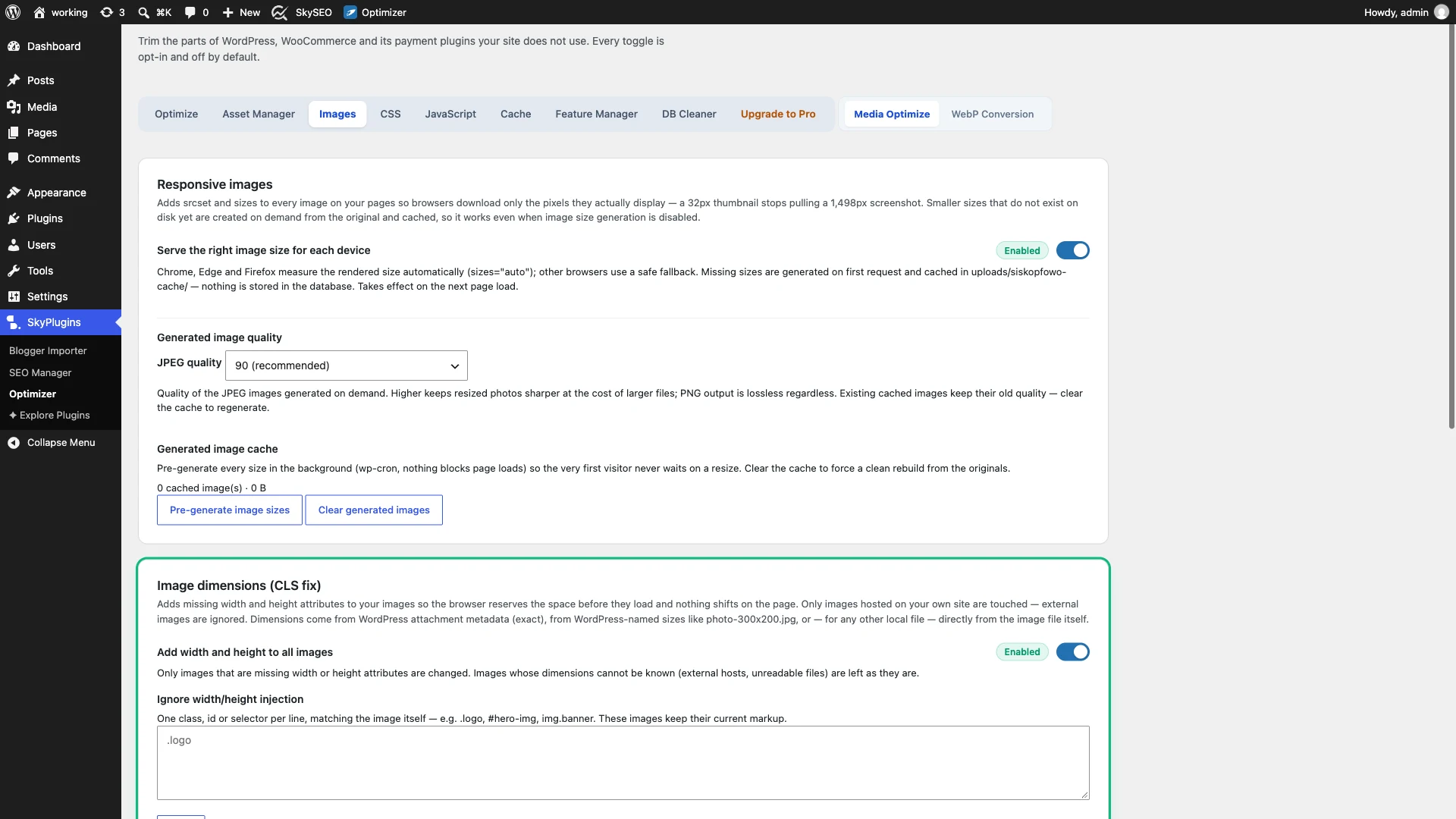
Step 2: Enable Missing Image Dimension Injection (CLS Fix)
下にスクロールして、 Image dimensions (CLS fix) card. This is the cornerstone feature for achieving a zero CLS score.
Toggle on the master switch labeled Add width and height to all images.
When enabled, SiteSkyline Optimizer automatically intercepts HTML image tags during rendering. If an image lacks explicit width や height attributes, SOptimizer inspects the media file, calculates its exact aspect ratio, and injects the proper attributes into the tag. This allows the visitor’s browser to calculate CSS aspect ratios immediately and reserve the exact bounding box before any image data arrives.
Step 3: Configure Responsive Images and Device Scaling
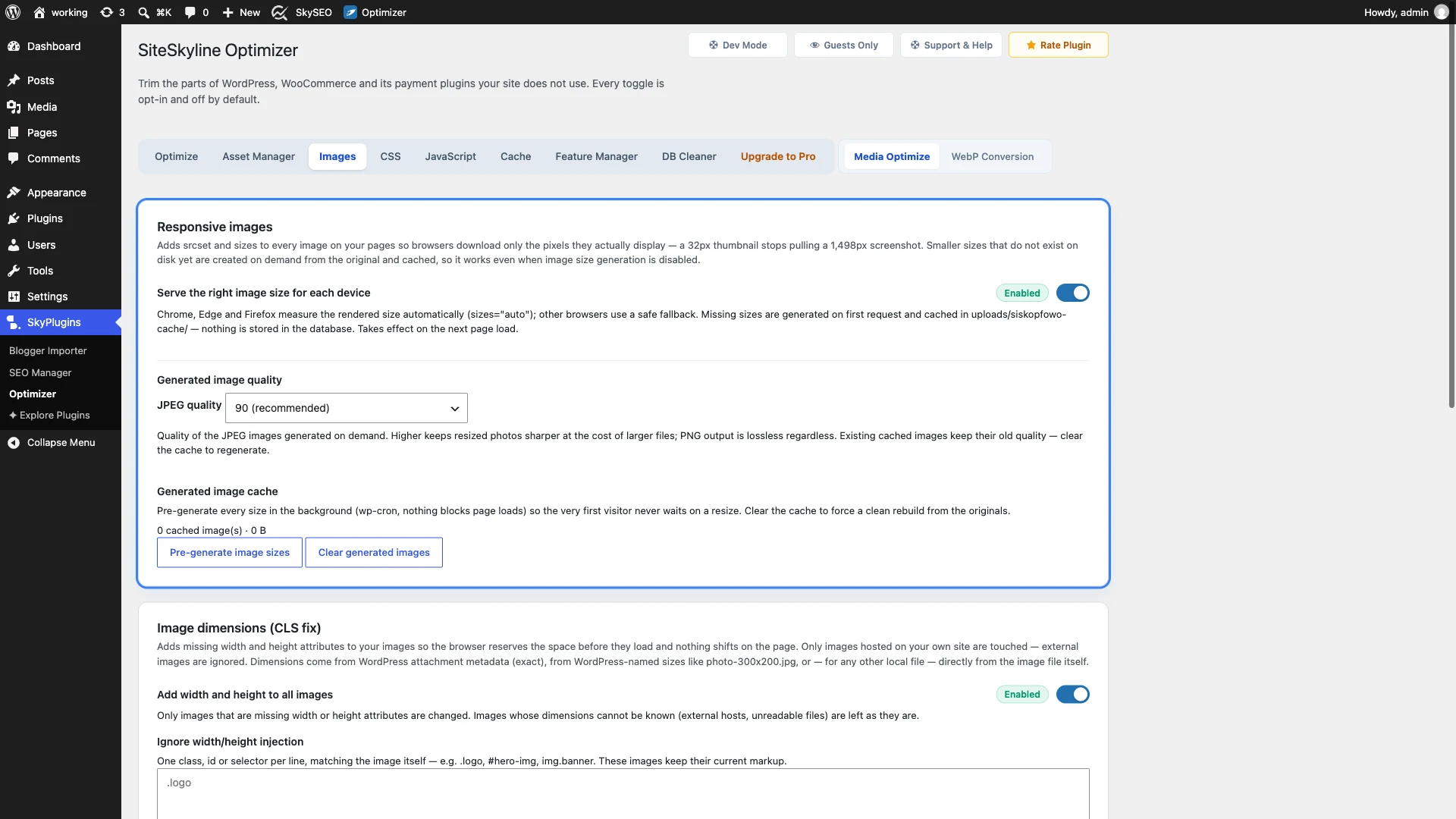
Next, navigate to the Responsive images card at the top of the screen.
Toggle on Serve the right image size for each device. This feature automatically generates dynamic srcset and modern sizes="auto" attributes on all content images. Modern browsers (Chrome, Edge, Firefox, and Safari) will measure the container width automatically and download only the pixels necessary for that exact display.
下 Generated image quality, select 90 (recommended) や 82 to preserve razor-sharp visual detail while optimizing compression efficiency.
Step 4: Set Up Lazy Loading with Above-the-Fold Exclusions
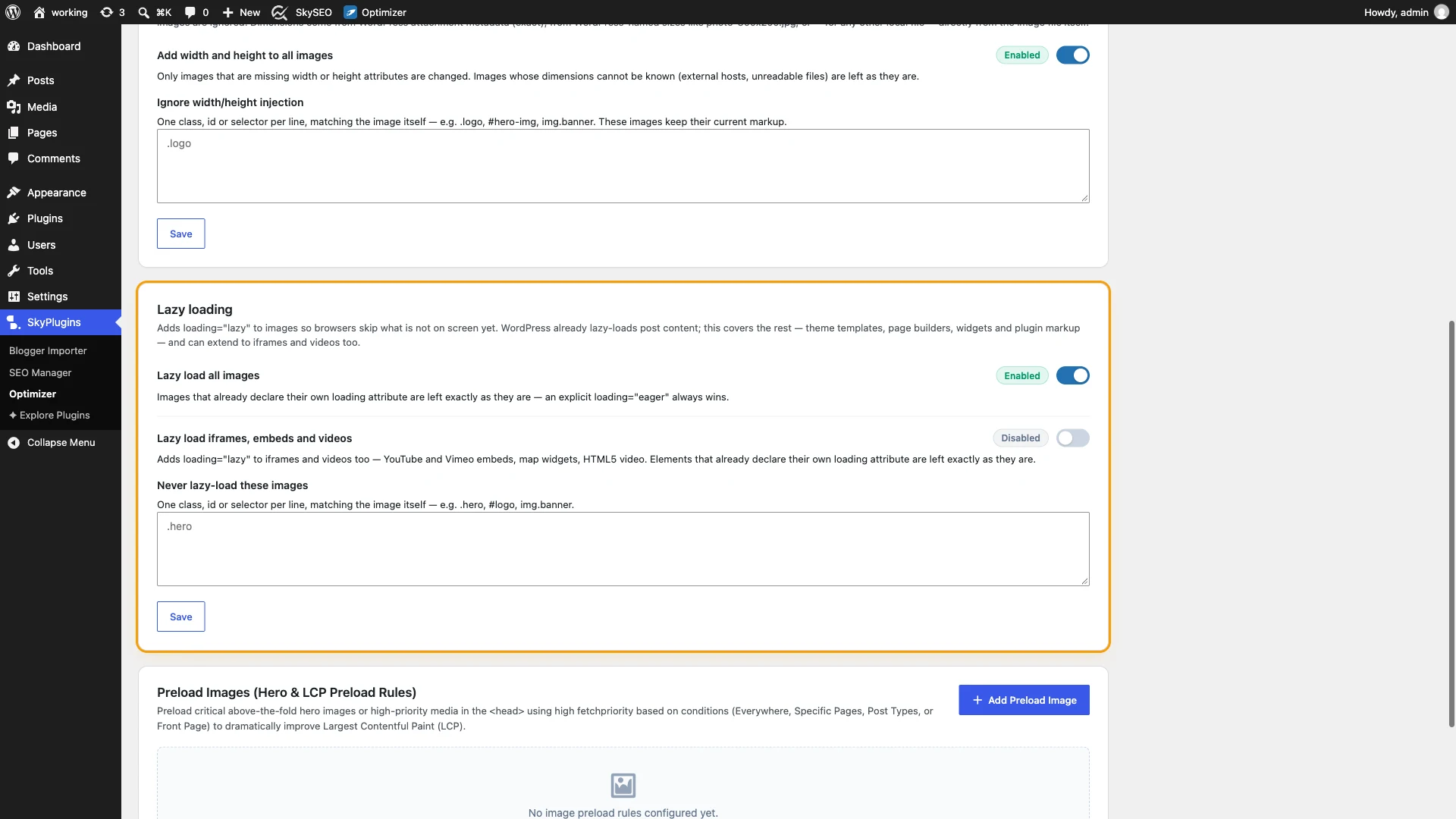
Proceed to the 遅延読み込み card. Deferring off-screen assets is critical for saving bandwidth and freeing up the browser’s main thread during initial page load:
- Lazy load all images: Toggles native browser
loading="lazy"on below-the-fold media. - Lazy load iframes, embeds and videos: Prevents third-party video players and embeds from downloading heavy JavaScript until the user scrolls down to them.
- Never lazy-load these images (Critical for LCP): Enter class names, image URLs, or attributes for your site logo and primary hero image. You should never lazy-load above-the-fold hero images, as doing so introduces an artificial delay to your Largest Contentful Paint metric.
Step 5: Configure Hero and LCP Image Preload Rules
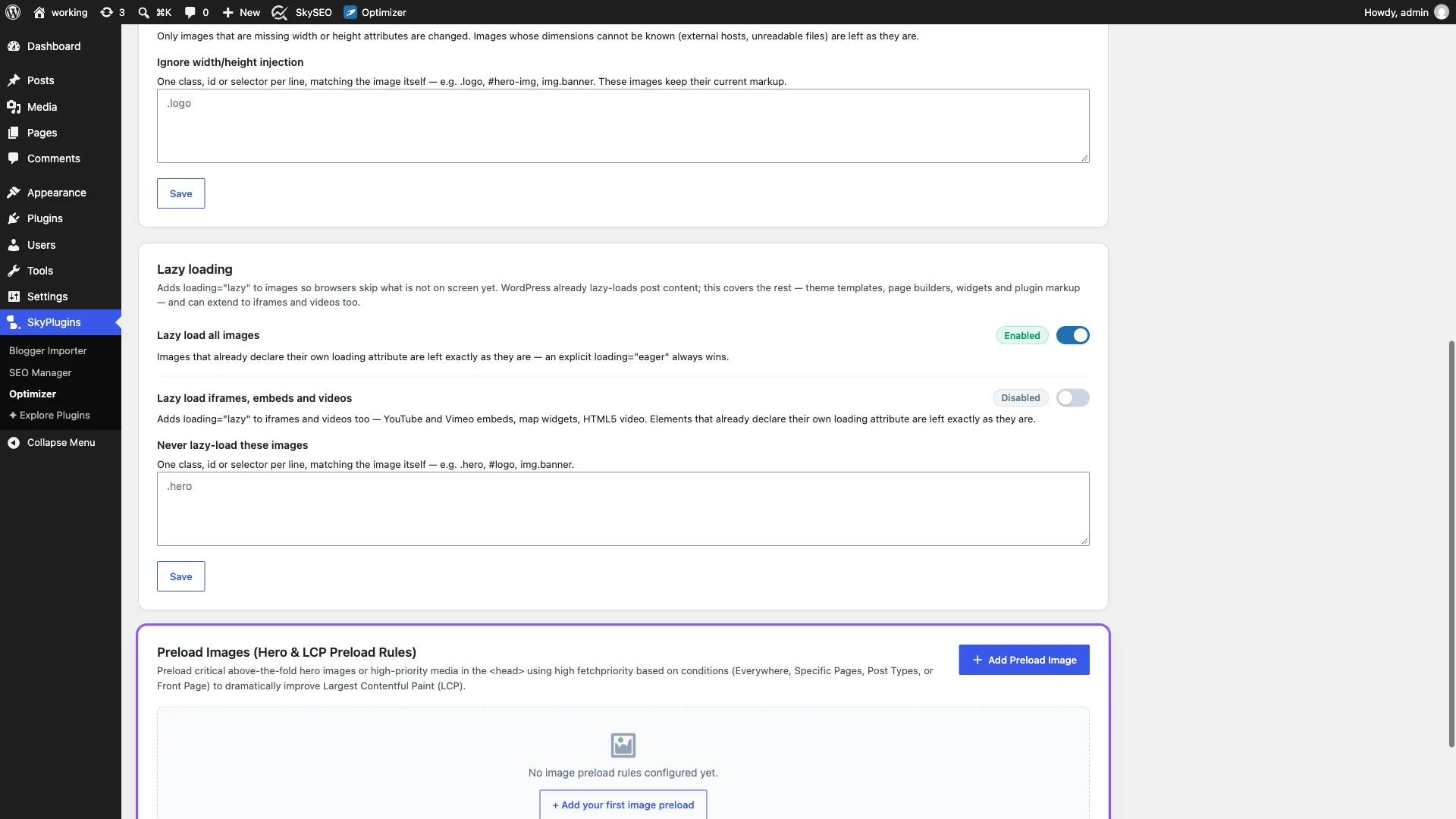
To make your primary hero banner appear instantaneously, scroll to the Preload Images (Hero & LCP Preload Rules) セクション。
SiteSkyline Optimizer allows you to generate declarative <link rel="preload" as="image"> tags targeting specific devices and pages:
- Image URL: Paste the direct path to your above-the-fold hero banner.
- Media Query: Add responsive media queries (e.g.,
(min-width: 768px)) so the desktop banner is only preloaded on desktop displays. - Targeting Scope: Restrict preloading to specific locations, such as your Front Page, Blog Posts, or Custom Landing Pages.
Step 6: Verify Zero Layout Shift on the Frontend
After saving your settings, open your live website in an Incognito window and audit the page using Google PageSpeed Insights or Chrome DevTools Lighthouse:
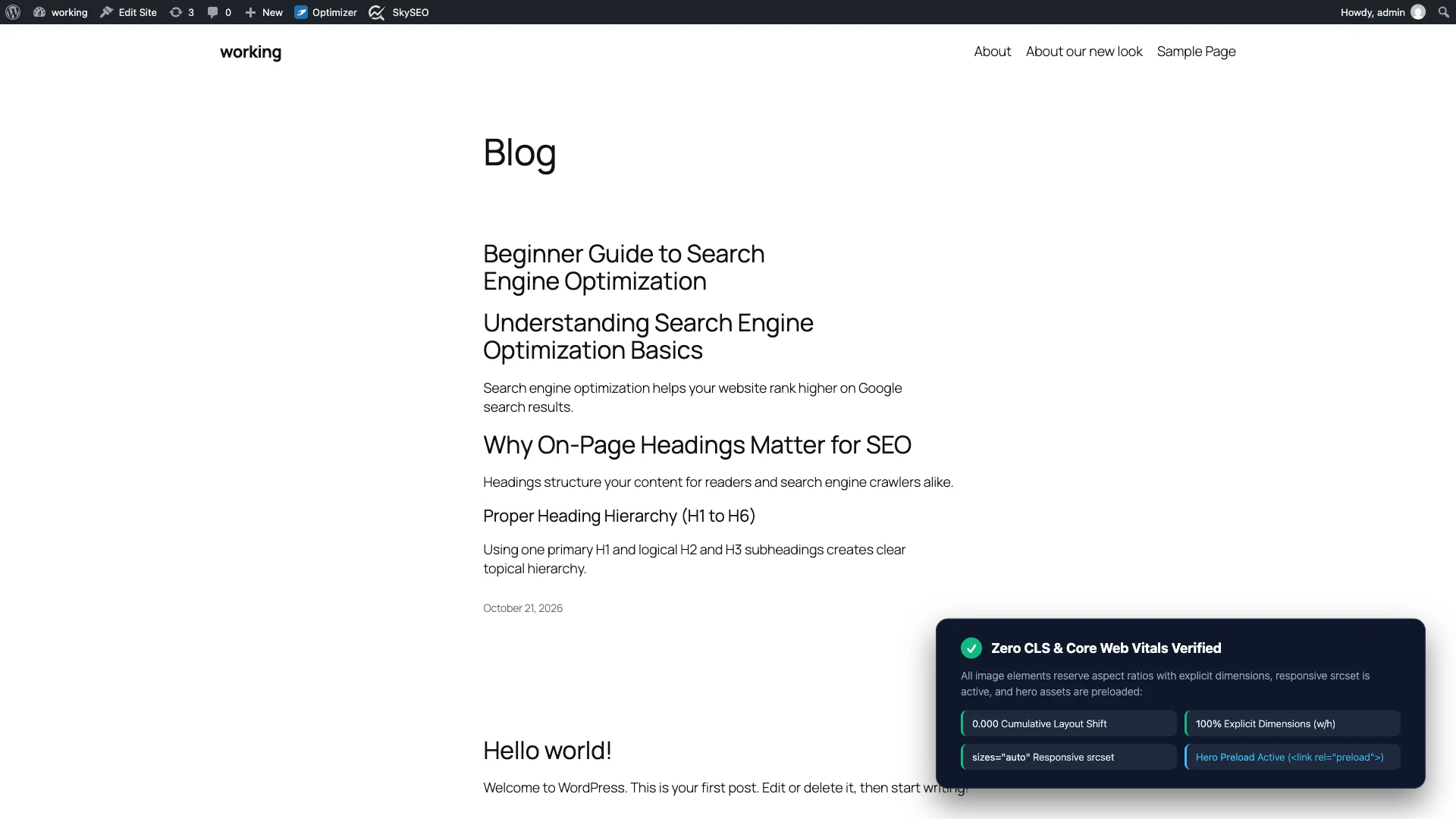
- Confirm that your Cumulative Layout Shift score is 0.000.
- Inspect your image markup in the DOM and verify that all
<img>tags contain explicitwidthそしてheightattributes. - Notice that your hero banner loads immediately without lazy-loading delays, achieving a green, sub-2.5-second Largest Contentful Paint.
- Experience smooth, solid page loads without jittery layout reflows as images load.
よくある質問
Why does adding width and height prevent layout shift?
Modern browsers calculate an intrinsic aspect ratio based on the HTML width そして height attributes before the image file is actually downloaded. Combined with responsive CSS (like max-width: 100%; height: auto;), the browser can reserve the exact proportional space in the document layout, so surrounding elements never move when the image renders.
Why should I never lazy-load my hero image?
When you lazy-load an image, the browser deliberately delays fetching it until after the main DOM and CSS have finished rendering and the layout engine confirms the image is in the viewport. For an above-the-fold hero image that is already on-screen, this delay directly punishes your Largest Contentful Paint (LCP) score.
What is the difference between sizes=”auto” and traditional sizes?
Traditional responsive image syntax requires developers to write hardcoded media queries in the sizes attribute (e.g., (max-width: 600px) 100vw, 50vw). The new standard sizes="auto" allows modern browsers to measure the actual rendered layout width of the image container directly from the DOM, ensuring the browser always selects the exact optimal asset from your srcset.
Will dimension injection affect SVG images?
Vector SVGs that define viewBox attributes scale cleanly. If an SVG lacks dimensions, SiteSkyline Optimizer extracts width and height from its internal viewBox, preserving crisp vector rendering without distortion.