Are external Google Fonts slowing down your WordPress website? Did you know that loading fonts directly from Google’s CDN can also expose your business to severe GDPR compliance fines in Europe?
Almost every modern WordPress theme relies on Google Fonts for beautiful typography. However, by default, your site instructs every visitor’s browser to connect to third-party domains (fonts.googleapis.com そして fonts.gstatic.com). These extra round-trips delay First Contentful Paint (FCP), cause unsightly layout shifts (CLS), and share visitor IP addresses with Google without prior user consent.
In this step-by-step guide, you will learn how to self-host Google Fonts locally on your own WordPress server using SiteSkyline Optimizer (SOptimizer). We will show you how to automatically detect in-use font families, download modern WOFF2 font files, and serve them locally with zero external network overhead.
Why You Should Self-Host Google Fonts in WordPress
Self-hosting Google Fonts delivers immediate improvements in two crucial areas: web performance そして legal privacy compliance.
- Eliminates External DNS and TLS Latency: Loading fonts from Google requires resolving external DNS and establishing two separate TLS handshakes. On mobile devices with high-latency connections, this can stall font rendering by 200ms to 500ms.
- 100% GDPR & Privacy Compliance: In early 2022, a landmark ruling by a Munich regional court confirmed that transmitting user IP addresses to Google’s US-based servers via Google Fonts without explicit consent violates the European General Data Protection Regulation (GDPR). Hosting fonts locally keeps all data strictly on your own domain.
- Prevents Flash of Invisible Text (FOIT): SiteSkyline Optimizer automatically injects
font-display: swapinto local font stylesheets, ensuring text displays immediately using fallback system fonts while custom typography loads. - Total Offline & CDN Independence: If Google’s CDN experiences outages, throttling, or localized censorship, your locally hosted typography continues rendering flawlessly without interruption.
| 特徴 | External Google CDN Fonts | SOptimizer Local Google Fonts | Performance & Privacy Benefit |
|---|---|---|---|
| Network Connections | 2 external domains (googleapis & gstatic) | 0 external connections (100% local host) | Eliminates 2 DNS lookups and 2 TLS handshakes |
| GDPR / Privacy Compliance | Risky (Visitor IP exposed to Google) | 100% Compliant (Zero third-party calls) | Immune to European font privacy fines |
| Font Format Delivery | Dynamic CSS stylesheet requests | Modern compressed WOFF2 files | Smaller payload, faster font decoding |
| Rendering Behavior | Often blocks render (FOIT) | 自動 font-display: swap | Faster FCP and zero invisible text latency |
| Subset Optimization | Downloads generic multi-subset packages | Only downloads active in-use weights | Saves up to 70% in font file weight |
Step 1: Open the Local Google Fonts Settings
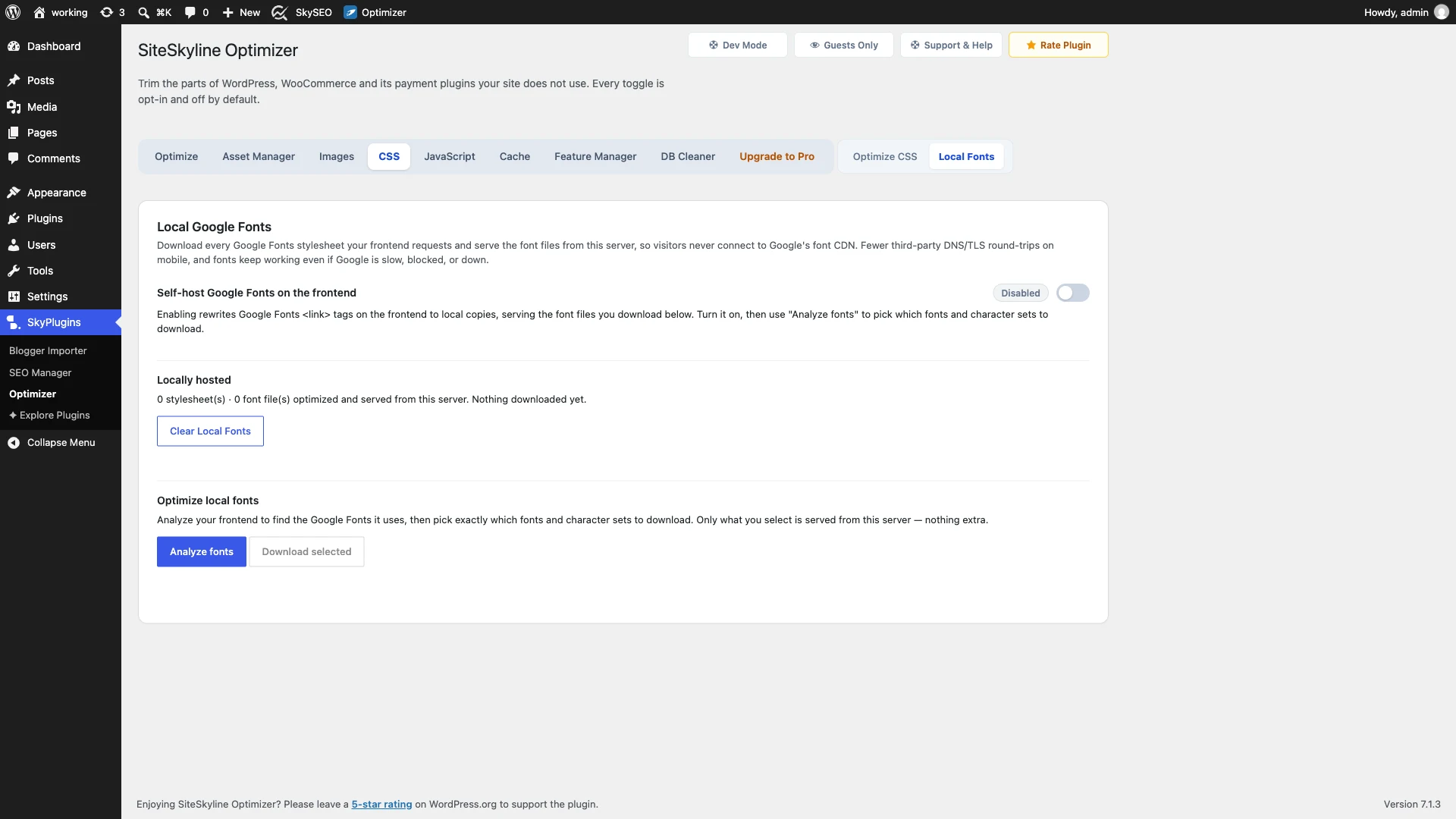
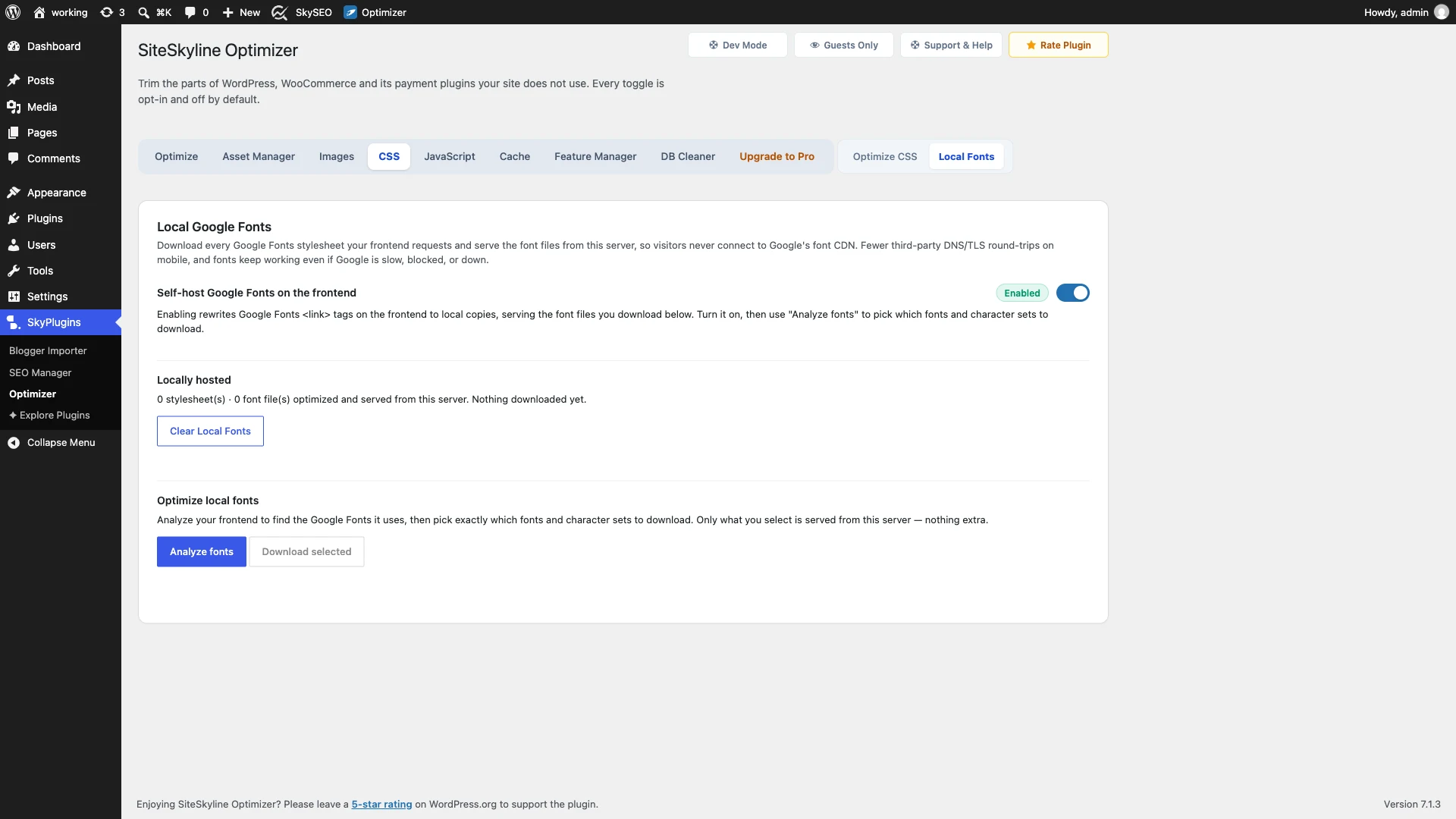
To begin self-hosting your typography, open your WordPress admin dashboard and navigate to SiteSkyline Optimizer > CSS > Local Fonts.
The Local Google Fonts dashboard provides a centralized management hub for your site’s font assets. From here, you can enable local font rewrites, inspect currently hosted files, and run deep frontend font scans.
Step 2: Enable the Self-Host Toggle Switch
Locate the toggle switch labeled Self-host Google Fonts on the frontend and click to activate it.
Once toggled, the status badge turns green to indicate that local font handling is 有効. When enabled, SiteSkyline Optimizer intercepts all enqueued Google Fonts <link> tags and rewrites them to load from your local server directory instead of contacting Google’s remote servers.
Step 3: Analyze Your Frontend Typography
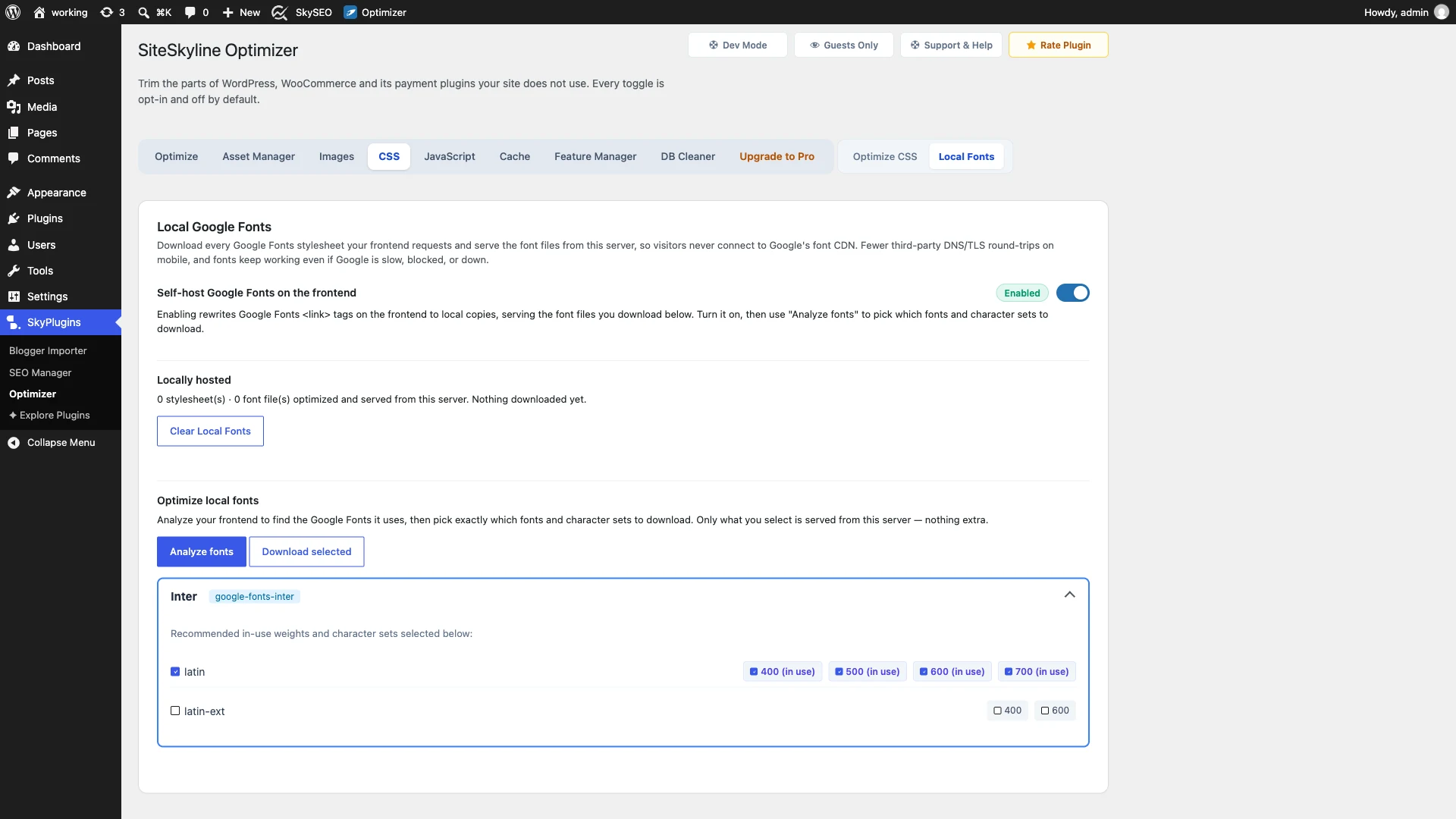
Now, scroll to the Optimize local fonts section and click the primary Analyze fonts ボタン。
SiteSkyline Optimizer performs a comprehensive scan across your registered page templates and rendered DOM structure. Within seconds, it identifies all Google Font families enqueued by your theme, page builder (like Elementor or Gutenberg), and third-party plugins.
The detected fonts are neatly organized into expandable cards displaying the stylesheet handle (e.g., google-fonts-inter), font family, and supported character subsets (such as latin そして latin-ext).
Step 4: Select In-Use Subsets and Download Fonts
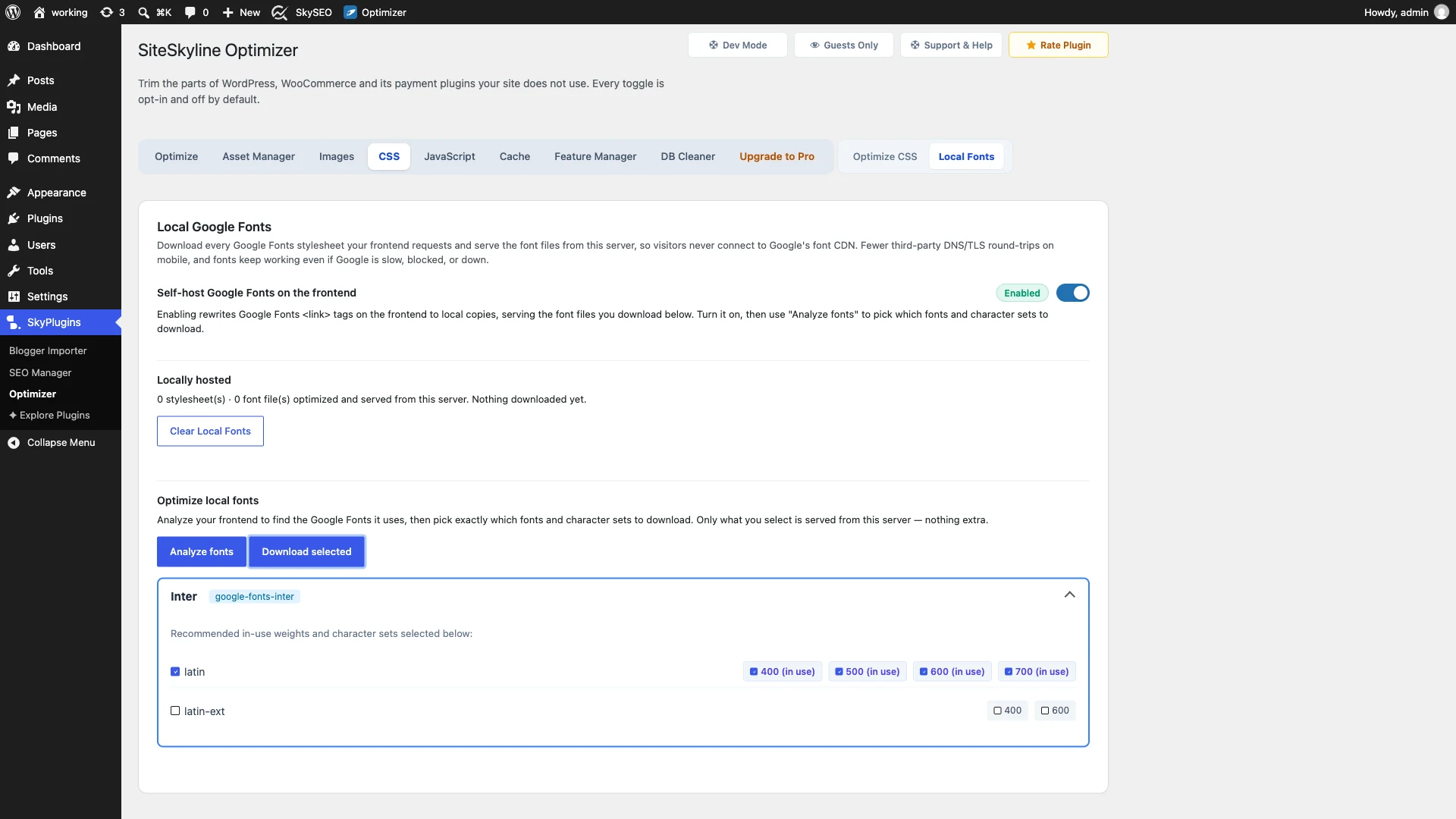
One of the most powerful features of SiteSkyline Optimizer is intelligent font pruning. Many themes request five or six font weights (100, 300, 400, 500, 700, 900) even when your content only ever uses Regular 400 and Bold 700.
SOptimizer automatically highlights weights that are actively in use on your site. You can easily uncheck unused character sets or weights to prevent downloading unnecessary font files.
Once you are satisfied with your selection, click the Download selected button. SiteSkyline Optimizer fetches the optimized, high-compression WOFF2 font files from Google and permanently stores them on your local server.
Step 5: Review the Locally Hosted Summary
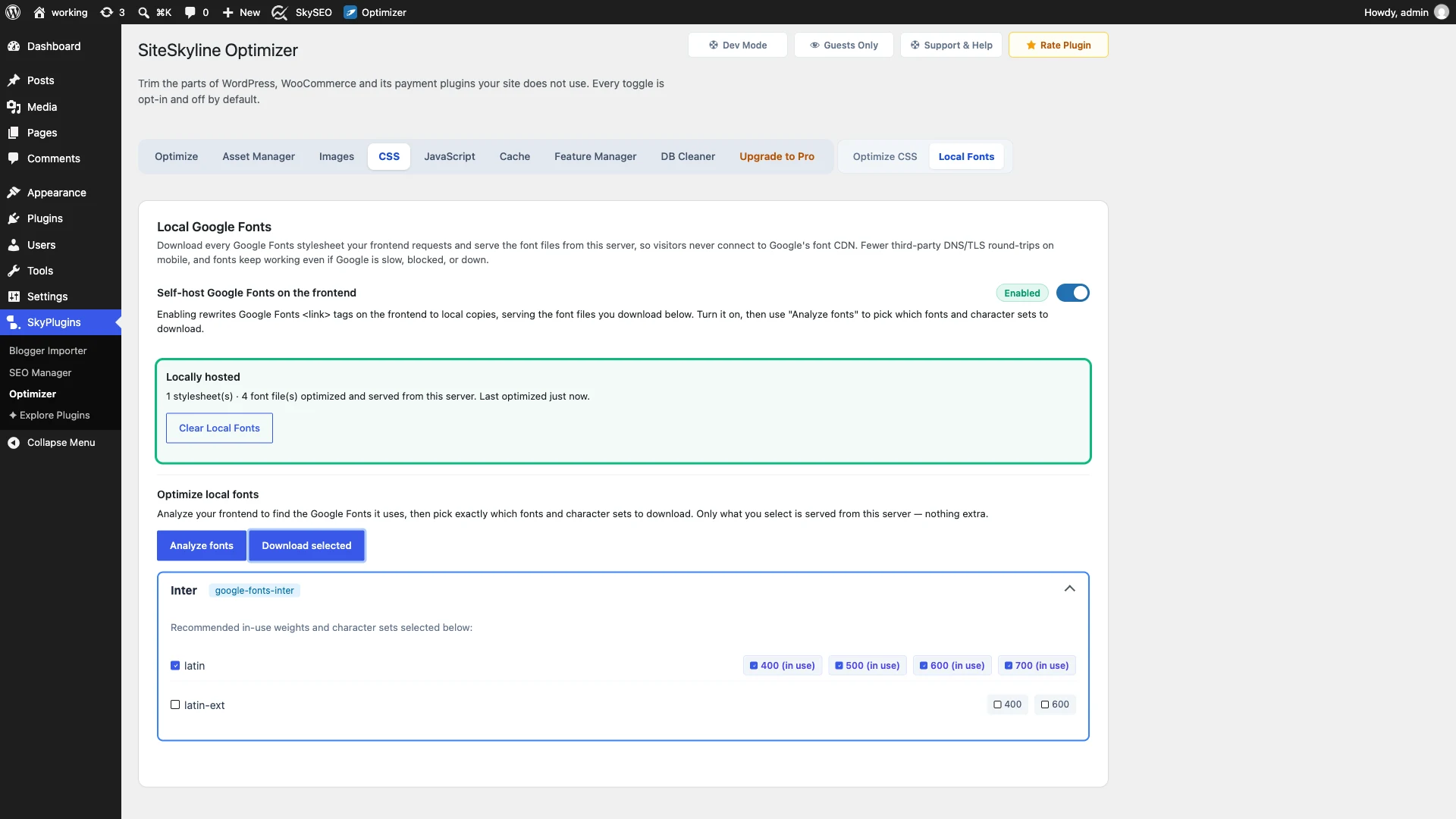
Immediately after downloading, the Locally hosted summary card updates with your live cache telemetry.
You can confirm the exact number of local stylesheets and WOFF2 font files stored on your server (for example: 1 stylesheet(s) · 4 font file(s) optimized and served from this server). SiteSkyline Optimizer automatically writes standard immutable cache headers so visitors cache these fonts for a full year.
If you ever redesign your site or change your typography in the future, simply click the Clear Local Fonts button to wipe the cache and re-analyze.
Step 6: Verify GDPR Compliance & Network Delivery
To verify that your typography is truly being served locally, open an Incognito browser window and navigate to your homepage.
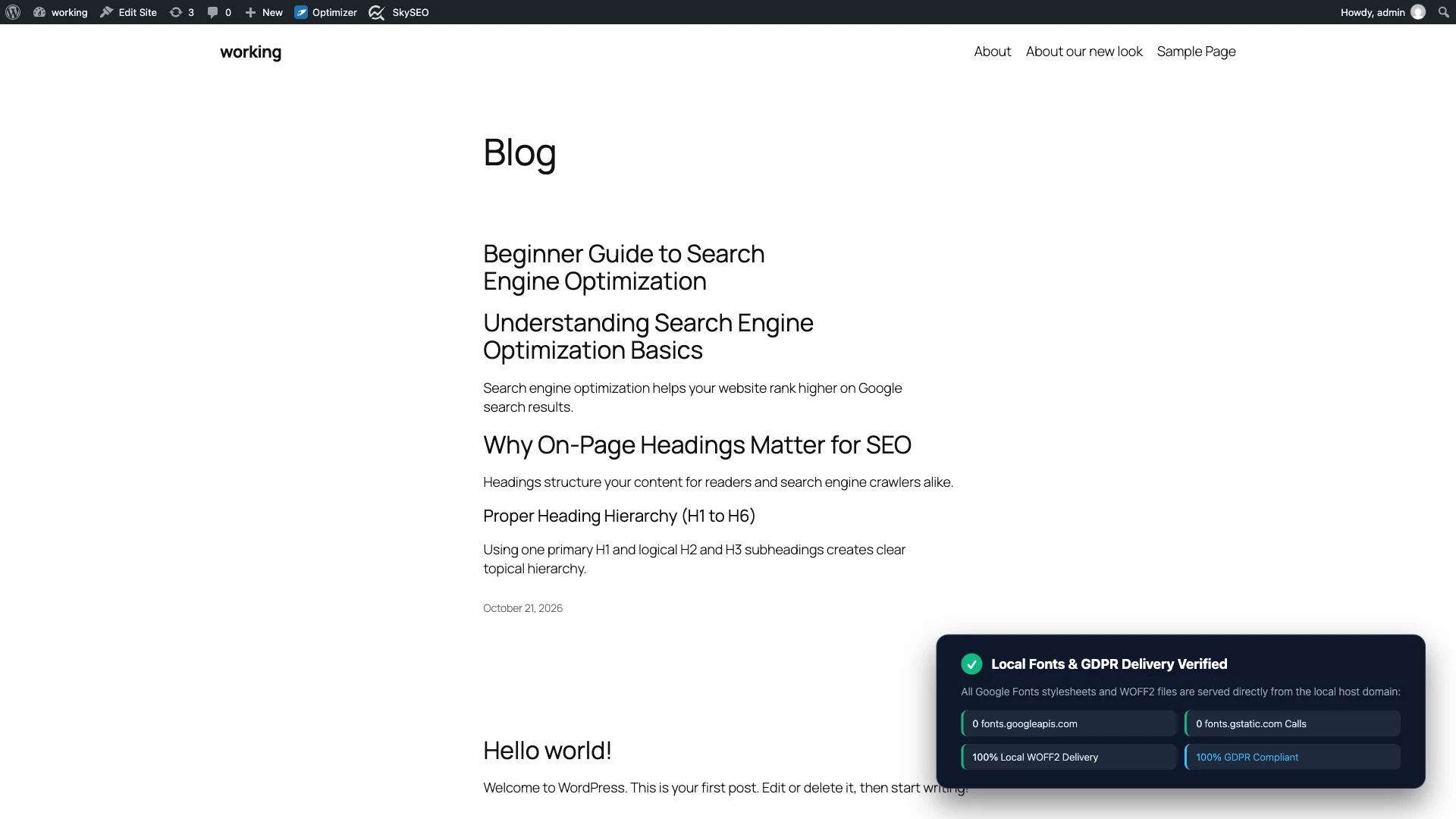
Press F12 or right-click to open Chrome DevTools, navigate to the Network tab, and filter requests by Font:
- Notice that zero requests are dispatched to
fonts.googleapis.comやfonts.gstatic.com. - All font files load directly from your own domain (under
/wp-content/uploads/siteskyline-fonts/). - Fonts load virtually instantaneously without TLS handshake delays or render-blocking stalls.
- Your site is now 100% compliant with international data protection laws, including GDPR.
よくある質問
Why did German courts rule that Google Fonts violates GDPR?
When a browser loads fonts from Google’s servers, the user’s IP address (which is classified as personal identifiable information under GDPR) is automatically transmitted to Google without the visitor’s prior consent. Because Google is a US-based entity, courts ruled this constitutes an unlawful cross-border data transfer. Hosting fonts locally prevents this transfer completely.
Does self-hosting fonts use up a lot of server storage?
No. SiteSkyline Optimizer downloads modern WOFF2 (Web Open Font Format 2.0) files, which feature state-of-the-art Brotli compression. Each font weight typically occupies only 15 KB to 25 KB of storage. Even a site utilizing four weights will only use approximately 80 KB to 100 KB total.
What is font-display: swap and why does it matter?
By default, many browsers hide text while waiting for custom web fonts to download, creating a jarring “Flash of Invisible Text” (FOIT). The font-display: swap directive tells the browser to display text immediately using a system fallback font (such as Arial or Helvetica) and swap in your custom font as soon as it arrives, keeping your First Contentful Paint blazing fast.
What happens if I update my WordPress theme?
If you update or change your theme and it requests different font families or weights, simply visit the Local Fonts tab, click Clear Local Fonts, and click Analyze fonts to download the new font files.