Did you know that unexpected shipping fees at checkout cause over 48% of all online shopping cart abandonments? Conversely, consumer surveys reveal that 93% of shoppers are actively willing to add more items to their cart if it qualifies them for free shipping.
However, traditional WooCommerce stores treat free shipping as a passive condition. They hide the threshold in a tiny checkout disclaimer, forcing shoppers to manually calculate remaining balances and browse back through catalog categories to find filler items. The inevitable result? Friction, frustration, and lost conversions.
In this comprehensive, step-by-step tutorial, you will learn how to add an intelligent Free Shipping Progress Bar with Gap-Filling Product Upsells in WooCommerce using the free SiteSkyline Smart Sales plugin. You will discover how to turn passive shipping rules into an engaging, gamified shopping journey that nudges buyers across the finish line with 1-click add-ons.
Why Gap-Filling Product Upsells Beat Generic Shipping Announcements
A standard shipping bar merely displays a message like “Add $40 more for free shipping”. While helpful, it leaves the burden of discovery entirely on the customer:
- Decision Fatigue: The shopper has to exit the cart, guess which product costs around $40, and navigate product category pages.
- High Drop-Off Risk: Every second a shopper spends hunting through your catalog increases the probability they get distracted or abandon their session.
- The Algorithmic Solution: Smart Sales continuously evaluates the exact remaining threshold gap in real time and automatically queries your inventory for in-stock, complementary accessories priced to bridge that gap. With a single click, shoppers add the filler item and unlock free shipping without leaving the cart.
Step 1: Enable the Smart Free Shipping Bar Engine in WordPress
To begin, install and activate the free SiteSkyline Smart Sales plugin. In your WordPress admin sidebar, navigate to Smart Sales → Optimizations.
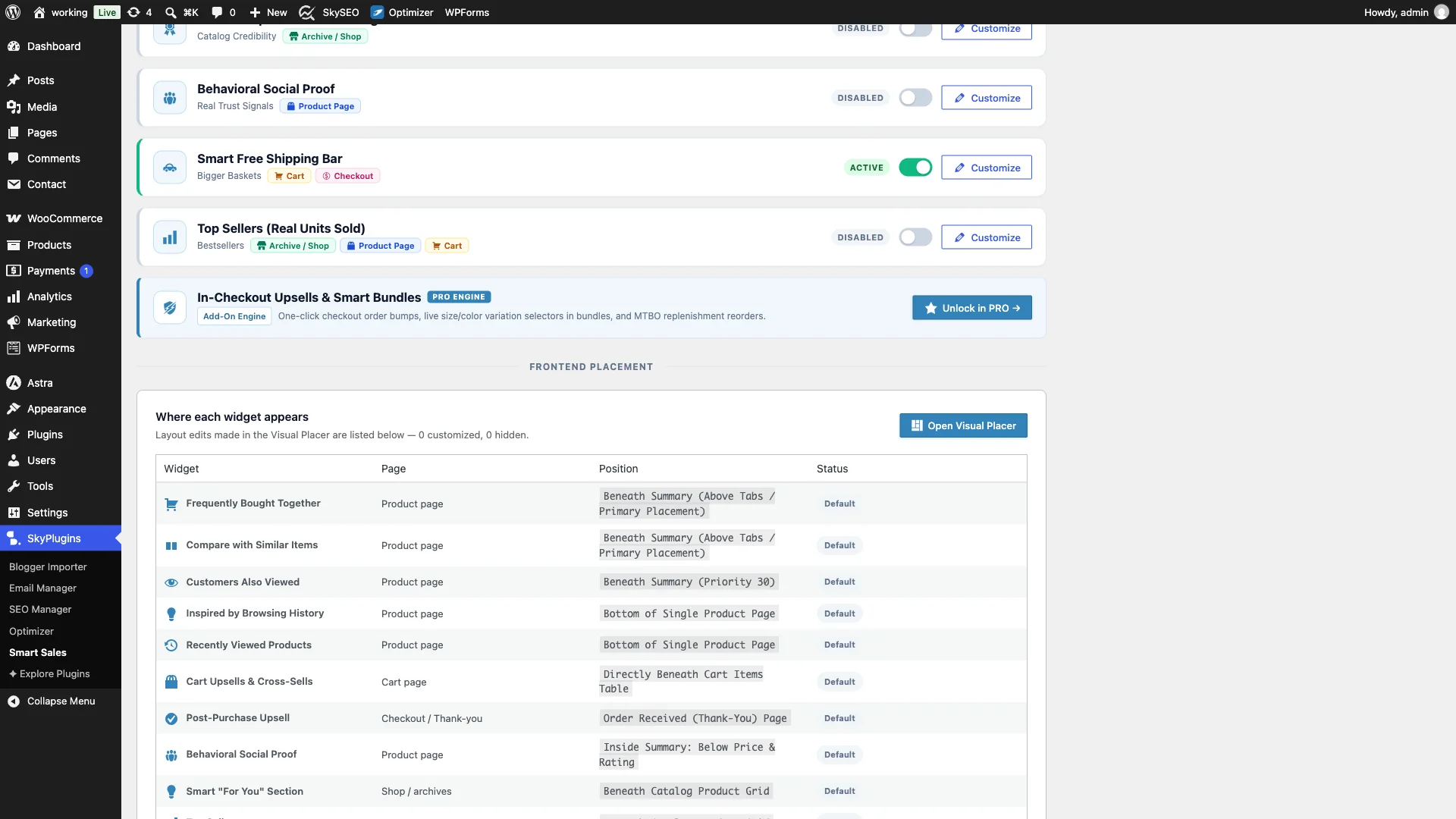
Przewiń w dół do Smart Free Shipping Bar module card. Toggle the switch to Aktywny. Smart Sales automatically initializes the non-blocking frontend hooks for your cart, slide-out mini-cart, and checkout pages.
Step 2: Customize Progress Bar Messaging, Colors & Brand Styling
Consistency is critical for consumer trust. Your shipping progress bar should seamlessly integrate with your store’s palette. Click on the Dostosuj tab inside Smart Sales.
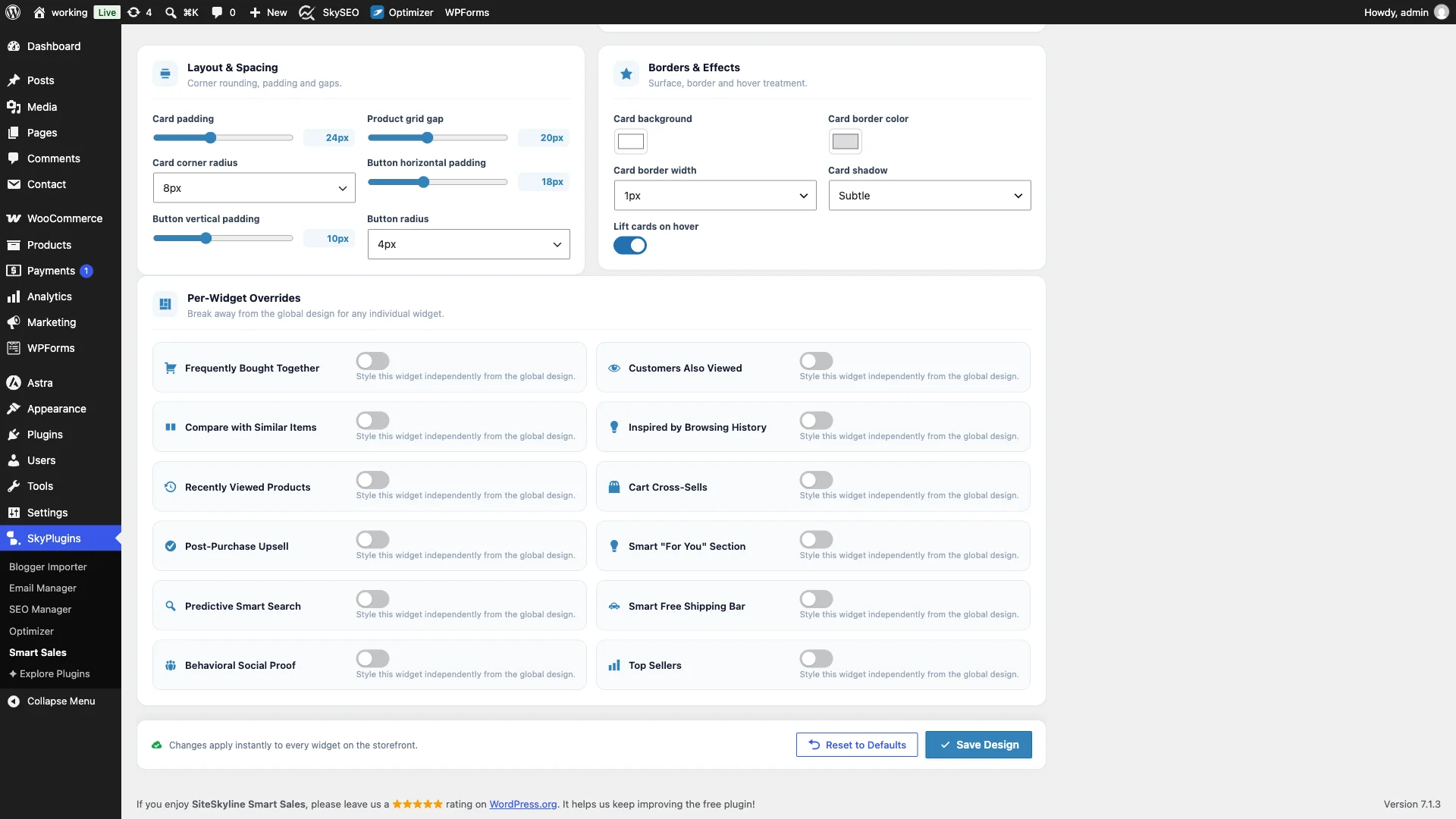
Pod Per-Widget Overrides, open the Smart Free Shipping Bar panel. Here you can configure:
- Dynamic Progress Message: Skorzystaj z
%splaceholder to dynamically display the remaining balance (e.g., Add %s more to unlock FREE shipping). - Celebratory Unlocked Message: Set your congratulatory confirmation (e.g., Congrats! You unlocked FREE shipping).
- Track & Fill Palette: Choose subtle background tracks and vibrant fill gradients (like emerald green or royal blue) that draw the eye without disrupting readability.
- Zero Layout Shift: All styling compiles to minimal inline CSS, ensuring a perfect 100 PageSpeed score on Google Core Web Vitals.
Step 3: Configure WooCommerce Free Shipping Threshold & Auto Zone Detection
One of the biggest advantages of SiteSkyline Smart Sales is its seamless native integration. Instead of forcing you to re-enter shipping numbers across multiple configuration screens, Smart Sales automatically scans and syncs with your native WooCommerce Shipping Zones.

Przejdź do WooCommerce → Settings → Shipping → Shipping Zones. Click on your primary shipping zone (or Rest of the World), and click Edit on your Darmowa wysyłka method. In the modal:
- Ustawić Free shipping requires Do A minimum order amount.
- Enter your desired spend threshold, such as
75.00. - Trzask Zapisz zmiany. Smart Sales immediately detects this threshold and syncs your progress calculations.
Step 4: Live Cart Frontend Preview with Active Gap & Smart Product Upsell
Now let us see what shoppers experience on the front end. Navigate to your WooCommerce storefront, add an item below the threshold to your cart (for example, an $18 Beanie with Logo), and visit your Cart page.

Directly above the cart table, the Smart Free Shipping Bar calculates that the shopper is $57.00 away from free shipping. Rather than leaving the shopper hanging, Smart Sales displays a dedicated “Smart pick to reach free shipping” card featuring an in-stock, complementary $16.00 Cap with an unmistakable Dodać przycisk.
Step 5: Interactive 1-Click Gap-Filling Upsell Addition
When the customer clicks the Dodać button on the suggested product, Smart Sales executes an instant asynchronous cart addition without forcing a cumbersome page redirect.
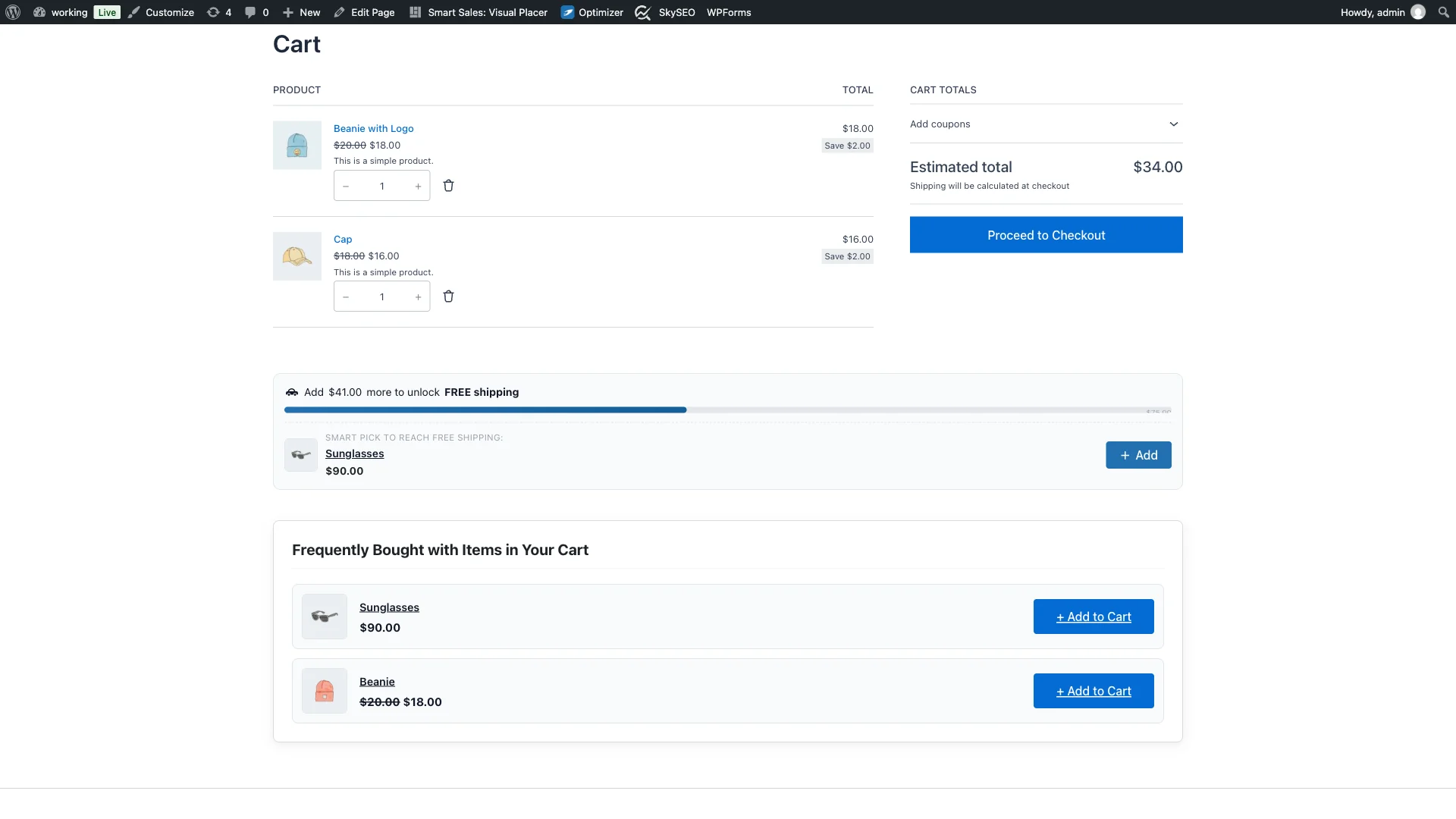
The cart table immediately reflects the newly added item. The shipping progress bar advances in real time from 24% to nearly 45%, reducing the remaining gap to $41.00. Smart Sales then dynamically refreshes the suggestion slot to surface the next best accessory to cross the remaining finish line.
Step 6: Free Shipping Unlocked Celebratory State
Once the shopper’s cart meets or exceeds your $75.00 threshold, the shipping bar instantly transitions into its celebratory unlocked state.

A reassuring green checkmark and custom message (“Congrats! You unlocked FREE shipping.”) validate the customer’s effort. The shipping line item in the cart totals automatically drops to $0.00. The customer feels rewarded for spending more, and your store captures substantially higher order revenue.
Feature Comparison: Smart Sales vs. Traditional Free Shipping Bar Plugins
| Capability | SiteSkyline Smart Sales | Basic Shipping Bar Plugins | External SaaS Widgets |
|---|---|---|---|
| 100% Free & Open | Yes (No recurring fees) | Freemium ($29-$59/yr) | $19-$99/month |
| Automated Gap-Filling Upsells | Built-in Algorithmic Matching | Not available | Requires complex tier rules |
| 1-Click In-Bar Cart Addition | Included via AJAX | Not available | Delayed iframe popups |
| Native WooCommerce Zone Sync | Automatic real-time sync | Manual threshold entry only | API webhook sync required |
| Performance & Speed | <5KB scoped CSS / No jQuery | Bloated admin assets | Heavy third-party JS scripts |
| Customizer Brand Overrides | Visual live brand tuning | Limited color pickers | Brand watermark on free tiers |
Proven Strategies for Optimizing Free Shipping Thresholds
Setting your free shipping threshold too low reduces profit margins; setting it too high discourages shoppers from trying to reach it. Follow this formula to identify your optimal target:
- Calculate Your Current Median AOV: Review your last 90 days of order data in WooCommerce Analytics. Find your median order value (e.g., $55.00).
- Apply the +20% to +35% Sweet Spot: Set your free shipping threshold 20% to 35% higher than your median order value. If your median order is $55, setting your threshold to $75 creates a realistic, achievable target that requires adding just one or two complementary accessories.
- Curate High-Margin Low-Priced Fillers: Ensure your store has ample in-stock accessories priced between $12 and $25 (socks, care kits, beanies, stickers, warranty extensions). These act as the ultimate frictionless gap-fillers.
Często zadawane pytania (FAQ)
Does the Smart Free Shipping Bar work with WooCommerce block-based carts?
Yes. SiteSkyline Smart Sales fully supports both traditional WooCommerce shortcode cart pages and the latest Gutenberg WooCommerce Cart and Checkout blocks.
How does the plugin pick which product to suggest in the shipping bar?
The recommendation engine prioritizes in-stock items that have proven co-purchase affinity with items already in the cart, filtering for products priced reasonably below or near the remaining gap. If no direct affinity exists, it selects popular low-cost catalog accessories that comfortably close the gap.
Can I manually specify a threshold if I have complex shipping zones?
Yes. While Smart Sales auto-detects thresholds from WooCommerce shipping zones by default, you can override this setting with a manual fixed threshold in the Smart Sales settings panel whenever desired.
What happens if a coupon code lowers the cart subtotal below the threshold?
Smart Sales accurately calculates against the live discounted cart subtotal. If a promotional coupon reduces the cart below $75, the shipping bar dynamically reverts to the active gap state, informing the shopper of the exact amount needed to maintain free shipping.