Are you wondering how to verify your WordPress website with Google Search Console, Bing Webmaster Tools, and other search engines without writing code or editing dangerous theme files? Verifying domain ownership is the absolute first step toward monitoring your Google organic rankings, submitting XML sitemaps, diagnosing indexing errors, and securing your site against security threats.
In this beginner-friendly, step-by-step tutorial, we will show you how to verify your WordPress site with Google Search Console, Bing, Yandex, Pinterest, and custom webmaster services using Menedżer SEO Sky.
Why You Must Verify Your Site with Search Engine Webmaster Tools
Google Search Console and Bing Webmaster Tools are free services provided directly by search engines to help website owners monitor and optimize their organic search performance. Once verified, you unlock access to critical data and controls:
- Search Analytics & Keyword Rankings: Discover the exact queries people type into Google to find your content, including impressions, clicks, and average ranking positions.
- Instant Sitemap Indexing: Submit your XML sitemaps directly to search engine crawlers so new blog posts and updated product pages are indexed within hours instead of weeks.
- Technical Crawl & Coverage Reports: Receive instant alerts if Googlebot encounters 404 errors, server timeouts, redirect loops, or mobile responsiveness issues.
- Security & Manual Penalty Notifications: Get immediate warnings if your website gets infected with malware or receives an algorithmic or manual search penalty.
While search engines offer several verification methods (such as uploading an HTML file via FTP or editing DNS TXT records with your domain registrar), adding an HTML meta tag via an SEO plugin is the safest and most reliable approach. Unlike editing your theme’s header.php file—which gets completely erased when your theme updates—Sky SEO Manager preserves your verification tags permanently in your database.
Step 1: Open the Webmaster Tools Verification Dashboard
To access the verification hub, navigate to SkyPlugins » SEO Manager from your WordPress admin dashboard and click on the Webmaster Tools patka.
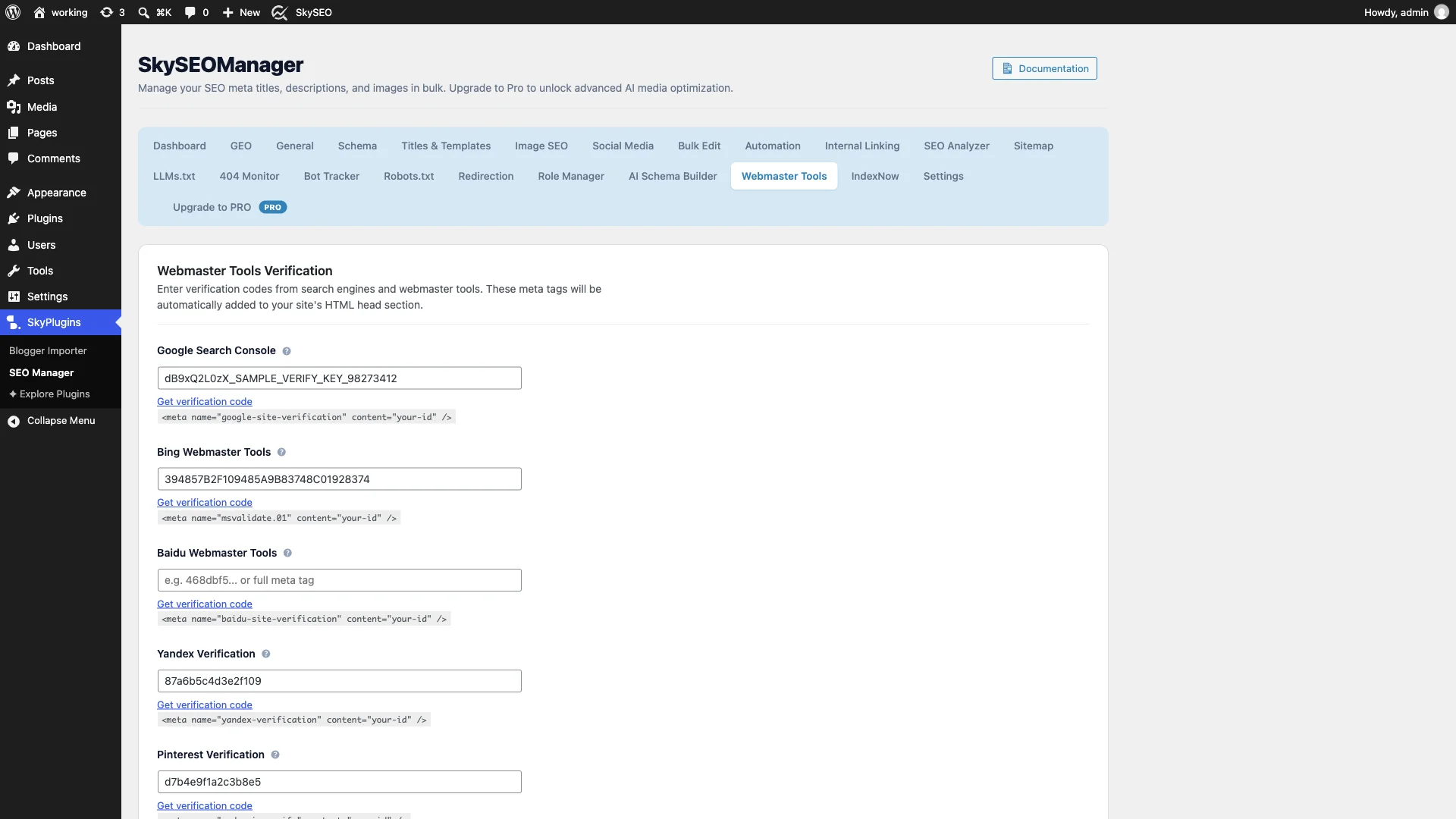
This module provides dedicated, secure input fields for all major search engines and social platforms, along with direct helper links to each provider’s verification console.
Step 2: Add Your Google Search Console Verification Code
If you haven’t added your website to Google Search Console yet, go to Konsola wyszukiwania Google and log in with your Google account. Enter your website URL under the URL prefix option and click Continue.
Under the “Other verification methods” dropdown, select HTML tag. Google will display a meta tag formatted like this:
<meta name="google-site-verification" content="dB9xQ2L0zX_SAMPLE_VERIFY_KEY_98273412" />Copy either the full meta tag or just the unique string value inside the content="" quotes, then paste it directly into the Konsola wyszukiwania Google field in Sky SEO Manager.
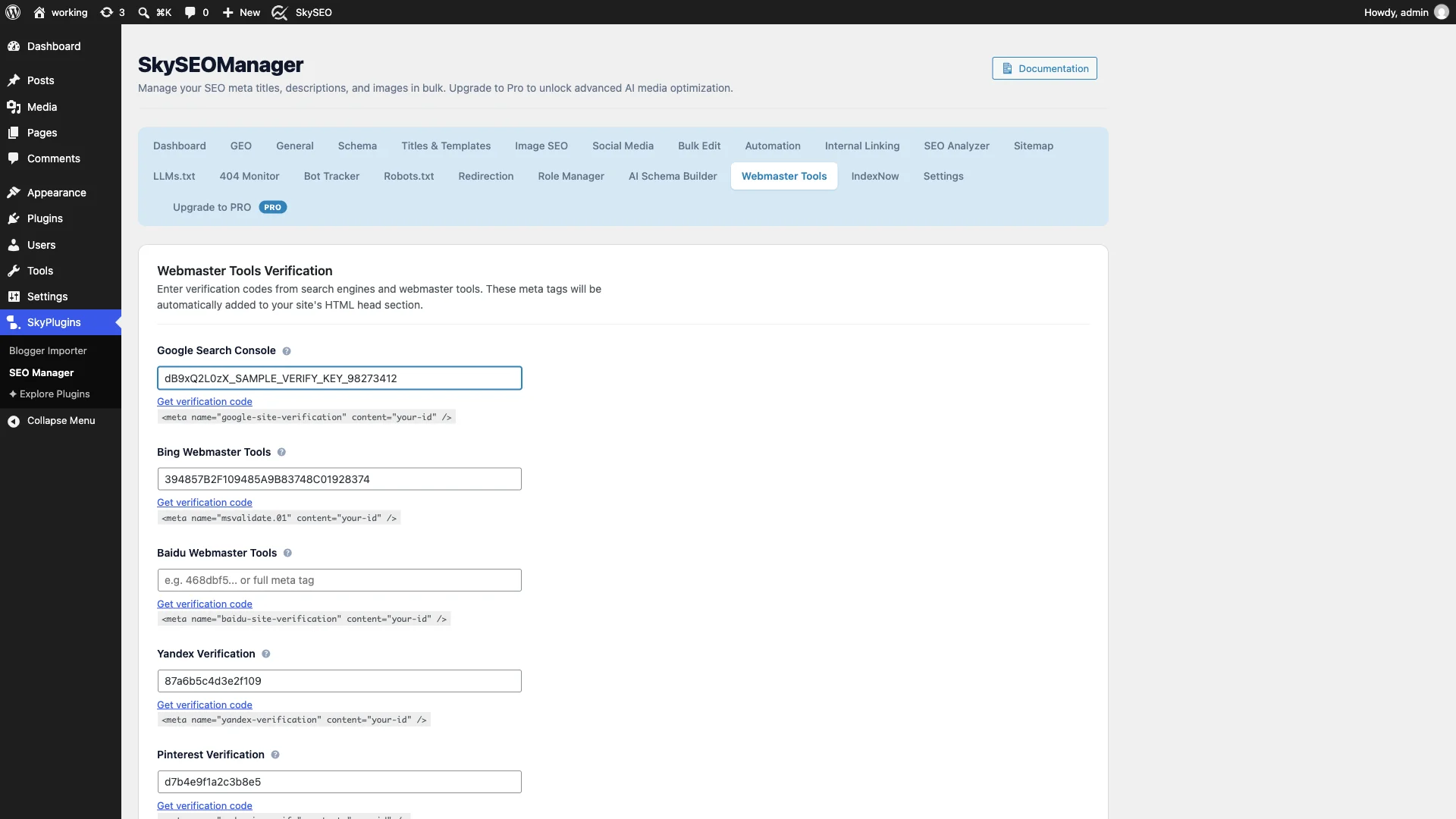
Sky SEO Manager’s smart parser automatically sanitizes your input, ensuring no formatting errors or broken HTML quotes are injected into your site’s header.
Step 3: Add Bing Webmaster Tools & Yandex Verification
Bing powers search results across Bing, Yahoo, and DuckDuckGo, making it an essential source of organic traffic. Similarly, Yandex is the leading search engine across Eastern Europe.
In your Bing Webmaster Tools account, choose the HTML meta tag verification method and copy your unique msvalidate.01 key. In your Yandex Webmaster account, grab your yandex-verification code.
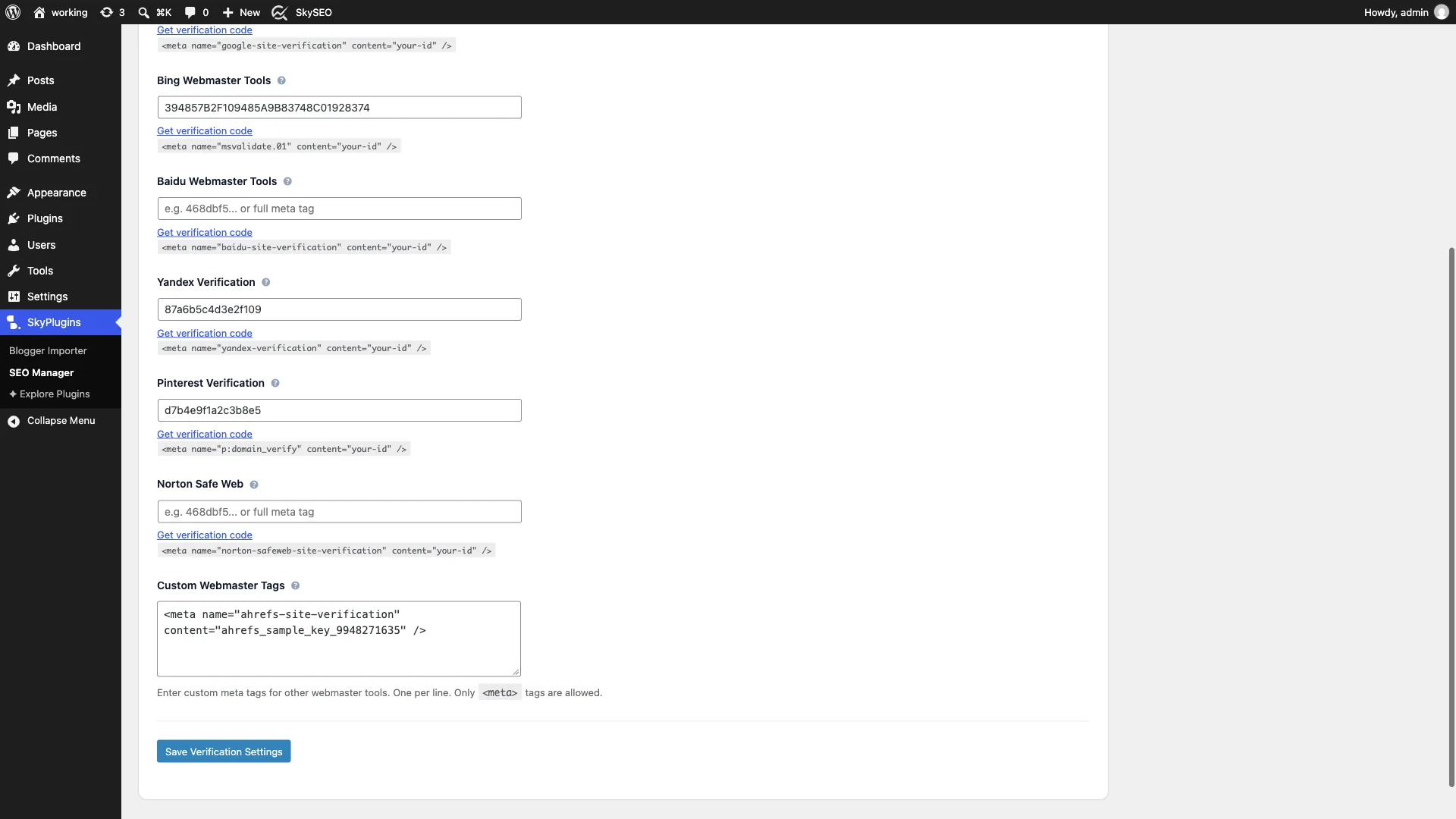
Paste both values into their respective fields in Sky SEO Manager. The plugin will map each key to its standardized HTML attribute automatically.
Step 4: Claim Your Site on Pinterest & Norton Safe Web
If you run an eCommerce shop, recipe blog, or lifestyle brand, claiming your website on Pinterest unlocks Pinterest Analytics, enables rich pins, and links your official profile picture to every pin saved from your domain.
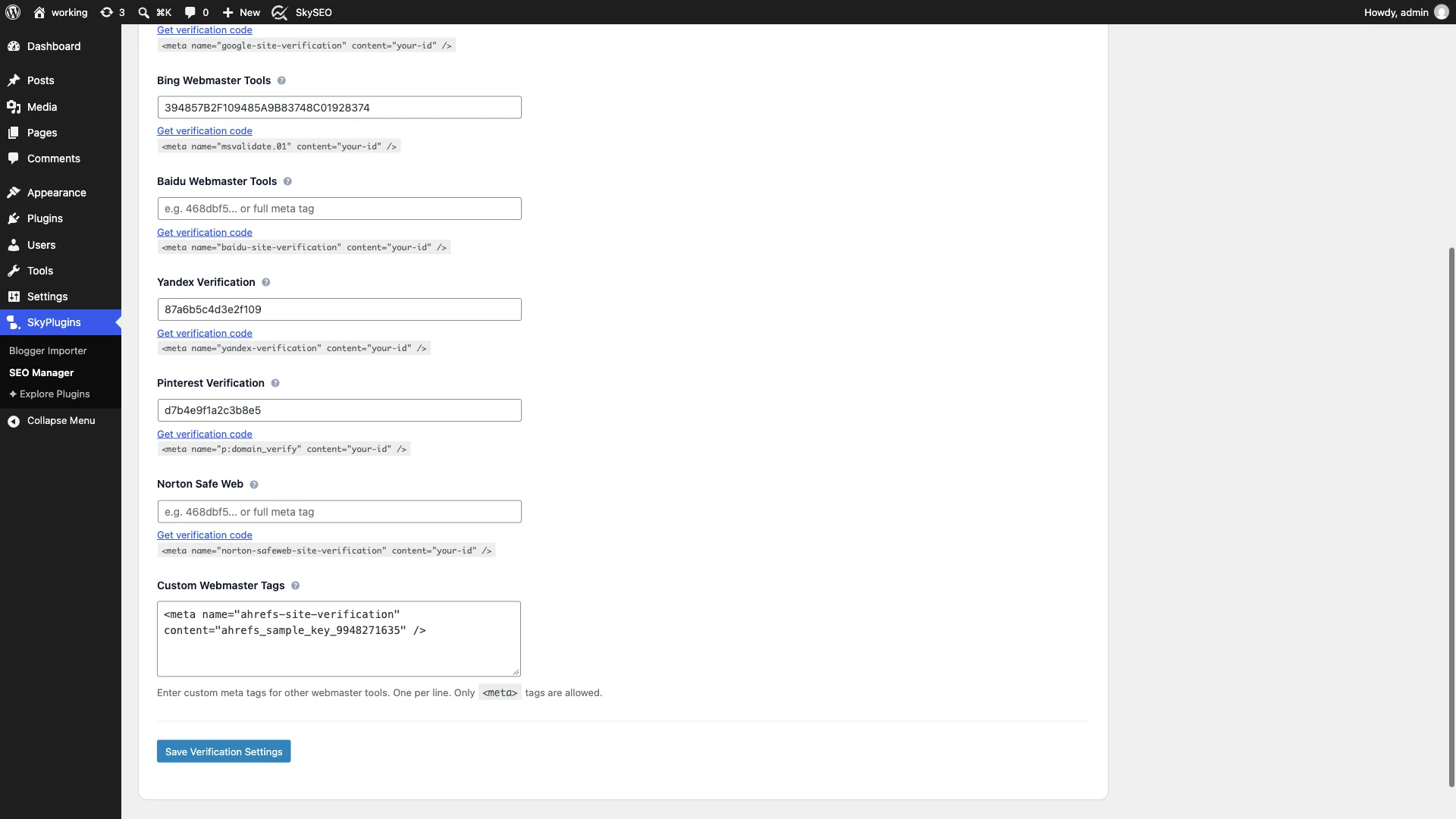
Additionally, verifying with Norton Safe Web allows Symantec to evaluate your website for safety, preventing false-positive security warnings in Norton antivirus browser extensions.
Step 5: Add Custom Webmaster Tags & Save Changes
What if you need to verify your website with SEO platforms like Ahrefs Webmaster Tools, Semrush, or regional search engines like Naver or Seznam?
Sky SEO Manager includes a dedicated Custom Webmaster Tags field. Simply paste any valid <meta> verification tag into the box (one tag per line).
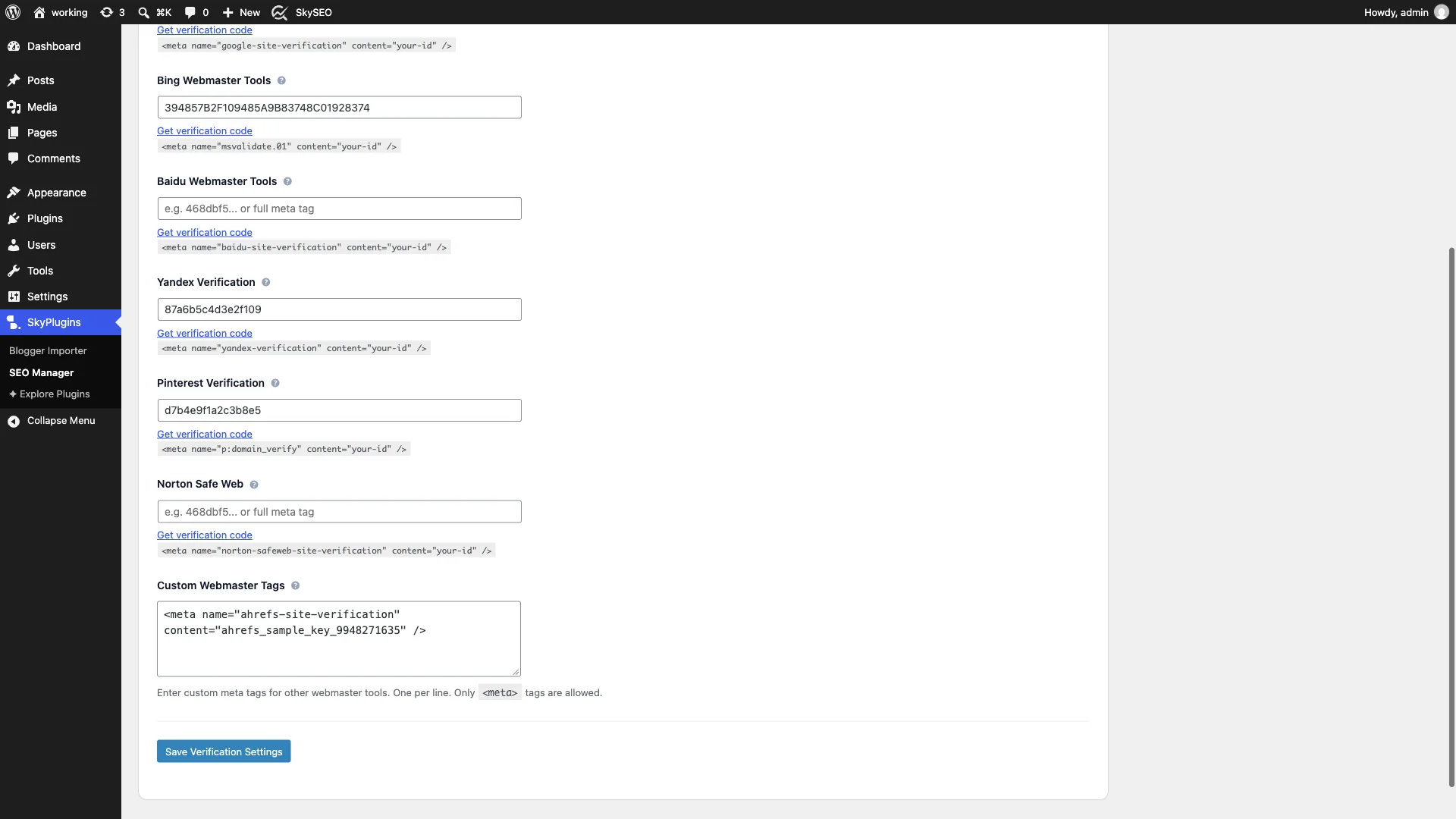
Once all verification codes are entered, click the blue Save Verification Settings button at the bottom of the page.
Step 6: Confirm Ownership in Your Search Consoles
Sky SEO Manager immediately injects your verification meta tags into your WordPress homepage HTML <head> section. If you view your page source, you will see your clean verification tags ready for crawler validation:
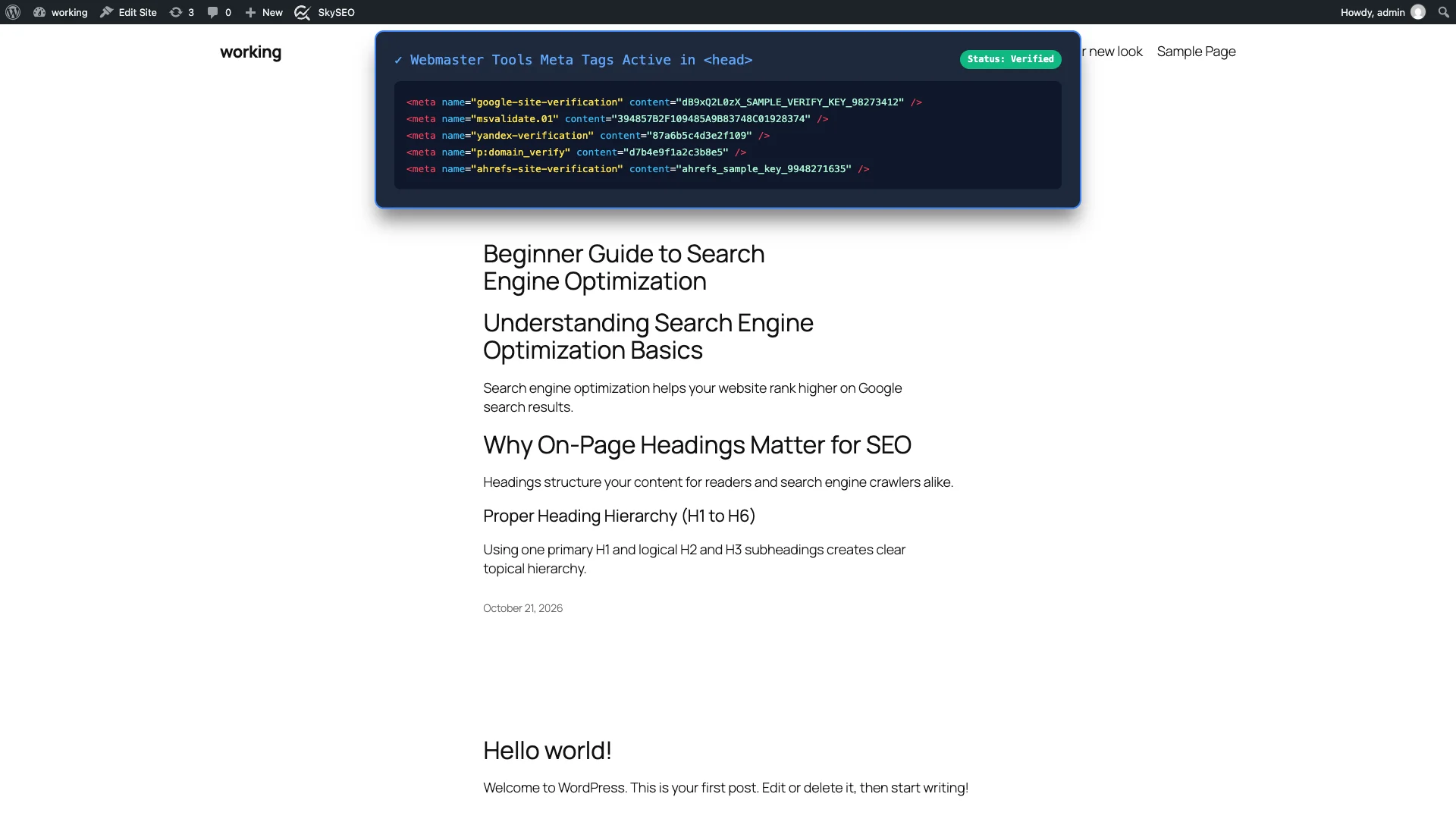
Now return to your Google Search Console, Bing Webmaster Tools, and Pinterest tabs and click the Verify button. The search consoles will instantly locate the tags and confirm ownership with a success banner!
WordPress Verification Methods Compared
Here is how the Sky SEO Manager meta tag approach compares to other common verification methods:
| Verification Method | Łatwość konfiguracji | Permanence | Risk Level |
|---|---|---|---|
| Sky SEO Manager Meta Tag | Very Easy (Copy & Paste in WP Admin) | Permanent (Safe across theme updates & backups) | Zero Risk (No server files edited) |
| Editing theme header.php | Moderate (Requires code snippet) | Poor (Overwritten on next theme update) | Wysoki (Syntax error breaks entire site) |
| HTML File via FTP | Moderate (Requires FTP / cPanel access) | Moderate (Often lost during migrations) | Niski (Static file in root) |
| DNS TXT Record | Hard (Requires domain registrar DNS edit) | Permanent (Stored in DNS zone file) | Umiarkowany (DNS mistakes cause site downtime) |
| Google Analytics Link | Easy (Requires same Google account) | Fragile (Breaks if tracking script changes) | Niski |
Frequently Asked Questions (FAQs)
Will I lose my search console verification if I update my WordPress theme?
No. When you use Sky SEO Manager, your verification codes are stored in your WordPress database and hooked into wp_head dynamically. You can switch themes, install major theme updates, or redesign your frontend without losing your verification status.
Should I delete the verification meta tag after Google confirms my site?
No, you must keep the verification tag active permanently. Google, Bing, and other search engines perform periodic verification checks. If you remove the meta tag, your search console access will be revoked.
What should I do immediately after verifying Google Search Console?
Immediately after verifying your domain, submit your XML sitemap URL (e.g., https://yourdomain.com/sitemap.xml) under the Mapy witryn tab in Google Search Console. To learn how to configure your sitemaps, read our guide on How to Create and Submit XML Sitemaps with Instant IndexNow.
Final Thoughts & Next Steps
Connecting your WordPress website to Google Search Console and Bing Webmaster Tools is essential for organic growth. With Sky SEO Manager, the verification process takes less than two minutes, giving you full access to search performance data and rapid indexing.
To take full control of your search engine optimization, explore our other technical SEO tutorials: