


















A “404 Page Not Found” error frustrates visitors.
It also hurts your website’s performance.
If you run a WordPress site, you know the problem.
Broken links. Deleted pages. Changed URL slugs.
Managing these issues manually is a nightmare.
In the past, you had to:
- Sift through spreadsheets
- Search analytics logs
- Create redirects one by one
That took hours.
But SEO and website management have changed.
We are now in the age of Artificial Intelligence (AI).
Using AI models like Google’s Gemini, you can automate the entire process.
The AI identifies 404 errors.
Then it maps each broken URL to the most relevant active page on your site.
This guide walks you through every step.
You will learn:
- Why 404 errors hurt your SEO
- How AI changes the redirection process
- How to fix 404s using Sky SEO Manager and the Gemini API
Let us begin.
Part 1: Understanding the 404 Error Epidemic
Before we fix 404 errors, we need to understand them.
What Is a 404 Error?
A 404 error is an HTTP status code.
It means: the browser reached the server, but the server could not find the requested page.
In plain English:
The user clicked a link or typed a URL, but your website has nothing to show at that address.
Common Causes of 404 Errors in WordPress
WordPress is dynamic. URLs can change often.
Common causes include:
- Changed permalinks – You updated a post’s URL slug to make it more SEO‑friendly, but you forgot to set up a redirect.
- Deleted content – You removed an old post, product page, or category without redirecting the old URL.
- Typographical errors – Another site linked to you but made a typo in the URL (e.g.,
yourdomain.com/artcileinstead ofyourdomain.com/article). - Site migrations – You moved your site to a new domain or restructured your categories. Old URL paths broke.
The True Cost of 404 Errors
Ignoring 404 errors damages your site in two ways.
1. User experience (UX) destruction
A visitor clicks a link hoping to find something specific.
Instead, they see a dead end.
Their immediate reaction is to hit the back button.
This increases your bounce rate.
A bad UX destroys brand trust.
That leads to lost conversions and revenue.
2. SEO and crawl budget wasted
Google sends bots to crawl your site.
Every site has a “crawl budget” – a limited number of pages Googlebot will crawl in a given time.
If Googlebot spends that budget on 404 dead ends, it does not crawl your new, valuable content.
Also, if high‑authority external sites link to a 404 page on your site, you lose all that “link juice” (PageRank).
The link points to a black hole instead of an active page.
Part 2: The Evolution of Redirects – Manual vs. AI
To understand why AI is better, look at the old way.
The Traditional Manual Method
In the past, fixing 404s required a painful workflow.
- Log gathering – Export lists of 404 errors from Google Search Console, server logs, or basic plugins.
- Manual triage – Go through hundreds or thousands of broken URLs in a spreadsheet.
- The guessing game – Manually search your live site to find the closest match for each broken URL.
- Manual data entry – Create individual 301 redirects line by line.
This method is:
- Time‑consuming
- Prone to human error
- Impossible to scale for large e‑commerce sites or big blogs
The AI Revolution in SEO
Artificial Intelligence changes everything.
It replaces manual labor with automated intelligence.
Large Language Models (LLMs) like Google’s Gemini excel at natural language processing.
They understand semantics.
Example:
An old broken URL is /vintage-red-running-shoes-2021.
The AI does not look for exact keyword matches.
It understands the intent and context.
It scans your current site.
It finds the best active page: /mens-running-shoes/retro-red.
With AI integrated into your WordPress dashboard,
days of manual SEO maintenance become a few clicks.
Part 3: Step‑by‑Step Guide to Fixing WordPress 404s Using AI
We will use a modern SEO plugin – Sky SEO Manager – integrated with Gemini AI.
Follow these steps carefully.
Step 1: Install Sky SEO Manager (or a Similar Plugin)
You need the right infrastructure on your WordPress site.
- Log in to your WordPress admin dashboard.
- Go to Plugins > Add New.
- Search for Sky SEO Manager (or your chosen AI‑powered redirect plugin).
- Click Install Now, then Activate.
- Complete the basic onboarding wizard.
Step 2: Acquire and Add Your Gemini API Key
The plugin needs to talk to Google’s Gemini AI.
For that, you need an API key.
This key is a secure bridge between your WordPress site and Google’s AI servers.
How to get your Gemini API key:
- Open a new browser tab and go to Google AI Studio (aistudio.google.com).
- Sign in with your Google account.
- In the left menu, click Get API key.
- Click Create API key in new project (or select an existing project).
- A pop‑up will show a long string of letters and numbers. This is your API key.
- Copy it to your clipboard.
Security note: Treat this key like a password. Do not share it publicly.
Add the key to WordPress:
- Go back to your WordPress dashboard.
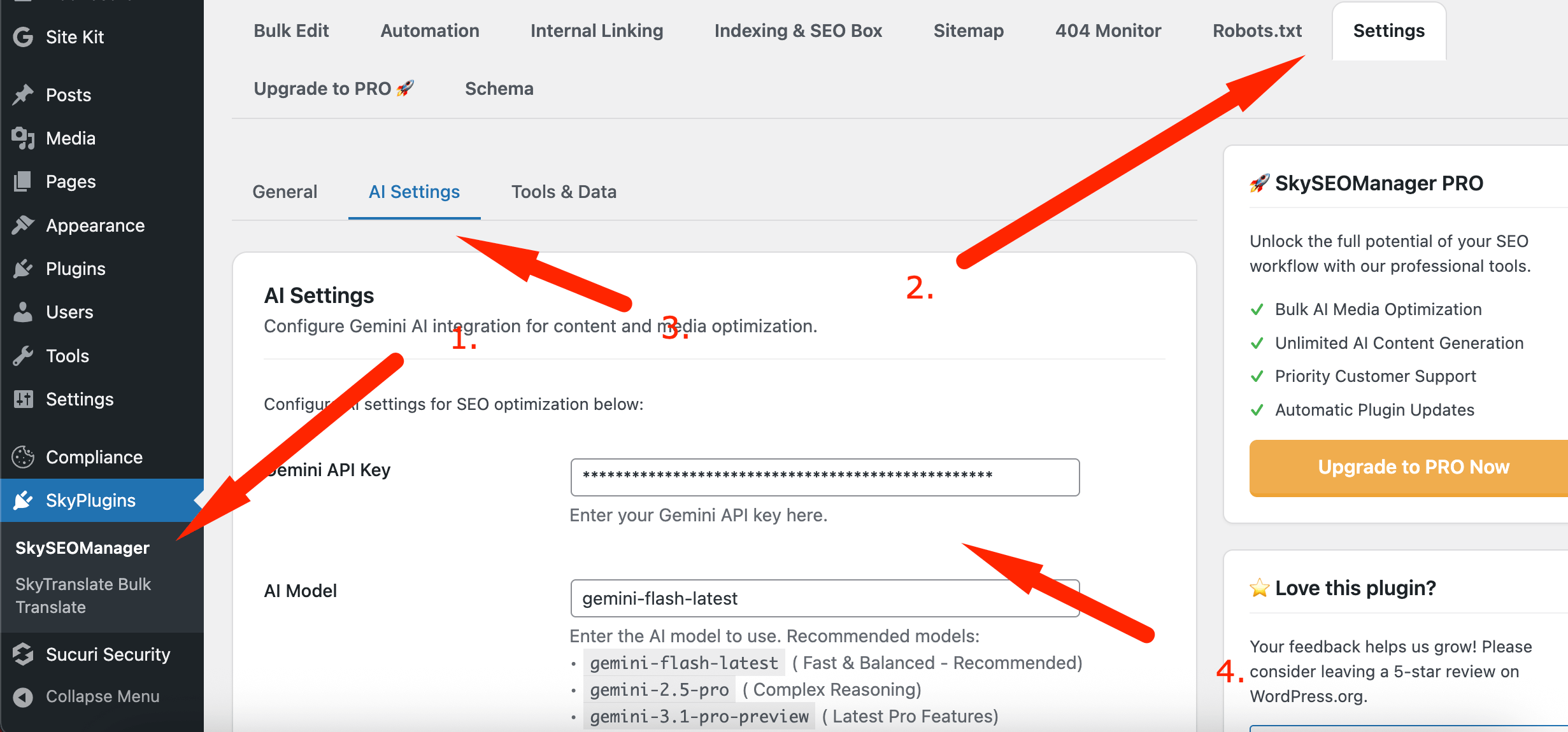
- Navigate to the plugin’s AI settings (usually Sky SEO Manager > AI Settings > Gemini API Key ).
- Paste your API key into the field.
- Click Save Changes.
Your website is now powered by Gemini AI.
Step 3: Access the 404 Monitor Dashboard
Now go to the tool that handles broken links.
- In your WordPress left sidebar, click Dashboard.
- Click Sky SEO Manager to open the plugin’s main interface.
- Navigate to the 404 Monitor tab.
This is your command center for tracking dead links.
Step 4: Enable 404 Monitoring and Gather Logs
An AI needs data. Before it can suggest fixes, it needs to know which URLs are broken.
- Inside the 404 Monitor tab, look for settings.
- Turn on the toggle or checkbox for 404 Monitoring Enabled.
- Save your settings.

The waiting period:
If you just installed the plugin, the log will be empty.
You need to wait for visitors and search bots to hit dead ends.
Depending on your traffic, this may take a few hours to a few weeks.
Pro tip: To speed this up, run a site crawl using a tool like Screaming Frog SEO Spider. This forces 404 logs to appear.
Step 5: Generate AI Suggestions
Once you have a healthy list of 404 logs, let Gemini AI work.
- Open the 404 Monitor tab in Sky SEO Manager. You will see a list of broken URLs.
- Click the button labeled Find AI Suggestions .
- Wait for the AI analysis.

What happens during analysis:
The plugin sends the list of 404 URLs to the Gemini API.
The AI analyzes the text structure, keywords, and context of each broken slug.
Then it compares this data against your live WordPress database (posts, pages, products).
The AI finds the most logical, relevant destination for each broken link.
Step 6: Review and Apply All Suggestions
After a few seconds, the AI populates a list of suggested redirects.
- On the left: the original broken URL
- On the right: the AI’s suggested active URL
Review the matches. You will be surprised by the accuracy.
Even dramatically changed URLs usually point to the correct new article or category.
Instead of creating redirects one by one, look for the Apply All Suggestions button.
Click it.
Done! In seconds, the plugin creates proper 301 (Permanent) Redirects for all those URLs.
Now when a user or search bot clicks an old dead link, the server instantly routes them to the relevant active page.
Part 4: Best Practices for Ongoing 404 Management
Fixing your current backlog of 404 errors is a big win.
But website maintenance is ongoing.
To keep your site healthy and your SEO climbing, adopt proactive link management.
Understand the Difference Between 301, 302, and 410 Redirects
Most AI tools use 301 (Permanent Redirect) by default.
This is the gold standard for SEO.
It tells Google: “This page moved permanently. Transfer all ranking power to the new page.”
Other statuses you should know:
- 302 (Temporary Redirect) – Use this only for maintenance or A/B testing. It does not pass full SEO value.
- 410 (Content Deleted) – Some pages have no relevant replacement. Instead of redirecting to a generic homepage (a bad UX), serve a 410. This tells Google the page is gone forever and should be removed from the index.
Do Not Redirect Everything to the Homepage
The “lazy redirect” is a common SEO mistake.
You point every single 404 error to your domain’s root homepage.
Search engines classify these as Soft 404s.
This frustrates users who were looking for specific information.
It also dilutes the relevance of your homepage.
The AI integration avoids this by finding the most relevant sub‑page or category.
This preserves the semantic value of the original link.
Make a Habit of Checking Your AI Logs
Even with automated AI tools, do not “set it and forget it.”
Schedule a monthly check‑in:
Set a calendar reminder once a month.
Log into your WordPress dashboard.
Go to Sky SEO Manager > 404 Monitor.
Click Find AI Suggestions for the latest batch of dead links.
Audit major site changes:
If you perform a big content audit, delete many old posts, or change your permalink structure, trigger the AI tool immediately after the updates go live.
Prevent 404s Before They Happen
The best way to handle 404s is to avoid creating them in the first place.
- Finalize slugs early – When writing a new post, make the URL slug short, keyword‑rich, and final before publishing. Avoid changing it later.
- Use evergreen URLs – Do not put dates or years in your URLs. Use
/best-running-shoesinstead of/best-running-shoes-2023. This lets you update the content yearly without changing the URL and breaking links.
FAQs
How do I fix 404 errors in WordPress using AI?
Does a 404 error hurt SEO?
What is the difference between 301 and 302 redirects?
How do I find all 404 errors on my WordPress site?
Can I redirect all 404 errors to my homepage?
How long does it take Google to update 404 errors after fixing?
What causes 404 errors in WordPress?
How does AI improve 404 redirect mapping?
Should I use 410 or 404 for deleted pages?
How do I prevent 404 errors in the future?
Conclusion
Managing a WordPress site comes with many technical challenges.
But fixing 404 errors no longer needs to be one of them.
By connecting your CMS with advanced AI like Google’s Gemini, you can eliminate hours of tedious spreadsheet work and guesswork.
Follow the steps in this guide:
- Install an AI‑integrated tool like Sky SEO Manager.
- Get your Gemini API key.
- Enable 404 monitoring.
- Generate and apply AI suggestions.
You will:
- Preserve your search engine rankings
- Ensure maximum crawl efficiency for Googlebot
- Provide a seamless, frustration‑free experience for your visitors
Embrace the power of AI. Automate your workflow.
Watch your website’s health and performance thrive.