Is your WordPress website taking more than 2 seconds to load? Studies show that a 1-second delay in page load time reduces customer satisfaction by 16%, cuts page views by 11%, and drastically drops your conversion rates. Even worse, Google penalizes slow websites in mobile search rankings under their Core Web Vitals initiative.
While many speed optimization plugins exist, most are overwhelmingly complex or break your site’s layout the moment you turn on minification or script deferral. Finding the right balance between aggressive speed optimizations and theme stability has always been a painful trial-and-error process.
That is where SOptimizer (SiteSkyline Optimizer) comes in. Built with a safety-first architecture, SOptimizer lets you accelerate page load times, convert images to WebP, defer JavaScript, and eliminate render-blocking CSS without risking a broken frontend.
In this beginner-friendly tutorial, we will walk you through how to speed up your WordPress site using SOptimizer, from setting up safe optimization presets to passing Google Core Web Vitals.
Why Speed Optimization & Core Web Vitals Matter
Google evaluates website performance through three primary Core Web Vitals metrics:
- Largest Contentful Paint (LCP): Measures perceived loading speed. It marks when the main content (usually hero text or featured image) has loaded. Ideal time: under 2.5 seconds.
- Interaction to Next Paint (INP): Measures page responsiveness to user clicks, taps, or key presses. Ideal time: under 200 milliseconds.
- Cumulative Layout Shift (CLS): Measures visual stability and unexpected layout jumping while pages load. Ideal score: less than 0.1.
Comparison: Traditional Speed Plugins vs. SOptimizer
Here is how SOptimizer differs from traditional, heavy caching plugins:
| Recurso | Standard Speed Plugins (WP Rocket / W3TC) | SOptimizer (SiteSkyline Optimizer) |
|---|---|---|
| Setup Complexity | Dozens of confusing toggles that frequently break layouts | Zero-risk 1-click Safe Optimization baseline |
| Safety & Rollback | Manual troubleshooting when scripts break | Dedicated Dev Mode & Guests Only testing safeguards |
| Image Delivery | Requires paid third-party API quotas (ShortPixel/Imagify) | Built-in non-destructive WebP delivery directly from your server |
| CSS Optimization | External server-dependent Critical CSS generation | 100% in-browser, server-independent Critical CSS generator |
| WooCommerce Handling | Generic caching that often breaks cart fragments | Dedicated WooCommerce speed suite with selective asset unloading |
Step 1: Access the SOptimizer Performance Dashboard
After installing and activating the plugin, navigate to Optimizer in your WordPress admin menu. You will land directly on the primary Optimize workspace.
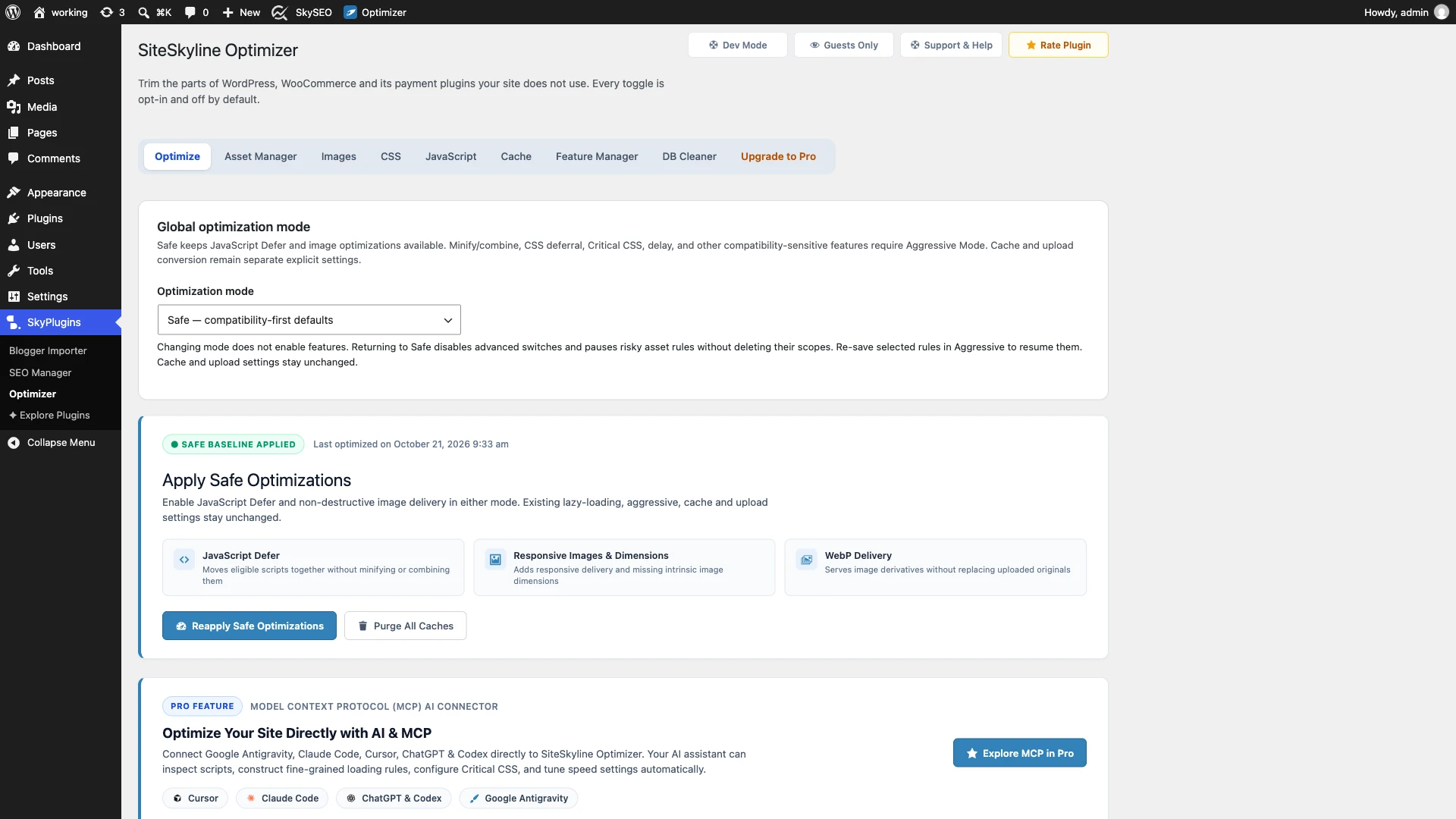
At the top of the interface, you will notice immediate navigation tabs covering every aspect of website performance: Gerente de Ativos, Imagens, CSS, JavaScript, Cache, Feature Manager, e DB Cleaner.
Step 2: Choose Safe Mode vs. Aggressive Mode
The core architectural advantage of SOptimizer is its separation between lower-risk speed improvements and compatibility-sensitive optimizations.
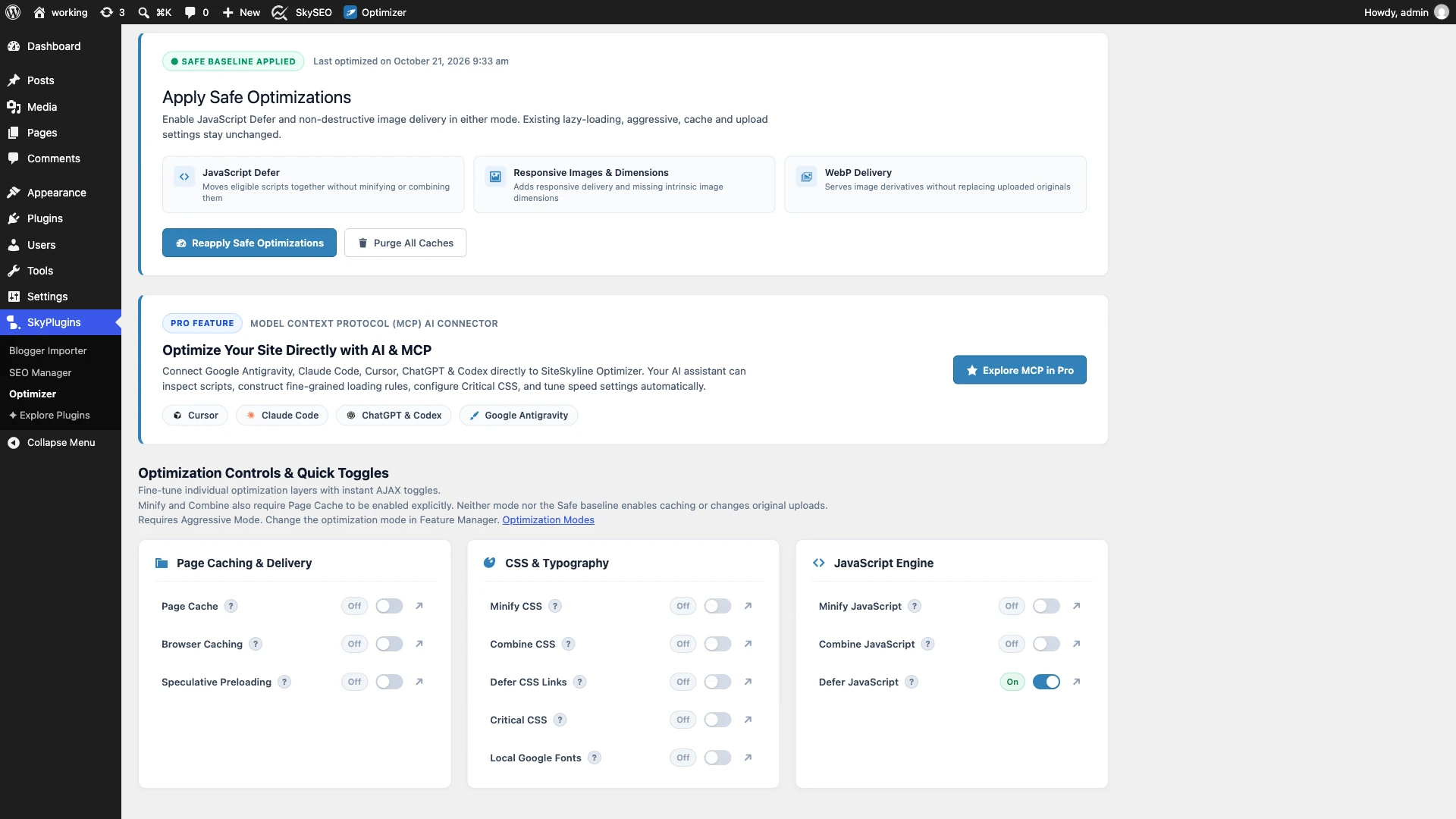
No Global optimization mode section, you can toggle between two modes:
- Safe Mode (Recommended for Beginners): Keeps essential speed enhancements like JavaScript Defer, responsive images, and non-destructive WebP delivery available while blocking risky features (like script combination or aggressive interaction delays) that could break interactive elements.
- Aggressive Mode: Unlocks advanced controls, including in-browser Critical CSS generation, JavaScript execution delay on user interaction, and per-page script unloader rules.
Important Note: Changing modes never enables features automatically. Settings remain strictly opt-in, ensuring your live site is never modified without your consent.
Step 3: Apply the 1-Click Safe Optimizations Baseline
If you want immediate speed gains without digging into dozens of complex settings, SOptimizer provides a 1-click preset called Apply Safe Optimizations.
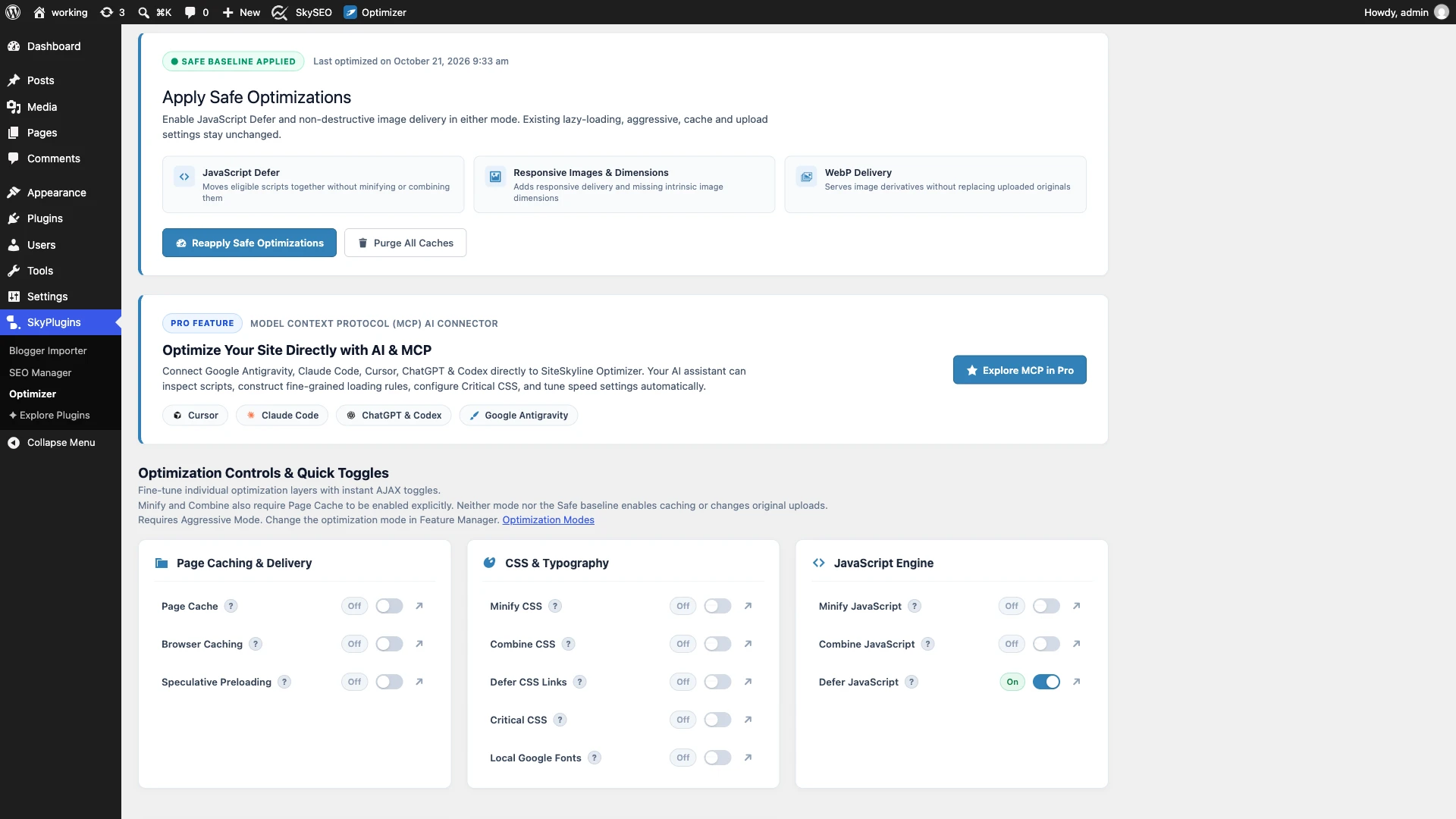
Clicking the blue Apply Safe Optimizations button activates three essential optimizations instantly:
- JavaScript Defer: Defers non-critical scripts to eliminate render-blocking resources, allowing your main content to render without waiting for JavaScript.
- Responsive Images & Intrinsic Dimensions: Automatically injects missing
widtheheightattributes into image tags, preventing sudden content jumping and eliminating Cumulative Layout Shift (CLS). - WebP Delivery: Dynamically serves lightweight next-generation WebP images to supported browsers while keeping your original JPEG and PNG uploads untouched.
A green ● SAFE BASELINE APPLIED badge confirms your site has been optimized safely.
Step 4: Explore Modular Controls & Quick Toggles
Below the global mode section, you will find modular performance engines categorized into focused optimization layers:
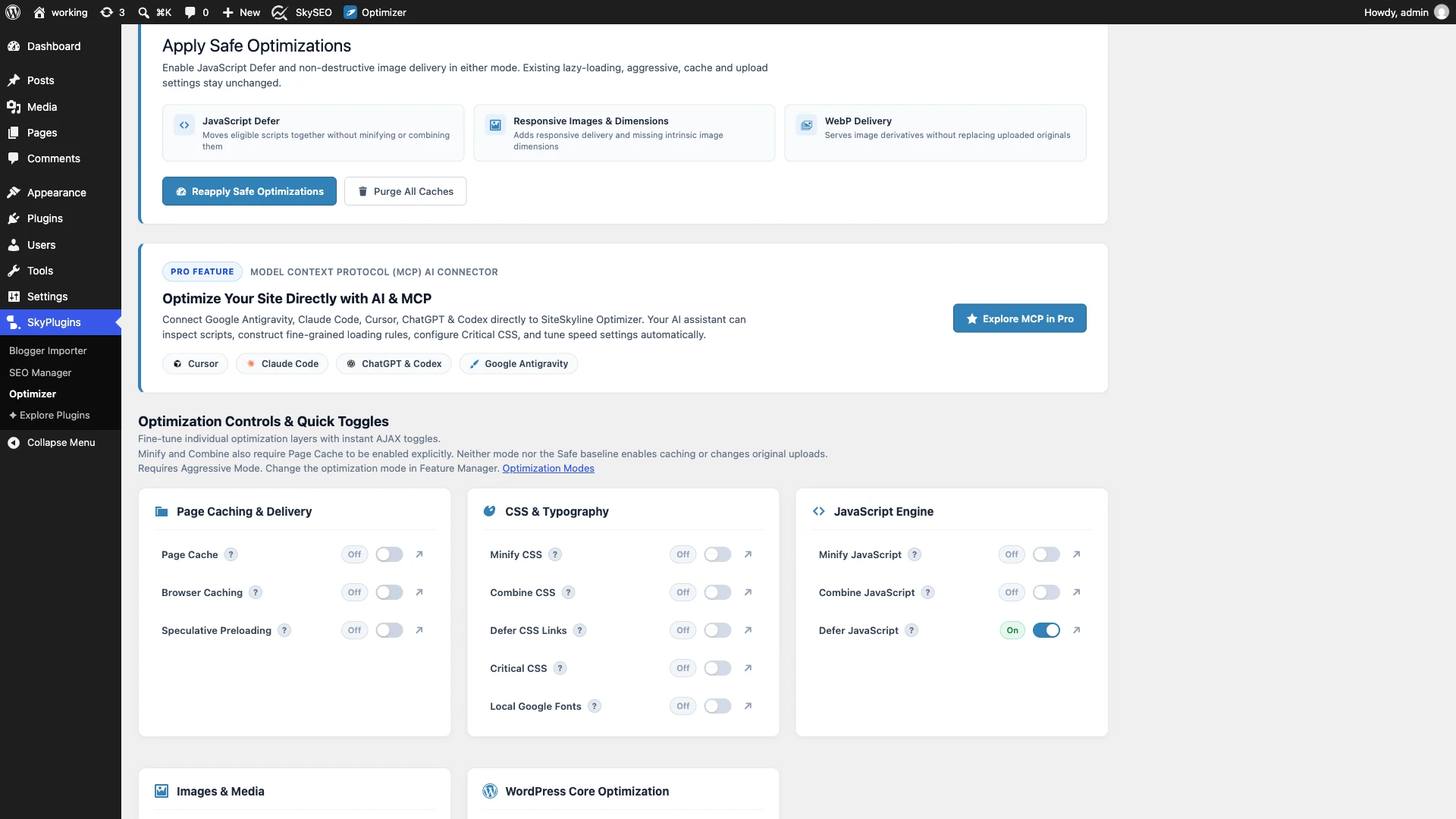
- Page Caching & Delivery: Generates static HTML copies of your posts and pages for instant server response times (TTFB).
- CSS & Typography: Generates above-the-fold Critical CSS and self-hosts Google Fonts locally for GDPR compliance.
- JavaScript Engine: Manages script execution delays and cleans up obsolete libraries like jQuery Migrate.
- Images & Media: Automates bulk library WebP conversion and adds
fetchpriority="high"to your largest contentful paint (LCP) hero images. - WordPress Core Optimization: Disables background bloat, such as WordPress emojis, oEmbed scripts, XML-RPC, and excessive Heartbeat API polling.
Step 5: Utilize Dev Mode and Guests Only Testing Safeguards
One of the most frustrating parts of optimizing a website is trying to debug issues while logged in as an administrator. SOptimizer includes built-in safeguards directly in the header:
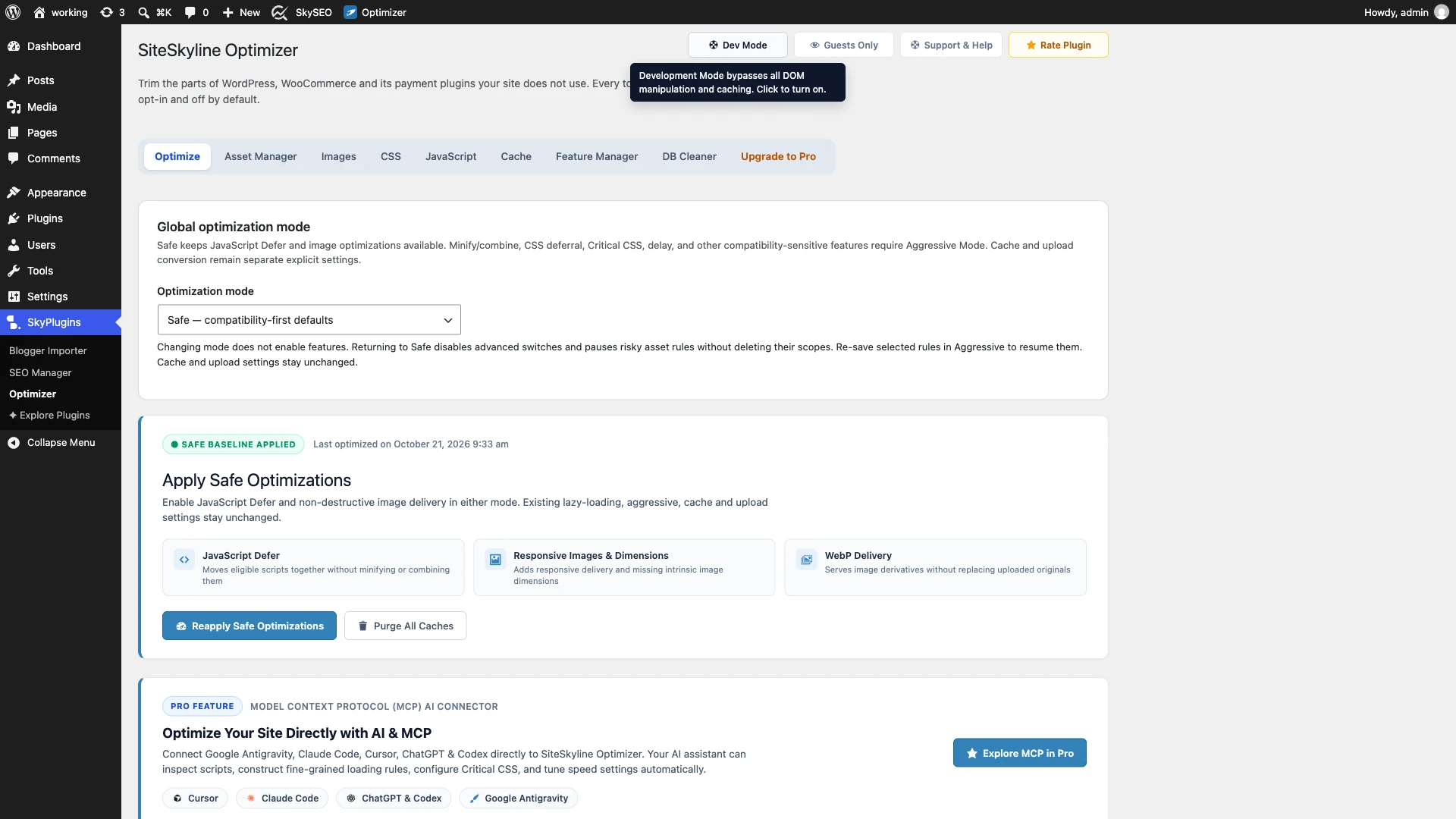
- Dev Mode: Clicking this button instantly bypasses all DOM manipulation, script deferral, and page caching. It is ideal when installing a new plugin or updating your theme, allowing you to isolate errors without disabling the entire plugin.
- Guests Only Mode: When active, optimizations are applied strictly to logged-out visitors. As a logged-in administrator, your visual page builders (Elementor, Divi, Block Editor) remain untouched and fast.
Step 6: Purge Caches & Benchmark Speed Gains
Whenever you make changes to your styling or publish new posts, click the Purge All Caches button located in the plugin header or the top WordPress admin bar.
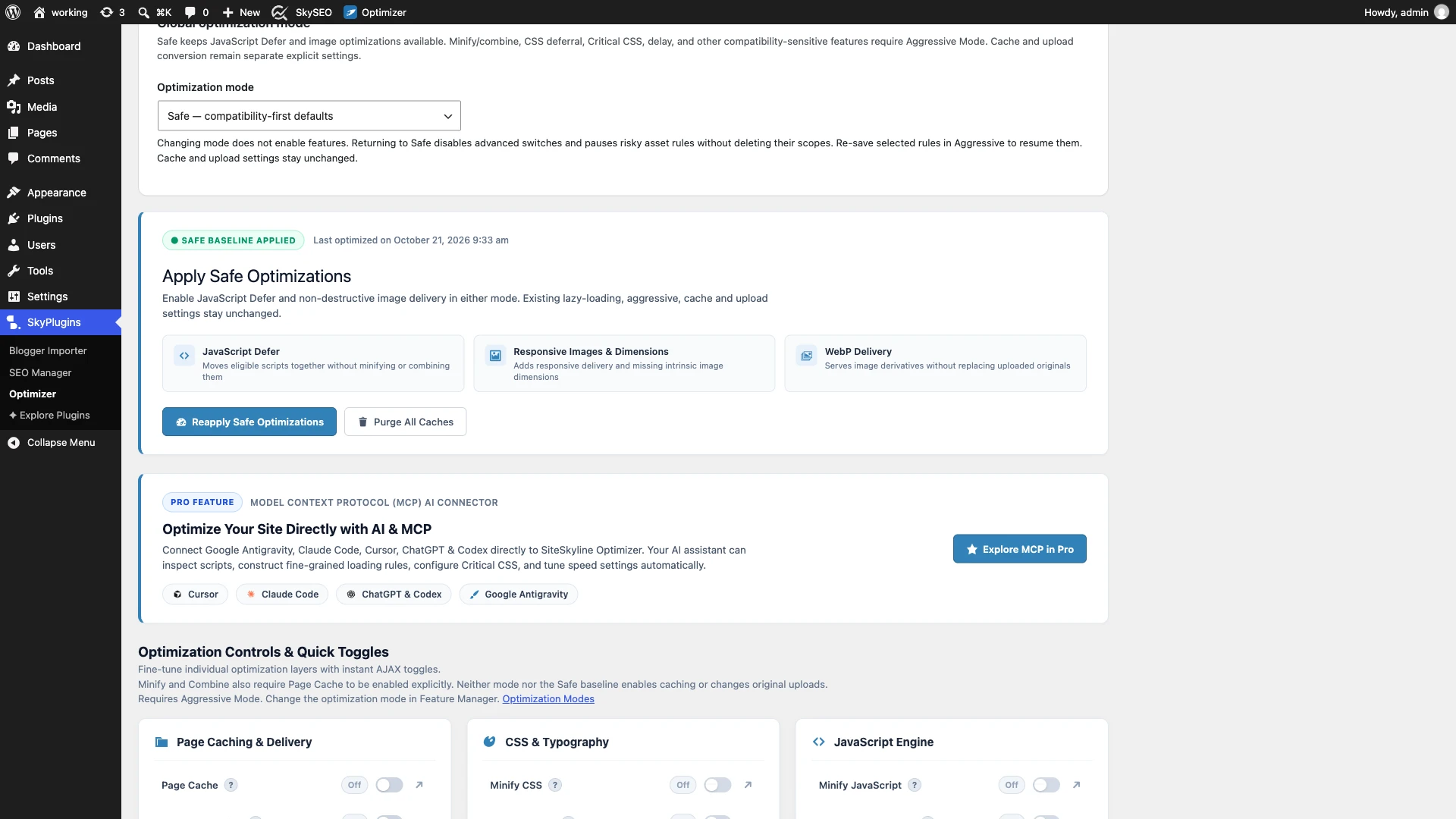
To verify your performance improvements:
- Open a private/incognito browser window.
- Navegue até Google PageSpeed Insights or GTmetrix.
- Enter your website URL and run a fresh audit.
- Check your mobile and desktop scores: you should see immediate reductions in render-blocking resources, faster Largest Contentful Paint (LCP), and a near-zero Cumulative Layout Shift (CLS).
Frequently Asked Questions (FAQs)
Will SOptimizer break my website layout?
No. SOptimizer defaults to Safe Mode, which only enables non-destructive enhancements like JavaScript deferral and responsive image attributes. Advanced features like script combination and Critical CSS remain optional in Aggressive Mode.
Does SOptimizer replace my original uploaded images?
No. The default WebP delivery creates lightweight derivative files on the fly and serves them to compatible browsers, leaving your original full-resolution media files safe in your WordPress uploads directory.
Can I use SOptimizer with WooCommerce?
Yes. SOptimizer includes a dedicated WooCommerce speed suite that automatically unloads heavy cart scripts on non-shop pages and disables cart fragments AJAX bottlenecks.
What should I do if a feature causes an issue?
Simply click the “Dev Mode” button in the top header to instantly bypass all optimizations, or click “Return to Safe” in the mode settings to reset to compatibility-first defaults.
We hope this beginner’s guide helped you learn how to speed up your WordPress site with SOptimizer. You might also want to explore our upcoming guide on How to Eliminate Render-Blocking CSS in WordPress with Critical CSS or check out our tutorial on How to Run a Complete Technical SEO Audit in WordPress.